

INTRODUCTION
TAB CONTROL
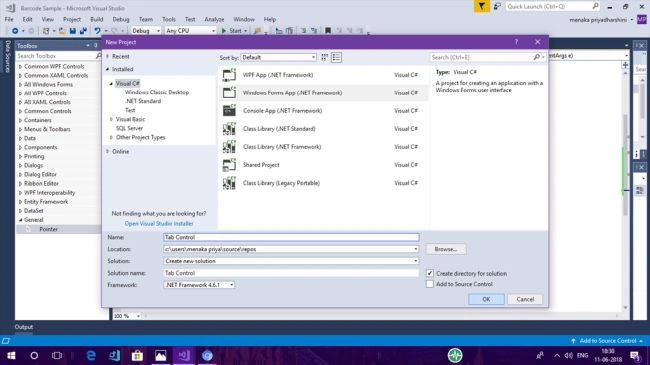
STEP 2 - Drag and Drop
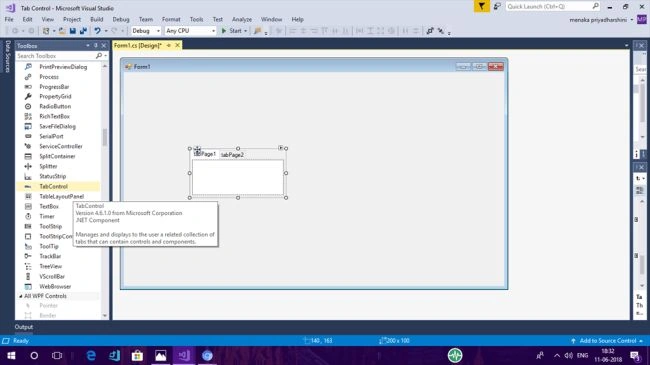
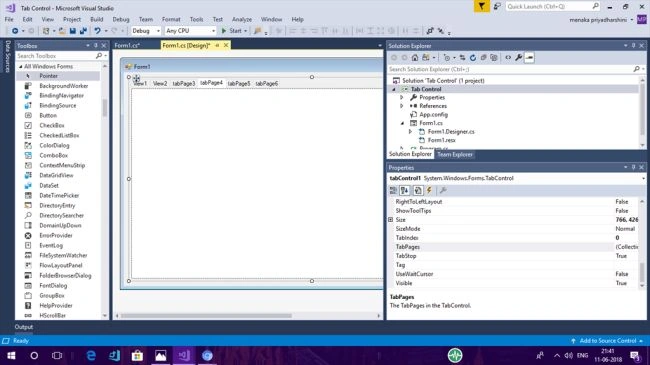
By default, the form designer page will be loaded and you need to drag and drop tab control from the toolbox onto the form in Visual Studio 2017.
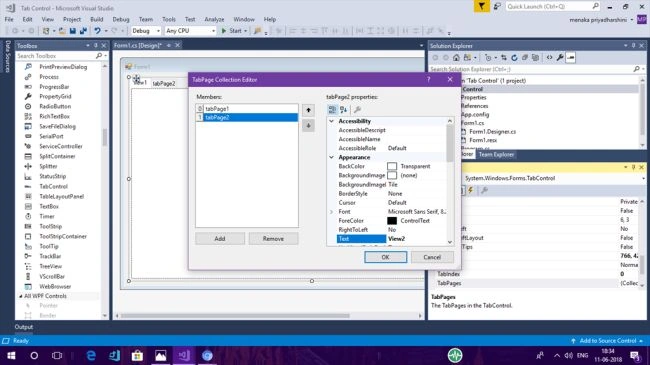
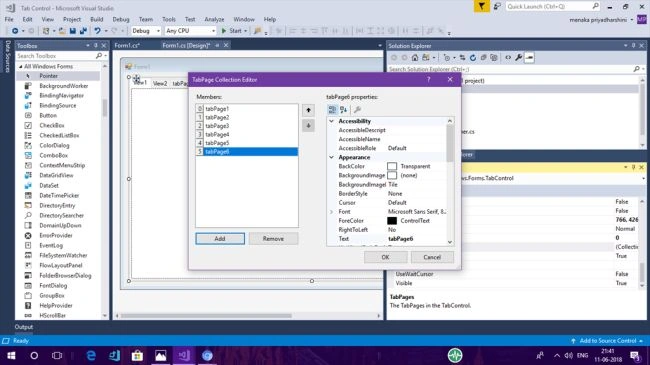
 Right-click on the tab control and select properties. You can see the tab page called "Collection Editor". To add an additional tab, please click the add button. To remove a tab, select it and click remove. You can change the background color of tabs, the font color, and many other things.
PROPERTIES OF TAB CONTROL
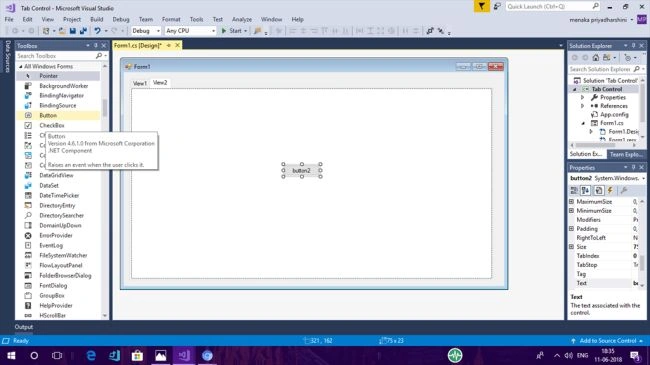
Drag and drop the button control on both tab pages from the toolbox onto the form in Visual Studio 2017.
STEP 3 - CODING
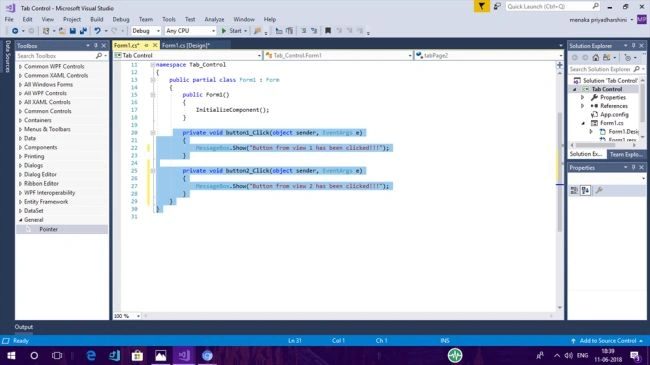
Follow the code given below in the screenshot for the button click event in both tab pages.
- private void button1_Click(object sender, EventArgs e) {
- MessageBox.Show("Button from view 1 has been clicked!!!");
- }
- private void button2_Click(object sender, EventArgs e) {
- MessageBox.Show("Button from view 2 has been clicked!!!");
- }
STEP 4 - OUTPUT
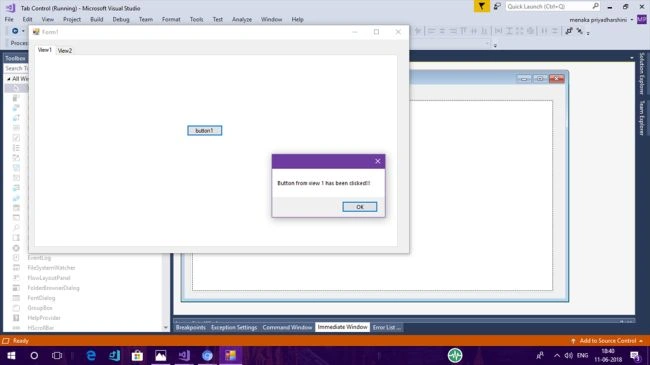
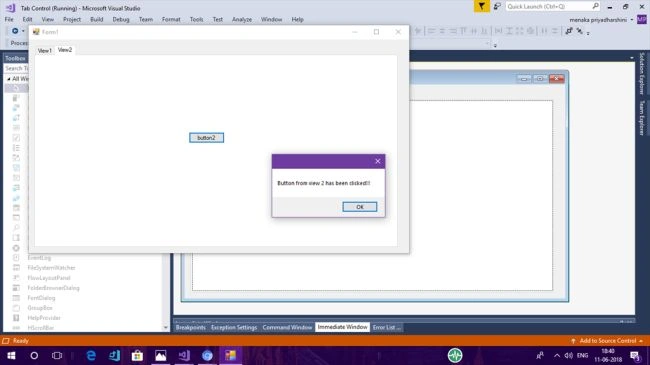
Compile and run the code. The following output is obtained as given below in the screenshot. Whenever the button in the tab pages is clicked the following message box with the text will appear.
 STEP 5 - Additional Setting
Adjusting the Tab pages in the TabControl is important. This mechanism allows you to add a variable number of pages to your tab control. If your application is complex, you might need to add ten pages. If it is simple, you might need only two.
STEP 5 - Additional Setting
Adjusting the Tab pages in the TabControl is important. This mechanism allows you to add a variable number of pages to your tab control. If your application is complex, you might need to add ten pages. If it is simple, you might need only two.
 Summary
The TabControl in the .NET Framework and Windows Forms is a powerful and easy-to-use layout control. It can help you keep clutter in the finished window to a minimum, while not restricting the range of options. I hope this article is interesting. If you have any error or problem with the code feel free to comment below.
Summary
The TabControl in the .NET Framework and Windows Forms is a powerful and easy-to-use layout control. It can help you keep clutter in the finished window to a minimum, while not restricting the range of options. I hope this article is interesting. If you have any error or problem with the code feel free to comment below.
Kevin ToughPosted Jan 24, 2019, 6:06 PM
For a few minutes I was confused about the right click on the tab control as shown here. If you look in the properties window of the tab control itself and find the property "TabPages", click on this and then click on the ellipses button. This will open the collection editor as you see it in this example. From the editor you can change font and etc. for each of the tab pages individually. Thanks Menaka for the article. Namaste, Kevin Tough