

Introduction
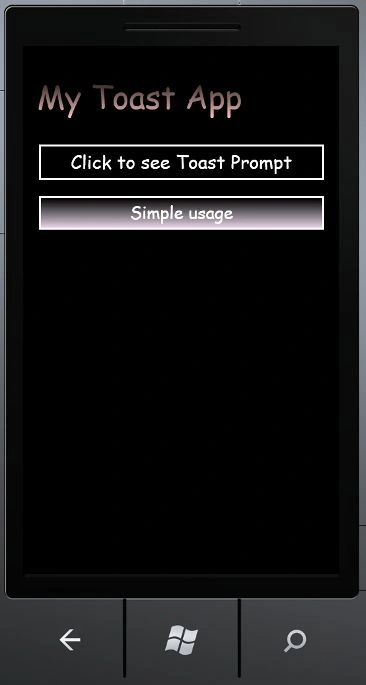
In this article we are going to explore how to work with the ToastPrompt Control in Windows Phone 7. In subsequent details we will learn how it is possible to work with the ToastPrompt control in Windows Phone 7. We will also talk about the ToastPrompt control from the Coding4Fun toolkit in details. Here in this I will explain everything about the main features, available public API, and will provinde many examples in various scenarios. Basically the ToastPrompt is an UI component that derives from the toolkit`s abstract PopUp<T, TPopUpResult> class. We will also talk about a Toast Notification that is shown when the application is not running. Let's take care about it that when we are using a ToastPrompt it will appear for a few seconds on the top of the screen and then will disappear. So to do this you should follow the steps given below.
Step 1: In this step first of all we have to create a Windows Phone application; let's see how to create it:
- Go to Visual Studio 2010
- File->New->Project
- Select the template named Silverlight for Windows Phone
- Select the Windows Phone application
- Give it a name as you want.

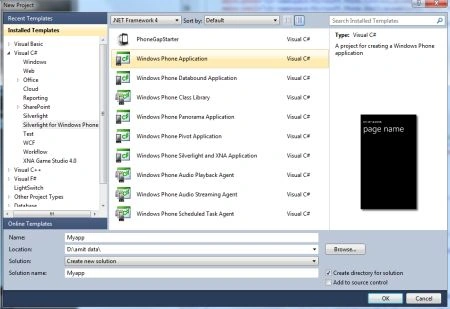
Step 2: In this step we will see from where you add the assembly reference which is shown in the figures given below.
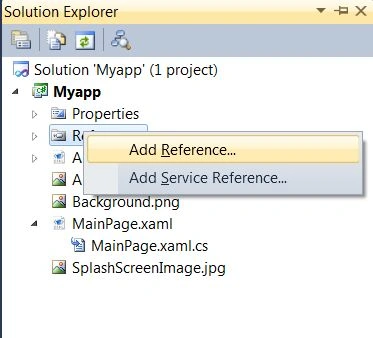
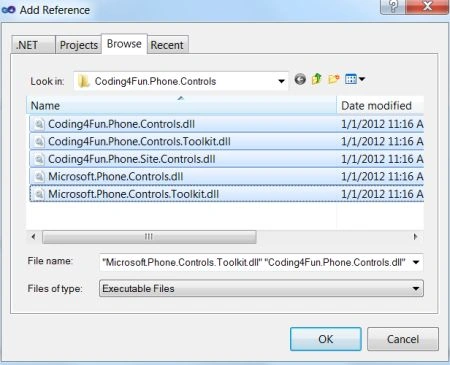
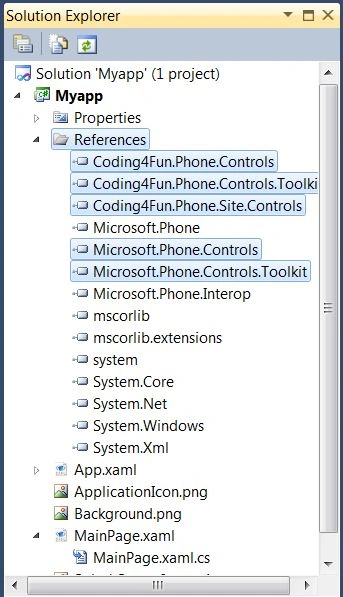
Step 3: In this step you will add a namespace to the MainPage.xaml.cs file which is shown below.

Step 4: In this step you will see the code for the MainPage.xaml.cs file which is shown below.
Code:
using System;
using System.Collections.Generic;
using System.Linq;
using System.Net;
using System.Windows;
using System.Windows.Controls;
using System.Windows.Documents;
using System.Windows.Input;
using System.Windows.Media;
using System.Windows.Media.Animation;
using System.Windows.Shapes;
using Microsoft.Phone.Controls;
using Coding4Fun.Phone.Controls;
using System.Windows.Media.Imaging;
namespace Myapp
{
public partial class MainPage : PhoneApplicationPage
{
// Constructor
public MainPage()
{
InitializeComponent();
}
void MyTP_Completed(object sender, PopUpEventArgs<string, PopUpResult> e)
{
//add some code here
}
private void Mybutton1_Click(object sender, RoutedEventArgs e)
{
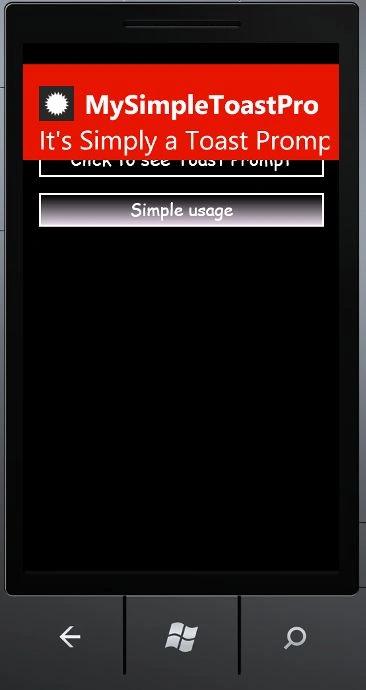
ToastPrompt MyTP = new ToastPrompt();
MyTP.Title = "MySimpleToastPromt";
MyTP.Message = "It's Simply a Toast Prompt";
MyTP.FontSize = 40;
MyTP.TextOrientation = System.Windows.Controls.Orientation.Vertical;
MyTP.ImageSource = new BitmapImage(new Uri("ApplicationIcon.png", UriKind.RelativeOrAbsolute));
MyTP.Completed += MyTP_Completed;
MyTP.Show();
}
private void Mybutton2_Click(object sender, RoutedEventArgs e)
{
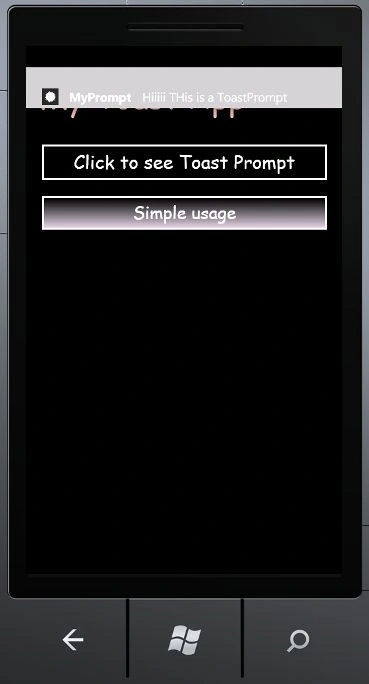
var MyTP = new ToastPrompt
{
Title = "MyPrompt",
Message = "Hiiiii THis is a ToastPrompt",
ImageSource = new BitmapImage(new Uri("..\\ApplicationIcon.png", UriKind.RelativeOrAbsolute)),
Background=new SolidColorBrush(Colors.LightGray)
};
MyTP.Show();
}
}
}
Step 5: In this step you will see the code for the MainPage.xaml file which is show below.
Code:
<phone:PhoneApplicationPage
x:Class="Myapp.MainPage"
xmlns="http://schemas.microsoft.com/winfx/2006/xaml/presentation"
xmlns:x="http://schemas.microsoft.com/winfx/2006/xaml"
xmlns:phone="clr-namespace:Microsoft.Phone.Controls;assembly=Microsoft.Phone"
xmlns:shell="clr-namespace:Microsoft.Phone.Shell;assembly=Microsoft.Phone"
xmlns:d="http://schemas.microsoft.com/expression/blend/2008"
xmlns:mc="http://schemas.openxmlformats.org/markup-compatibility/2006"
Join the conversation! Your thoughts help the community grow.