
- In code (like normal Widows Forms).
- In XAML, HTML like code.
Create the Activity Library
Step 1 Open Visual Studio
2010.
- Select File->New ->Project.
- Select Activity Library.
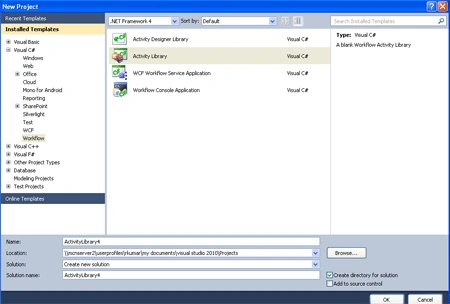
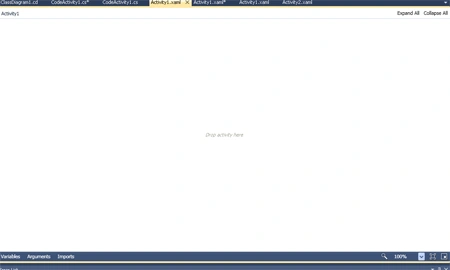
After clicking the OK option, the Activity1.Xaml Window opens.
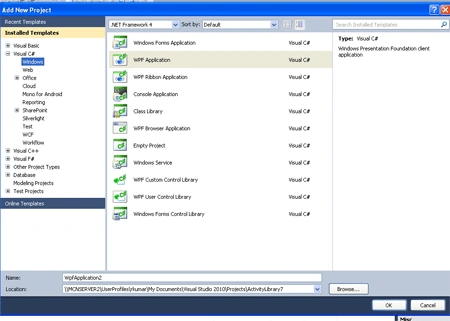
Create a WPF Application :
Step 2 : Go to Solution Explorer and
right-click.
- Go to Add-> New Item->WPF Application.
- Write the below code.
- Add Stack panel with a Main Window.xaml.
Panel :
<Window
x:Class="WpfApplication1.MainWindow"
xmlns="http://schemas.microsoft.com/winfx/2006/xaml/presentation"
xmlns:x="http://schemas.microsoft.com/winfx/2006/xaml"
Title="MainWindow"
Height="350"
Width="525">
<Grid>
<StackPanel>
<Button
Content="Run
activity2"
HorizontalAlignment="Left"
Name="button1"
Margin="20"
Click="button1_Click" />
</StackPanel>
</Grid>
</Window>
Step 3 : Now go to the WPF
Application and right-click.
- Go to Add Reference->.NET.
- Select System.Activities, ActivityLibrary.
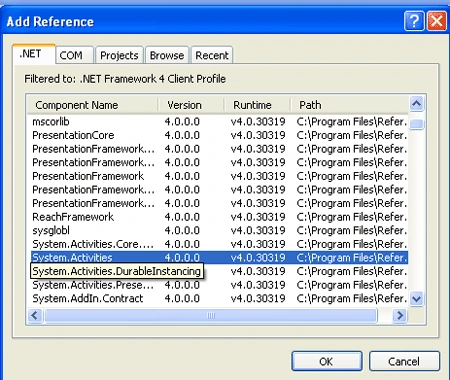
Step 4 : Add new Activity for the new WPF Application.
- Go to Solution Explorer and right-click.
- Select Add-> New Item->Activity.
Step 5 : Now go to Activity1.xaml option and drag activity from Toolbox.
- Select Flowchart, WritelLine activity.
- Define Text Name activtiy2.
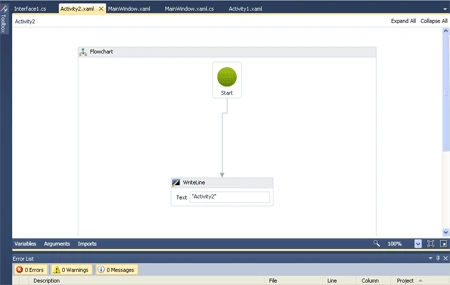
Step 6 : Now Go to the MaineWindow.xaml.cs option and write the below code.
Code :
using System;
using
System.Collections.Generic;
using
System.Linq;
using
System.Text;
using
System.Windows;
using
System.Windows.Controls;
using
System.Windows.Data;
using
System.Windows.Documents;
using
System.Windows.Input;
using
System.Windows.Media;
using
System.Windows.Media.Imaging;
using
System.Windows.Navigation;
using
System.Windows.Shapes;
using
System.Activities;
using
ActivityLibrary7;
namespace
WpfApplication1
{
///
<summary>
///
Interaction logic for MainWindow.xaml
///
</summary>
public
partial class
MainWindow :
Window
{
WorkflowApplication _application;
public MainWindow()
{
InitializeComponent();
}
private
void button1_Click(object sender,
RoutedEventArgs e)
{
_application = new
WorkflowApplication(new
Activity2());
_application.Run();
MessageBox.Show("my
workflow");
}
}
}
Step 7 : Now again go to
MaineWindow.xaml option.
- Add a Click - Event handler to MaineWindow.xaml.cs option.
Event :
private
void button1_Click(object sender,
RoutedEventArgs e)
{
_application = new
WorkflowApplication(new
Activity2());
_application.Run();
MessageBox.Show("my
workflow");
}
Step 8 : Go to Solution Explorer and
right-click.
- Select WPF project and right-click.
- Select Set As Start Project.
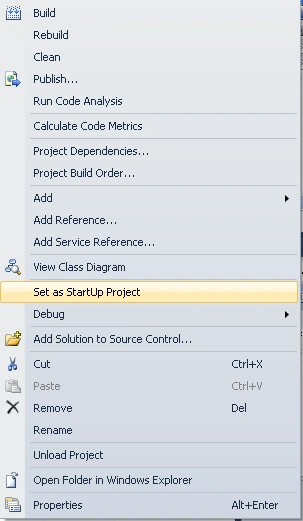
Step 9 : Now Press F5 and run the application.
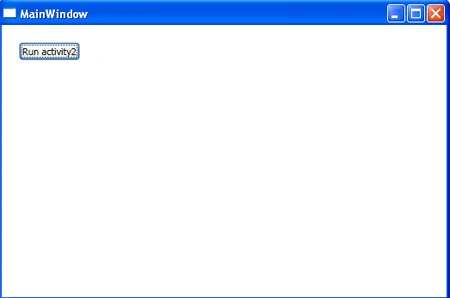
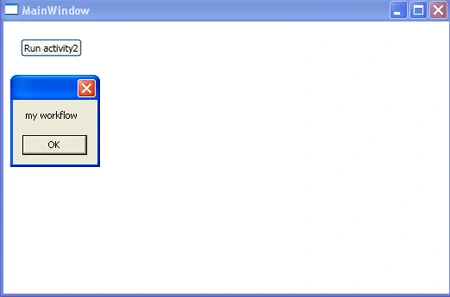
Step 10 : When we click in runactivity2 then a window pops up showing my workflow.
veera maniPosted Apr 5, 2012, 6:30 AM
Reading this article is a waste of time
AartiPosted Nov 17, 2011, 2:36 AM
Your article is really good and helpful