Xamarin.Forms code runs on multiple platforms - each of which has its own filesystem. This means that reading and writing files are the most easily done tasks using native file APIs on each platform. Alternatively, embedded resources are also a simpler solution to distribute the data files with an app.
Cognitive Services
Infuse your apps, websites, and bots with intelligent algorithms to see, hear, speak, understand and interpret your user needs through natural methods of communication. Transform your business with AI today.
Use AI to solve business problems
- Vision
- Speech
- Knowledge
- Search
- Language
Because the Cognitive Services APIs harness the power of machine learning, we are able to bring advanced intelligence into our product without the need to have a team of data scientists on hand.
Prerequisites
- Visual Studio 2017(Windows or Mac)
- Vision API Key
Setting up a Xamarin.Forms Project
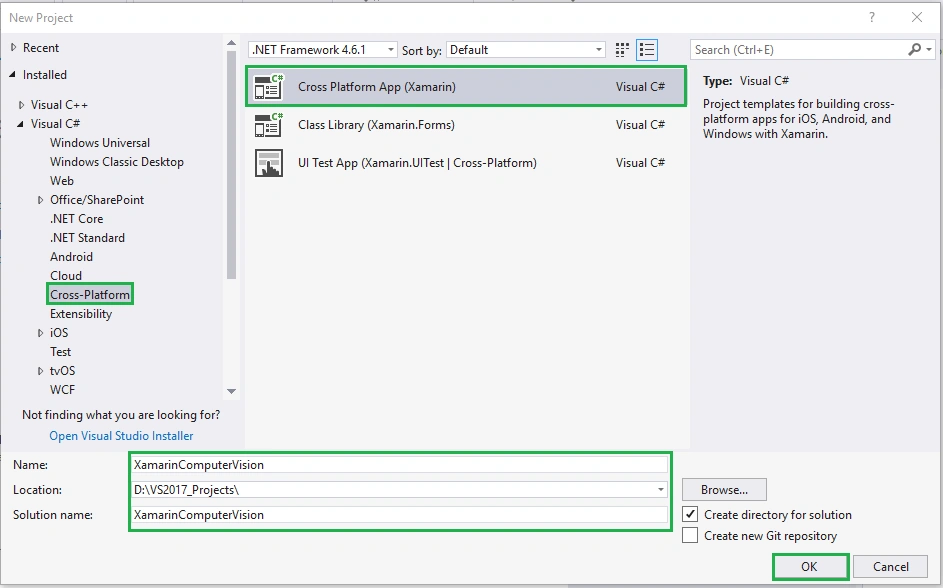
Start by creating a new Xamarin.Forms project. You’ll learn more by going through the steps yourself. Choose the Cross-platform App project under Visual C# --> Cross-platform in the New Project dialog.
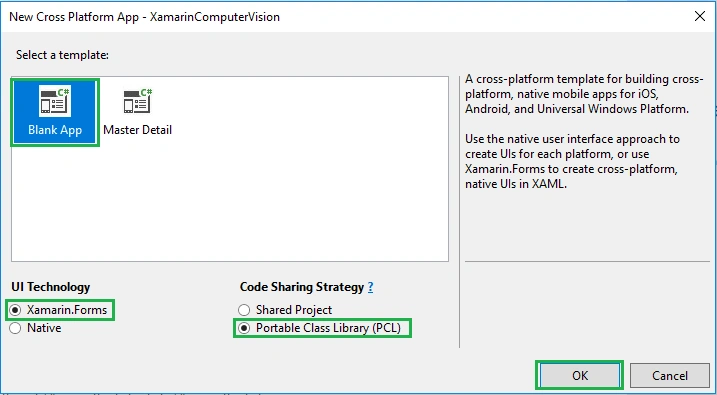
Now, select the Blank App and choose Portable Class Library (PCL).
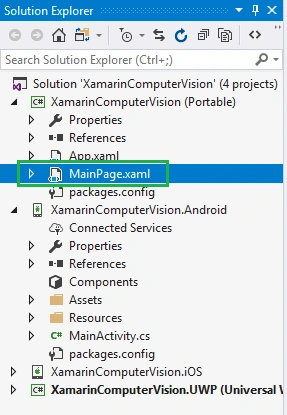
Subsequently, go to the solution. In there, you get all the files and sources of your project (PCL). Now, select XAML page and double-click to open the MainPage.Xaml page.
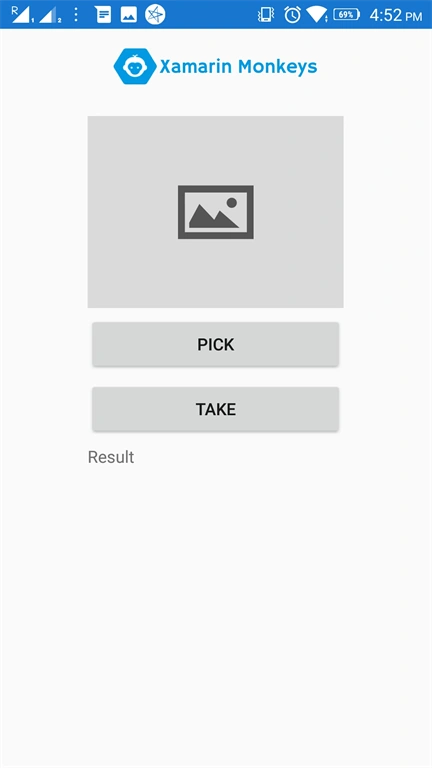
You now have a basic Xamarin.Forms app. Click the Play button to try it out.
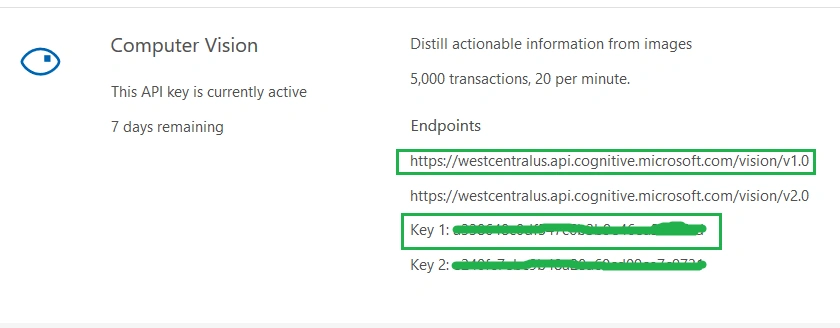
Get Computer Vision API Key
In this step, get computer Vision API Key. Go to the following link.
https://azure.microsoft.com/en-in/services/cognitive-services/
Click "Try Cognitive Services for free".
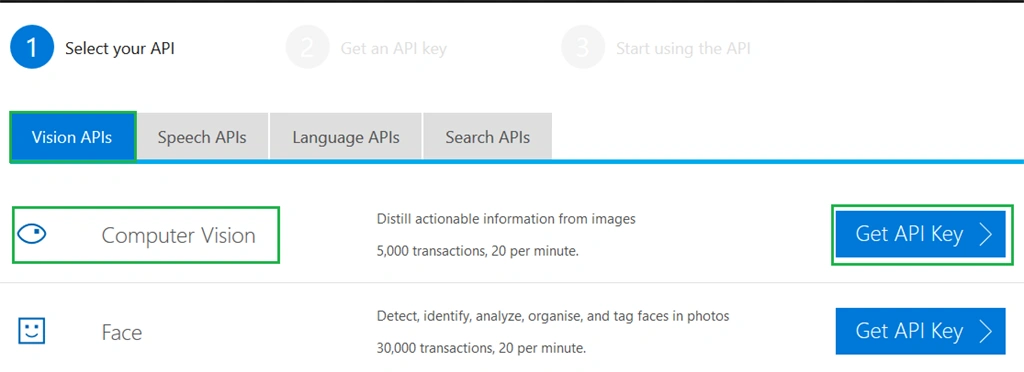
Now, you can choose Computer Vision under Vision APIs. Afterward, click "Get API Key".
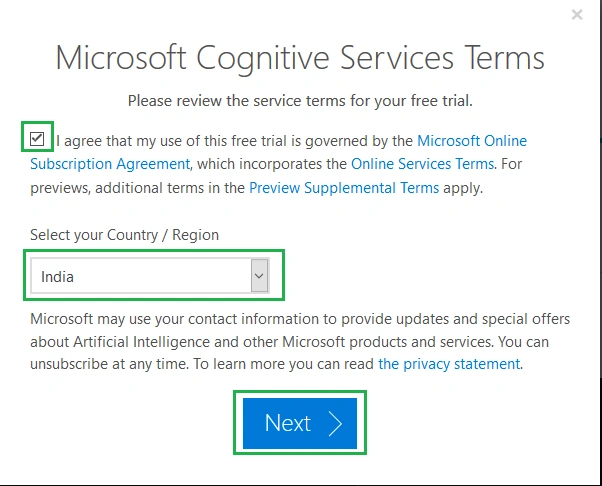
Read the terms, and select your country/region. Afterward, click "Next".
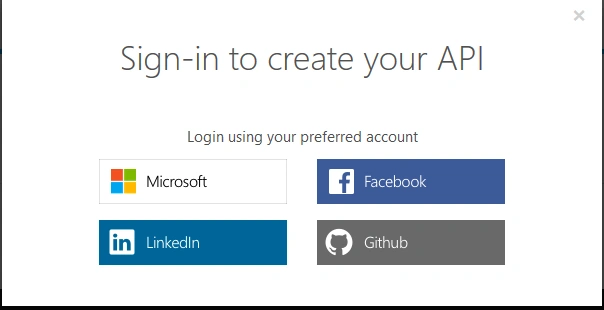
Now, log in using your preferred account.
Now, the API Key is activated. You can use it now.
The trial key is available only 7 days. If you want a permanent key, refer to the following article.
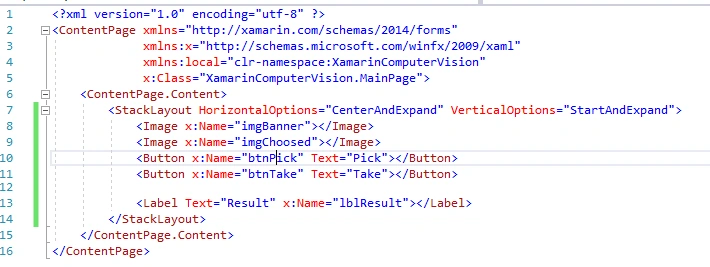
Setting up the User Interface
Go to MainPage.Xaml and write the following code.
MainPage.xaml
- <?xml version="1.0" encoding="utf-8" ?>
- <ContentPage xmlns="http://xamarin.com/schemas/2014/forms" xmlns:x="http://schemas.microsoft.com/winfx/2009/xaml" xmlns:local="clr-namespace:XamarinComputerVision" x:Class="XamarinComputerVision.MainPage">
- <ContentPage.Content>
- <ScrollView>
- <StackLayout HorizontalOptions="CenterAndExpand" VerticalOptions="StartAndExpand">
- <Image x:Name="imgBanner"></Image>
- <Image x:Name="imgChoosed" HeightRequest="200"></Image>
- <Button x:Name="btnPick" Text="Pick" Clicked="btnPick_Clicked"></Button>
- <Button x:Name="btnTake" Text="Take" Clicked="btnTake_Clicked"></Button>
- <Label Text="Result" x:Name="lblResult"></Label> </StackLayout>
- </ScrollView>
- </ContentPage.Content>
- </ContentPage>
NuGet Packages
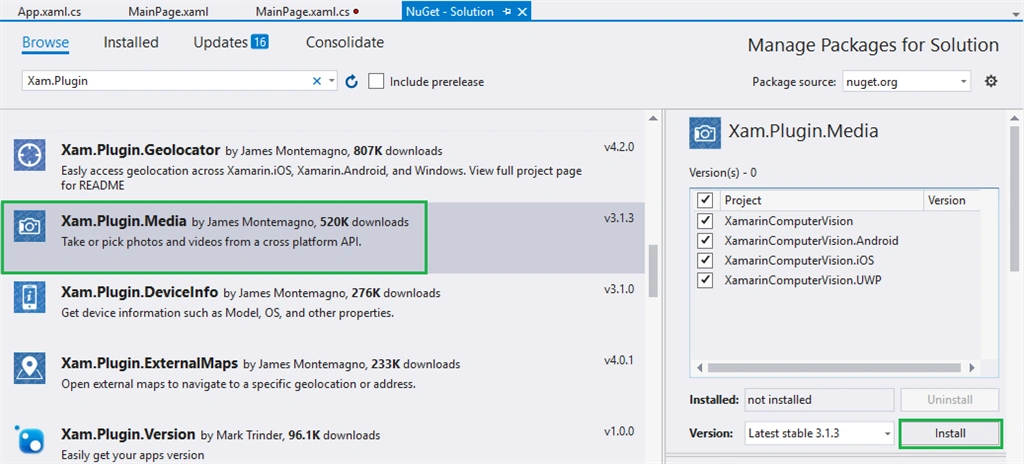
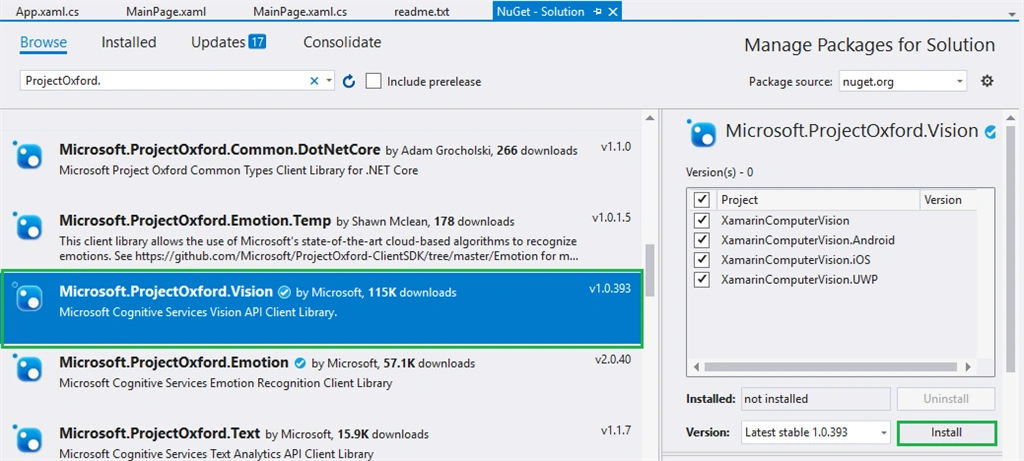
Now, add the following NuGet Packages.
- Xam.Plugin.Media
- Microsoft.ProjectOxford.Vision
Go to Solution Explorer and select your solution. Right-click and select "Manage NuGet Packages for Solution".
Xam.Plugin.Media
Microsoft.ProjectOxford.Vision
Permissions - for Android
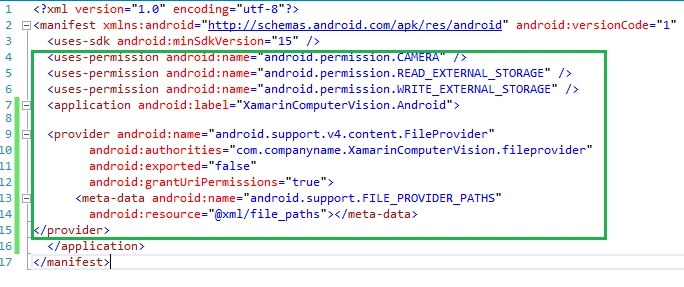
In this step give the following required permissions to your app:
- CAMERA
- READ_EXTERNAL_STORAGE
- WRITE_EXTERNAL_STORAGE
AndroidManifest.xml
- <?xml version="1.0" encoding="utf-8"?>
- <manifest xmlns:android="http://schemas.android.com/apk/res/android" android:versionCode="1" android:versionName="1.0" package="com.companyname.XamarinComputerVision" android:installLocation="auto">
- <uses-sdk android:minSdkVersion="15" />
- <uses-permission android:name="android.permission.CAMERA" />
- <uses-permission android:name="android.permission.READ_EXTERNAL_STORAGE" />
- <uses-permission android:name="android.permission.WRITE_EXTERNAL_STORAGE" />
- <application android:label="XamarinComputerVision.Android">
- <provider android:name="android.support.v4.content.FileProvider" android:authorities="com.companyname.XamarinComputerVision.fileprovider" android:exported="false" android:grantUriPermissions="true">
- <meta-data android:name="android.support.FILE_PROVIDER_PATHS" android:resource="@xml/file_paths"></meta-data>
- </provider>
- </application>
- </manifest>
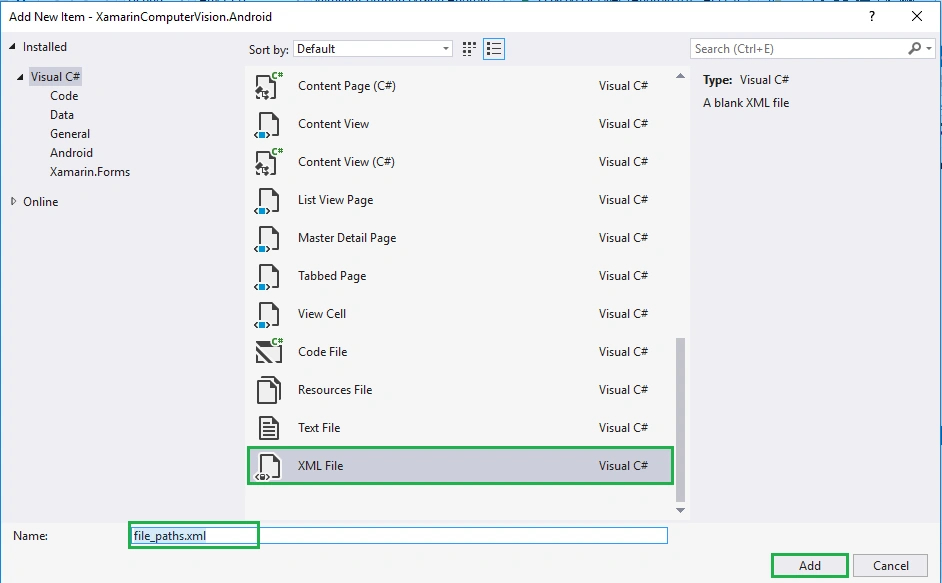
In this step, create a xml file under Resource-->xml folder for get file paths.
Go to Solution—>Android —>Right click—>New—>Xml—> file_paths.xml
Now, write the following code to get file paths.
file_paths.xml
- <?xml version="1.0" encoding="utf-8" ?>
- <paths xmlns:android="http://schemas.android.com/apk/res/android">
- <external-files-path name="my_images" path="Pictures" />
- <external-files-path name="my_movies" path="Movies" />
- </paths>
Analyze Image
MainPage.Xaml.cs
Now, write the following code for analyzing image using Cognitive Service Vision API.
- public async Task<AnalysisResult> GetImageDescription(Stream imageStream)
- {
- VisionServiceClient visionClient = new VisionServiceClient("a338648c0df347c6b3b9e46ea2022fcd", "https://westcentralus.api.cognitive.microsoft.com/vision/v2.0");
- VisualFeature[] features = { VisualFeature.Tags, VisualFeature.Categories, VisualFeature.Description };
- return await visionClient.AnalyzeImageAsync(imageStream, features.ToList(), null);
- }
Pick Image
Now, write the following code to pick an image from your device.
MainPage.xaml.cs
- private async void btnPick_Clicked(object sender, EventArgs e) {
- await CrossMedia.Current.Initialize();
- try {
- var file = await Plugin.Media.CrossMedia.Current.PickPhotoAsync(new Plugin.Media.Abstractions.PickMediaOptions {
- PhotoSize = Plugin.Media.Abstractions.PhotoSize.Medium
- });
- if (file == null) return;
- imgChoosed.Source = ImageSource.FromStream(() => {
- var stream = file.GetStream();
- return stream;
- });
- var result = await GetImageDescription(file.GetStream());
- lblResult.Text = null;
- file.Dispose();
- foreach(string tag in result.Description.Tags) {
- lblResult.Text = lblResult.Text + "\n" + tag;
- }
- } catch (Exception ex) {
- string test = ex.Message;
- }
- }
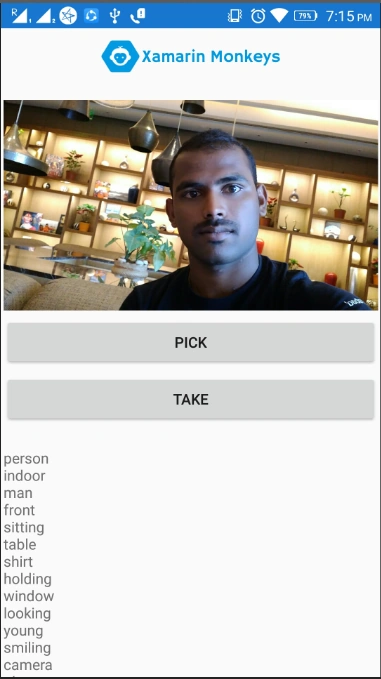
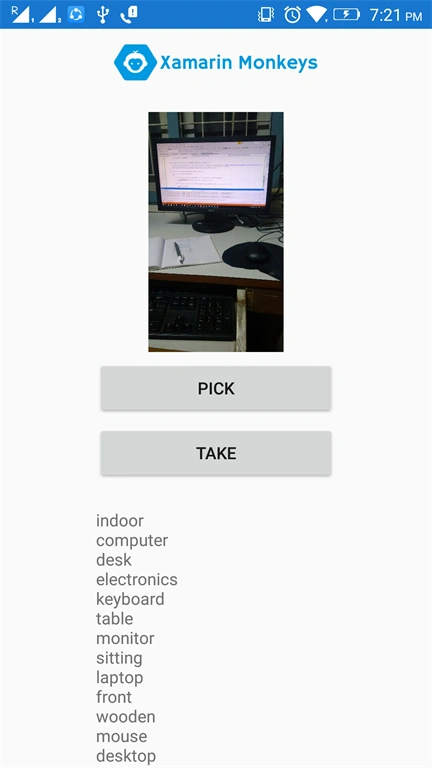
Click the Play button to try it out.
Take Image
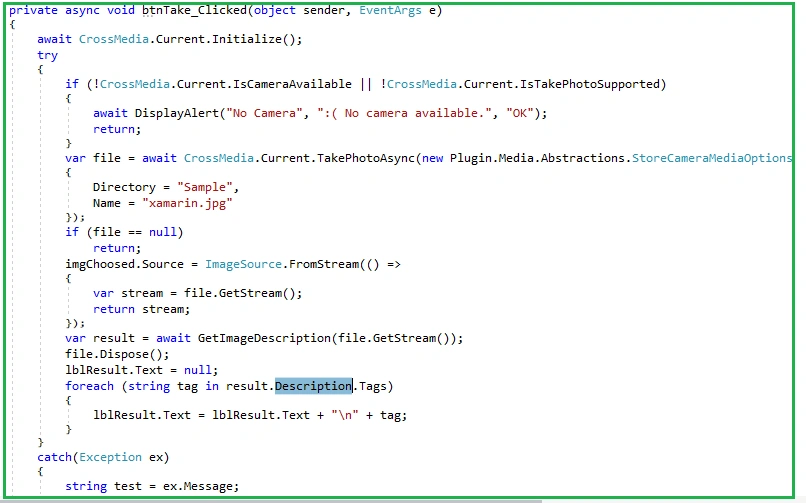
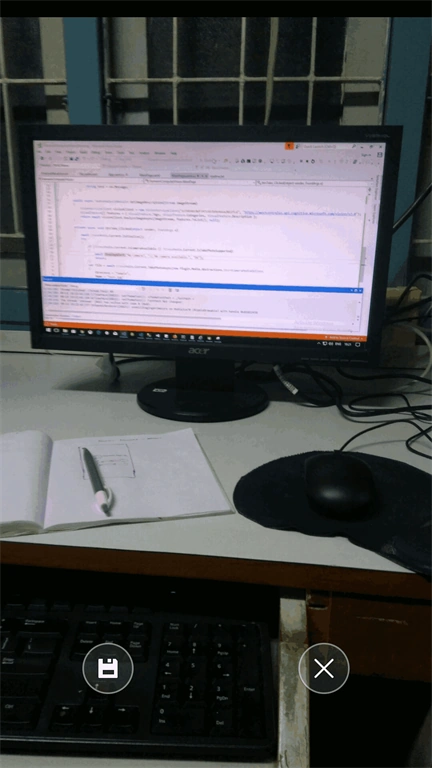
Now, write the following code to take an image using the camera.
MainPage.xaml.cs
- private async void btnTake_Clicked(object sender, EventArgs e) {
- await CrossMedia.Current.Initialize();
- try {
- if (!CrossMedia.Current.IsCameraAvailable || !CrossMedia.Current.IsTakePhotoSupported) {
- await DisplayAlert("No Camera", ":( No camera available.", "OK");
- return;
- }
- var file = await CrossMedia.Current.TakePhotoAsync(new Plugin.Media.Abstractions.StoreCameraMediaOptions {
- Directory = "Sample",
- Name = "xamarin.jpg"
- });
- if (file == null) return;
- imgChoosed.Source = ImageSource.FromStream(() => {
- var stream = file.GetStream();
- return stream;
- });
- var result = await GetImageDescription(file.GetStream());
- file.Dispose();
- lblResult.Text = null;
-
- foreach(string tag in result.Description.Tags) {
- lblResult.Text = lblResult.Text + "\n" + tag;
- }
- } catch (Exception ex) {
- string test = ex.Message;
- }
- }
Click the Play button to try it out.
Full Code - MainPage.Xaml.cs
MainPage.Xaml.cs
- using Microsoft.ProjectOxford.Vision;
- using Microsoft.ProjectOxford.Vision.Contract;
- using Plugin.Media;
- using System;
- using System.Collections.Generic;
- using System.IO;
- using System.Linq;
- using System.Text;
- using System.Threading.Tasks;
- using Xamarin.Forms;
- namespace XamarinComputerVision {
- public partial class MainPage: ContentPage {
- public MainPage() {
- InitializeComponent();
- imgBanner.Source = ImageSource.FromResource("XamarinComputerVision.images.banner.png");
- imgChoosed.Source = ImageSource.FromResource("XamarinComputerVision.images.thumbnail.jpg");
- }
- private async void btnPick_Clicked(object sender, EventArgs e) {
- await CrossMedia.Current.Initialize();
- try {
- var file = await Plugin.Media.CrossMedia.Current.PickPhotoAsync(new Plugin.Media.Abstractions.PickMediaOptions {
- PhotoSize = Plugin.Media.Abstractions.PhotoSize.Medium
- });
- if (file == null) return;
- imgChoosed.Source = ImageSource.FromStream(() => {
- var stream = file.GetStream();
- return stream;
- });
- var result = await GetImageDescription(file.GetStream());
- lblResult.Text = null;
- file.Dispose();
- foreach(string tag in result.Description.Tags) {
- lblResult.Text = lblResult.Text + "\n" + tag;
- }
- } catch (Exception ex) {
- string test = ex.Message;
- }
- }
- public async Task < AnalysisResult > GetImageDescription(Stream imageStream) {
- VisionServiceClient visionClient = new VisionServiceClient("a338648c0df347c6b3b9e46ea2022fcd", "https://westcentralus.api.cognitive.microsoft.com/vision/v2.0");
- VisualFeature[] features = {
- VisualFeature.Tags,
- VisualFeature.Categories,
- VisualFeature.Description
- };
- return await visionClient.AnalyzeImageAsync(imageStream, features.ToList(), null);
- }
- private async void btnTake_Clicked(object sender, EventArgs e) {
- await CrossMedia.Current.Initialize();
- try {
- if (!CrossMedia.Current.IsCameraAvailable || !CrossMedia.Current.IsTakePhotoSupported) {
- await DisplayAlert("No Camera", ":( No camera available.", "OK");
- return;
- }
- var file = await CrossMedia.Current.TakePhotoAsync(new Plugin.Media.Abstractions.StoreCameraMediaOptions {
- Directory = "Sample",
- Name = "xamarin.jpg"
- });
- if (file == null) return;
- imgChoosed.Source = ImageSource.FromStream(() => {
- var stream = file.GetStream();
- return stream;
- });
- var result = await GetImageDescription(file.GetStream());
- file.Dispose();
- lblResult.Text = null;
-
- foreach(string tag in result.Description.Tags) {
- lblResult.Text = lblResult.Text + "\n" + tag;
- }
- } catch (Exception ex) {
- string test = ex.Message;
- }
- }
- }
- }
Click the Play button to try it out.
I hope you have understood how to use Computer Vision API using Cognitive Service in Xamarin.Forms.
Thanks for reading. Please share comments and feedback.





Ajay KumarPosted Mar 29, 2019, 5:44 AM
This library is not supporting .netstandard version2, "Microsoft.ProjectOxford.Vision" do you have any idea how can we user in NET version 2
Ajay KumarPosted Mar 29, 2019, 5:42 AM
I am using Xamarin from and try to run on all os. but in android its crashing, Please can you help me
Ajay KumarPosted Mar 29, 2019, 5:40 AM
Hi Delpin,I ma trying to run on android device , but getting File path error, where can give the path
Vasilis LinakisPosted Jul 8, 2018, 8:53 AM
Hi Raj, your code is great but I keep getting a "Storage Permission Denied", although I have explicitly set all permissions in the manifest file. Can you help in any way?