

What are Xamarin and Xamarin Forms?
- Xamarin is a Cross-Platform to develop Multi-Platform applications
- Xamarin is a Shared code(C#) but Separately Designs UIs Android(java), Windows(C#), IOS (Objective – C & XCODE).
- Xamarin forms UIs & Shared code(C#) are the same. To Develop multi-platforms applications, Run the all projects (Android, Windows, IOS) at the Same Time.
Prerequisites
- Visual Studio 2017 Enterprise.
- The steps are given below are required to be followed in order to Design TabbedPage View Application Using Xamarin Forms.
Step 1
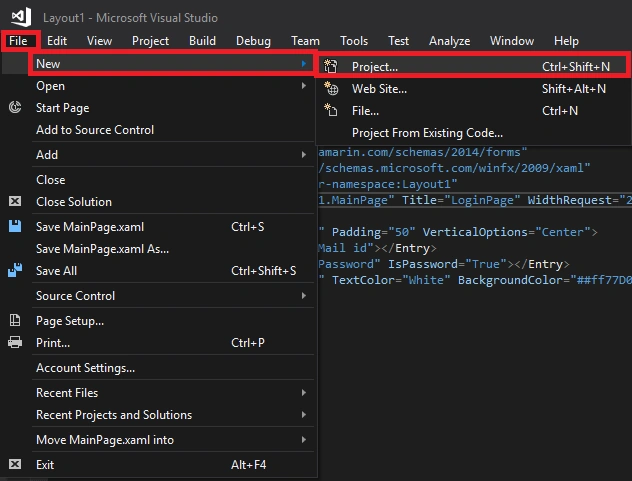
- Go to the Visual Studio
- Click File -> New -> Project
Step 2
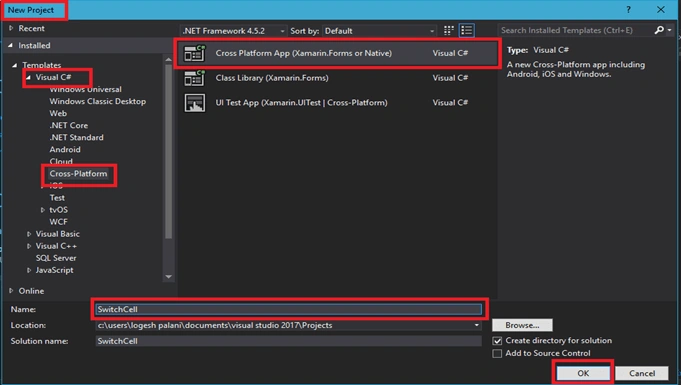
- In this step as, Create Project
- Click C# -> Cross Platform(Android, IOS, Windows) -> Cross Platform App(Native orXamarin forms).
- Enter the Application Name, followed by clicking OK
Step 3
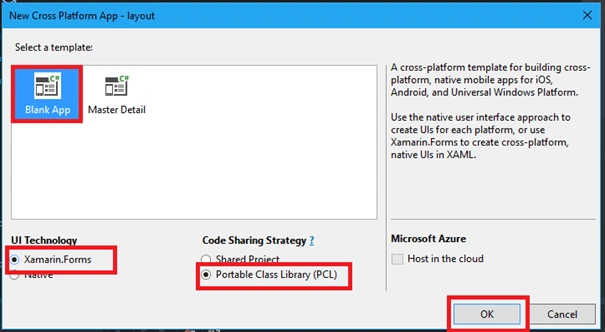
- Afterwareds go to New Cross Platform app Click Blank App ->
- UIs Technology as Click Xamarin forums ->
- Code sharing statergy is Click PCL(Portable Class Library) ->
- Click OK
Step 4
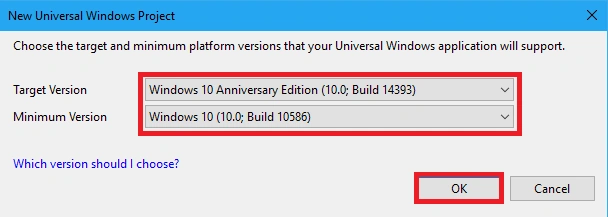
- In UWP Project Select Target version & Minimum Version, followed by Clicking OK
Step 5.1
- In this step,
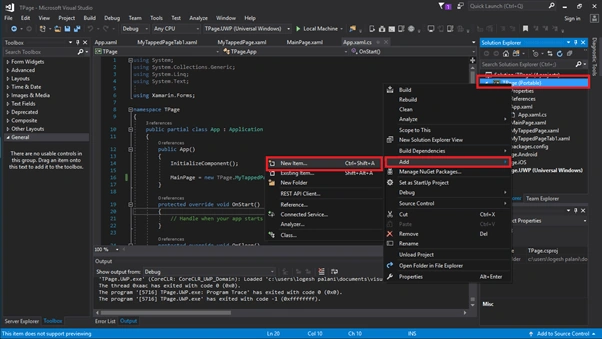
- Go to Solution Explorer -> Portable Class Library, followed by Right Clicking Portable Class Library->Add -> Select New Item
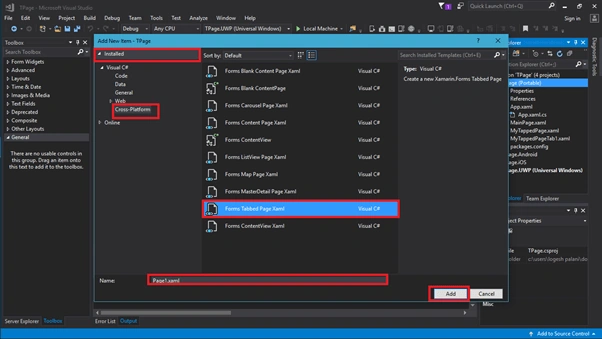
Select Visual C# -> Click Cross Platform -> Followed by Clicking Forms Tabbed Page Xaml and Enter the Page Name then Click Add
Aterwards Go to New Added Page of myTabbedPage and insert the code Given Below and save it
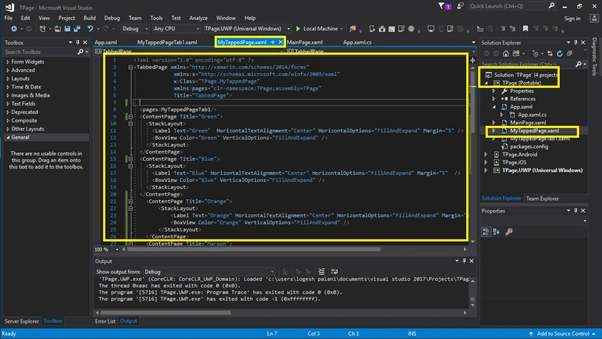
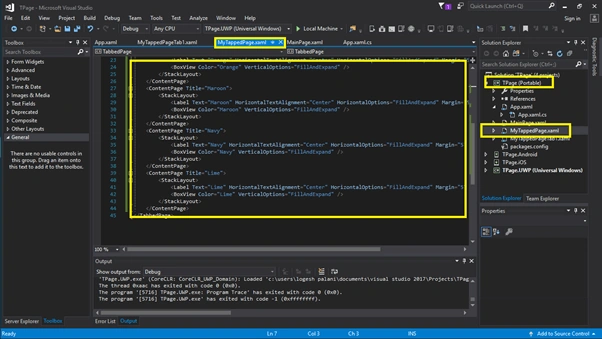
- <?xml version="1.0" encoding="utf-8" ?>
- <TabbedPage xmlns="http://xamarin.com/schemas/2014/forms"
- xmlns:x="http://schemas.microsoft.com/winfx/2009/xaml"
- x:Class="TPage.MyTappedPage"
- xmlns:pages="clr-namespace:TPage;assembly=TPage"
- Title="TabbedPage">
- <ContentPage Title="Green">
- <StackLayout>
- <Label Text="Green"
- HorizontalTextAlignment="Center"
- HorizontalOptions="FillAndExpand"
- Margin="5" />
- <BoxView Color="Green"
- VerticalOptions="FillAndExpand" />
- </StackLayout>
- </ContentPage>
- <ContentPage Title="Blue">
- <StackLayout>
- <Label Text="Blue"
- HorizontalTextAlignment="Center"
- HorizontalOptions="FillAndExpand"
- Margin="5" />
- <BoxView Color="Blue"
- VerticalOptions="FillAndExpand" />
- </StackLayout>
- </ContentPage>
- <ContentPage Title="Orange">
- <StackLayout>
- <Label Text="Orange"
- HorizontalTextAlignment="Center"
- HorizontalOptions="FillAndExpand"
- Margin="5" />
- <BoxView Color="Orange"
- VerticalOptions="FillAndExpand" />
- </StackLayout>
- </ContentPage>
- <ContentPage Title="Maroon">
- <StackLayout>
- <Label Text="Maroon"
- HorizontalTextAlignment="Center"
- HorizontalOptions="FillAndExpand"
- Margin="5" />
- <BoxView Color="Maroon"
- VerticalOptions="FillAndExpand" />
- </StackLayout>
- </ContentPage>
- <ContentPage Title="Navy">
- <StackLayout>
- <Label Text="Navy"
- HorizontalTextAlignment="Center"
- HorizontalOptions="FillAndExpand"
- Margin="5" />
- <BoxView Color="Navy"
- VerticalOptions="FillAndExpand" />
- </StackLayout>
- </ContentPage>
- <ContentPage Title="Lime">
- <StackLayout>
- <Label Text="Lime"
- HorizontalTextAlignment="Center"
- HorizontalOptions="FillAndExpand"
- Margin="5" />
- <BoxView Color="Lime"
- VerticalOptions="FillAndExpand" />
- </StackLayout>
- </ContentPage>
- </TabbedPage>
Step 5.2
- In this step,
- Go to Solution Explorer -> Portable Class Library, followed by Clicking Xaml-> Then Open App.xaml.cs Page and edit to change MainPage is tapped Page
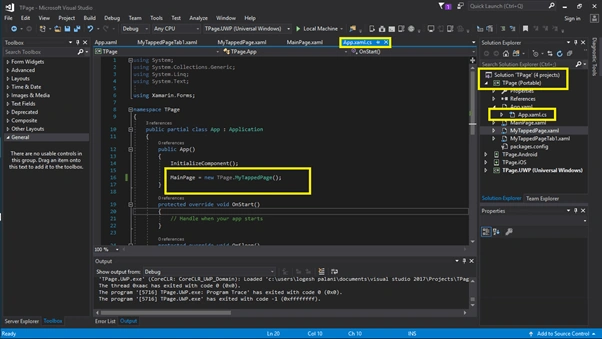
- using System;
- using System.Collections.Generic;
- using System.Linq;
- using System.Text;
- using Xamarin.Forms;
- namespace TPage
- {
- public partial class App : Application
- {
- public App()
- {
- InitializeComponent();
- MainPage = new TPage.MyTappedPage();
- }
- protected override void OnStart()
- {
- // Handle when your app starts
- }
- protected override void OnSleep()
- {
- // Handle when your app sleeps
- }
- protected override void OnResume()
- {
- // Handle when your app resumes
- }
- }
- }
Step 6
- Click Build menu and go to Configuration Manager
- Configure your Android, Windows, IOS Depoly & Build Settings, followed by clicking Close
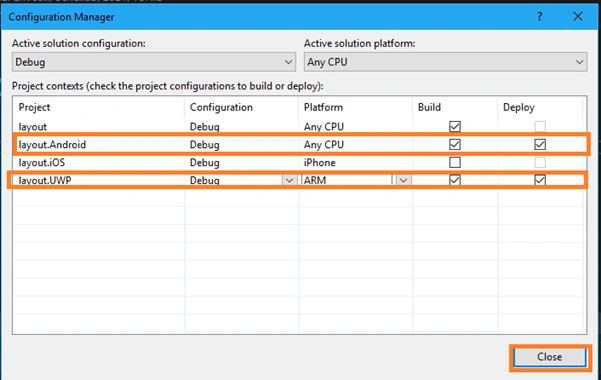
Step 7
- Go to the Solution Explorer -> Click UWP Application, ->Right Click and Add the Reference
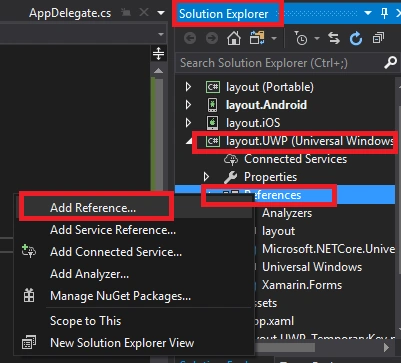
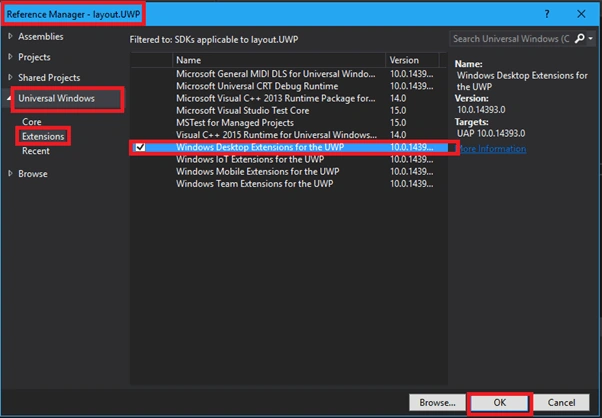
Click Cross Platform ->Extension->add the Extention given below
- Windows Desktop Extensions for UWP 10.0.143953
Step 8
- In this step, select Build & Deploy option, followed by clicking start your Application
- Now, go to Run option,choose debug from the list of Android or IOS or UWP simulators, which are available.You can choose any simulator and run it. (you can be choosing an IOS, first add your MAC device to Visual Studio).

- If you want to start up the multiple projects, Steps are given below
- Right Click to the Solution Explorer -> then select set start up project
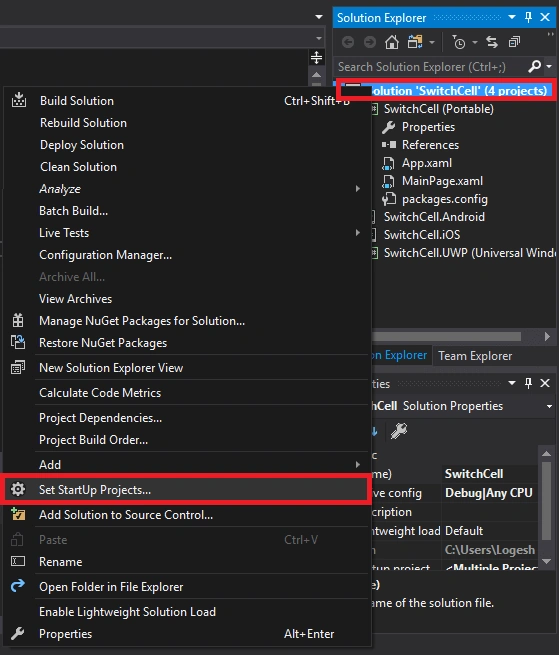
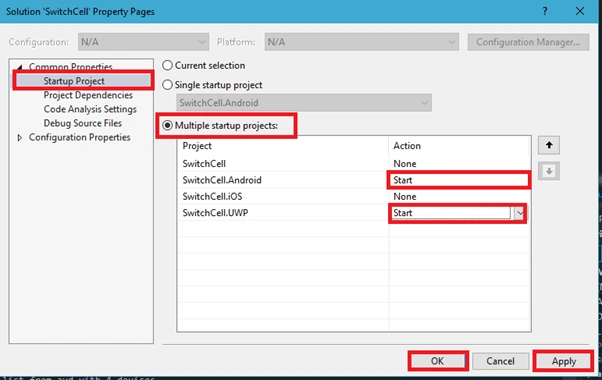
In this step go to startup Project-> Select Multiple Startup Project -> then Select Startup Projects -> Click Apply then OK
It is a feature of Xamarin Forms that it gets the output at the same time
Step 9
Output
- After a few seconds, the app will start running on your Android simulator and UWP app. You will see your application working successfully.
- The Outputs are Given below, Click or Swap the TabbedPages
- The Android Output Given Below,

The UWP Table View Outputs is given below,
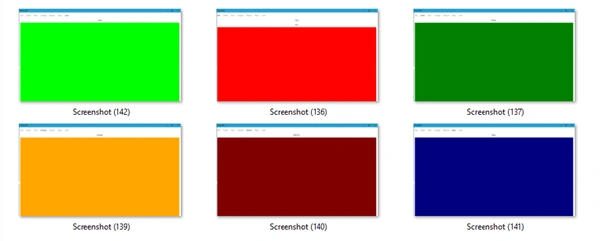
- Your TabbedPages View Application Created Succesfully.
Conclusion
Thus, we have learned how to design TabbedPages View Application in Xamarin Forms using Visual Studio 2017.
Abhinav GirdharPosted Oct 17, 2022, 10:03 PM
How to hide a tab in tabbed page?