

For this, we need a chosen jQuery library. Since chosen is dependent on the jQuery framework, we also need a jQuery library file.
Chosen jQuery is developed by Harvest.
Thus, let’s get started.
We will first create a MVC Web Application, using Visual Studio 2012.
To create a MVC project, open Visual Studio. Under File menu, select New and then select Project. After selecting the project, you will get the popup, as shown below.
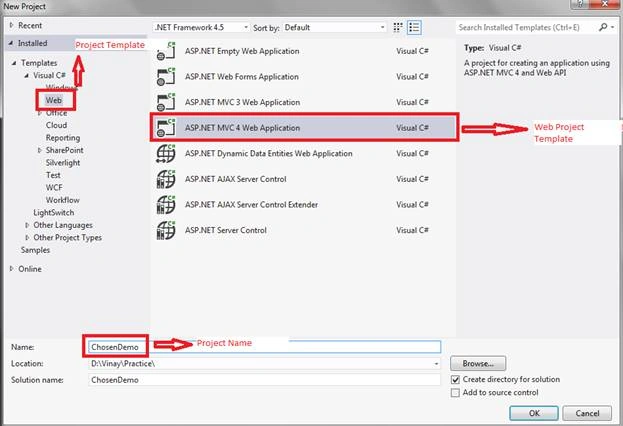
As shown in figure 1, please select Web under Visual C# node. After selecting project template, select ASP.NET MVC 4 Web Application. Give appropriate project Name and click OK.
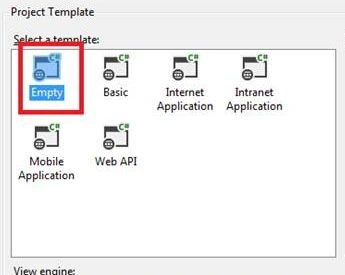
Since this project is for demo purposes I have selected an empty template. You can select, as per your requirement. After selecting an appropriate template, please click OK.
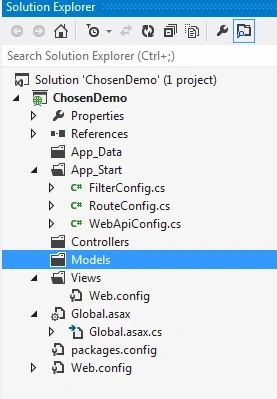
Since, we selected an empty project, as shown in the Figure 2, we have no view, model and controller files added.
Hence, we will first add the controller and view for an action method.
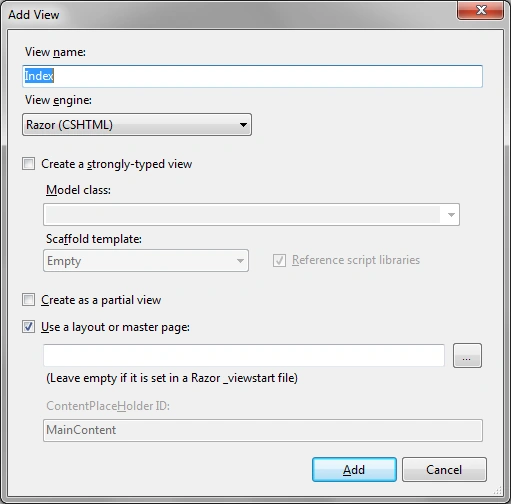
To create a controller, right click on Controllers folder. In “Add Controller”, popup gives the proper name to controller ,and click Add. Now, under HomeController.cs file, you have an Index method. To add a view for Index action method, right click on Index action method and click on Add, as shown in the figure, given below.
For general CSS, we have used Bootstrap CSS framework. Now, we need to choose jQuery library, which needs to to be downloaded. To download chosen jQuery, we will use NuGet Package Manager.
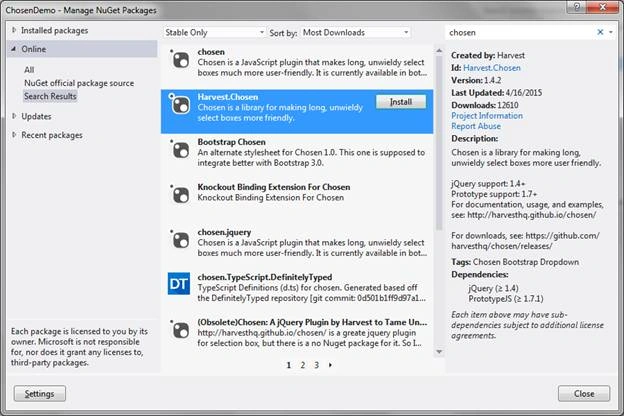
Click on Reference ? Manager NuGet Packages. Choose search under search box. Click Install button to install chosen jQuery.
Now, we need to add the reference under view file.
- <linkhreflinkhref="~/Content/bootstrap.min.css" rel="stylesheet" />
- <linkhreflinkhref="~/Content/chosen.min.css" rel="stylesheet" />
- <scriptsrcscriptsrc="~/Scripts/jquery-1.9.1.min.js">
- </script>
- <scriptsrcscriptsrc="~/Scripts/bootstrap.min.js">
- </script>
- <scriptsrcscriptsrc="~/Scripts/chosen.jquery.min.js">
- </script>
- To populate dropdown we will add property under ViewBag as shown below. using System; usingSystem.Collections.Generic; usingSystem.Linq; usingSystem.Web; usingSystem.Web.Mvc; namespaceChosenDemo.Controllers { publicclassHomeController : Controller { // // GET: /Home/ publicActionResult Index() { List
- <SelectListItem> Employees = newList
- <SelectListItem>(); Employees.Add(newSelectListItem() { Text = "Vinay", Value = "1" }); Employees.Add(newSelectListItem() { Text = "Sumeet", Value = "2" }); Employees.Add(newSelectListItem() { Text = "Rohan", Value = "3" }); Employees.Add(newSelectListItem() { Text = "Rupesh", Value = "4" }); Employees.Add(newSelectListItem() { Text = "Siddhesh", Value = "5" }); Employees.Add(newSelectListItem() { Text = "Pranali", Value = "6" }); Employees.Add(newSelectListItem() { Text = "Deepa", Value = "7" }); ViewBag.Employees = newSelectList(Employees, "Value", "Text"); return View(); } } }
The first dropdown shows you the traditional look and the second dropdown will show you the chosen look.
- <divclassdivclass="row">
- <divclassdivclass="col-md-6">
- @Html.DropDownList("ddlTradionalEmployee",ViewBag.EmployeesasIEnumerable
- <SelectListItem>,"--Select--")
- </div>
- <divclassdivclass="col-md-6">
- @Html.DropDownList("ddlChosenEmployee",ViewBag.EmployeesasIEnumerable
- <SelectListItem>,"--Select--")
- </div>
- </div>
- Now to make the second dropdown chosen dropdown, we need to write to below JavaScript code.
- <scripttypescripttype="text/javascript">
- $(document).ready(function () { $("#ddlChosenEmployee").chosen(); });
- </script>
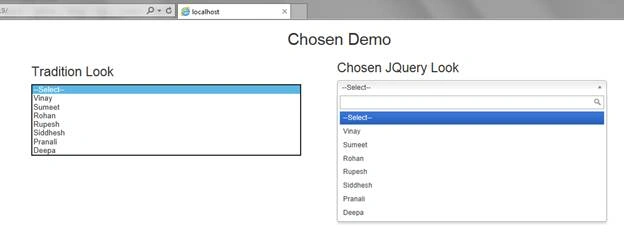
Now, there are different options while initializing chosen dropdown. You can go to the link, given below and check it.
Chosen Options
Now, we will look into multi-select box. The code for multi-select is given below.
- <divclassdivclass="row">
- <divclassdivclass="col-md-6">
- @Html.ListBox("lstTradionalEmployee", ViewBag.EmployeesasSelectList, new { style="width:90%" })
- </div>
- <divclassdivclass="col-md-6">
- @Html.ListBox("lstChosenEmployee",ViewBag.EmployeesasSelectList, new { style="width:90%" })
- </div>
- </div>
$("#lstChosenEmployee").chosen();
After running the Application, we will get the output, shown below.
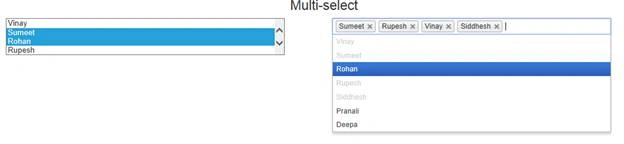
On Internet Explorer, when we have a large amount of data, searching an option under dropdown and multi-select would be very slow. To avoid this, we have an option “max_shown_results”. This option shows the first specified matching records.
For example, if you specify 40, it will show first 40 matching records and this will help to boost the performance while searching.
I got the situation, shown above, when I was implementing chosen jQuery and I thought it worthwhile to share it.
I hope this blog will help you to implement the traditional dropdowns/ multi-selects to more user-friendly dropdowns/ multi-selects.
Krishna kPosted Jun 28, 2020, 5:39 PM
Hello Vinay, Takes for the example. Is there a way where i can validate the multi select chosen to select atleast one item
Johnny LevringPosted Jan 7, 2019, 8:43 AM
Hi Vinay, nice articel. One question. Is't possible to load data into the lstChosenEmployee based on ViewBag data? eg, when a user submit the form and not all data are correct I want to save data already selected by the user
NehaPosted Dec 29, 2016, 9:04 AM
Nice...........................