

Description:
The blog demonstrates how to access all databases and its tables from SQL Server Management Studio programmatically. This can be useful for further operations like Database or DataTable transfer with another one, or to access data at a time from different tables available in SQL Server etc. in code for finding the files from sub-directories.
Basic Requirements:
o Two ComboBox Control
o One DataGridView Control
Procedure:
Step 1: Arrange the mentioned controls on windows form as follows.
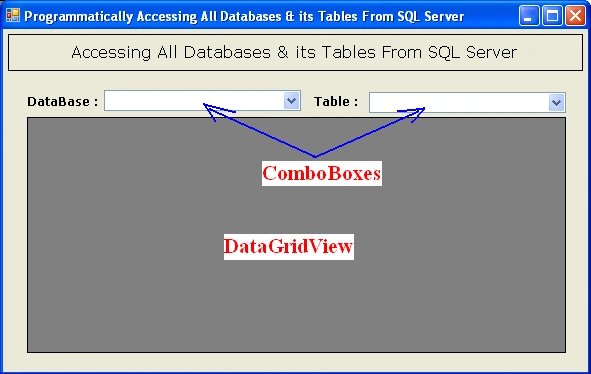
Figure 1
Step 2: Declare the String Object for common use of SqlConnection Class
String str = "Data Source=.\\SqlExpress; Integrated Security=True;";
Listing 1
Step 3: Write the Code section for accessing All Databases from SQL Server.
private void cbDataBase_Click(object sender, EventArgs e)
{
using (SqlConnection Conn = new SqlConnection(str))
{
using (SqlCommand Cmd =
new SqlCommand("SELECT Name FROM sys.databases", Conn))
{
Conn.Open();
SqlDataReader rdr = Cmd.ExecuteReader();
while (rdr.Read())
cbDataBase.Items.Add(rdr.GetValue(0));
}
}
}
Listing 2
Step 4: Now, Code to access all the Tables from selected DataBase Name.
private void cbTable_Click(object sender, EventArgs e)
{
using (SqlConnection Conn = new SqlConnection(str + "Initial Catalog=" + cbDataBase.Text))
{
using (SqlCommand Cmd1 =
new SqlCommand("SELECT Name FROM sysobjects WHERE (xtype = 'U')", Conn))
{
Conn.Open();
SqlDataReader rdr1 = Cmd1.ExecuteReader();
while (rdr1.Read())
cbTable.Items.Add(rdr1.GetValue(0));
}
}
}
Listing 3
Step 5: Now, Code to access Data from the selected Table.
private void cbTable_SelectedIndexChanged(object sender, EventArgs e)
{
using (SqlConnection Conn = new SqlConnection(str + " Initial Catalog=" + cbDataBase.Text))
{
using (SqlDataAdapter adapt =
new SqlDataAdapter("SELECT * FROM [" + cbTable.Text+"]", Conn))
{
using (DataSet Dset = new DataSet())
{
adapt.Fill(Dset, cbTable.Text);
dataGridView1.DataSource = Dset.Tables[0];
}
}
}
}
Listing 4
Step 6: After this RUN the application and look for the intended result.

Intended Result:
Figure 2

Figure 3
Note: - Make necessary changes into your as per requirement.
Summary:
In this blog, we have seen how to access the All Databases and its associated Tables from SQL Server Management Studio programmatically using C#.
Join the conversation! Your thoughts help the community grow.