

The previous parts of the series are:
- SharePoint 2016 Part - One - Installing WorkFlow Manager
- SharePoint 2016 - Part Two - Installation Of Web Platform
- SharePoint 2016 - Part Three - Installing of Workflow Manager 1.0
Now, we will install CU 3 for WorkFlow Manager 1.0 Refresh (CU2), using the Web Platform Installer 5.0.
- Make sure you log in with your install account that has the right permissions to install the Workflow Manager’s CU.
- Go to "Start" and from top right, click on "Search" icon.
- Type "Web PlatForm Installer" in the Search Box and click it.
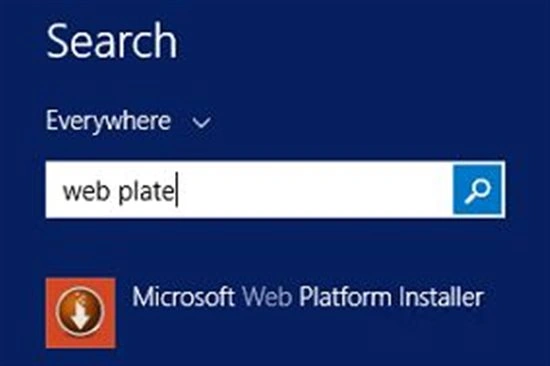
- It will load the Web Platform Installer like this.
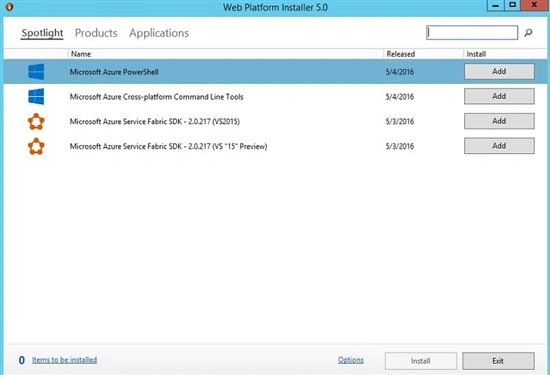
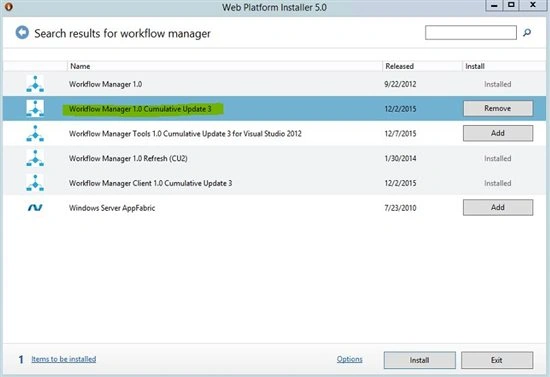
- On this page, type Workflow Manager on the top right search bar.

- Click "Add Workflow Manager 1.0 Cumulative Update 3" and then click Install.
- Wait for the installation to be completed.
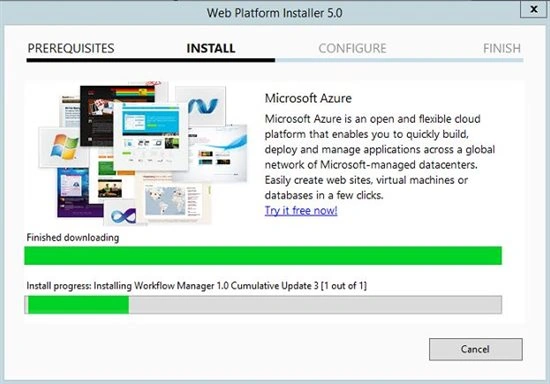
- Click Finish.
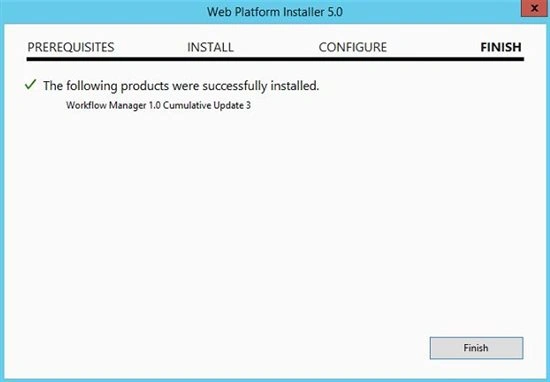
At this stage, we have successfully installed the Workflow Manager 1.0 Refresh (CU2) along with the CU3 using the Microsoft Web Platform Installer 5.0. After this, we have to configure the Workflow Manager farm, which is described in the next part of the article.
Keep reading and enjoy learning.
See Also
See Also
- Install the Microsoft Web Platform Installer 5.0
- Installation of Workflow Manager 1.0 Refresh (CU2)
- Apply Cumulative Update 3.0 for Workflow Manager 1.0
- Configure the Workflow Manager
- Install the WorkFlow Manager Client on SharePoint Server
- Add the WF Manager Certificate into SharePoint
- Register Workflow Proxy for SharePoint Servers
- Verify the Installation.
- http://krossfarm.com
Join the conversation! Your thoughts help the community grow.