

Introduction
This tool will help to analyze your IIS installation and identify which sites can be migrated to the cloud, highlighting any elements which cannot be migrated or are unsupported on the platform.
Once analyzed this tool will also create websites and databases provided under given azure subscription.
Automated Assessment and Migration
- This tool will provide a high level readiness assessment.
- The report outlines sites which are ready to move, elements which may need changes and highlights unsupported features.
- The detailed report offers expert guidance and advice tailored to your environment.
- The tool creates any Website(s) and associated database(s), if applicable, automatically and synchronizes your content.
The following steps are useful for our understanding.
Step 1: In this step it will provide the checkboxes which are predefined in tool.

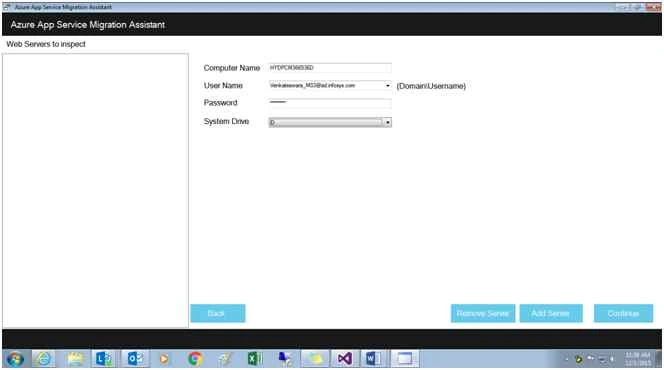
Step 2: In this step it will ask our local IIS server details to access the websites that are hosted on our IIS. It supports from IIS 6 +.
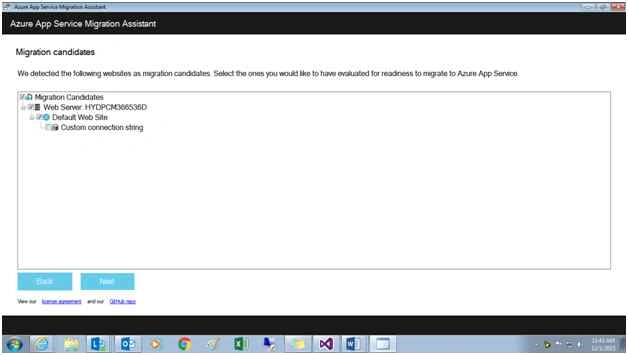
Step 3: After adding the server it will provide you the websites which are all hosted in our local IIS server. We can select the available website which we want to migrate on to azure.
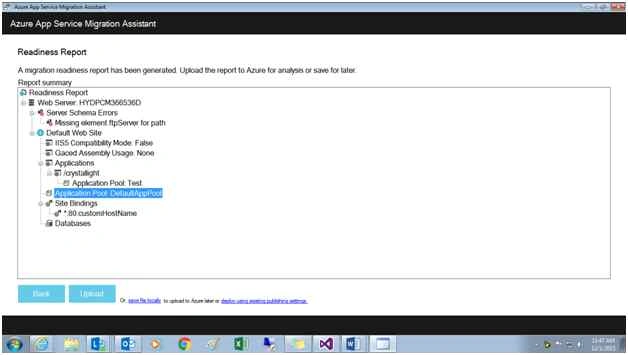
Step 4: Later after it will generate a health report of website like below and after uploading it we can see the overall status of our website migration.
Step 5: The Readiness Assessment will be created for our website with analysis results.
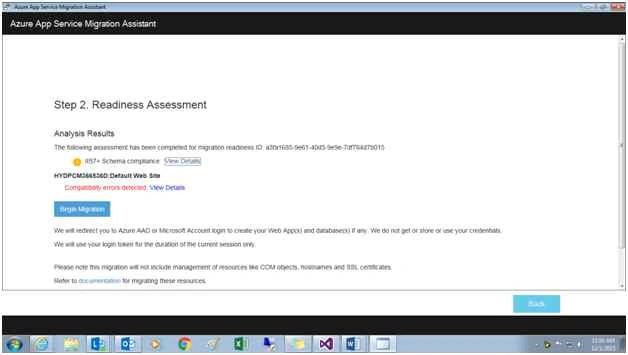
It will give the issues which will be generated while we are migrating the website to Azure. The following compatibility analysis will be done for each website
Compatibility Analysis
- Port Bindings: Azure App Service support port 80 for http and port 443 for HTTPS traffic. If you have sites using any other port, after migration to Azure App Service, these are the only ports that will be used.
- IIS7 Authentication: Azure App Service supports anonymous authentication by default and forms authentication when intended. Windows authentication can be used by integrating with Azure Active Directory and ADFS only. All other forms of authentication are currently not supported.
- Usage of assemblies in the GAC (Global Assembly Cache): Consider bin placing the assemblies.
- IIS5 Compatibility Mode: IIS5 Compatibility Mode is not supported. In Azure App Service each Web App and all of the applications under it run in the same worker process with a specific set of application pool settings.
- IIS7+ Schema Compliance: One or more elements and/or attributes are being used which are not defined in Azure App Service IIS schema. Consider using XDT transforms.
- Single Application Pool per Site: In Azure App Service each Web App and all of the applications under it, run in the same application pool. Consider establishing a single application pool with common settings or creating a separate Web App for each application.
- COM and COM+ components: Azure App Service does not allow the registration of COM components on the platform. If your site(s) or application(s) make use of any COM components, these would need to be rewritten in managed code and deployed with the site or application.
- ISAPI Filters: Azure App Service can support the use of ISAPI Filters, however, the DLL(s) need to be deployed with your site and registered via the web.config.
- HTTPS Bindings: HTTPS Bindings will not be migrated, nor will the SSL certificates associated with your web sites. SSL Certificates can be manually uploaded after site migration is completed, however.
- Migration of Other Components: Other components like SharePoint, front page server extensions (FPSE), FTP, SSL certificates will not be migrated.
- Web site size: Free sites have a size limit of 1 GB of content. If your site is greater than 1 GB, you must upgrade to a paid SKU. For the current limits please see: App Service Limits.
- Database size: Free MySQL databases have a size limit of 20 MB. If your MySQL database is greater than 20 MB, you must upgrade your MySQL database SKU. For the current pricing please see: ClearDB Pricing.
For SQL Server databases, please check the current SQL database pricing.
- Azure Active Directory (AAD) Integration: AAD does not work with free apps. To use AAD, you must upgrade the app SKU.
Step 6: After click on Begin Migration button it will redirect to Microsoft login page after providing it.

It will ask the region to migrate our website and after that click on Start Migration
Step 7: It once again confirm the website which needs to migrate from our end. It enable a textbox to set name for our website and then create.

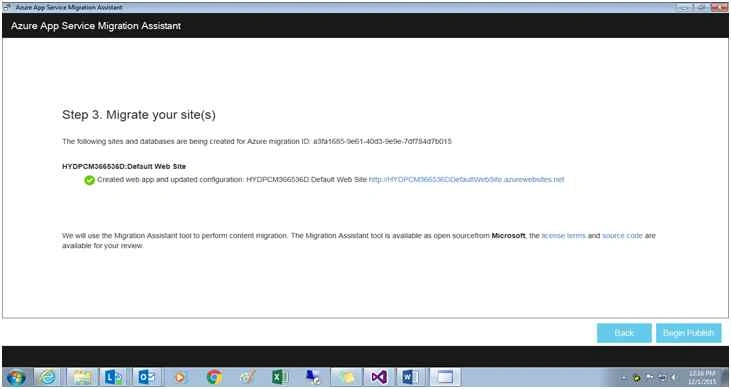
It will create a web app with provided URL and after selecting Begin Publish it will publish.

santhosh kumarPosted May 18, 2018, 8:30 AM
Hi Venkatesh, i tried to migrate PHP website from iis to Azure but unable to migrate database. Database is not detecting during the analysis phase of the tool. Kindly help me on this. THANKS
Ankit BansalPosted Dec 7, 2015, 12:51 AM
nice one..thanks
Mukesh KumarPosted Dec 5, 2015, 1:33 PM
Nice Share... good start
Manas MohapatraPosted Dec 5, 2015, 11:55 AM
Good introduction about the tool..
Santhakumar MunuswamyPosted Dec 5, 2015, 10:38 AM
Welcome
Santhakumar MunuswamyPosted Dec 5, 2015, 10:38 AM
Good Start