
Introduction : The Window Communication Foundation (WCF) is service-oriented application. With the help of WCF we can send a data from one service to another. The Workflow is simply encapsulate activities for Window Communication Foundation. WCF is designed to offer a manageable approach to creating Web services and Web service clients.
Step 1 : Open Visual Studio.
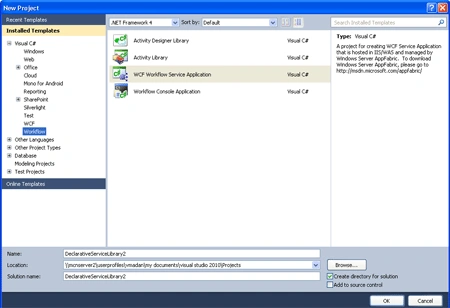
- Select File->New->Project.
- Select WCF Workflow Service Application.
- Click OK.
After OK the following activity show.
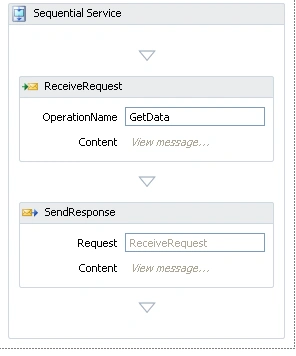
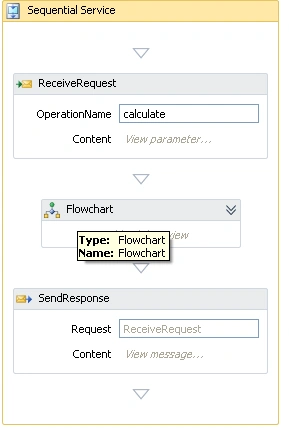
Step 2 : Drag activity from Toolbox.
- Drag Flowchart activity.
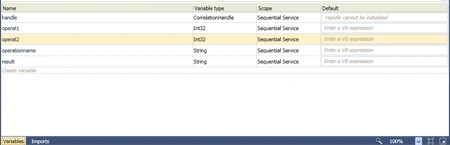
Step 3 : Define Variables for application.
- Select Sequence Activity.
- Click in Variables option.
- Define Name, Variables Type.
Step 4 : Go to Solution Explorer and right-click in project option.
- Select Add->New Item.
- Select Code Activity.
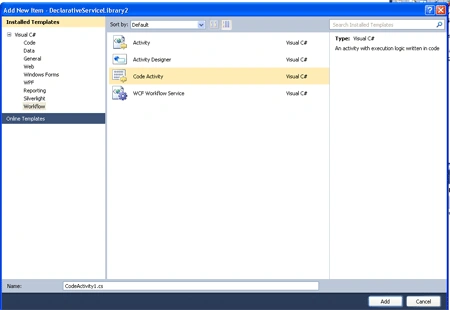
Write down the following code:
Code :
using
System;
using
System.Collections.Generic;
using
System.Linq;
using
System.Text;
using
System.Activities;
using System.IO;
namespace
DeclarativeServiceLibrary1
{
public sealed
class CodeActivity1
: CodeActivity
{
// Define an activity input argument of type
string
public
InArgument<string>
Text { get; set;
}
// If your activity returns a value, derive
from CodeActivity<TResult>
// and return the value from the
Execute method.
public
OutArgument<string>
result { get; set;
}
protected
override void Execute(CodeActivityContext
context)
{
// Obtain the runtime value of the Text
input argument
string text =
context.GetValue(this.Text);
File.AppendAllText(@"C:\WorkflowLog.txt",
"Result is:" + text);
context.SetValue(result, "Result is:"
+ text);
}
}
}
Step 5 : Go to the Design option.
- Select ReciveRequest activity.
- Right-click->Properties option.
- Define operationname, ServiceContractName.
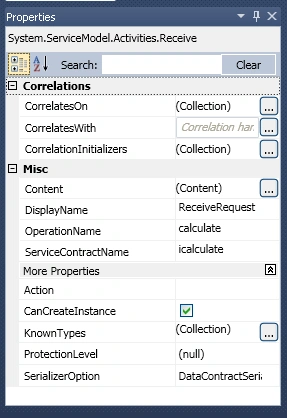
Step 6 : Double-click in Flowchart.
- Drag Switch activity, CodeActivity1 from Toolbox.
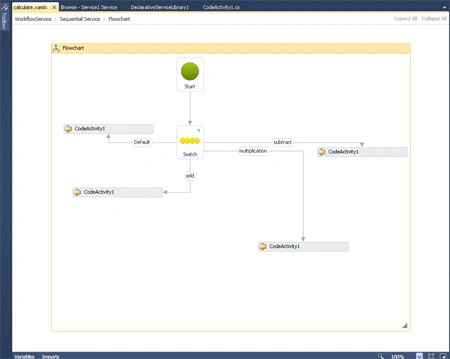
Step 7 : Click on CodeActivtiy1.
- Go to Properties option and define result and Text value.
Value :
(operat1 * operat2).ToString()
Similarly for add, subtract define a Text Value.
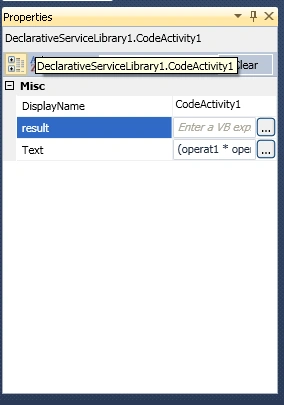
Step 8 : Press F6 and Build the application.
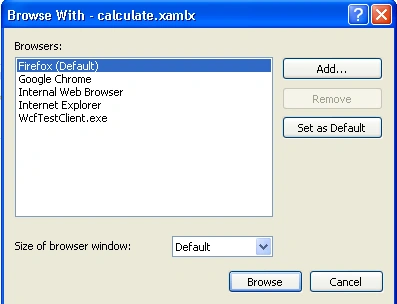
Step 9 : Now we define the service path for the application.
- Go to calculate.xamlx option.
- Right-click ->Browse.
- Firefox->Add option.
- Add WcfTestClient.exe.
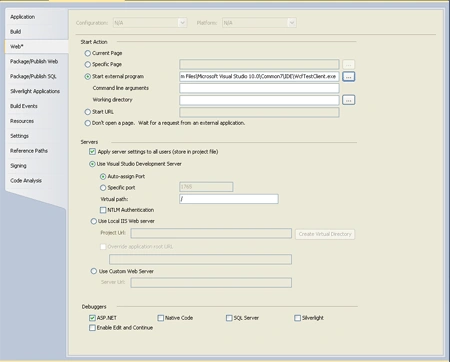
Step 10 : Go to the Web option.
- Select Start external program.
- Define Web Service path.
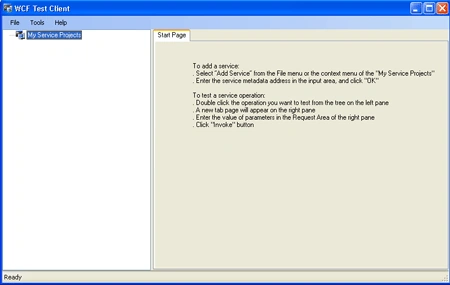
Step 11: Press F5 and run the application.
Step 12 : Right-click in My Service Project.
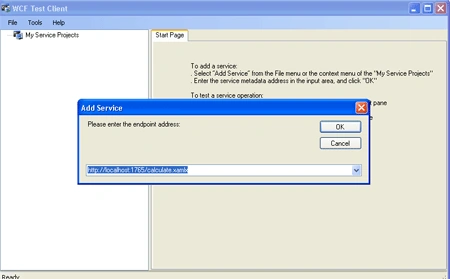
- Add Service.
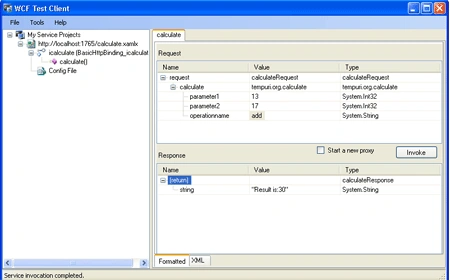
Step 13 : Now we click calculate option and add thee any parameter.
Click in Invoke option Find the result.
Muthu KumarPosted Nov 5, 2011, 3:00 PM
Nice article, can you please share the source