

This article describes various ways to declare a connection string. We will see the following points.
- Specify Database connection string in Web Application.
- Specify Database connection string in Windows application.
Let’s start from the first point.
Specify Database connection string in Web Application
In a web application we can specify a database connection string in one of the following two ways.
- Specify it in the web.config file.
- Create a common class file for the connection string.
Write connection string in web.config file
The benefit of writing a connection string in a web config file is there is no need to write code every time to connect to the database. It reduces the redundancy of code over a single application. One more benefit of this is whenever we need to change the database name or credentials we need to change only the web config file.
Now I will describe how to specify a connection string in a web.config file.
Go to the Web.config file as in the following:
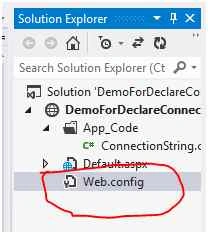
You need to use the connectionStrings tag to specify the connection string in the web.config file as in the following image.
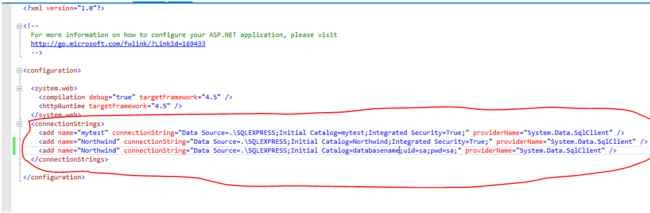
Write this XML markup in the web config file for declaration of the connection. You can add many tags for each database connection.
- <connectionStrings>
- <add name="mytest" connectionString="Data Source=.\SQLEXPRESS;Initial Catalog=mytest;Integrated Security=True;" providerName="System.Data.SqlClient" />
- <add name="Northwind" connectionString="Data Source=.\SQLEXPRESS;Initial Catalog=Northwind;Integrated Security=True;" providerName="System.Data.SqlClient" />
- <add name="Northwind" connectionString="Data Source=.\SQLEXPRESS;Initial Catalog=databasename;uid=sa;pwd=sa;" providerName="System.Data.SqlClient" />
- </connectionStrings>
Read Connection string from Web.config file
Now I will describe how to read a web.config connection string in an ASP.NET web application.
- You need to add class files to an ASP.Net web application.
- Then you need to include a namespace using System.Configuration in the class file.
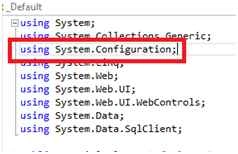
Then write the following method in this class.
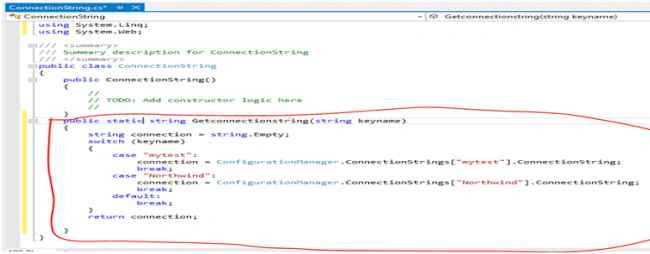
- public static string Getconnectionstring(string keyname)
- {
- string connection = string.Empty;
- switch (keyname)
- {
- case "mytest":
- connection = ConfigurationManager.ConnectionStrings["mytest"].ConnectionString;
- break;
- case "Northwind":
- connection = ConfigurationManager.ConnectionStrings["Northwind"].ConnectionString;
- break;
- default:
- break;
- }
- return connection;
- }
In the preceding I have written a method to get the connection on the basis of the keyname passed.
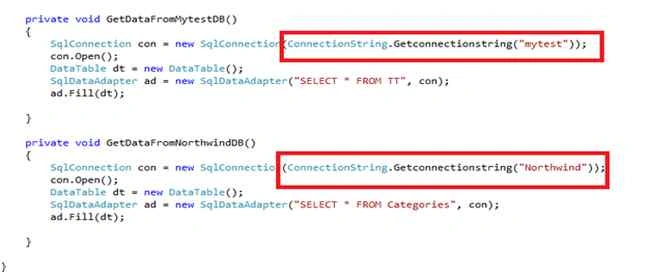
Then I will show you how to use the preceding method of this class in code to access connections. In the following code you can see I have used the GetConnectionstring method of the ConnectionString class and passed the keyname to connect to the specific database using keyname.
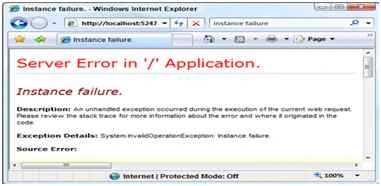
If you got this error when reading a connection string from a web.config file then go to this link: Click here to fix the following error.
Using the preceding described way you can connect to the database using this method, there is no need to write a connection code in every page.
Now we will see the next way to specify a connection.
Now I will create a common class file with connection code.
I have created a DBConnectionClass.cs file and then written the following code in this class. You can use this class file in multiple Web applications where you need to use the same database connection.
In this class I declared an enum for the list of the database. We can specify all the database names to be used across application and access them using an enum.
Then I wrote a method, GetConnectionstring, with Database enum parameter.
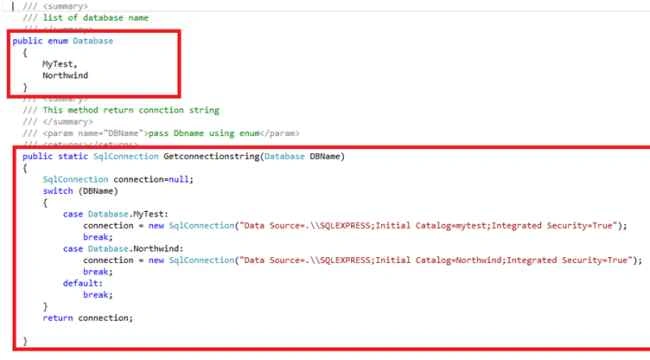
Write the following code in your class:
- /// <summary>
- /// list of database name
- /// </summary>
- public enum Database
- {
- MyTest,
- Northwind
- }
- /// <summary>
- /// This method return connction string
- /// </summary>
- /// <param name="DBName">pass Dbname using enum</param>
- /// <returns></returns>
- public static SqlConnection Getconnectionstring(Database DBName)
- {
- SqlConnection connection=null;
- switch (DBName)
- {
- case Database.MyTest:
- connection = new SqlConnection("Data Source=.\\SQLEXPRESS;Initial Catalog=mytest;Integrated Security=True");
- break;
- case Database.Northwind:
- connection = new SqlConnection("Data Source=.\\SQLEXPRESS;Initial Catalog=Northwind;Integrated Security=True");
- break;
- default:
- break;
- }
- return connection;
- }
Then I will describe how to access this class method in a web page.
You can call this method as in DBConnectionClass.Getconnectionstring(DBConnectionClass.Database.Northwind).

Specify Database connection string in Windows application
In the same way you saw in the web.config file you need to write this tag inside the app.config file.

In the same way I already described, for the web application you can read a connection from the app.config.
But one extra thing you need to do in Windows applications is that you need to add a reference of System.Configuration to your application.
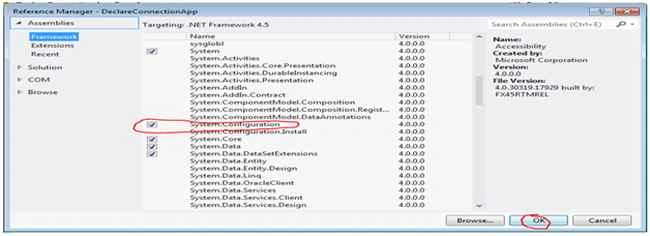
Then you need to follow the steps I already described for web applications.
You can also add a common DBConnectionClass class in the Windows application for the connection in the same way that I described in the Web section of this article.
Ted KrapfPosted Mar 2, 2019, 10:13 PM
Web.config should be encrypted! And using web.config across multiple project types with transforms is a major pain. Would love to see an article of how to move connect strs and app settings into a single, transformable set of files that will work across multiple project types within a single solution without the need to use crazy build scripts. Nice article. Thanks.
Ram Krishna ShuklaPosted Jun 8, 2018, 1:19 AM
But i need access more than 25 databases within one project without defining connection strings in webconfig. i pass only one connection string in webconfig and access more than 25 databases at runtime.
Ram Krishna ShuklaPosted Jun 8, 2018, 1:00 AM
Nice work Priti
Manav PandyaPosted Jan 18, 2017, 3:57 AM
Thanks for sharing this information
Priti KumariPosted Aug 31, 2015, 6:29 AM
Thanks everyone!!!
Ankit BansalPosted Aug 31, 2015, 4:26 AM
thanks for share..
Hashim ShafiqPosted Aug 30, 2015, 9:49 PM
nice
Sibeesh VenuPosted Aug 30, 2015, 1:13 AM
Nice Share
Santhakumar MunuswamyPosted Aug 29, 2015, 4:30 AM
Good article. Thanks for sharing
Humayun Kabir MamunPosted Aug 29, 2015, 2:27 AM
Nice...
Mohammed IbrahimPosted Aug 29, 2015, 1:49 AM
nice
Yashwanth MuthineniPosted Aug 29, 2015, 1:24 AM
Nice Share
Amol JadhaoPosted Aug 29, 2015, 1:08 AM
Nice Share
Gopi ChandPosted Aug 28, 2015, 11:37 PM
Nice work
Karthikeyan KPosted Aug 28, 2015, 9:04 PM
Good one...Thanks for share
Gowtham KPosted Aug 28, 2015, 9:00 PM
Thanks for sharing
Pankaj Kumar ChoudharyPosted Aug 28, 2015, 8:21 PM
Good content and also nice way of explanation.............
Rahul PrajapatPosted Aug 28, 2015, 8:14 PM
Thanks for sharing.