

ASP developers know that session state is a great feature, but one that is somewhat limited. These limitations include:
- Process dependent: ASP session state exists in the process that hosts ASP; thus the actions that affect the process also affect session state. When the process is recycled or fails, session state is lost.
- Server farm limitations: As users move from server to server in a Web server farm, their session state does not follow them. ASP session state is machine specific. Each ASP server provides its own session state, and unless the user returns to the same server, the session state is inaccessible. While network IP level routing solutions can solve such problems, by ensuring that client IPs are routed to the originating server, some ISPs choose to use a proxy load-balancing solution for their clients. Most infamous of these is AOL. Solutions such as AOL's prevent network level routing of requests to servers because the IP addresses for the requestor cannot be guaranteed to be unique.
- Cookie dependent: Clients that don't accept HTTP cookies can't take advantage of session state. Some clients believe that cookies compromise security and/or privacy and thus disable them, which disables session state on the server.
These are several of the problem sets that were taken into consideration in the design of ASP.NET session state.
ASP.NET 1.0 Session State
ASP.NET session state solves all of the preceding problems associated with classic ASP session state:
- Process independent: ASP.NET session state is able to run in a separate process from the ASP.NET host process. If the session state is in a separate process, the ASP.NET process can come and go while the session state process remains available. Of course, you can still use session state in a process similar to classic ASP, too.
- Support for server farm configurations: By moving to an out-of-process model, ASP.NET also solves the server farm problem. The new out-of-process model allows all servers in the farm to share a session state process. You can implement this by changing the ASP.NET configuration to point to a common server.
- Cookie independent: Although solutions to the problem of cookieless state management do exist for classic ASP, they're not trivial to implement. ASP.NET, on the other hand, reduces the complexities of cookieless session state to a simple configuration setting.
So, with the release of ASP.NET we got the following important session state options: "in-process mode", "out-of-process mode", "Cookieless" and "SQL Server mode". Let's look at them.
In-Process Mode
In-process mode simply means using ASP.NET session state in a similar manner to classic ASP session state. That is, session state is managed in-process and if the process is recycled, the state is lost. If we call SessionState.aspx, set a session state value, and stop and start the ASP.NET process (iisreset), the value set before the process was cycled will be lost. In-process mode is the default setting for ASP.NET.
Out-of-process Mode
Included with the .NET SDK is a Windows NT service: ASPState. This Windows service is what ASP.NET uses for out-of-process session state management. To use this state manager, you first need to start the service.
Cookieless State
We can configure the ASP.NET session state for a cookieless session state. Essentially this feature allows sites whose clients choose not to use cookies to take advantage of ASP.NET session state. This is done by modifying the URL with an ID that uniquely identifies the session:
http://localhost/(lit5py65t21z5v45vlm29s52)/Application/Products.aspx
To learn about sessions with and without cookies watch the nice video by questpond.com, here:
SQL Server Mode
The SQL Server mode option is similar to that of the Windows NT Service, except that the information persists to SQL Server rather than being stored in memory.
To use SQL Server as our session state store, we first must create the necessary tables and stored procedures that ASP.NET will look for on the identified SQL Server. The .NET SDK provides us with a SQL script file that we will execute on SQL Server to setup the database tables and stored procedures and then we will use the database credentials in ASP.NET Applications to start using SQL Server to manage the session states.
Why SQL Server Mode?
Once you start running multiple web servers for the same web site, the default ASP.Net session state ("InProc") will no longer be useful because you cannot guarantee that each page request goes to the same server. It becomes necessary to have a central state store that every web server accesses. SQL Server has a feature that offers you centralized storage of a session state in a Web farm. You can use SQL Server to save a session.
SQL Server Mode Advantages
Storing session variables in the SQL Server has the following advantages:
- Scalability: If you are looking for a highly scalable option to store your session variables, the SQL Server option is for you. It is a much more scalable option than the others. Web farm architecture can very easily access the session variables because they are stored in an independent database.
- Reliability: Because the data is physically persisted in a database, it is is more reliable than the other options. It has the ability to survive server restarts.
- Security: SQL Server is more secure than the in-memory or state server option. You can protect your data more easily by configuring SQL Server security.
The session state mode can be configured via a <sessionState> tag of the web.config file.
Now, this step-by-step article demonstrates how to configure Microsoft SQL Server for ASP.NET SQL Server mode session state management.
Job 1: Configuring SQL Server to use ASP.NET's SQL Server Session State
Step 1: Find the SQL script file installed by .NET SDK and execute it on the SQL Server to setup the database.
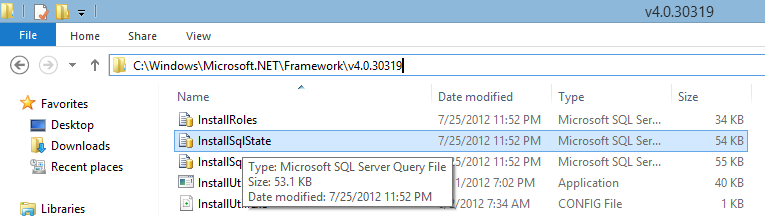
Step 2: Double-click the above file to install it on the SQL Server. After installation you will get the following database tables and stored procedures:
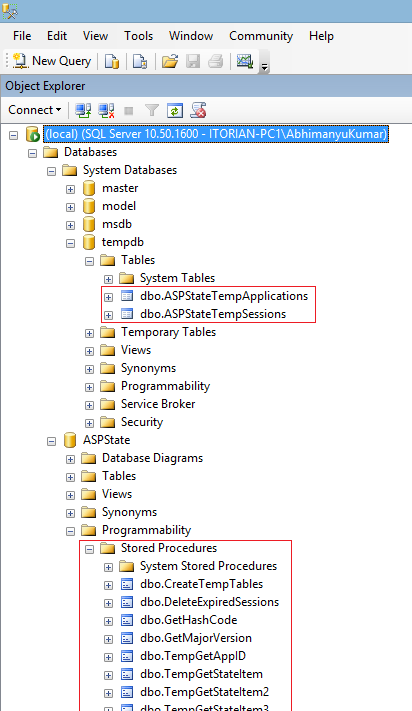
Now we are done with the database setup. Let's create a demo web application and create a shopping cart like application that allows the user to add products to the cart and at the end will show the products list to the user. Think, if are developing an e-Commerce website that is using multiple servers, then how will you manage the sessions, because the session directly depends on the server and your website uses multiple servers, in this case you will lose all the sessions/products that the user selected when transferred to another server. No worries; we are using a centralized server that is SQL Server to manage our sessions. Go ahead and setup a website.
Job 2: Setup Web Application
At the very beginning, let's modify our existing web.config file to use SQL Server Mode Sessions. To do this add a "connectionstring" that will point to the "tempdb" database, as in:
- <connectionStrings>
- <add name="tempdbConnectionString1" connectionString="Data Source=ITORIAN-PC1;Initial Catalog=tempdb;Integrated Security=True"
- providerName="System.Data.SqlClient" />
- </connectionStrings>
And then, modify the <sessionState> section so that it looks like:
- <sessionState mode="SQLServer" customProvider="DefaultSessionProvider">
- <providers>
- <add name="DefaultSessionProvider" type="System.Web.Providers.DefaultSessionStateProvider, System.Web.Providers, Version=1.0.0.0, Culture=neutral, PublicKeyToken=31bf3856ad364e35" connectionStringName="tempdbConnectionString1" />
- </providers>
- </sessionState>
You can notice the "mode" attribute in the above code that is using "SQLServer". Once you are done, let's set up some website pages.
Case Study: We will create two pages in our website, one will show the product list and another will show the selected products. We will call those pages by the names "Products.aspx" and "Cart.aspx". I'll be using the Northwind database in this project.
Products.aspx Code
- <div>
- <asp:GridView ID="GridView1" runat="server"
- AllowPaging="True" AutoGenerateColumns="False" DataSourceID="SqlDataSource1"
- Width="48%" OnSelectedIndexChanged="GridView1_SelectedIndexChanged"
- PageSize="5">
- <Columns>
- <asp:BoundField DataField="ProductName"
- HeaderText="ProductName"
- SortExpression="ProductName" />
- <asp:BoundField DataField="UnitPrice"
- HeaderText="UnitPrice"
- SortExpression="UnitPrice" />
- <asp:CommandField SelectText="Add to cart"
- ShowSelectButton="True" />
- </Columns>
- </asp:GridView>
- <asp:HyperLink ID="HyperLink1" runat="server"
- NavigateUrl="~/Cart.aspx" Font-Bold="True"
- Font-Size="Large">I'm Done, show products</asp:HyperLink>
- <asp:SqlDataSource ID="SqlDataSource1" runat="server"
- ConnectionString="<%$ ConnectionStrings:NorthwindConnectionString1 %>"
- SelectCommand="SELECT [ProductName],
- [UnitPrice] FROM [Products]
- ORDER BY [ProductName]"></asp:SqlDataSource>
- </div>
Products.aspx.cs
- protected void GridView1_SelectedIndexChanged(object sender, EventArgs e)
- {
- DataSet ds = null;
- if (Session["sCart"] == null)
- {
- ds = new DataSet();
- DataTable dt = new DataTable();
- dt.Columns.Add(new DataColumn("ProductName"));
- dt.Columns.Add(new DataColumn("Qty", typeof(System.Int32)));
- ds.Tables.Add(dt);
- Session["sCart"] = ds;
- }
- else
- {
- ds = (DataSet)Session["sCart"];
- }
- DataRow row = ds.Tables[0].NewRow();
- row["productname"] = GridView1.Rows[GridView1.SelectedIndex].
- Cells[0].Text;
- row["Qty"] = 1;
- ds.Tables[0].Rows.Add(row);
- }
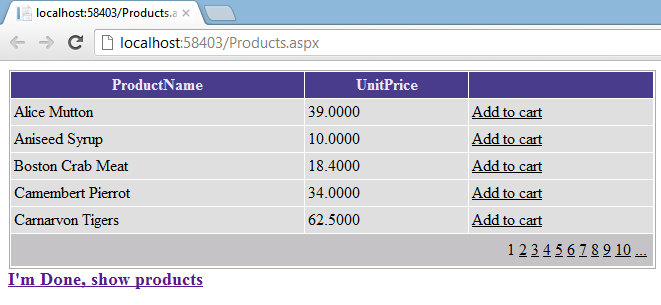
Cart.aspx Code
- <div>
- <asp:GridView ID="GridView1" runat="server"
- AutoGenerateColumns="False" Width="48%">
- <Columns>
- <asp:BoundField DataField="productname"
- HeaderText="Product Name" />
- <asp:BoundField DataField="qty"
- HeaderText="Quantity" />
- </Columns>
- </asp:GridView>
- </div>
Cart.aspx.cs Code
- protected void Page_Load(object sender, EventArgs e)
- {
- GridView1.DataSource = (DataSet)Session["sCart"];
- GridView1.DataBind();
- }
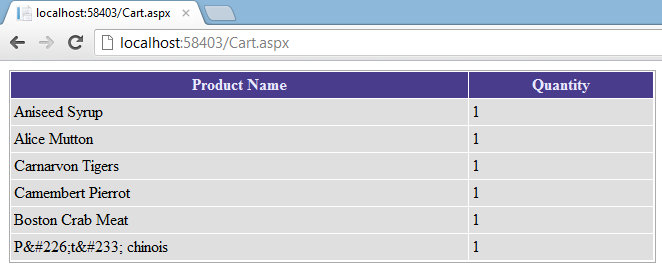
Now, you looked at some practical uses of the title.
Disadvantages of Storing the Session State in SQL Server
Though storing the session state in SQL Server makes your Web site more scalable and reliable, it has some disadvantages of its own:
- Performance: In terms of performance, a SQL Server-based session store is possibly the slowest option. Because your session variables are stored in a physical database, it takes more time to get them in and out of the database. This affects the performance of your Web site.
- Cost: Because you are storing your data in a SQL Server database, you need to have a SQL Server license. This can add to overall cost of your Web site.
- Serializable data: This method requires that all the data stored in session variables must be serializable. This may force you to mark your own classes as [Serializable] if you want to store them in a session.
Most of the theory resources in this article is taken from the MSDN.
I hope you like it. Thanks.
Dushyant PatelPosted Jan 18, 2022, 2:19 AM
Nice and very informative article.
Lalit RaghavPosted Dec 3, 2019, 6:26 PM
Nice article
dharamveer palPosted Feb 6, 2018, 8:07 AM
Your connection string is wrong. I have implemented same, it was working on local but not on web farm. After troubleshooting 2 days i changed the connectionstring then it runs on my both the servers.
Anuj KathuriaPosted Mar 21, 2015, 1:30 AM
I have two project in single solution named as Main_Project and Sub_Project.In Main_Project I have Login.aspx page where I am writing value in Session after that I am redirecting to page which is in Sub_Project and in page load I want to read the session value which I have stored in Login page of project first. For this purpose I have used SQLServer session mode where the session value has been saved in database but I am not able to read the session value in next page. I want to use server side and secure way to transfer session. So please reply with solution.
Former memberPosted Oct 8, 2012, 6:37 AM
This is rreally nice article-- http://www.dotnetpools.com
Chirag SolankiPosted Sep 18, 2012, 5:24 AM
thx. it help me lot
Sachin BhardwajPosted Sep 11, 2012, 9:33 AM
Hello Abhimanyu, I like your article very much it is very nice. you have done nice work go ahead.... All the best buddy.
Richa GargPosted Sep 11, 2012, 4:14 AM
Hi Abhimanyu ........... its really a very nice article and also very useful ......... Thanks for posting.
Rohatash KumareditedPosted Sep 11, 2012, 4:02 AMEdited Sep 11, 2012, 4:02 AM
Thanks Abhimanyu. Nice example of Session States in SQL Server Mode.
Shivanand ArurPosted Sep 11, 2012, 1:06 AM
Abhimanyu... This article is really nice... Keep up the good work.