

Introduction:
Business Connectivity Services (BCS) is a new service introduced with SharePoint
2010 to allow SharePoint sites to connect to and manipulate external data.
SharePoint 2007 had a similar facility in the form of Business Data Catalog (BDC)
which made external data available within its site. However, a major problem
with BDC was the difficulty in creating solutions as there was no support in the
2007 designer. Most BDC solutions were simply for accessing external data,
manipulating external data sources was extremely difficult.
With SharePoint 2010, BCS ships with out-of-box features such as solutions,
services, and tools which make connecting to external data an easy task. Whether
you want to retrieve Outlook contacts in a list offline or edit the contents of
your document file or share your excel sheet online or reuse data from dynamic
InfoPath forms or just update your business presentation, BCS enables deep
content sharing, editing and integration in SharePoint 2010 with SharePoint
Designer and Visual Studio tools.
Description
SharePoint 2010 out-of-the-box exposes list data as OData feed. Here we will be
consuming the OData feeds using Business Connectivity Services. We can retrieve
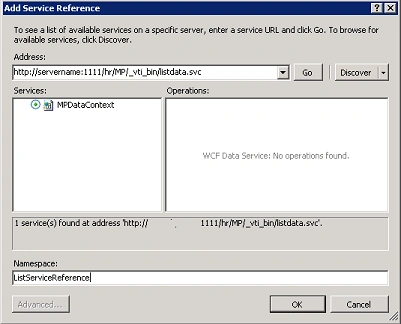
the list data by the URL http://serverName:1111/_vti_bin/listdata.svc. We will
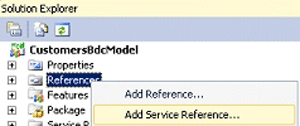
be adding the service reference to the OData feed and will be generating the
code in Visual Studio 2010. The following example shows how to create External
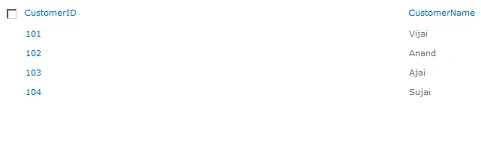
Content Type based on SharePoint list. I have created a custom list named
"Customers" which has the following data's.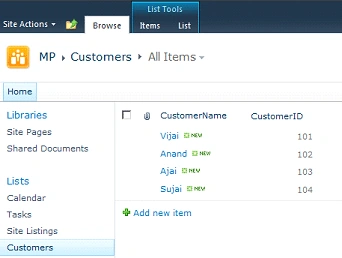
Prerequisites
- Microsoft SharePoint Server 2010 or
Microsoft SharePoint Foundation 2010 installed on the server
- Microsoft .NET Framework 3.5 and Microsoft Visual Studio 2010
Example
Create SharePoint Solution based on Business Data Connectivity Model template:
- Open Visual Studio 2010.
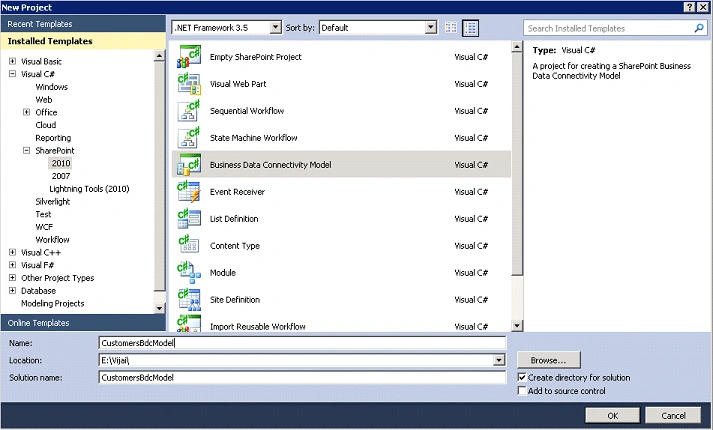
- Go to File => New => Project.
- In the New Project dialog box, expand the
SharePoint node, and then select the 2010 node.
- In the Templates pane, select Business
Connectivity Catalog Model.
- Enter the Name and then click OK.
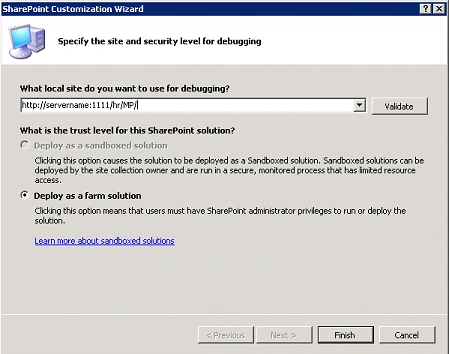
The SharePoint Customization Wizard appears.
- In the What local site do you want to use
for debugging page, type the URL of the SharePoint Web site you will use to
test the model, and then click Finish.
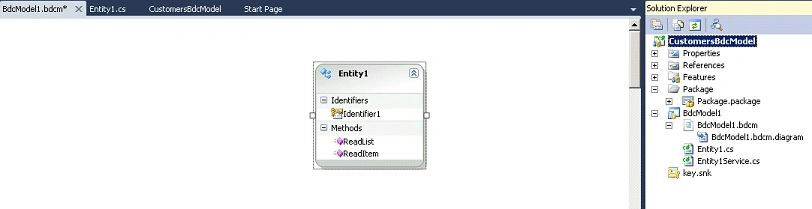
- An Empty SharePoint Project is created and
a Business Data Connectivity Model item is added to the project. By default,
the model appears in the BDC designer.
Delete the default BDC Model:
- In the solution, right click on BDCModel1.
- Click on Delete.
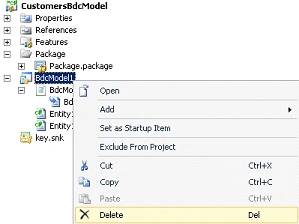
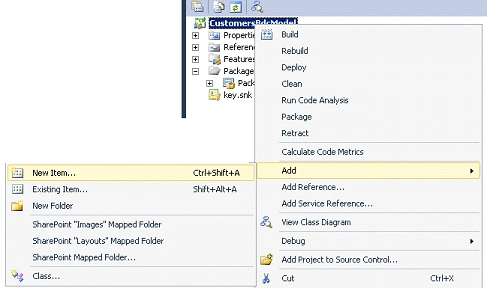
Create a new BDC Model:
- Right click on the solution, Select Add =>
Click on New Item.
- In the Templates pane, select Business
Connectivity Catalog Model.
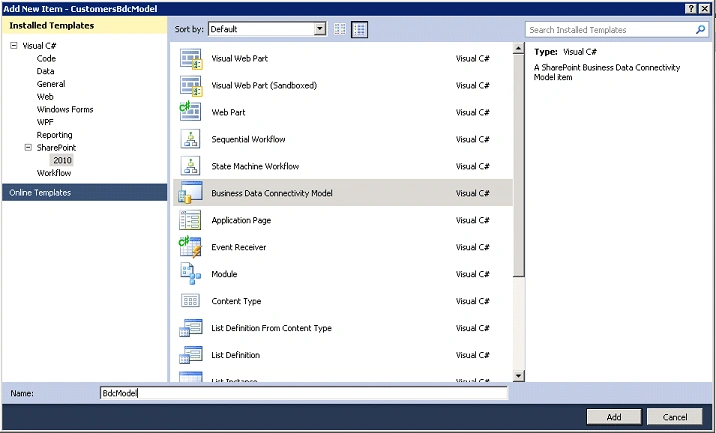
- Enter the Name and click on Add.
Modify Entity1.cs:
- In Solution Explorer, expand the BdcModel
node, and rename Entity1.cs as Customers.cs.
- Replace the code with the following
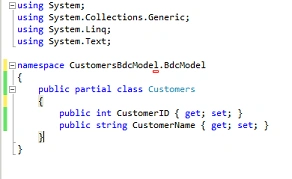
Modify the Entity:
- In Solution Explorer, expand the BdcModel
node, and then double-click the BdcModel.bdcm file.
- The Business Data Connectivity model file
opens in the BDC designer.
- Right click on Entity1 and click on
Properties.
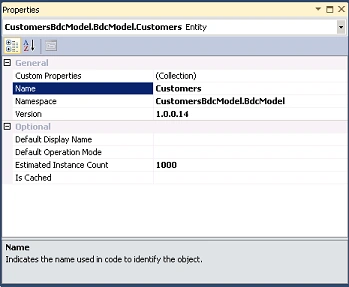
- In the properties, change the Name to
Customers.
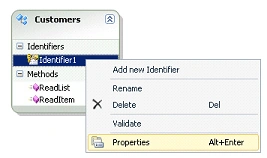
- Right click on Identifier1 and click on
Properties.
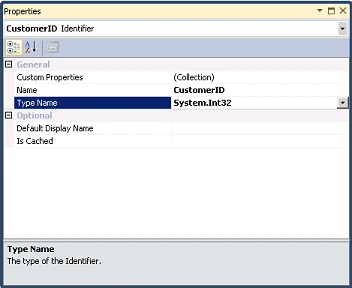
- In the properties, change the Name to
CustomerID and Type Name to System.Int32.
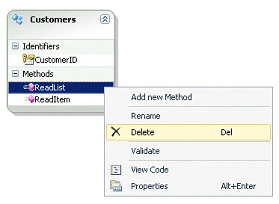
- Right click on ReadList method and click
on Delete.
- Similarly right click on ReadItem method and click on Delete.
ReadItem (Specific Finder Method):
- On the BDC designer, select the Customers
entity.
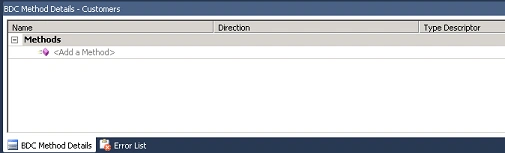
- On the View menu, click Other Windows, and
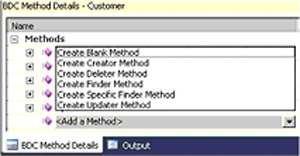
then click BDC Method Details and it looks like the following one.
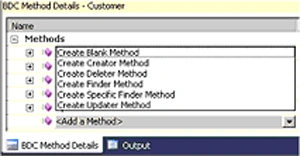
- In the BDC Method Details window, from the
Add a Method drop-down list, select Create Specific Finder Method.
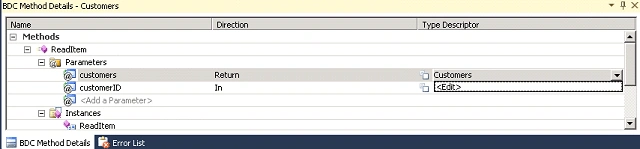
Visual Studio adds the following elements to the model. These elements appear in the BDC Method Details window as shown in the following figure.
--A method named ReadItem.
--An input parameter for the method.
--A return parameter for the method.
--A type descriptor for each parameter.
--A method instance for the method. - In the BDC Method Details window, click
the drop-down list that appears for the Customer Type Descriptor, and then
click Edit.
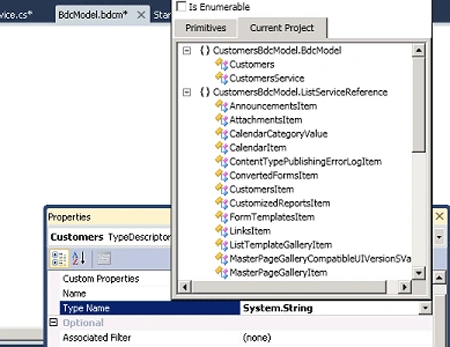
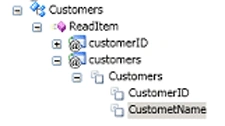
The BDC Explorer opens. The BDC Explorer provides a hierarchical view of the model as shown in the following figure.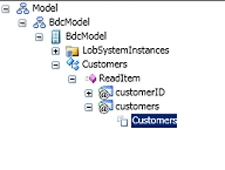
- In the Properties window, click the
drop-down list that appears next to the Type Name property, click the
Current Project tab, and then select Customers.
- In the BDC Explorer, right-click the
Customers, and then click Add Type Descriptor.
A new type descriptor named TypeDescriptor1 appears in the BDC Explorer.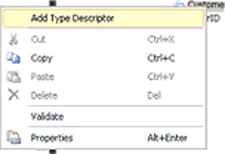
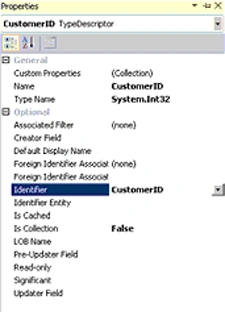
- In the Properties window, set the Name
property to CustomerID.
- Click the drop-down list next to the Type
Name property, and then select Int32.
- Click the drop-down list next to the
Identifier property, and then select CustomerID.
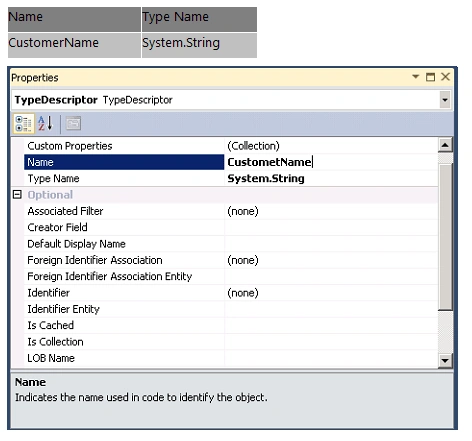
- Repeat step 6 to create a type descriptor
for each of the following fields.

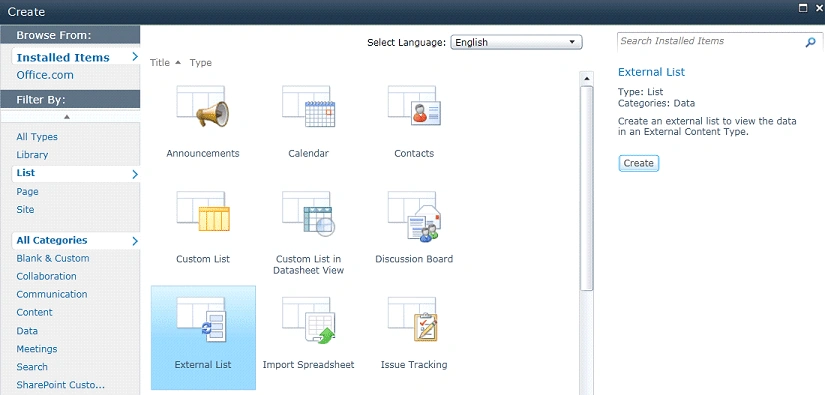
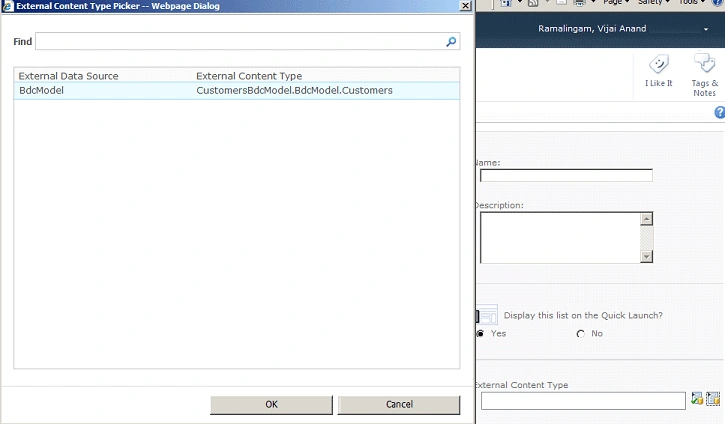
Eric ChoPosted Feb 8, 2013, 12:21 PM
Nice article, it's gotten me quite far; although I'm getting an exception (System.Data.Services.Client.DataServiceClientException) and it's claiming that it's "unauthorized". I've tried the following but all with the same result. dc.Credentials = CredentialCache.DefaultNetworkCredentials; dc.Credentials = CredentialCache.DefaultCredentials; dc.Credentials = new NetworkCredential("domain/farmadmin", "password"); Any hints on how to get past this?
sree chennaPosted Sep 25, 2012, 4:12 PM
Hi Anand, Thats a good article, i was waiting for. I have three queries mainly around BCS being used primarily for External Data Sources. But as per your article we have Created ECT for SharePoint List. My Question is around, have another ECT for External Data Sources. And then trying to connect both the ECTs (ECT created out of SharePoint List above and ECT created for External Data Sources) using associations. Is it Possible. Like to know if this is a custom development or can be managed declaratively. My 2nd Question is around Performance around creating ECT for SharePoint List, when we can actually access data straight out of the box. I know that there are some scenarios where we use this approach for connecting two ECTs or is there any other reason for creating a ECT for sharepoint OOB list. Lastly, can i have a ECT for external sources only for READ operations and an ECT on SharePoint List for all CRUDQ operations. Happy to hear from good suggestions from you. Thanks Ram
Dinesh BeniwalPosted Jul 11, 2011, 12:48 PM
Vijai you are sharepoint expert, thanks for sharing
Shalini JunejaPosted Jul 11, 2011, 12:06 AM
Nice Work