Requirement
We need a textbox in which when a user types the name of a country, it automatically shows suggestions as soon as the user starts typing a word. Also with the suggestion, we want the country flag to appear against each country in the suggestion.
Solution
Step 1: Download some sample images of flags of some countries from the internet. I have already downloaded some of the images.
Step 2: Create a table in a database that stores the path of flags along with the country names. Use the following SQL Script to achieve this.
- CREATE DATABASE jQueryUIDemo
-
- USE jQueryUIDemo
-
- CREATE TABLE [dbo].[jQueryDemo] (
- [Id] INT IDENTITY (1, 1) NOT NULL,
- [CountryName] NVARCHAR (50) NOT NULL,
- [IconPath] NVARCHAR (MAX) NOT NULL,
- PRIMARY KEY CLUSTERED ([Id] ASC)
- );
-
- CREATE procedure [dbo].[spGetCountriesDetailsWithIcons]
- @term nvarchar(max)
- as
- begin
- select * from jQueryDemo where CountryName like @term + '%'
- end
-
- SET IDENTITY_INSERT [dbo].[jQueryDemo] ON
- INSERT INTO [dbo].[jQueryDemo] ([Id], [CountryName], [IconPath]) VALUES (1, N'Australia', N'/Icons/australia.gif')
- INSERT INTO [dbo].[jQueryDemo] ([Id], [CountryName], [IconPath]) VALUES (2, N'Canada', N'/Icons/canada.gif')
- INSERT INTO [dbo].[jQueryDemo] ([Id], [CountryName], [IconPath]) VALUES (3, N'China', N'/Icons/china.gif')
- INSERT INTO [dbo].[jQueryDemo] ([Id], [CountryName], [IconPath]) VALUES (4, N'England', N'/Icons/england.gif')
- INSERT INTO [dbo].[jQueryDemo] ([Id], [CountryName], [IconPath]) VALUES (5, N'India', N'/Icons/india.gif')
- INSERT INTO [dbo].[jQueryDemo] ([Id], [CountryName], [IconPath]) VALUES (6, N'Ireland', N'/Icons/ireland.gif')
- INSERT INTO [dbo].[jQueryDemo] ([Id], [CountryName], [IconPath]) VALUES (7, N'Malaysia', N'/Icons/malaysia.gif')
- INSERT INTO [dbo].[jQueryDemo] ([Id], [CountryName], [IconPath]) VALUES (8, N'Mexico', N'/Icons/mexico.gif')
- INSERT INTO [dbo].[jQueryDemo] ([Id], [CountryName], [IconPath]) VALUES (9, N'Nepal', N'/Icons/nepal.gif')
- INSERT INTO [dbo].[jQueryDemo] ([Id], [CountryName], [IconPath]) VALUES (10, N'Pakistan', N'/Icons/pakistan.gif')
- INSERT INTO [dbo].[jQueryDemo] ([Id], [CountryName], [IconPath]) VALUES (11, N'Poland', N'/Icons/poland.gif')
- INSERT INTO [dbo].[jQueryDemo] ([Id], [CountryName], [IconPath]) VALUES (12, N'Portugal', N'/Icons/portugal.gif')
- INSERT INTO [dbo].[jQueryDemo] ([Id], [CountryName], [IconPath]) VALUES (13, N'Russia', N'/Icons/russia.gif')
- INSERT INTO [dbo].[jQueryDemo] ([Id], [CountryName], [IconPath]) VALUES (14, N'Spain', N'/Icons/spain.gif')
- INSERT INTO [dbo].[jQueryDemo] ([Id], [CountryName], [IconPath]) VALUES (15, N'Sri Lanka', N'/Icons/sri_lanka.gif')
- INSERT INTO [dbo].[jQueryDemo] ([Id], [CountryName], [IconPath]) VALUES (16, N'Turkey', N'/Icons/turkey.gif')
- SET IDENTITY_INSERT [dbo].[jQueryDemo] OFF
Open Visual Studio and create an empty ASP.NET Web application.
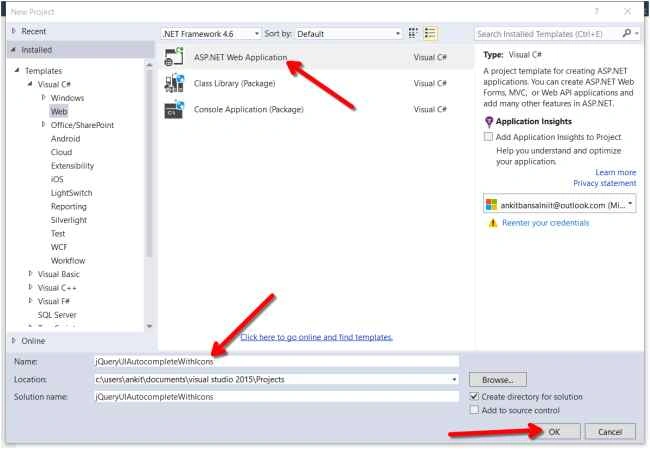
 Step 4:
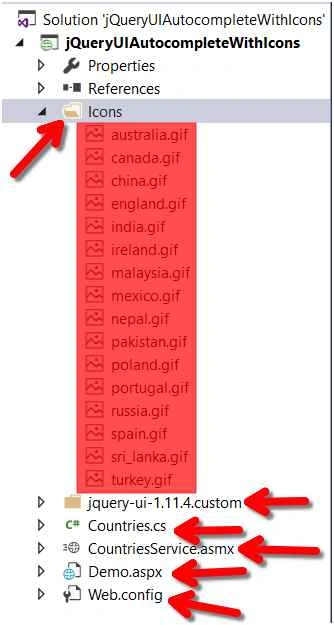
 Add a folder named "Icons" and copy all the downloaded images to it. Remember, the name of the folder should be same as that of the path that you have saved in the Database table.
Step 5: Download jQueryUI Autocomplete Widget source files from
jQueryUI official website or you can follow the steps to download from my previous
article on jQueryUI Autocomplete widget. Copy this downloaded folder to the root directory of the application. We need only the reference of the following files in that downloaded folder.

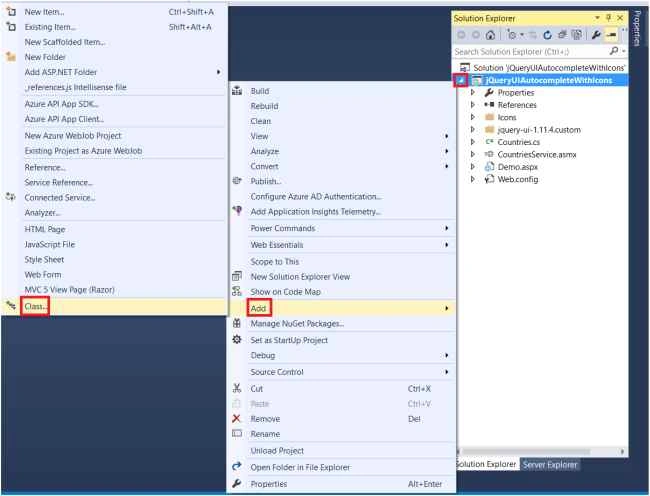
Step 6: Add a class file named "
Countries.cs" and replace with the following code.

- namespace jQueryUIAutocompleteWithIcons
- {
- public class Countries
- {
- public int Id { get; set; }
- public string CountryName { get; set; }
- public string IconPath { get; set; }
- }
- }
Add the connection strings to connect to the database in the web.config file.
- <?xml version="1.0" encoding="utf-8"?>
- <configuration>
- <system.web>
- <compilation debug="true" targetFramework="4.5" />
- <httpRuntime targetFramework="4.5" />
- </system.web>
- <connectionStrings>
- <add connectionString="Data Source=.; Database=jQueryUIDemo; Integrated Security=True" name="DBCS" providerName="System.Data.SqlClient"/>
- </connectionStrings>
- </configuration>
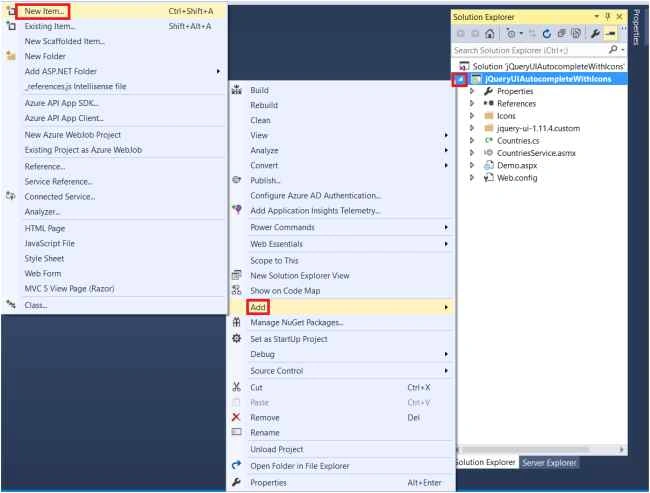
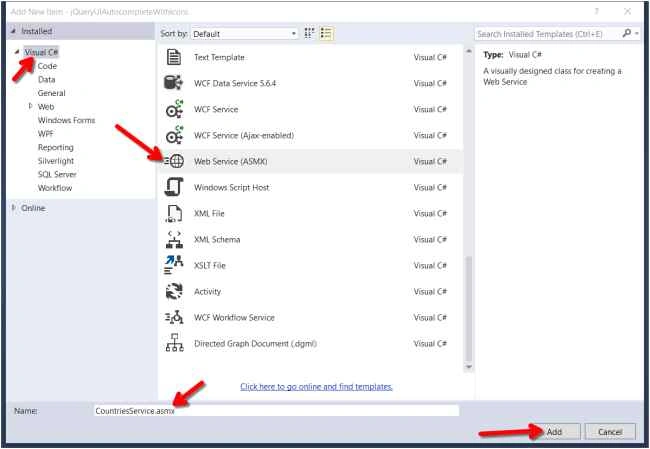
Step 8: Add an ASP.NET Web service file named "
CountriesService.asmx" and replaced it with the following code.
- using System;
- using System.Collections.Generic;
- using System.Configuration;
- using System.Data;
- using System.Data.SqlClient;
- using System.Web.Script.Serialization;
- using System.Web.Services;
-
- namespace jQueryUIAutocompleteWithIcons
- {
- [WebService(Namespace = "http://tempuri.org/")]
- [WebServiceBinding(ConformsTo = WsiProfiles.BasicProfile1_1)]
- [System.ComponentModel.ToolboxItem(false)]
- [System.Web.Script.Services.ScriptService]
- public class CountriesService : System.Web.Services.WebService
- {
- [WebMethod]
- public void GetCountriesDetails(string term)
- {
- string CS = ConfigurationManager.ConnectionStrings["DBCS"].ConnectionString;
-
- List<Countries> countries = new List<Countries>();
-
- using (SqlConnection con = new SqlConnection(CS))
- {
- SqlCommand cmd = new SqlCommand("spGetCountriesDetailsWithIcons", con);
- cmd.CommandType = CommandType.StoredProcedure;
- cmd.Parameters.AddWithValue("@term", term);
- con.Open();
- SqlDataReader dr = cmd.ExecuteReader();
- while (dr.Read())
- {
- Countries country = new Countries();
- country.Id = Convert.ToInt32(dr["Id"]);
- country.CountryName = dr["CountryName"].ToString();
- country.IconPath = dr["IconPath"].ToString();
- countries.Add(country);
- }
- }
- JavaScriptSerializer JS = new JavaScriptSerializer();
- Context.Response.Write(JS.Serialize(countries));
- }
- }
- }
Press Ctrl + F5 to check that our service is working as expected or not. You will see the following screen.

Click the link
GetCountriesDetails which is the name of the method that we created in Service code. You will see the following.
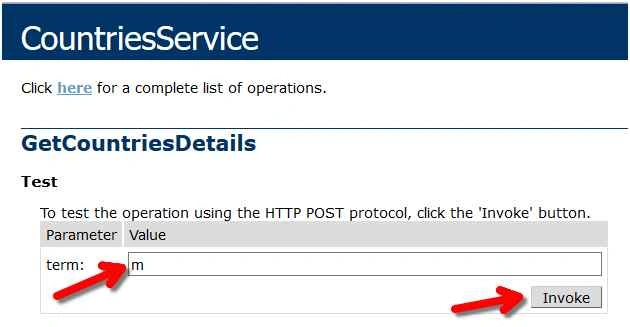
When you enter some characters and press invoke, it will fetch the data from the database using the Stored procedure that we created in SQL.

Understanding the code of Web service.
- We will use the auto implemented properties defined in Countries.cs class file.
- In the web service we are using the simple ADO.NET connectivity to fetch data using Stored procedure.
- The data that we get from database is stored in List object of Countries class. So, a list of countries is maintained in it.
- At the end of code, we are using JavascriptSerializer Class's object which will serialize all the list data into JSON format that we will use in our jQuery code to show suggestions in textbox.
Step 9: Add a new Webform named "Demo.aspx" and add the reference of the following jQuery files to its head section.

Step 10: Add the following code to HTML Source of Demo.aspx page.
- <%@ Page Language="C#" AutoEventWireup="true" CodeBehind="Demo.aspx.cs" Inherits="jQueryUIAutocompleteWithIcons.Demo" %>
-
- <!DOCTYPE html>
-
- <html xmlns="http://www.w3.org/1999/xhtml">
- <head runat="server">
- <script src="jquery-ui-1.11.4.custom/external/jquery/jquery.js"></script>
- <script src="jquery-ui-1.11.4.custom/jquery-ui.js"></script>
- <link href="jquery-ui-1.11.4.custom/jquery-ui.css" rel="stylesheet" />
- <link href="jquery-ui-1.11.4.custom/jquery-ui.theme.css" rel="stylesheet" />
- <link href="jquery-ui-1.11.4.custom/jquery-ui.structure.css" rel="stylesheet" />
- <title>jQueryUI Demo</title>
- <script type="text/javascript">
- $(document).ready(function () {
- $("#countryInput").autocomplete({
- minLength: 1,
- source: function (request, response) {
- $.ajax({
- url: "CountriesService.asmx/GetCountriesDetails",
- method: "post",
- data: { term: request.term },
- dataType: "json",
- success: function (data) {
- response(data);
- },
- error: function (err) {
- alert(err);
- }
- });
- },
- focus: updateTextbox,
- select: updateTextbox
- }).autocomplete("instance")._renderItem = function (ul, item) {
- return $("<li>")
- .append("<img class='imageClass' src=" + item.IconPath + " alt=" + item.CountryName + "/>")
- .append('<a>' + item.CountryName + '</a>')
- .appendTo(ul);
- };
- function updateTextbox(event, ui) {
- $(this).val(ui.item.CountryName);
- return false;
- }
- });
- </script>
- <style type="text/css">
- .imageClass {
- width: 16px;
- height: 16px;
- padding-right: 4px;
- }
- </style>
- </head>
- <body>
- <form id="form1" runat="server">
- Enter Country Name :
- <input type="text" id="countryInput" />
- </form>
- </body>
- </html>
Verify that our Solution Explorer should look like the following image. I mean that all the below mentioned files/folder should be available.
 Step 12:
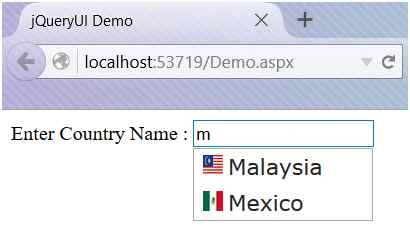
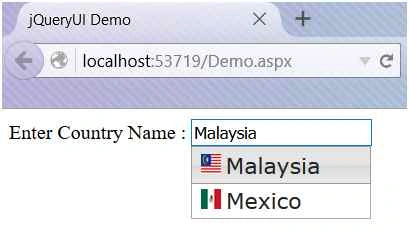
 Now press Ctrl + F5 and you will see that our objective is completed.
 Understanding the HTML and jQuery Code
 - We have taken a textbox in the body of HTML page.
- In Jquery code, we have used some properties of AJAX and Autocomplete Widget, to understand their purposes, you can refer to their definitions from jqueryui.com and jquery.com.
Code Explanation:
- At the very first, in ready function of jQuery, we are finding the textbox using its ID and to that we applied autocomplete function of jQuery.
- minLength tells that the minimum character to be entered by the user should be one.
- Source tells what will be the source for autocomplete feature to work, so we created a function that sends the user entered value to our web service which expects a parameter called "term". All this will occur at the request end. When the service completes its work, we specify the method as 'post' which will only work when we get the response from the web service. That's why the function here has two parameters i.e. request and response.
- As our web service is returning that data in JSON format, so we specify datatype as JSON.
- The data is term that we send to the service.
- If the data is success, then we return back data in the function and send it to response parameter of source function.
- If the error occurs, it will show a JavaScript alert.
- Focus and select will keep the focus on textbox. This is implemented to show the data in textbox even if we hover mouse cursor over. For this we created a separate function which shows the hovered/selected list item of autocomplete in the textbox.
- Again we call autocomplete function, to that we call _renderItem method which creates a list of returned data in <li> tag format.
- RenderItem expects two parameters, ul and item. So, we returned a <li> tag using jQuery and to that we append image tag which shows the image.
- To the above, we again append the name of country.
- And we added all this appended data to <ul> and returned the item.
- We also added some style to set the width and height of the image because image can be of different sizes.
Please read this article on my personal blogs also: debugsolutions and technewsinform. If you liked this article, then please share as much as you can.


Anu VPosted Oct 28, 2015, 7:25 AM
good article..
Mohammed IbrahimPosted Sep 7, 2015, 11:49 AM
nice
Shridhar SharmaPosted Sep 7, 2015, 10:56 AM
good show :)\
Debasis SahaPosted Sep 7, 2015, 9:42 AM
Good One..
Amol JadhaoPosted Sep 7, 2015, 5:29 AM
Good..
RakeshPosted Sep 7, 2015, 3:15 AM
Good Explain buddy
Karthikeyan KPosted Sep 6, 2015, 11:21 PM
Good one sir..Thanks for sharing
Pankaj Kumar ChoudharyPosted Sep 6, 2015, 7:00 PM
Nice Article Sir......
Santhakumar MunuswamyPosted Sep 6, 2015, 2:31 PM
Good work.. Thanks for sharing