

Introduction
Today, in this article let's play around with one of the interesting and most
useful concept in OData.
Question: What is select data from SharePoint list using OData Service?
In simple terms "It provides flexibility to pull out the data with helps of data
services from SharePoint list".
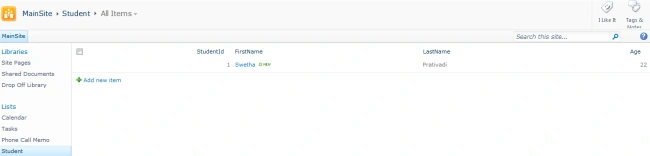
Step 1: Create a new custom list on SharePoint site
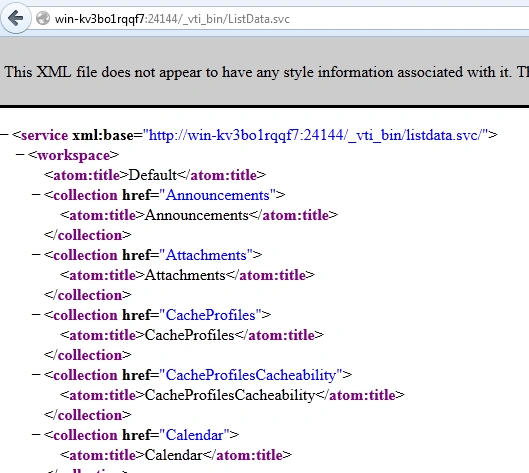
Step 2: Browse the OData Service .svc on SharePoint
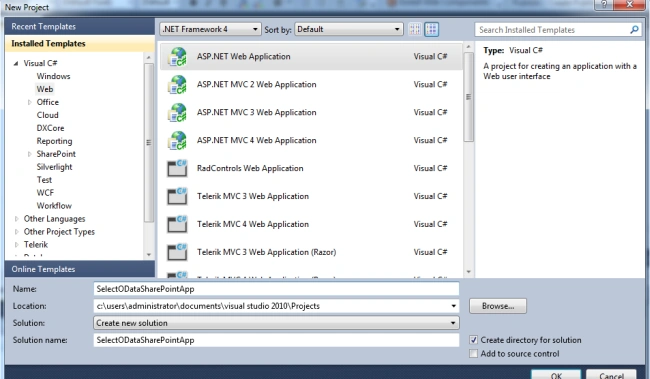
Step 3: Create a new web application to existing application
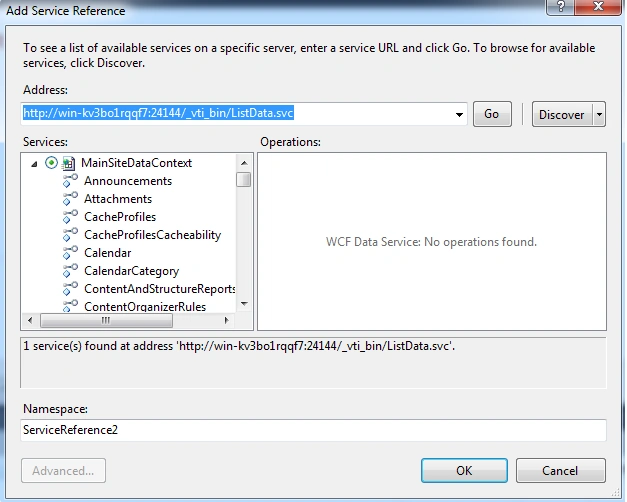
Step 4: Add a service reference to the newly created web application
Step 5: The complete code of WebForm1.aspx looks like this
<%@ Page Language="C#" AutoEventWireup="true" CodeBehind="WebForm1.aspx.cs" Inherits="SelectODataSPApp.WebForm1" %>
<!DOCTYPE html PUBLIC "-//W3C//DTD XHTML 1.0 Transitional//EN" "http://www.w3.org/TR/xhtml1/DTD/xhtml1-transitional.dtd">
<html xmlns="http://www.w3.org/1999/xhtml">
<head id="Head1" runat="server">
<style type="text/css">
.grid
{
margin-top: 50px;
}
</style>
<title></title>
</head>
<body>
<form id="form1" runat="server">
<center>
<div>
<table>
<tr>
<td colspan="2" align="center">
<asp:Label ID="Label1" runat="server" Text="Select Data from SharePoint List using OData Service"
Font-Bold="true" Font-Size="Large" Font-Names="Verdana" ForeColor="Maroon"></asp:Label>
</td>
</tr>
<tr>
<td colspan="2" align="center">
<asp:Button ID="Button1" runat="server" Text="Select Data" Font-Names="Verdana" Width="213px"
BackColor="Orange" Font-Bold="True" OnClick="Button1_Click" />
</td>
</tr>
<tr>
<td colspan="2" align="center">
<asp:GridView ID="GridView1" runat="server" BackColor="#DEBA84" BorderColor="#DEBA84"
BorderStyle="None" BorderWidth="1px" CellPadding="3" CellSpacing="2" EnableModelValidation="True"
AutoGenerateColumns="False">
<FooterStyle BackColor="#F7DFB5" ForeColor="#8C4510" />
<HeaderStyle BackColor="#A55129" Font-Bold="True" ForeColor="White" />
<PagerStyle ForeColor="#8C4510" HorizontalAlign="Center" />
<RowStyle BackColor="#FFF7E7" ForeColor="#8C4510" />
<SelectedRowStyle BackColor="#738A9C" Font-Bold="True" ForeColor="White" />
<Columns>
<asp:BoundField DataField="ID" HeaderText="Student Id" ReadOnly="true" SortExpression="Id" />
<asp:BoundField DataField="FirstName" HeaderText="First Name" ReadOnly="true" />
<asp:BoundField DataField="LastName" HeaderText="Last Name" ReadOnly="true" />
<asp:BoundField DataField="Age" HeaderText="Age" ReadOnly="true" />
</Columns>
</asp:GridView>
</td>
</tr>
</table>
</div>
</center>
</form>
</body>
</html>
Step 6: The complete code of WebForm1.aspx.cs looks like this
using System;
using System.Collections.Generic;
using System.Linq;
using System.Web;
using System.Web.UI;
using System.Web.UI.WebControls;
using SelectODataSPApp.ServiceReference1;
namespace SelectODataSPApp
{
public partial class WebForm1 : System.Web.UI.Page
{
protected void Page_Load(object sender, EventArgs e)
{
}
protected void Button1_Click(object sender, EventArgs e)
{
MainSiteDataContext objContext = new MainSiteDataContext(new Uri("http://win-kv3bo1rqqf7:24144/_vti_bin/ListData.svc"));
objContext.Credentials = System.Net.CredentialCache.DefaultCredentials; GridView1.DataSource = objContext.Student.ToList();
GridView1.DataBind();
}
}
}
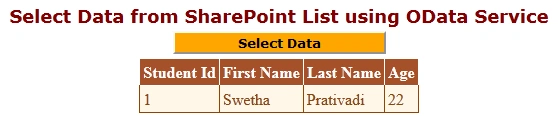
Step 7: The output of the application looks like this

Step 8: The selected data output of the application looks like this
Join the conversation! Your thoughts help the community grow.