

Walkthrough
You have to know that this kind of operation is only leveraged within windows XP environment, moreover, the WIA API is not automatically delivered with Windows; therefore, it must be downloaded from this link.
http://www.microsoft.com/downloads/details.aspx?FamilyID=a332a77a-01b8-4de6-91c2-b7ea32537e29&displaylang=en
First, install the WIA API by extracting the content of the zipped file then by copying and pasting the wiaaut.dll assembly to C:\Windows\System32 and finally by registering the assembly using the regsvc32.exe
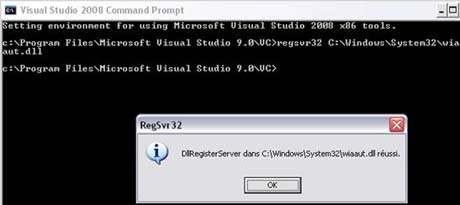
Figure 1.
Now, include the WIA library within your project by adding a reference to it :
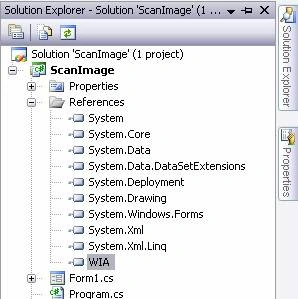
Figure 2.
Add a new class to your project and name it Scanner:
using System;
using WIA;
namespace ScanImage
{
public class Scanner
{
Device oDevice;
Item oItem;
CommonDialogClass dlg;
public Scanner()
{
dlg = new CommonDialogClass();
oDevice = dlg.ShowSelectDevice(WiaDeviceType.ScannerDeviceType, true, false);
}
public void Scann()
{
dlg.ShowAcquisitionWizard(oDevice);
}
}
}
In order to consume the services of this very simple class add a button and a picture box to your form as your project is Windows form one, the form should looks like this bellow:
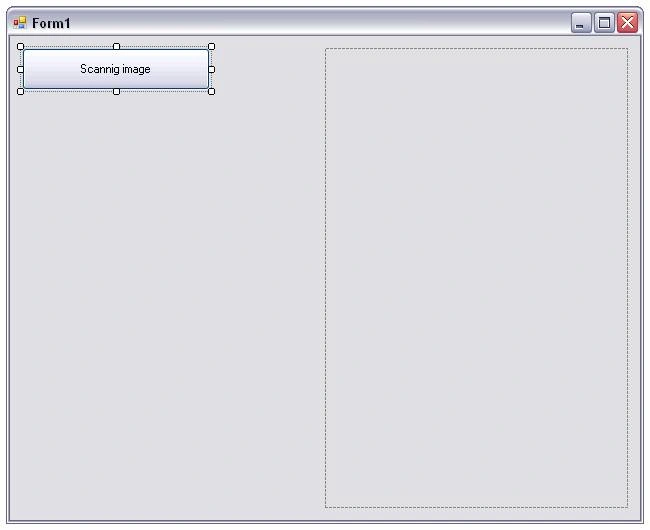
Figure 3.
Do implement the button1_click as follow:
private void button1_Click(object sender, EventArgs e)
{
Scanner oScanner = new Scanner();
oScanner.Scann();
button1.Text = "Image scanned";
OpenFileDialog dlg = new OpenFileDialog();
if (dlg.ShowDialog() == DialogResult.OK)
{
pictureBox1.Image = Image.FromFile(dlg.FileName);
}
}
Now run the application and observe:
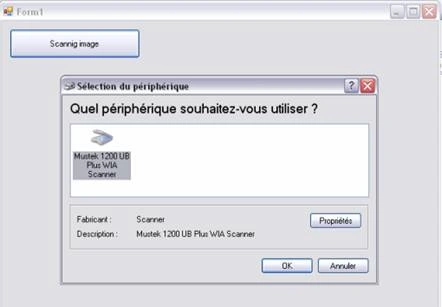
Figure 4.
Click OK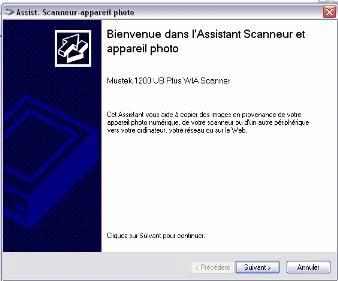
Figure 5.
Then the below windows appears :
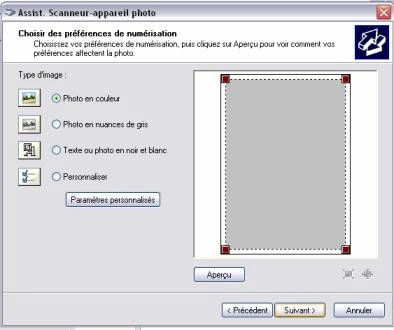
Figure 6.
Choose the colored photo, and then click next:
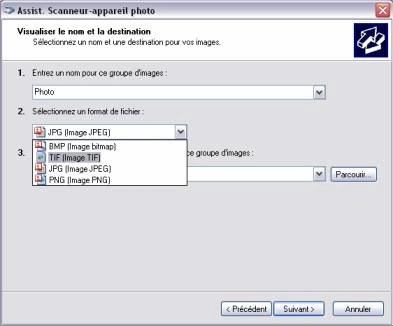
Figure 7.
In the above window, select JPG then click next
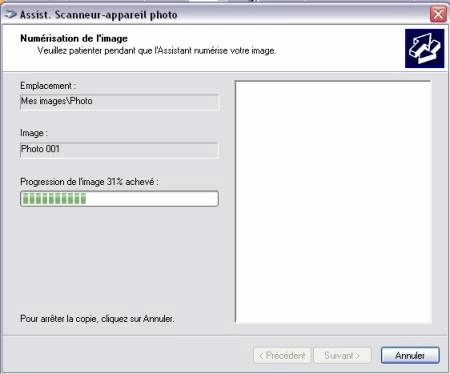
Figure 8 .
As showed above, the scanning process will be lunched as normally, click next then finish and the paper will be scanned as bellow:
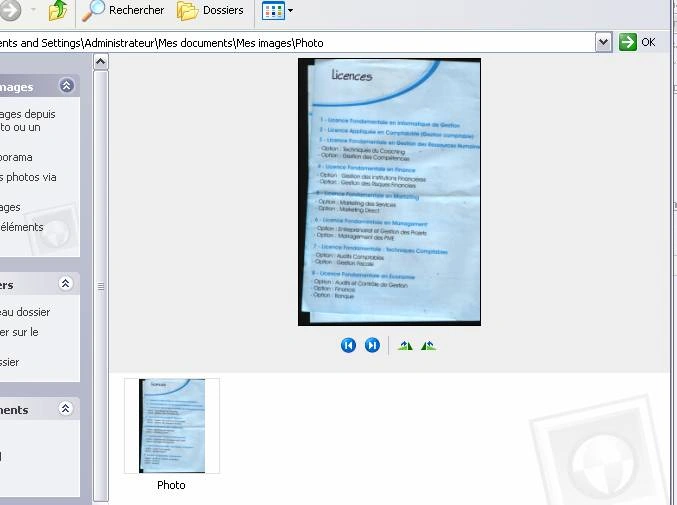
Figure 9
You can browse to the emplacement of the given scanned image and display it using the picture box.
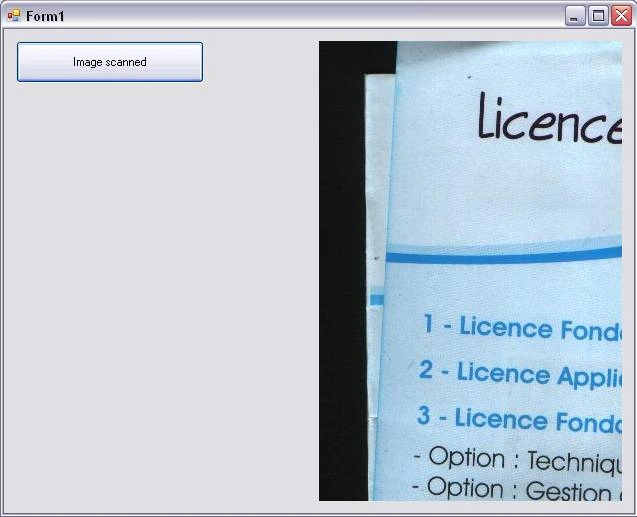
Figure 10
That's it
God Dotneting !!!
Radhakrishnan VPosted Aug 19, 2015, 5:39 AM
Thank you, Bechir Bejaoui... its working fine.. but how to import image to picture box after scanning.. It is not sitting automatically... How to call that image to picture box....
Sabyasachi MishraPosted Apr 23, 2015, 2:48 AM
How to implement it in WPF application
mahmoud eidPosted Feb 28, 2015, 5:57 AM
file winrar not working i want to file project
Stephano St PreuxPosted Jan 18, 2014, 12:01 PM
Hi everyone!! Your program is helpfull, thanks. however, may someone tell me how to scan a document multi page as one document ?
Pradeep PatelPosted Dec 24, 2013, 2:47 AM
Any body can help me to achieve this in web application please..
Pradeep PatelPosted Dec 24, 2013, 2:46 AM
Hii As you mention it is for Windows XP,, Can you please upload for windows 7.. your article is very well explained, and I'm searching in your explanation way please help me.. Thanx in advance Pradeep
chandan prasadPosted Oct 4, 2013, 3:11 AM
How to access properties of ShowAcquisitionWizard?
santosh gargPosted Feb 12, 2013, 8:03 AM
from where i got WIA API because i downloaded above Bejaoui4.zip file but it's having only scanner.cs and ButtonClick.cs file and not getting wia api. please suggest me ASAP
suneet sainiPosted Sep 18, 2012, 9:54 AM
I am using the similar style for WIA, after scanning images into jpeg format i changing them into pdf format. when the changing process exits i want to delete the image file. but the scanning process still using them & protect the from deletion; throws an exceptional error. Is there any way by which i can delete the images and clear the memory.
Rupom AhsanPosted Jun 6, 2012, 5:28 AM
CommonDialogClass dlg; dlg = new CommonDialogClass(); I am getting an error with "CommonDialogeClass". Error: Interop Type 'WIA.CommonDialogClass' cannot be embeded. Use the aplicable interface instead. What to do now, pls help me out, i am new to c#
Rahul SharmaPosted Feb 8, 2012, 7:28 AM
Hi, This is Rahul. when i use this code for scanning for some file, it throws an error to me i.e. Exception from HRESULT:0x80210015.... please tell me about this. Thanks
sandeep bhujbalPosted Feb 3, 2012, 1:04 AM
your code is help to me
Chrispie SmithPosted Feb 2, 2012, 9:31 AM
Hi Thanks so much for this... it really helps a lot and makes more sense. I have 2 questions though... 1. Is there a way for the user to only select the options once... next time they hist scan... i want the full page to be scanned again to my app... but without letting the have to select full page/color or even scanner... only use the same scanner and scan full page. My app requires documents to be scanned that will always be A4 2. Will this work on any scanner, even a copier machine? thanks
Chrispie SmithPosted Feb 2, 2012, 9:28 AM
Hi Thanks so much for this... it really helps a lot and makes more sense. I have 2 questions though... 1. Is there a way for the user to only select the options once... next time they hist scan... i want the full page to be scanned again to my app... but without letting the have to select full page/color or even scanner... only use the same scanner and scan full page. My app requires documents to be scanned that will always be A4 2. Will this work on any scanner, even a copier machine? thanks
therese HuynhPosted Sep 23, 2011, 8:54 AM
Please sir your code is definitely but I shall want when I click on the button and this gives an outline directly by the picturebox without crossing stages with the assitantes of scanner .how to make ?Please please thank you very much, , if it possible sends you me by mail [email protected]
vahid naseriPosted Jul 24, 2011, 9:32 AM
http://irupload.ir/images/b8hixowk7c2unlgt1t0t.jpg i run your code but genarate an exception can help me ?
vahid naseriPosted Jul 24, 2011, 9:32 AM
http://irupload.ir/images/b8hixowk7c2unlgt1t0t.jpg i run your code but genarate an exception can help me ?
Bing ShenPosted Sep 30, 2010, 1:27 PM
Thank you for the tutorial, it is very helpful, what models of scanner work best for the apps?
indu pPosted Aug 10, 2010, 2:27 AM
But I'm getting this exception System.Runtime.InteropServices.COMException: Exception from HRESULT: 0x80210015
hazim salehPosted Jul 20, 2010, 1:23 PM
Error 1 Interop type 'WIA.CommonDialogClass' cannot be embedded. Use the applicable interface instead. i try to solve :( can u help plz
shahbazPosted Jul 10, 2010, 12:17 PM
do you have any idea that how can i just scan the image automatically(not using wizard) and then use this image for further processing in between our application, without showing the user that image is scanned or not.
MehriPosted Jun 4, 2010, 8:03 PM
Great JOB, BinZarti !!! ;)
haisureshPosted Mar 22, 2010, 4:37 AM
Hi, Could you pls let me know how can I get the path where the user saved those scanned images?? Thanks
ahmad zavariPosted Feb 8, 2010, 8:31 AM
tanks a lot for this tutorial
Geetha Vani ThatiPosted Aug 10, 2009, 5:15 AM
I had created this sample as web application in my local system its worked fine. But in IIS server , When I run application it is not showing any response even exception. I want to know whether it works for web application in IIS Server
gulam muhammadPosted Jun 2, 2009, 12:28 PM
Can u say how can we minimize the dpi of image ex: 75 dpi in the program itself. I am using C# .Net 2003. If this code you provide for me i will be very thank ful to you. can we load image directly from the scanner to picturebox??? is there any way to do this. i know we can do but i dont know how to do this.Please help i am really in a need of this code. you can mail me at my yahoo email. [email protected]
kalyan kameshPosted May 28, 2009, 9:27 AM
Hi, i am using Canon CR55 scaner,it read bunch of Bank checks continously, i need to write an c# application to store all the checks, it wont support twin dll , can u help me
kalyan kameshPosted May 28, 2009, 9:23 AM
how to insert new images in this httml control
kalyan kameshPosted May 28, 2009, 9:20 AM
r u saving this images
nissaalPosted Apr 8, 2009, 3:05 PM
I used same way. But i not succeeded. Scanned Image is just line. I used HP3050.
khyati patelPosted Apr 3, 2009, 2:13 AM
this is very helpful to me.but i want that the image shuold be directoly scan into picture box.And the image should be adjusted in picturebox.
Shaijil SPosted Nov 17, 2008, 6:15 AM
Good information's. But any idea on how to get scanned image's in machine readable format like txt , doc etc..?