
In my previous post, Individual developer settings in ASP.NET Core, I showed you how to create per-developer settings using Windows environment variables. While environment variables are both fast to produce and script friendly, there is a better approach available in ASP.NET Core called User Secrets.
Unlike environment variables, user secrets are placed in a settings file similar to appsettings.json. Having similar structured off-project settings is great when you need to copy keys and values between files and there is support for adding, removing and listing values as I will show you later in this post.
To understand user secrets, let's resume the example from the previous post. In there I had an appsettings.json file looking like this,
- {
- "AppSettings": {
- "ConnectionString": "http://localhost:9000"
- },
- ...
- }
In order to override the AppSettings:ConnectionString setting on individual machines, each user needs to add a user secret with the same name. The easiest approach is to right-click the project and select Manage User Secrets:
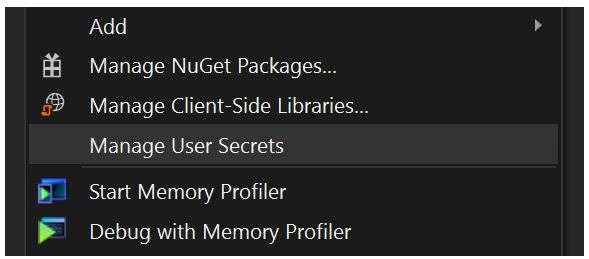
This creates and opens a new empty JSON file named secrets.json. The file is placed beneath C:\Users\<username>\AppData\Roaming\Microsoft\UserSecrets\<id> where <username> matches your Windows user and <id> is a randomly generated GUID. The important thing to notice here is that the file is located outside your project directory. In order to "bind" the secrets.json file location to your project, Visual Studio added a bit of markup to the csproj file:
- <PropertyGroup>
- <UserSecretsId>dda25df4-9a88-4a7e-8502-2134b74e4729</UserSecretsId>
- </PropertyGroup>
In case you want to override the AppSettings:ConnectionString setting, add a similar structure to the secrets.json file:
- {
- "AppSettings": {
- "ConnectionString": "http://localhost:9000?user=richard&password=1234"
- }
- }
- {
- "AppSettings:ConnectionString": "http://localhost:9000?user=richard&password=1234"
- }
I recommend the second approach since you probably only need to override a few settings and since using dotnet from the command line to modify the file, will collapse settings anyway.
While we are already talking about using dotnet to administrate user secrets, let me show you the three commands you will need to learn,
The list command shows you a complete list of keys and values in the secrets.json file.
dotnet user-secrets set "AppSettings:ConnectionString" "some-value"This command set the AppSettings:ConnectionString key to the specified value.
As you already guessed, this command removes the AppSettings:ConnectionString key and value.
With this knowledge, you are ready to rock and roll. As long as you initialize your web application using the WebHost.CreateDefaultBuilder-method, ASP.NET Core automatically pick up your configuration from the secrets.json file. If you initialize your application manually, make sure to call the AddUserSecrets-method,
- builder.ConfigureAppConfiguration((hostingContext, config) =>
- {
- var env = ctx.HostingEnvironment;
- ...
- if (env.IsDevelopment())
- {
- var appAssembly =
- Assembly.Load(new AssemblyName(env.ApplicationName));
- if (appAssembly != null)
- {
- config.AddUserSecrets(appAssembly, optional: true);
- }
- }
- ...
- }
Notice how I only add user secrets when running in development mode. User secrets is a feature meant for developing only and should be replaced with something else when hosting on Azure, IIS or another production environment.
How about environment variables?
- builder.ConfigureAppConfiguration((hostingContext, config) =>
- {
- ...
- config.AddJsonFile("appsettings.json", optional: true, reloadOnChange: true)
- // Added before AddUserSecrets to let user secrets override
- // environment variables.
- config.AddEnvironmentVariables();
- // Remember to add this on development only
- config.AddUserSecrets(appAssembly, optional: true);
- ...
- }
Individual elmah.io logs using user secrets
To make this even more relevant to elmah.io users, let's utilize user secrets to configure individual elmah.io logs per developer machine. For the example, I'm using the Elmah.Io.AspNetCore package, but this could be anything in the need for configuration really.
Start by installing the Elmah.Io.AspNetCore package,
Install-Package Elmah.Io.AspNetCoreConfigure the elmah.io options in the ConfigureServices-method of the Startup.cs file:
services.Configure<ElmahIoOptions>(Configuration.GetSection("ElmahIo"));Finally, add elmah.io to the Configure-method,
So far we haven't don't anything outside the normal way of installing elmah.io in ASP.NET Core.
In order for Elmah.Io.AspNetCore to be able to authenticate against the API, add your API key to the appsettings.json file,
- {
- ...
- "ElmahIo": {
- "ApiKey": "35a13801bb594a29934a87ea6e9bd13e"
- }
- }
Notice how I left out the log ID from the config file? Since we want a log per developer machine, let us add this using user secrets:
dotnet user-secrets set "ElmahIo:LogId" "8e215db7-716e-45ef-8665-c0a9f62a6c0a"That's it. On runtime, your project will resolve the ElmahIo:ApiKey setting from appsettings.json and the ElmahIo.LogId setting from secrets.json. I used elmah.io as an example here, but the possibilities with this are endless.
Jayesh AgrawalPosted Apr 14, 2019, 9:52 AM
Awesome article... it is very helpful for developer.
Laxmidhar SahooPosted Apr 14, 2019, 8:09 AM
A good naration