

We use one grid view with a field, then we export that grid view to an Excel document using the ItextSharp library. This article is really very similar to my previous article were I explain how to export a grid view to a Word Document.
Initial Chamber
Step 1
Open Your Visual Studio 2010 and create an Empty Website, provide a suitable name ([gridviewexcel_demo)].
Step 2
In Solution Explorer you get your empty website, then add a Web Form and SQL Server Database as in the following.
For Web Form:
gridviewexcel_demo (your empty website) then right-click then select Add New Item -> Web Form. Name it gridviewexcel_demo.aspx.
For SQL Server Database:
gridviewexcel_demo (your empty website) then right-click then select Add New Item -> SQL Server database. (Add a database inside the App_Data_folder).
Database Chamber
Step 3
In Server Explorer, click on your database (Database.mdf) then select Tables -> Add New Table. Make the table like this:
Table -> tbl_data (Don't forget to make ID as IS Identity -- True).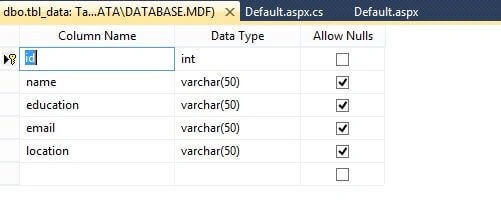
Design Chamber
Step 4
Now make some design for your application by going to gridviewexcel_demo.aspx and try the code like this:
- <%@ Page Language="C#" AutoEventWireup="true" CodeFile="Default.aspx.cs" Inherits="_Default" %>
- <!DOCTYPE html PUBLIC "-//W3C//DTD XHTML 1.0 Transitional//EN" "http://www.w3.org/TR/xhtml1/DTD/xhtml1-transitional.dtd">
- <html xmlns="http://www.w3.org/1999/xhtml">
- <head runat="server">
- <title></title>
- </head>
- <body>
- <form id="form1" runat="server">
- <div>
- <asp:GridView ID="GridView1" runat="server" AllowPaging="True"
- AutoGenerateColumns="False" BackColor="White" BorderColor="#999999"
- BorderStyle="None" BorderWidth="1px" CellPadding="3" DataKeyNames="id"
- GridLines="Vertical" onpageindexchanging="GridView1_PageIndexChanging1"
- PageSize="5">
- <AlternatingRowStyle BackColor="#DCDCDC" />
- <Columns>
- <asp:TemplateField HeaderText="Name">
- <EditItemTemplate>
- <asp:TextBox ID="TextBox1" runat="server" Text='<%# Bind("name") %>'></asp:TextBox>
- </EditItemTemplate>
- <ItemTemplate>
- <asp:Label ID="Label1" runat="server" Text='<%# Bind("name") %>'></asp:Label>
- </ItemTemplate>
- </asp:TemplateField>
- <asp:TemplateField HeaderText="Education">
- <EditItemTemplate>
- <asp:TextBox ID="TextBox2" runat="server" Text='<%# Bind("education") %>'></asp:TextBox>
- </EditItemTemplate>
- <ItemTemplate>
- <asp:Label ID="Label2" runat="server" Text='<%# Bind("education") %>'></asp:Label>
- </ItemTemplate>
- </asp:TemplateField>
- <asp:TemplateField HeaderText="Email">
- <EditItemTemplate>
- <asp:TextBox ID="TextBox3" runat="server" Text='<%# Bind("email") %>'></asp:TextBox>
- </EditItemTemplate>
- <ItemTemplate>
- <asp:Label ID="Label3" runat="server" Text='<%# Bind("email") %>'></asp:Label>
- </ItemTemplate>
- </asp:TemplateField>
- <asp:TemplateField HeaderText="Location">
- <EditItemTemplate>
- <asp:TextBox ID="TextBox4" runat="server" Text='<%# Bind("location") %>'></asp:TextBox>
- </EditItemTemplate>
- <ItemTemplate>
- <asp:Label ID="Label4" runat="server" Text='<%# Bind("location") %>'></asp:Label>
- </ItemTemplate>
- </asp:TemplateField>
- </Columns>
- <FooterStyle BackColor="#CCCCCC" ForeColor="Black" />
- <HeaderStyle BackColor="#000084" Font-Bold="True" ForeColor="White" />
- <PagerStyle BackColor="#999999" ForeColor="Black" HorizontalAlign="Center" />
- <RowStyle BackColor="#EEEEEE" ForeColor="Black" />
- <SelectedRowStyle BackColor="#008A8C" Font-Bold="True" ForeColor="White" />
- <SortedAscendingCellStyle BackColor="#F1F1F1" />
- <SortedAscendingHeaderStyle BackColor="#0000A9" />
- <SortedDescendingCellStyle BackColor="#CAC9C9" />
- <SortedDescendingHeaderStyle BackColor="#000065" />
- </asp:GridView>
- <br />
- <br />
- </div>
- <asp:Button ID="Button1" runat="server" onclick="Button1_Click1"
- Text="Export To PDF" />
- </form>
- </body>
- </html>
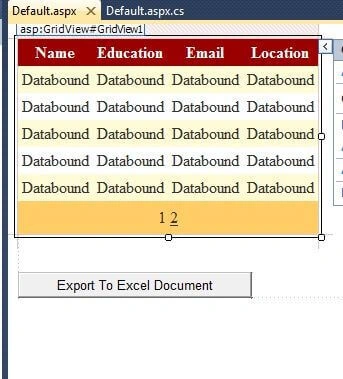
You can show paging by going to GridView properties (Press F4) then select Find -> Allow Paging then make it True. Here I made the page size 5, you can select the page size depending on your data.
Code Chamber
Before this coding part you need to download the iTextsharp library from the Souceforge website, here is the link. Just download the file, the file is in Zip format so just unzip the files to a suitable location so that we can easily browse it.
Itextsharp Library download: itextsharp-all-5.5.6.
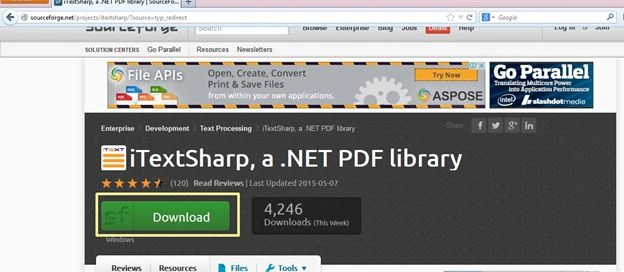
After you download the file, you check this out that you downloaded the right file, look at the following image.
Step 5
Now for the server-side coding so that our application works. Open your gridviewexcel_demo.aspx.cs file and code it as in the following.
You first need to import the DLL of ItextSharp by going to your empty website (gridviewexcel_demo) then right-click then select Add Refrences.
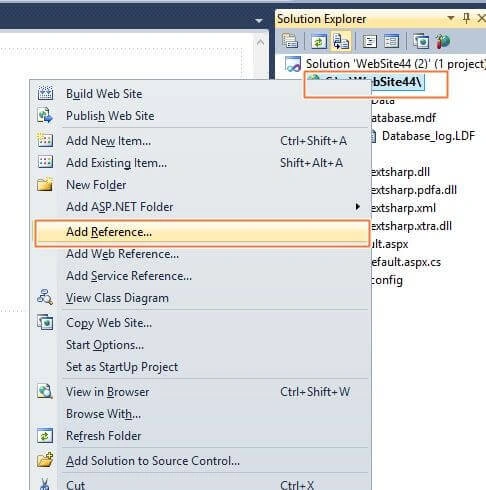
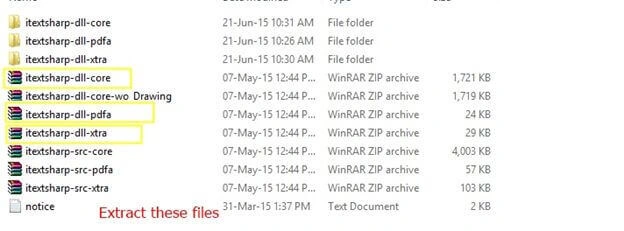
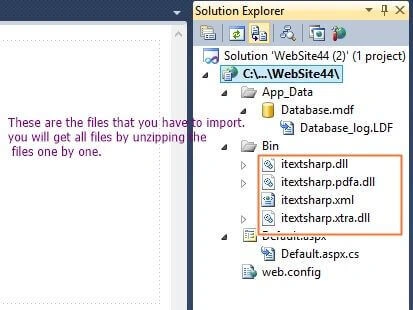
Now browse to the ItextSharp unzip file and open it. Be sure you got all the DLL files unzipped into your application. See the following image to understand what DLL you need to import.
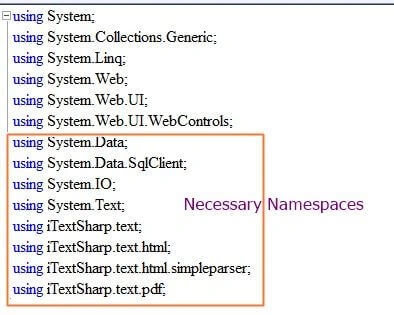
Now import these namspaces, since they will be needed when we write code for exporting the GridView to Excel.
It's time for the code, first we bind the grid view, then we make the code for paging using the GridView event OnPageIndexChanging, then we will write code for exporting the grid view to an Excel document on button click.
- using System;
- using System.Collections.Generic;
- using System.Linq;
- using System.Web;
- using System.Web.UI;
- using System.Web.UI.WebControls;
- using System.Data;
- using System.Data.SqlClient;
- using System.IO;
- using System.Text;
- using iTextSharp.text;
- using iTextSharp.text.html;
- using iTextSharp.text.html.simpleparser;
- using iTextSharp.text.pdf;
- public partial class _Default : System.Web.UI.Page
- {
- protected void Page_Load(object sender, EventArgs e)
- {
- if (!Page.IsPostBack)
- {
- refreshdata();
- }
- }
- // Bind the gridview here
- public void refreshdata()
- {
- SqlConnection con = new SqlConnection(@"Data Source=.\SQLEXPRESS;AttachDbFilename=|DataDirectory|\Database.mdf;Integrated Security=True;User Instance=True");
- SqlCommand cmd = new SqlCommand("select * from tbl_data", con);
- SqlDataAdapter sda = new SqlDataAdapter(cmd);
- DataTable dt = new DataTable();
- sda.Fill(dt);
- GridView1.DataSource = dt;
- GridView1.DataBind();
- }
- // Gridview Paging code here
- protected void GridView1_PageIndexChanging1(object sender, GridViewPageEventArgs e)
- {
- GridView1.PageIndex = e.NewPageIndex;
- refreshdata();
- }
- // Exporting Gridview to pdf code here
- protected void Button1_Click1(object sender, EventArgs e)
- {
- Response.Clear();
- Response.Buffer = true;
- Response.ContentType = "application/vnd.ms-excel";
- Response.AddHeader("content-disposition", "attachment;filename=GridViewExport.xls");
- Response.Cache.SetCacheability(HttpCacheability.NoCache);
- StringWriter swr = new StringWriter();
- HtmlTextWriter htmlwr = new HtmlTextWriter(swr);
- GridView1.AllowPaging = false;
- refreshdata();
- GridView1.RenderControl(htmlwr);
- Response.Output.Write(swr.ToString());
- Response.Flush();
- Response.End();
- }
- public override void VerifyRenderingInServerForm(Control control)
- {
- }
- }

To solve this problem we just embed a code below the Button_click event like this.

Now run your code, it will now work perfectly.
Output Chamber
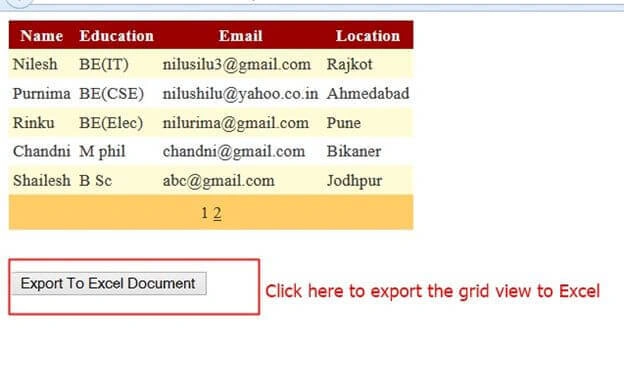
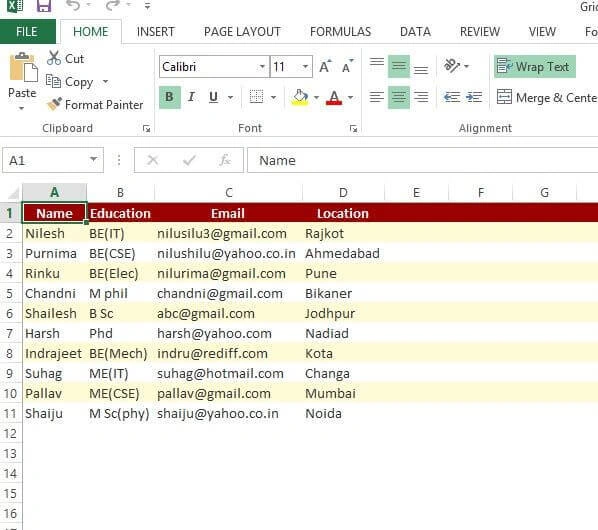
I hope you like this. Thank you for reading. Have a good day!
Mike BartleyPosted Jun 15, 2016, 11:31 AM
I have tried this and receive the following error and won't compile inv2Excel.VerifyRenderingInSeverForm(Control); no suitable method found to override
Arul RPosted Oct 28, 2015, 5:39 AM
Good one !!!
İsmail Hakkı ŞenPosted Oct 19, 2015, 3:06 AM
Thanks for sharing but i don't understand where you use itextsharp! When I use right-click the code and Organize Usings > Remove Unnecessary Usings then Visual Studio removing itextsharp libraries.
Santhakumar MunuswamyPosted Jul 7, 2015, 3:12 PM
Good Article! Thanks for sharing
Vipul MalhotraPosted Jul 7, 2015, 9:01 AM
nice..Thanks for sharing
Gowtham RajamanickamPosted Jul 7, 2015, 6:59 AM
good one..
Gowtham KPosted Jul 7, 2015, 6:54 AM
Good one..
Manoj KulkarniPosted Jul 7, 2015, 2:39 AM
Nice article. Thank you for sharing
Neeraj KumarPosted Jul 7, 2015, 1:23 AM
Nice
Upendra Pratap ShahiPosted Jul 7, 2015, 12:55 AM
good one Nilesh Jadav...we also use spreadsheet gear for this
Sibeesh VenuPosted Jul 7, 2015, 12:49 AM
Nice Article! Thanks for sharing
Debasis SahaPosted Jul 7, 2015, 12:32 AM
Nine One...
Pankaj Kumar ChoudharyPosted Jul 7, 2015, 12:10 AM
Nice One.............