

Introduction
Data Binding is one of the greatest and most powerful features of XAML (WPF, Silverlight, Windows Phone or Windows 8) compared to other traditional web and Windows app technology in .Net. There was simple data binding for displaying single values, and complex data binding for displaying and formatting a bunch of data. XAML (WPF, Silverlight, Windows Phone or Windows 8 ) however makes it easy to bind nearly any property to any element or object or data source. You take data from some property or object or dependency property and bind it to another dependency property or object or else directly to an element. In a single word you can say in XAML "Data binding is the process of getting information from one object to another and displaying it in one or more elements in the user interface".
Before starting this article, if you are a beginner then I'll request that you to learn the basics of XAML or go to this link and learn about XAML and various types of panels in XAML: http://www.c-sharpcorner.com/UploadFile/0b73e1/different-types-of-panels-in-xaml-layout/
DataBinding Concept in XAML
Binding is all about connecting a source to a target. Every time you use binding you must supply a source for the data and the target. Generally the target is a dependency property or some framework element of some user interface and the binding source can be any CLR object. Between the source and the target more objects are involved called value converters. This conversion represents an instance of a class that is implemented for doing the binding declaratively. XAML often requires value conversion using the Ivalueconverter interface. For example, you select student information from a source and you only need the first and last name in the target.
I will try to explain in the following diagram the basics of a Data Bindig scenario and data flow.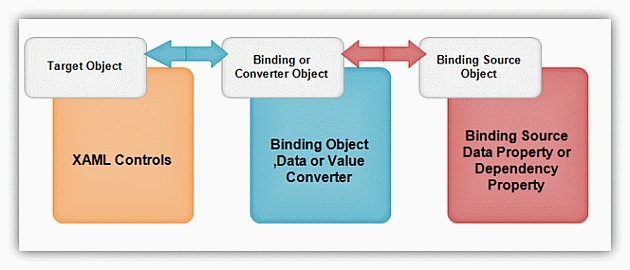
In the above image I try to explain the XAML Databinding structure as in the following:
- Target object: this is a complete UI Control or UI element where you can display your data. You cannot directly bind to the target object; it needs a dependency property or object or UI object.
- Binding object: this works between a target and a source object, you can specify data context binding mode converter and so on.
- Source Object: your data that you want to show on the UI is a source object, it can be any type (CLR object or some other object). Generally we use a CLR object or web service XML, LINQ or list<T>.
Binding object and Source object
Why DataBinding is Powerful in XAML
One of the greatest and powerful features of XAML databinding is that we can just write a few lines of code and connect the UI element to a source object and binding will also take care of updating the UI when the data is changed. Here data binding is quite flexible allowing the developer to connect disparate UI elements and data sources in a variety of useful ways. It's all the flexibility of XAML databinding provided by the {Binding} Keyword.
What is {Binding} Keyword in XAML
Binding is a class. It's glue between a target object and a source object. You can simply write one line code on a target to connect to your source object. If you make any changes in the source then your target will be automatically updated. It's all done by the Binding class.
How {Binding} works in WPF
The Binding keyword looks as in the following image. Here is the binding of TextBox UI controls with some binding property source object.
Binding to a WPF element From Code Behind.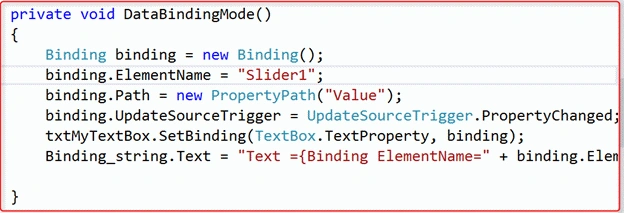
In the above sample I bind a TextBox and slider from code behind using some binding property. I attached this sample example. You can download and test it. If you want to learn more about the Binding class then go to this sample in code behind or create a XAML project and create a Binding object from the code behind then click on Binding and select "Go To Defination" and view all the binding class properties and events.
The following few are in this image.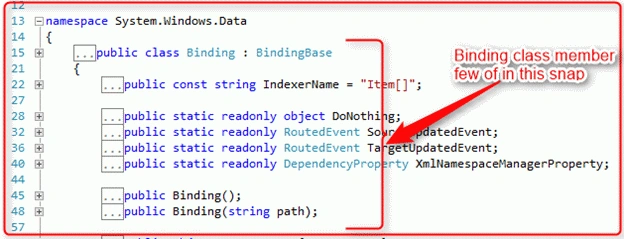
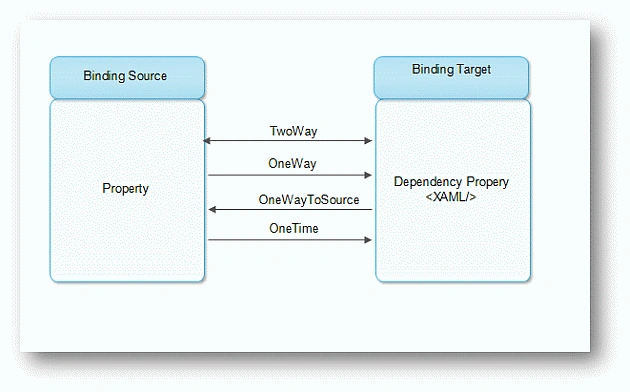
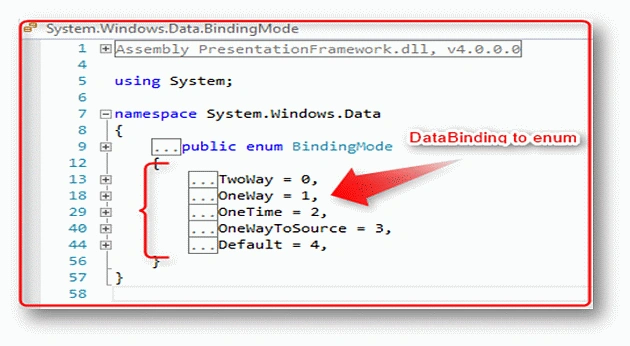
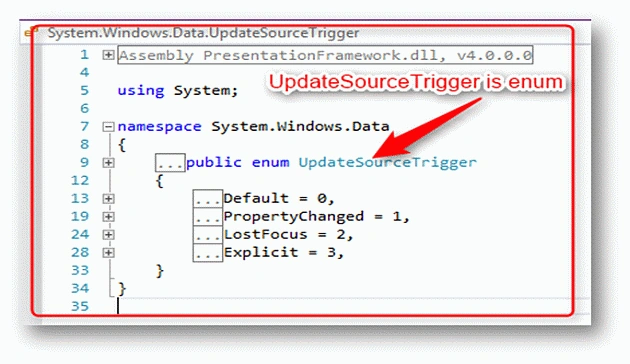
Some Very Useful Properties of the Binding Class

Toan LamPosted Jul 13, 2021, 4:21 AM
Thanks so much, Vishnujeet Kumar
Vishnujeet KumarPosted Jul 12, 2013, 1:02 PM
thanks.... Kailash
Former memberPosted Jul 12, 2013, 6:31 AM
Nice Article and good explanation
Vishnujeet KumarPosted Jul 10, 2013, 1:41 PM
thanks Kunal Vaishya.
Kunal VaishyaPosted Jul 10, 2013, 5:22 AM
good one
Vishnujeet KumarPosted Jul 9, 2013, 1:53 PM
thanks sir,good to see your feedback .
Kunal ChowdhuryPosted Jul 8, 2013, 11:37 PM
Good post. Well explained buddy. Keep it up...
Vishnujeet KumarPosted Jul 7, 2013, 10:28 AM
thanks sonu ..
sonu kumarPosted Jul 7, 2013, 8:00 AM
Nice one .