
Introduction
- <RelativeLayout xmlns:android="http://schemas.android.com/apk/res/android"
- xmlns:tools="http://schemas.android.com/tools"
- android:layout_width="match_parent"
- android:layout_height="match_parent"
- android:paddingLeft="@dimen/activity_horizontal_margin"
- android:paddingRight="@dimen/activity_horizontal_margin"
- android:paddingTop="@dimen/activity_vertical_margin"
- android:paddingBottom="@dimen/activity_vertical_margin"
- tools:context=".MainActivity"
- android:background="#81a3d0">
- <TextView
- android:layout_width="wrap_content"
- android:layout_height="wrap_content"
- android:text="@string/hello_world"
- android:textSize="40dp"
- android:id="@+id/textView1"
- android:layout_centerHorizontal="true"
- />
- <Button
- android:id="@+id/button1"
- android:layout_height="wrap_content"
- android:layout_width="wrap_content"
- android:text="FadeOut"
- android:layout_alignParentBottom="true"
- android:layout_centerHorizontal="true"
- >
- </Button>
- </RelativeLayout>
Step 3
Create an anim resource file inside the res folder. Inside the anim folder you will create an XML file named fade_out and write this:
- <?xml version="1.0" encoding="utf-8"?>
- <set xmlns:android="http://schemas.android.com/apk/res/android"
- android:fillAfter="true" >
- <alpha
- android:duration="1000"
- android:fromAlpha="1.0"
- android:interpolator="@android:anim/accelerate_interpolator"
- android:toAlpha="0.0" />
- </set>
Step 4
Create a Java file and write this.
In this class file, you will create an animation object. And then you call the loadAnimation() method to load the animation into the object. Now set the animation on its animation clicklistener(). At last on button click event this object to the setAnimation method as an argument to set the animation.
- package com.fadeoutapplication;
- import android.app.Activity;
- import android.os.Bundle;
- import android.view.View;
- import android.view.animation.Animation;
- import android.view.animation.AnimationUtils;
- import android.widget.Button;
- import android.widget.TextView;
- public class MainActivity extends Activity implements Animation.AnimationListener {
- Animation fadeout;
- Button button;
- TextView textview;
- @Override
- protected void onCreate(Bundle savedInstanceState) {
- super.onCreate(savedInstanceState);
- setContentView(R.layout.activity_main);
- textview=(TextView)findViewById(R.id.textView1);
- button=(Button)findViewById(R.id.button1);
- fadeout= AnimationUtils.loadAnimation(getApplicationContext(),R.anim.fade_out);
- fadeout.setAnimationListener(this);
- button.setOnClickListener(new View.OnClickListener() {
- @Override
- public void onClick(View view) {
- textview.setAnimation(fadeout);
- }
- });
- }
- @Override
- public void onAnimationStart(Animation animation) {
- }
- @Override
- public void onAnimationEnd(Animation animation) {
- }
- @Override
- public void onAnimationRepeat(Animation animation) {
- }
- }
Step 5
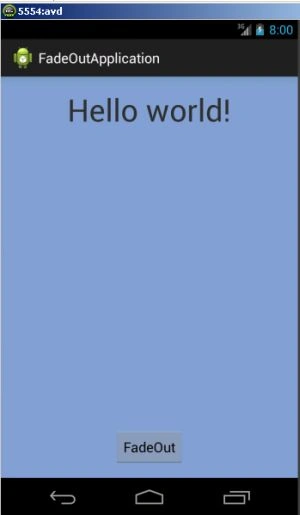
output
 Step 6
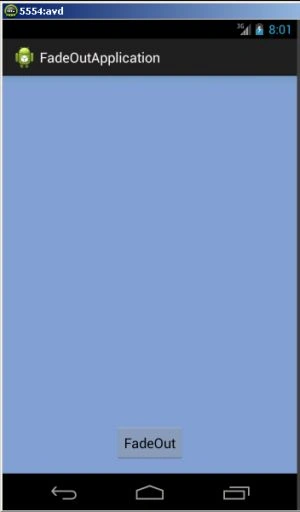
When you click on the fadeout button:
Step 6
When you click on the fadeout button:
Join the conversation! Your thoughts help the community grow.