

Introduction
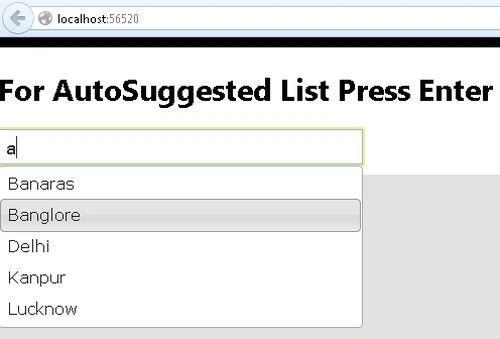
This articles describes the Auto Suggested TextBox in the Web API. Type a letter in the TextBox and press the Enter key. It then displays an Autosuggest list.
The following is the procedure for creating the application.
Step 1
Create a Web API application.
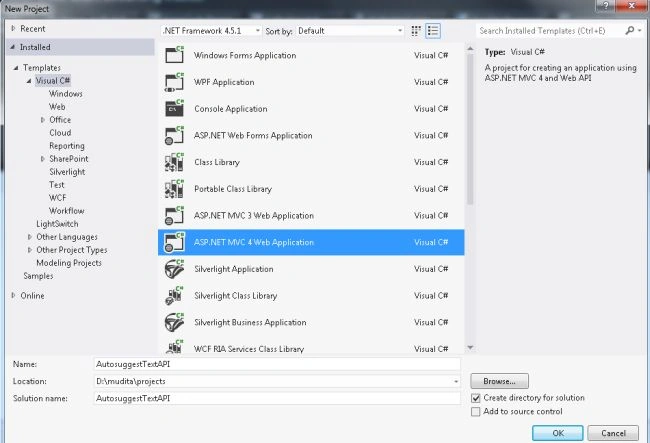
- Start Visual Studio 2012.
- From the start window Select "Installed" -> "Visual C#" -> "Web".
- Select "ASP.NET MVC4 Web Application" and click on the "Ok" button.
- From the "MVC4 Project" window select "Web API".
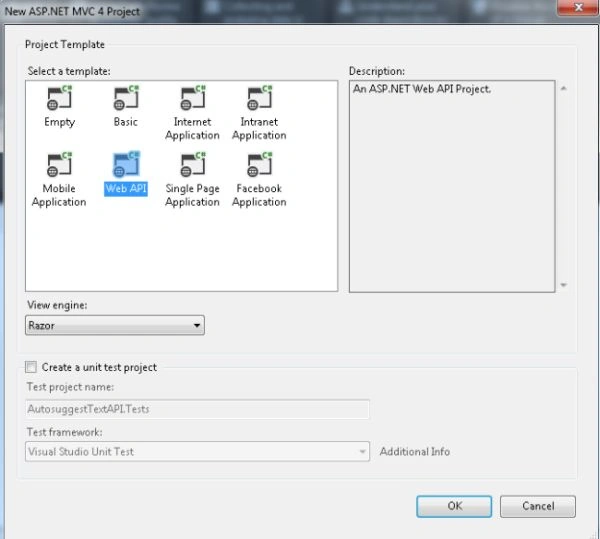
- Click on the "OK" button.
Step 2
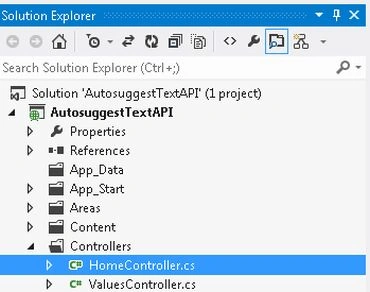
Now select the "HomeController".
- In the "Solution Explorer".
- Expand the Controller folder.
- Select the "HomeController".
Add the following code:
- using System;
- using System.Collections.Generic;
- using System.Data;
- using System.Linq;
- using System.Text;
- using System.Web;
- using System.Web.Mvc;
- namespace AutosuggestTextAPI.Controllers
- {
- public class HomeController : Controller
- {
- public ActionResult Index()
- {
- return View();
- }
- public DataTable Items()
- {
- DataTable cityname = new DataTable();
- cityname.Columns.Add("ID", typeof(int));
- cityname.Columns.Add("Level", typeof(string));
- cityname.Columns.Add("value", typeof(string));
- cityname.Columns.Add("word", typeof(string));
- DataRow dr = cityname.NewRow();
- dr["ID"] = 1;
- dr["Level"] = "2";
- dr["value"] = "Kanpur";
- dr["word"] = "KNP";
- cityname.Rows.Add(dr);
- dr = cityname.NewRow();
- dr["ID"] = 2;
- dr["Level"] = "3";
- dr["value"] = "Lucknow";
- dr["word"] = "LKW";
- cityname.Rows.Add(dr);
- dr = cityname.NewRow();
- dr["ID"] = 3;
- dr["Level"] = "4";
- dr["value"] = "Delhi";
- dr["word"] = "DLH";
- cityname.Rows.Add(dr);
- dr = cityname.NewRow();
- dr["ID"] = 3;
- dr["Level"] = "5";
- dr["value"] = "Banaras";
- dr["word"] = "BNA";
- cityname.Rows.Add(dr);
- dr = cityname.NewRow();
- dr["ID"] = 4;
- dr["Level"] = "6";
- dr["value"] = "Banglore";
- dr["word"] = "BNG";
- cityname.Rows.Add(dr);
- return cityname;
- }
- public ActionResult CityAutoSuggestByName(string autotext)
- {
- autotext = (autotext == null) ? "" : autotext;
- return Content(JsonForAutoSuggestforName(Items().Select("value LIKE '%" + autotext + "%'")), "application/json");
- }
- static string loc;
- public static string JsonForAutoSuggestforName(DataRow[] datarow)
- {
- StringBuilder jsonBuilder = new StringBuilder();
- jsonBuilder.Append("[");
- for (int a = 0; a < datarow.Length; a++)
- {
- jsonBuilder.Append("{\"ID\": \"");
- jsonBuilder.Append(datarow[a][0].ToString());
- jsonBuilder.Append("\",");
- jsonBuilder.Append("\"Level\": \"");
- loc = datarow[a][2].ToString().Replace("\\", "\\\\");
- jsonBuilder.Append(loc.Replace("\"", "\\\""));
- jsonBuilder.Append("\",");
- jsonBuilder.Append("\"value\": \"");
- datarow[a][2].ToString().Replace("\\", "\\\\");
- jsonBuilder.Append(loc.Replace("\"", "\\\""));
- jsonBuilder.Append("\",");
- jsonBuilder.Append("\"word\": \"");
- loc = datarow[a][3].ToString().Replace("\\", "\\\\");
- jsonBuilder.Append(loc.Replace("\"", "\\\""));
- jsonBuilder.Append("\",");
- jsonBuilder.Remove(jsonBuilder.Length - 1, 1);
- jsonBuilder.Append("},");
- }
- jsonBuilder.Remove(jsonBuilder.Length - 1, 1);
- jsonBuilder.Append("]");
- string jason = jsonBuilder.ToString();
- return jsonBuilder.ToString();
- }
- }
- }
Step 3
Now write some HTML code in the "index.cshtml" file. This file exists:
-
In the "Solution Explorer".
-
Expand "Views" folder.
-
Select "Home" -> "index.cshtml".

Add the following code:
- @{ ViewBag.Title = "Using AutoSuggest on Enter Key"; }
- <table>
- <tr>
- <td style="width:320px">
- @Html.TextBox("CityName", "", new { @style = "width:320px;outline: 2px solid #FBEC88" })
- </td>
- </tr>
- </table>
- @section JavaScript {
- <script type="text/javascript">
- $(document).ready(function () {
- $("#CityName").autocomplete({
- search: function (event, ui) {
- var k = event.keyCode;
- if (k == 13) {
- return true;
- }
- else
- return false;
- },
- source: function (request, response) {
- $.ajax({
- url: '@Url.Action("CityAutoSuggestByName")',
- data: { autotextext: request.term },
- dataType: 'json',
- type: 'POST',
- success: function (data) {
- response(data);
- }
- });
- },
- select: function (event, ui) {
- $('#CityName').val(ui.city ? ui.city.value : 'Select');
- }
- });
- });
- </script>
- }
Step 4
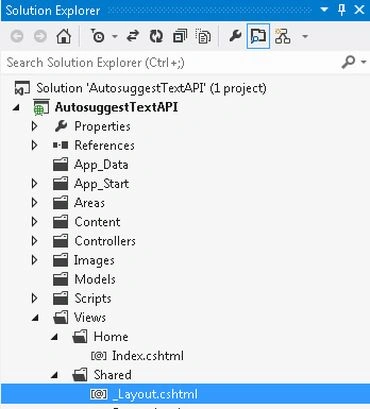
Select the "_Layout.cshtml" file.
-
In the "Solution Explorer".
-
Expand "Views" folder.
-
Select "Shared" -> "_Layout.cshtml".
Add the following code:
- <!DOCTYPE html>
- <html>
- <head>
- <title>@ViewBag.Title</title>
- <link href="@Url.Content("~/Content/site.css")" rel="stylesheet" type="text/css" />
- <link href="@Url.Content("~/Content/themes/base/jquery-ui.css")" rel="stylesheet" type="text/css" />
- </head>
- <body>
- <div class="page">
- <div id="header">
- <div id="title">
- <h1>For AutoSuggested List Press Enter</h1>
- </div>
- </div>
- <div id="main">
- @RenderBody()
- <div id="footer">
- </div>
- </div>
- </div>
- <script src="@Url.Content("~/Scripts/jquery-1.4.4.min.js")" type="text/javascript"></script>
- <script src="@Url.Content("~/Scripts/jquery-ui-1.8.7.min.js")" type="text/javascript"></script>
- @RenderSection("JavaScript", false)
- </body>
- </html>
Step 5
Execute the application:
Join the conversation! Your thoughts help the community grow.