

Introduction
In this article, we will define the process of displaying the Web API output in Notepad in XML form.
Now we will define the procedure for displaying the output in XML form.
Step 1
First we create the project:
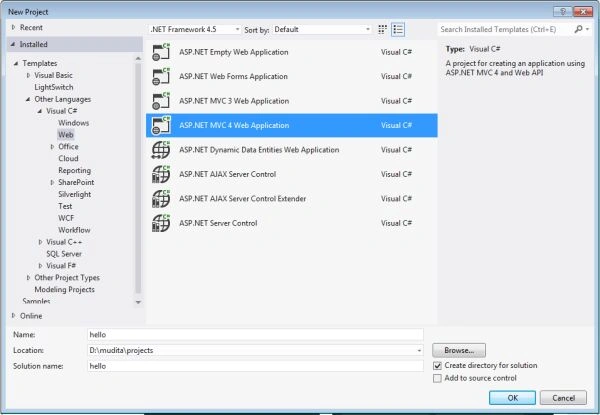
- Open the Visual Studio 2012 click on "File" -> "New" -> "Project..."
- In the template Window select "Visual C#" -> "Web"
- Select ASP. NET MVC4 Application
- And then change the name of the application to "hello" and click on the "OK" button
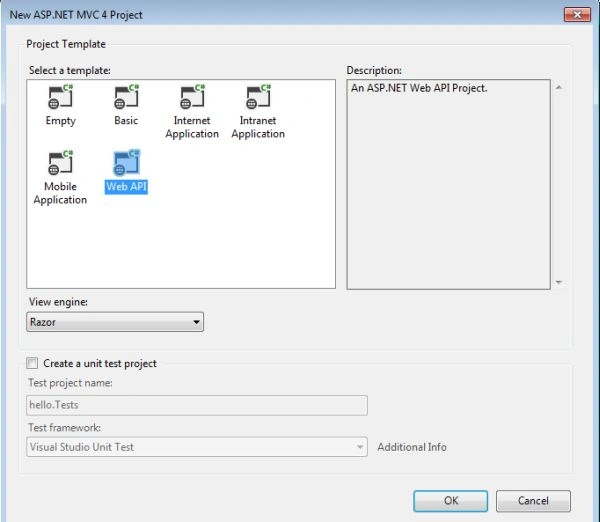
From the next ("New ASP. NET MVC 4 Project") window select "Web API" and then click on the "OK" button.
Step 2
In the second step we add the model class to our project using the following:
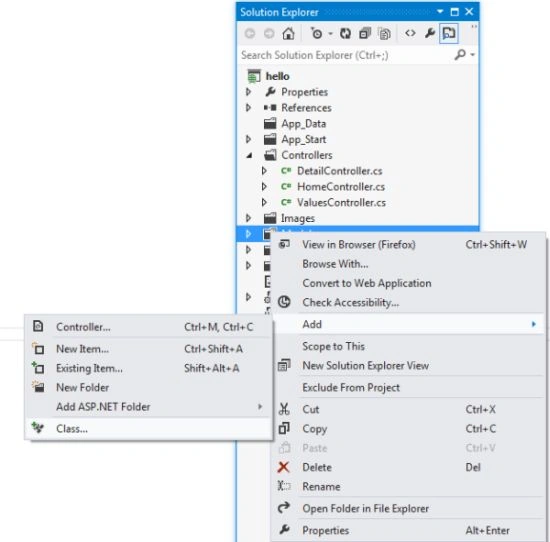
- In the Solution Explorer
- Right-click on the Model Folder then click on "Add"
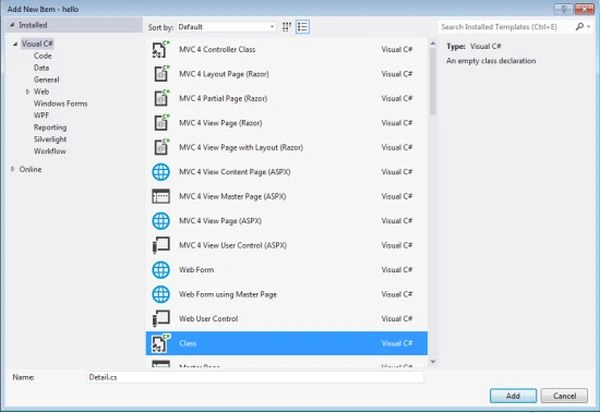
- Select the class
- Change the name of the class to Detail and click on the "OK" button
Step 3
Write this code in the "Detail.cs" class:
- using System;
- using System.Collections.Generic;
- using System.Linq;
- using System.Web;
- namespace hello.Models
- {
- public class Detail
- {
- public int id { get; set; }
- public string name { get; set; }
- public string Address { get; set; }
- public double salary { get; set; }
- }
- }
Step 4
Now we add the controller to our project using the following:
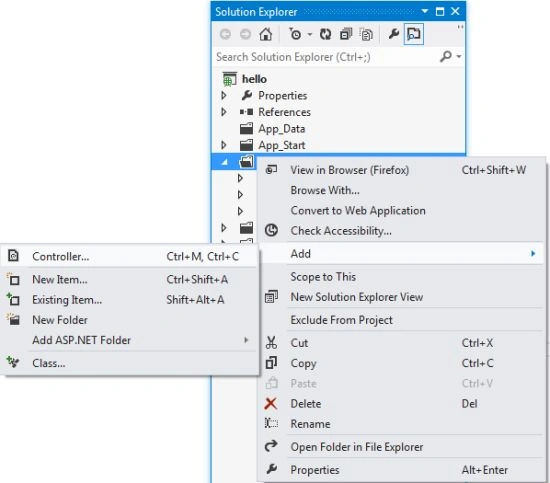
- On the Solution Explorer
- Right-click on the Controller folder then select "Add"
- Click on "Controller"
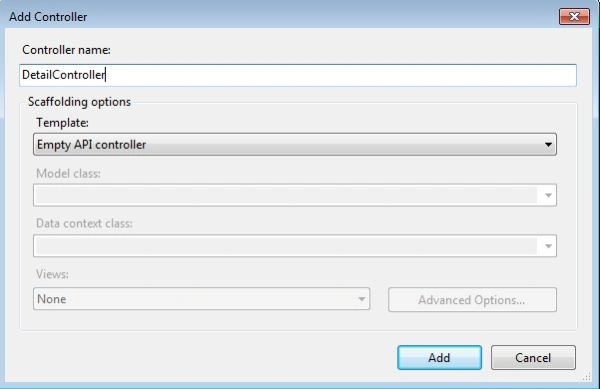
- Change the name of controller to "DetailController"
- And in the Template select "Empty API Controller" and click on the "OK" button.
Step 5
Now add this code to the DetailController.cs Class:
- using System;
- using System.Collections.Generic;
- using System.Linq;
- using System.Net;
- using System.Net.Http;
- using System.Web.Http;
- using hello.Models;
- namespace hello.Controllers
- {
- public class DetailController : ApiController
- {
- Detail[] details = new Detail[]
- {
- new Detail{id = 1,name="smith", Address="Delhi", salary=50000},
- new Detail{id = 2,name="John",Address="Kanpur",salary= 40000},
- new Detail {id = 3,name="Manya",Address="Lucknow",salary=480000}
- };
- public IEnumerable<Detail> GetAllDetails()
- {
- return details;
- }
- public Detail GetDetailById(int Id)
- {
- var detail = details.FirstOrDefault((I) => I.id == Id);
- if (detail == null)
- {
- throw new HttpResponseException(HttpStatusCode.NotFound);
- }
- return detail;
- }
- public IEnumerable<Detail> GetItemsByAddress(string add)
- {
- return details.Where(
- (I) => string.Equals(I.Address, add,
- StringComparison.OrdinalIgnoreCase));
- }
- }
- }
Step 6
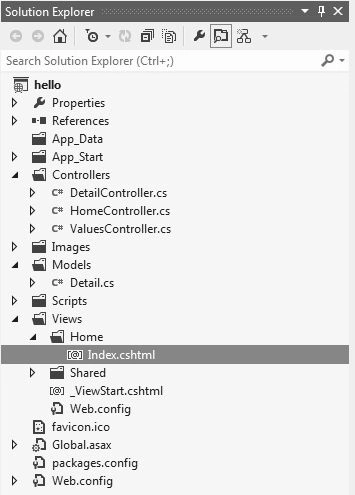
Select the Index.cshtml file using the following:
- On the Solution Explorer
- Click on "Home" folder; there is an Index.cshtml file.
- Double-click on this file.
Now add the following code to this file:
- <!DOCTYPE html>
- <html lang="en">
- <head>
- <title>ASP.NET Web API</title>
- <link href="../../Content/Site.css" rel="stylesheet" />
- <script src="~/Scripts/jquery-1.7.1.min.js"></script>
- <script type="text/javascript">
- $(document).ready(function () {
- $.getJSON("api/detail/",
- function (data) {
- $.each(data, function (key, val) {
- var str = val.name + ': $' + val.salary;
- $('<li/>', { text: str })
- .appendTo($('#detail'));
- });
- });
- });
- function find() {
- var id = $('#detId').val();
- $.getJSON("api/detail/" + id,
- function (data) {
- var str = data.name + ': $' + data.salary;
- $('#detail').text(str);
- })
- .fail(
- function (jqXHR, textStatus, err) {
- $('#detail').text('Error: ' + err);
- });
- }
- </script>
- </head>
- <body id="body" >
- <div class="main-content">
- <div>
- <h1>Showing All Items</h1>
- <ul id="details"/>
- </div>
- <div>
- <label for="detId">ID:</label>
- <input type="text" id="detId" size="5"/>
- <input type="button" value="Search" onclick="find();" />
- <p id="detail" />
- </div>
- </div>
- </body>
- </html>
Step 7
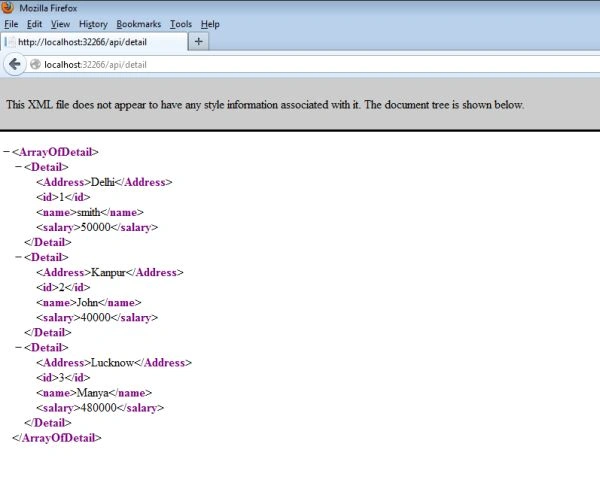
Debug the Application and in the URL write the http://localhost:32266/api/detail.
Then it shows the result on browser in XML form.
Join the conversation! Your thoughts help the community grow.