

Introduction
This article shows how to show a thumbnail of an image using C#.
Procedures
Step 1: Create a new “Windows Forms application” in Visual Studio and name the project as you choose (I here named it ThumbNailImage).
Now a new Windows Forms form will be generated.
Step 2: Now go to the toolbox and add a PictureBox Control to your project. A PictureBox Control is used to show the images.
Step 3: Now add an image of your choice to your project in Solution Explorer. (I added an image in a folder in the solution file).
Step 4: Right-click on the image file in your project and in it's property option just change the "Copy to output directory" to "Copy if Newer".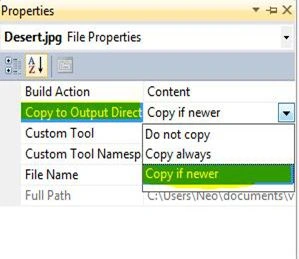
Step 5: Now it's time for the code. Navigate to "Form1.cs" and add the following code:
public Form1()
{
InitializeComponent();
//Generating an Event for Paint which actually
// draw the image inthe PictureBox
pictureBox1.Paint += new
PaintEventHandler(pictureBox1_Paint);
}
The method for that event is created as in the following:
void pictureBox1_Paint(object sender, PaintEventArgs e)
{
}
Step 6: Add the following code to that method:
void pictureBox1_Paint(object sender, PaintEventArgs e)
{
//Calling a Method myThumbnail() and passing an
// Event of type PaintEventArgs as a Parameter
myThumbnail(e);
}
Step 7: Add the following code in the method "myThumbnail":
private void myThumbnail(PaintEventArgs e)
{
//Declaring a Call back method and passing a
// function name as its parameter 'CallbackFun'
Image.GetThumbnailImageAbort imgcallback = new Image.GetThumbnailImageAbort(CallbackFun);
//Passing the image from our project to convert
// into Thumbnail
Image image = new Bitmap("Images/Desert.jpg");
//Passing the height and width of thumbnail to be created
Image imgThumbnail = image.GetThumbnailImage(100, 100, imgcallback, new IntPtr());
e.Graphics.DrawImage(imgThumbnail,10,10,imgThumbnail.Width,imgThumbnail.Height);
}
public bool CallbackFun()
{
return true;
}
That's all for this article. I am embedding the source file so that you can go through it.
sourish beheraPosted May 1, 2024, 10:53 AM
This is not adding the image