

What is Check Out?
The Check Out operation creates a lock on the document preventing changes by other users. Check Out allows saving multiple times without changing the version. Other users can still access a Read-Only copy of the document.
The Version is changed as part of the Check In operation.
What is Check In?
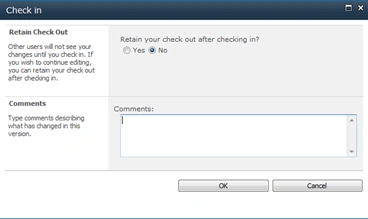
The Check In operation releases the lock on the document. Now other user can save their changes to the document.
Version Impact
The following is the depiction of the impact on a document for Check In / Check Out operations: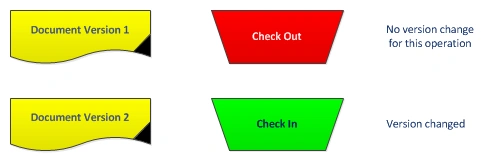
Practice
To start with we need to create a Document Library named Version Docs.
We need to enable Versioning for this document library. You can do this through the Library Settings > Versioning Settings link. 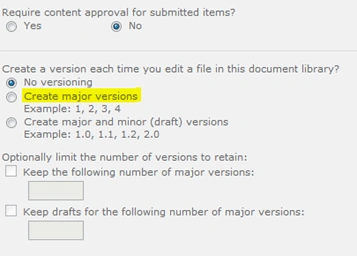
The types of versions available are:
- No versioning specifies versioning is not managed for this library
- Major versions specifies whole number versions like 1, 2 and 3
- Major & Minor Versions specifies versions like 1.0, 2.1 etc. Here the whole number on the left is called the Major version and the Real number on the right is called the Minor version.
A pictorial of Major & Minor parts are shown below: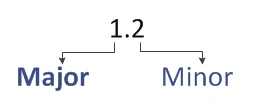
For the time being choose Major versions (second item) and click the OK button. We can see that the version number is changed during the Check In operation.
Note: Please use Internet Explorer 32-bit for working with this example. The recommended Microsoft Office version would be 2010.
Upload
Now we can upload a Word Document into the library. Use the Add document link to upload a document. Make sure you have the content of the file as Initial Content.
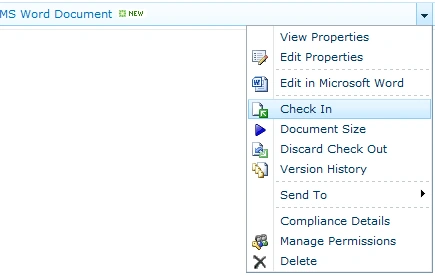
After uploading the document you can view the version number using the context menu item.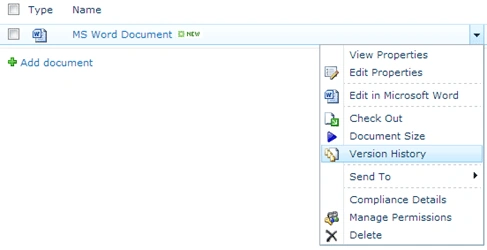
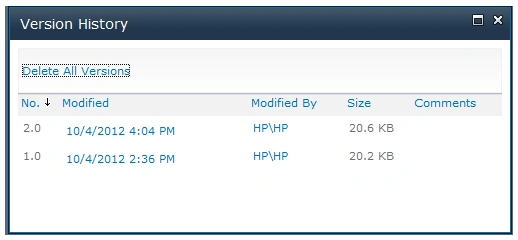
Click on the Version History item to view the version associated.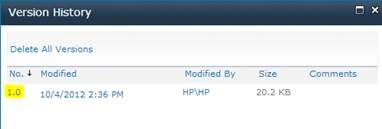
You can see that the version number says as 1.0 for the newly uploaded document.
Check Out
For checking out the document choose the Check Out option from the document context menu.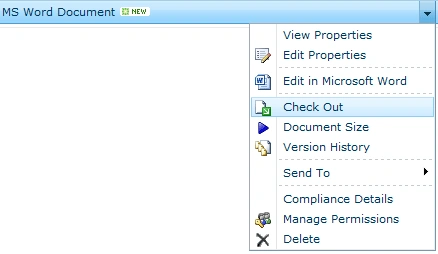
You should be prompted with the following dialog box: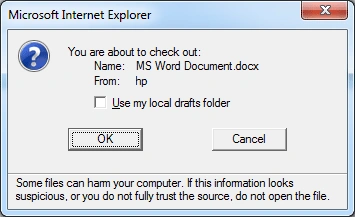
The dialog box asks whether to:
- Check Out and copy the document to a local folder (enables offline working)
- Check Out and work in the Server copy of the document




Jean PaulPosted Oct 8, 2012, 8:11 AM
Thank You for the good words Megha!
Megha GoyalPosted Oct 7, 2012, 10:59 PM
It is really impressive article i m glad to know how to lock or unlock the documents in Word through this article