

Introduction
In this article, we describe how we can work with the color-chooser. The color chooser dialog box is a very general thing for GUI applications. Java provides a JColorChooser class with the Swing package. Use the JColorChooser class to enable users to choose from a palette of colors. A color chooser is a component that you can place anywhere within your GUI program. The JColorChooser API also makes it easy to bring up a dialog (modal or not) that contains a color-chooser.
For adding a color chooser to your application you have to follow some steps.
Step 1: Import the necessary package.
- import javax.swing.JDialog;
- import javax.swing.JFrame;
- import javax.swing.JPanel;
- import javax.swing.JButton;
- import javax.swing.JTextArea;
- import java.awt.EventQueue;
- import java.awt.BorderLayout;
- import java.awt.Color;
- import java.awt.GridLayout;
- import java.awt.event.ActionListener;
- import java.awt.event.ActionEvent;
- import javax.swing.JColorChooser;
- public class ColorChooserDemo
- {
- JFrame myFrame;
- JTextArea ta;
- JPanel pnl;
- Step 3: Create a GUI within the constructor.
- public ColorChooserDemo()
- {
- myFrame = new JFrame();
- // for handle the frame close operation
- myFrame.setDefaultCloseOperation(JFrame.EXIT_ON_CLOSE);
- //set the title of frame
- myFrame.setTitle("Color choosher Dialog box Example");
- //Set the size
- myFrame.setSize(500, 300);
- myFrame.setLocationRelativeTo(null);
- myFrame.setLayout(new BorderLayout());
- // creating TextArea
- ta = new JTextArea("Your TextArea:");
- ta.setVisible(true);
- //Add text Area in frame
- myFrame.add(ta, BorderLayout.NORTH);
- // creating panel
- pnl = new JPanel();
- //pass the object of grid layout
- pnl.setLayout(new GridLayout(1, 2));
- myFrame.add(pnl, BorderLayout.SOUTH);
- //creating A button
- JButton showButton = new JButton("Show ColorChooser box");
- showButton.setActionCommand("Show ColorChooser box");
- //Performing event handling
- showButton.addActionListener(new ActionListener()
- {
- public void actionPerformed(ActionEvent event)
- {
- Color selectedColor = JColorChooser.showDialog(myFrame, "Pick a Color", Color.GREEN);
- if (selectedColor != null)
- {
- ta.append("\nThe selected color is make up of Red: " + selectedColor.getRed() + " Blue: " + selectedColor.getBlue() + " Green: " + selectedColor.getGreen());
- }
- }
- });
- pnl.add(showButton);
- JButton createButton = new JButton("Create Color");
- createButton.setActionCommand("Create Color");
- createButton.addActionListener(new ActionListener()
- {
- @Override
- public void actionPerformed(ActionEvent event)
- {
- final JColorChooser colorChooser = new JColorChooser();
- JDialog dialog = JColorChooser.createDialog(myFrame, "Chane TextArea color", false, colorChooser, new ActionListener()
- {
- @Override
- public void actionPerformed(ActionEvent event)
- {
- ta.append("\n Now my color is changed to " + colorChooser.getColor());
- ta.setBackground(colorChooser.getColor());
- }
- }
- , new ActionListener()
- {
- @Override
- public void actionPerformed(ActionEvent event)
- {
- ta.append("\nYou clicked on cancel..");
- }
- });
- dialog.setVisible(true);
- }
- });
- pnl.add(createButton);
- myFrame.setVisible(true);
- }
Complete code
- import javax.swing.JDialog;
- import javax.swing.JFrame;
- import javax.swing.JPanel;
- import javax.swing.JButton;
- import javax.swing.JTextArea;
- import java.awt.EventQueue;
- import java.awt.BorderLayout;
- import java.awt.Color;
- import java.awt.GridLayout;
- import java.awt.event.ActionListener;
- import java.awt.event.ActionEvent;
- import javax.swing.JColorChooser;
- public class ColorChooserDemo {
- JFrame myFrame;
- JTextArea ta;
- JPanel pnl;
- public ColorChooserDemo() {
- myFrame = new JFrame();
- myFrame.setDefaultCloseOperation(JFrame.EXIT_ON_CLOSE);
- myFrame.setTitle("Dialog Box Example");
- myFrame.setSize(500, 300);
- myFrame.setLocationRelativeTo(null);
- myFrame.setLayout(new BorderLayout());
- ta = new JTextArea("File ta:");
- ta.setVisible(true);
- myFrame.add(ta, BorderLayout.NORTH);
- pnl = new JPanel();
- pnl.setLayout(new GridLayout(1, 2));
- myFrame.add(pnl, BorderLayout.SOUTH);
- JButton showButton = new JButton("Show ColorChooser box");
- showButton.setActionCommand("Show ColorChooser box");
- showButton.addActionListener(new ActionListener() {
- public void actionPerformed(ActionEvent event) {
- Color selectedColor = JColorChooser.showDialog(myFrame, "Pick a Color", Color.GREEN);
- if (selectedColor != null) {
- ta.append("\nThe selected color is make up of Red: " + selectedColor.getRed() + " Blue: " + selectedColor.getBlue() + " Green: " + selectedColor.getGreen());
- }
- }
- });
- pnl.add(showButton);
- JButton createButton = new JButton("Create Color");
- createButton.setActionCommand("Create Color");
- createButton.addActionListener(new ActionListener() {
- @Override
- public void actionPerformed(ActionEvent event) {
- final JColorChooser colorChooser = new JColorChooser();
- JDialog dialog = JColorChooser.createDialog(myFrame, "Chane TextArea color", false, colorChooser,
- new ActionListener() {
- @Override
- public void actionPerformed(ActionEvent event) {
- ta.append("\n Now my color is changed to " + colorChooser.getColor());
- ta.setBackground(colorChooser.getColor());
- }
- }, new ActionListener() {
- @Override
- public void actionPerformed(ActionEvent event) {
- ta.append("\nYou clicked on cancel..");
- }
- });
- dialog.setVisible(true);
- }
- });
- pnl.add(createButton);
- myFrame.setVisible(true);
- }
- public static void main(String[] args)
- {
- EventQueue.invokeLater(new Runnable()
- {
- @Override
- public void run()
- {
- new ColorChooserDemo();
- }
- });
- }
- }
Cmd output
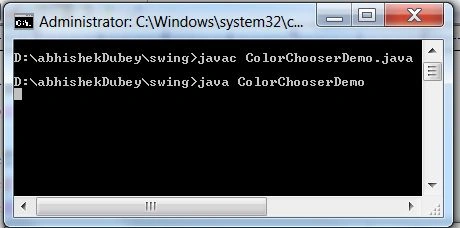
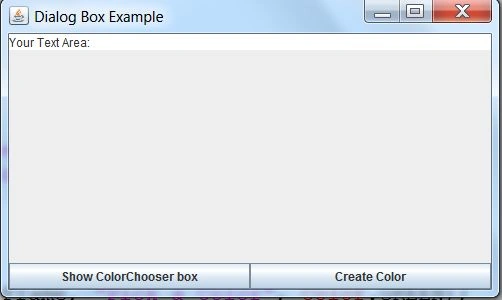
Initial look (blank output):
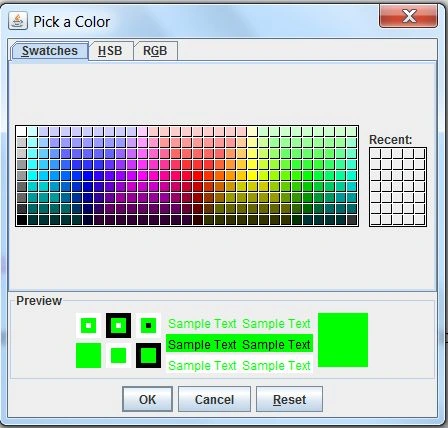
After clicking on the show ColorChooser box, the following color chooser dialog box is opened.
After click on create color button and select HSB option of the color chooser dialog box.
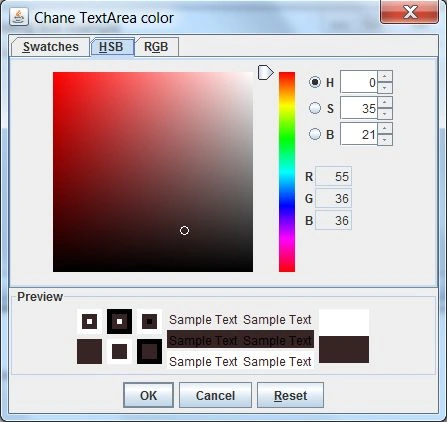
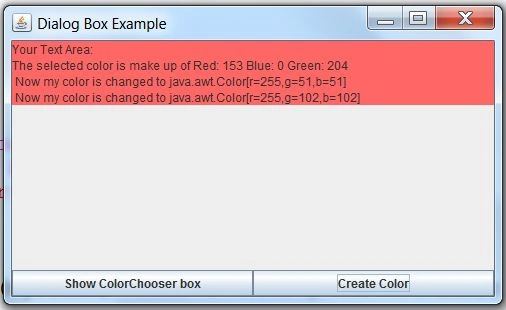
Now click on the ok button; your text area color has been changed.
Resources
Join the conversation! Your thoughts help the community grow.