Introduction
Today, in this article let's dig out another interesting concept in Windows Phone of communicating via a WCF Service to perform some expected operation.
Question: What is Bing Map Direction Task?
In simple terms "It enables to find out route directions between requested source and destination, the requested places are displayed accordingly with distance (Miles/Kilometers) from source and clear way of directions to reach destination".
I think we all are now good to go and implement this interesting concept.
Step 1: The complete code of the IService1.cs looks like this.
using System;
using System.Collections.Generic;
using System.Linq;
using System.Runtime.Serialization;
using System.ServiceModel;
using System.ServiceModel.Web;
using System.Text;
namespace Wcf_Bing_Maps_Direction
{
// NOTE: You can use the "Rename" command on the "Refactor" menu to change the interface name "IService1" in both code and config file together.
[ServiceContract]
public interface IService1
{
[OperationContract]
string To(string a);
}
}
Step 2: The complete code of the Service1.svc.cs looks like this.
using System;
using System.Collections.Generic;
using System.Linq;
using System.Runtime.Serialization;
using System.ServiceModel;
using System.ServiceModel.Web;
using System.Text;
namespace Wcf_Bing_Maps_Direction
{
// NOTE: You can use the "Rename" command on the "Refactor" menu to change the class name "Service1" in code, svc and config file together.
public class Service1 : IService1
{
public string To(string a)
{
return a;
}
}
}
Step 3: The complete code of the Web.Config looks like this.
<?xml version="1.0"?>
<configuration>
<system.web>
<compilation debug="true" targetFramework="4.0" />
</system.web>
<system.serviceModel>
<behaviors>
<serviceBehaviors>
<behavior>
<!-- To avoid disclosing metadata information, set the value below to false and remove the metadata endpoint above before deployment -->
<serviceMetadata httpGetEnabled="true"/>
<!-- To receive exception details in faults for debugging purposes, set the value below to true. Set to false before deployment to avoid disclosing exception information -->
<serviceDebug includeExceptionDetailInFaults="false"/>
</behavior>
</serviceBehaviors>
</behaviors>
<serviceHostingEnvironment multipleSiteBindingsEnabled="true" />
</system.serviceModel>
<system.webServer>
<modules runAllManagedModulesForAllRequests="true"/>
</system.webServer>
</configuration>
Step 4: The complete code of the MainPage.xaml looks like this.
<phone:PhoneApplicationPage
x:Class="Bing_Maps_Directions_Task.MainPage"
xmlns="http://schemas.microsoft.com/winfx/2006/xaml/presentation"
xmlns:x="http://schemas.microsoft.com/winfx/2006/xaml"
xmlns:phone="clr-namespace:Microsoft.Phone.Controls;assembly=Microsoft.Phone"
xmlns:shell="clr-namespace:Microsoft.Phone.Shell;assembly=Microsoft.Phone"
xmlns:d="http://schemas.microsoft.com/expression/blend/2008"
xmlns:mc="http://schemas.openxmlformats.org/markup-compatibility/2006"
mc:Ignorable="d" d:DesignWidth="480" d:DesignHeight="768"
FontFamily="{StaticResource PhoneFontFamilyNormal}"
FontSize="{StaticResource PhoneFontSizeNormal}"
Foreground="{StaticResource PhoneForegroundBrush}"
SupportedOrientations="Portrait" Orientation="Portrait"
shell:SystemTray.IsVisible="True">
<!--LayoutRoot is the root grid where all page content is placed-->
<Grid x:Name="LayoutRoot" Background="Transparent">
<Grid.RowDefinitions>
<RowDefinition Height="Auto"/>
<RowDefinition Height="*"/>
</Grid.RowDefinitions>
<!--TitlePanel contains the name of the application and page title-->
<StackPanel x:Name="TitlePanel" Grid.Row="0" Margin="12,17,0,28">
<TextBlock x:Name="ApplicationTitle" Text="Vijay Bing Maps Directions" FontFamily="Verdana" FontSize="22" Style="{StaticResource PhoneTextNormalStyle}"/>
<TextBlock x:Name="PageTitle" Text="Windows 7 Phone" Margin="9,-7,0,0" Style="{StaticResource PhoneTextTitle1Style}"/>
</StackPanel>
<!--ContentPanel - place additional content here-->
<Grid x:Name="ContentPanel" Grid.Row="1" Margin="12,0,12,0">
<TextBlock Height="30" HorizontalAlignment="Left" Margin="202,49,0,0" Name="textBlock1" Text="From" FontFamily="Verdana" FontSize="22" VerticalAlignment="Top" />
<TextBox Height="72" FontFamily="Verdana" FontSize="22" Text="Hyderbad, Andhra Pradesh" IsReadOnly="True" HorizontalAlignment="Left" Margin="86,85,0,0" Name="textBox1" VerticalAlignment="Top" Width="337" />
<TextBlock Height="30" HorizontalAlignment="Left" Margin="218,180,0,0" Name="textBlock2" Text="To" FontFamily="Verdana" FontSize="22" VerticalAlignment="Top" />
<TextBox Height="72" HorizontalAlignment="Left" Margin="86,216,0,0" Name="textBox2" VerticalAlignment="Top" Width="337" />
<Button Content="Get Directions" FontFamily="Verdana" FontSize="22" Height="76" HorizontalAlignment="Left" Margin="127,308,0,0" Name="button1" VerticalAlignment="Top" Width="260" Click="button1_Click" />
<TextBlock Height="30" FontFamily="Verdana" FontSize="22" Foreground="Red" HorizontalAlignment="Left" Margin="86,411,0,0" Name="textBlock3" VerticalAlignment="Top" />
</Grid>
</Grid>
<!--Sample code showing usage of ApplicationBar-->
<!--<phone:PhoneApplicationPage.ApplicationBar>
<shell:ApplicationBar IsVisible="True" IsMenuEnabled="True">
<shell:ApplicationBarIconButton IconUri="/Images/appbar_button1.png" Text="Button 1"/>
<shell:ApplicationBarIconButton IconUri="/Images/appbar_button2.png" Text="Button 2"/>
<shell:ApplicationBar.MenuItems>
<shell:ApplicationBarMenuItem Text="MenuItem 1"/>
<shell:ApplicationBarMenuItem Text="MenuItem 2"/>
</shell:ApplicationBar.MenuItems>
</shell:ApplicationBar>
</phone:PhoneApplicationPage.ApplicationBar>-->
</phone:PhoneApplicationPage>
Step 5: The complete code of the MainPage.xaml.cs looks like this.
using System;
using System.Collections.Generic;
using System.Linq;
using System.Net;
using System.Windows;
using System.Windows.Controls;
using System.Windows.Documents;
using System.Windows.Input;
using System.Windows.Media;
using System.Windows.Media.Animation;
using System.Windows.Shapes;
using Microsoft.Phone.Controls;
using Microsoft.Phone.Tasks;
using System.Device.Location;
using Bing_Maps_Directions_Task.ServiceReference1;
namespace Bing_Maps_Directions_Task
{
public partial class MainPage : PhoneApplicationPage
{
// Constructor
public MainPage()
{
InitializeComponent();
}
void toCall(object sender, ToCompletedEventArgs e)
{
LabeledMapLocation from = new LabeledMapLocation("Hyderabad, Andhra Pradesh", null);
LabeledMapLocation to = new LabeledMapLocation(e.Result, null);
objDirectionTask.Start = from;
objDirectionTask.End = to;
objDirectionTask.Show();
}
private void button1_Click(object sender, RoutedEventArgs e)
{
textBlock3.Text = "";
if (string.IsNullOrEmpty(textBox2.Text))
{
textBlock3.Text = "Please Enter Values";
}
else
{
Service1Client objClient = new Service1Client();
objClient.ToCompleted += new EventHandler<ToCompletedEventArgs>(toCall);
objClient.ToAsync(textBox2.Text);
textBox2.Text = "";
}
}
#region object variables
BingMapsDirectionsTask objDirectionTask = new BingMapsDirectionsTask();
#endregion
}
}
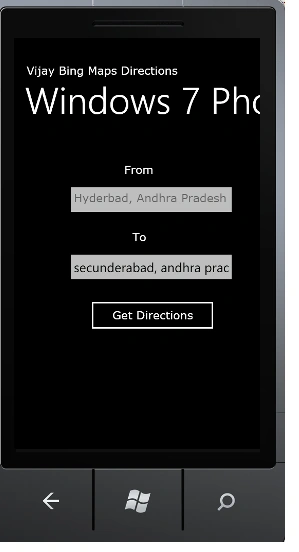
Step 6: The output of the application looks like this.
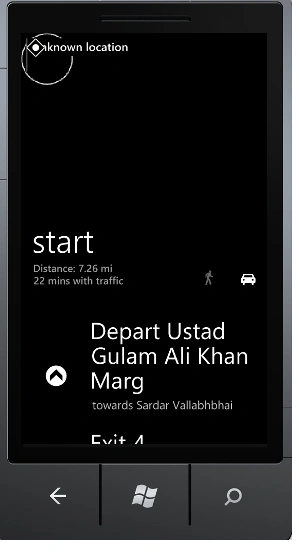
Step 7: The Output To (Destination) Output Application looks like this.
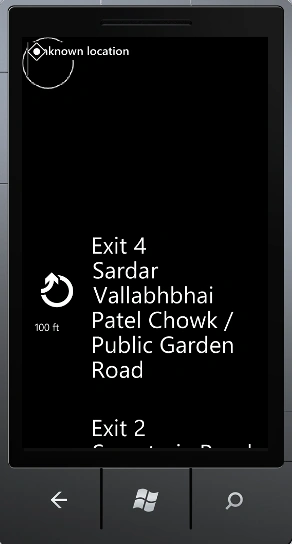
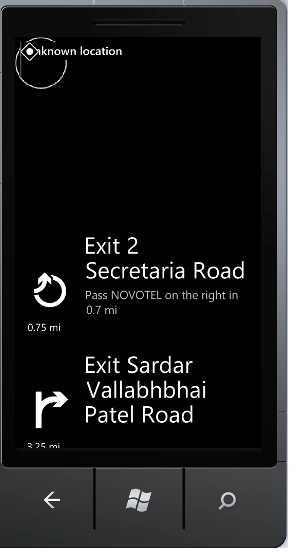
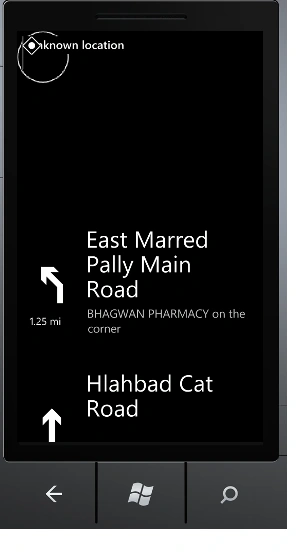
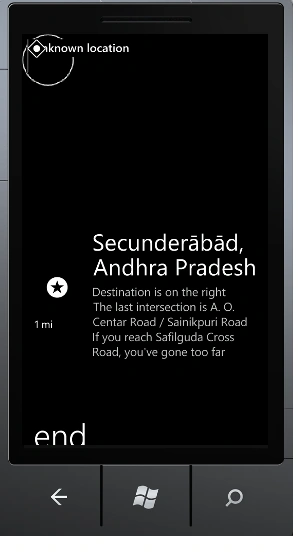
I hope this article is useful for you. I look forward for your comments and feedback.


MadhuriPosted Mar 14, 2013, 5:15 AM
Hi, this is good. Can I achieve voice/audio route directions in WP8 using Maps Direction Task?
Jessica StephenPosted Feb 21, 2012, 12:31 AM
It is really interesting for me to learn about it.