
Introduction
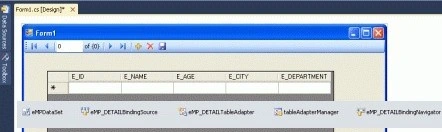
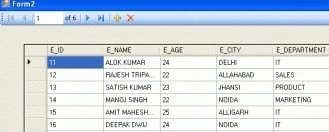
In this article, I am binding a BindingNavigator with a DataGridView control. The BindingNavigator control provides a UI for navigating records in a form. It has a series of buttons for moving next, previous, first, and last records as well as adding and deleting records.
At first, we should have some records. So we create a Database and insert some records into the database table.
Create database
CREATE DATABASE EMP
USE EMP
CREATE TABLE EMP_DETAIL
(
    E_ID INT PRIMARY KEY,
    E_NAME VARCHAR(30),
    E_AGE INT,
    E_CITY VARCHAR(30),
    E_DEPARTMENT VARCHAR(20)
)
INSERT INTO EMP_DETAIL VALUES(11,'ALOK KUMAR',24,'DELHI','IT')
INSERT INTO EMP_DETAIL VALUES(12,'RAJESH TRIPATHI',22,'ALLAHABAD','SALES')
INSERT INTO EMP_DETAIL VALUES(13,'SATISH KUMAR',23,'JHANSI','PRODUCT')
INSERT INTO EMP_DETAIL VALUES(14,'MANOJ SINGH',22,'NOIDA','MARKETING')
INSERT INTO EMP_DETAIL VALUES(15,'AMIT MAHESHWARI',25,'ALLIGARH','IT')
INSERT INTO EMP_DETAIL VALUES(16,'DEEPAK DWIJ',24,'NOIDA','IT')
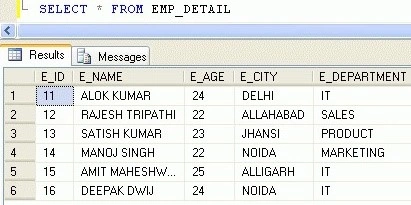
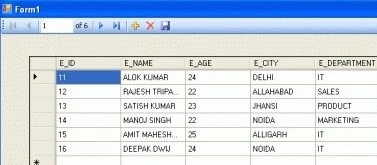
I am showing a screenshot of all records of an EMP_DETAIL table so that it can become easy to understand.
SELECT * FROM EMP_DETAIL
Windows form application setup steps
Take a Windows Form Application and follow the given steps.
Step 1. Go to Data Sources and click on "Add New Data Source".
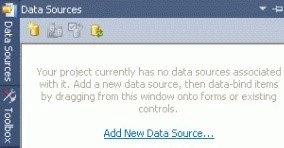
Step 2. A new window will be open.
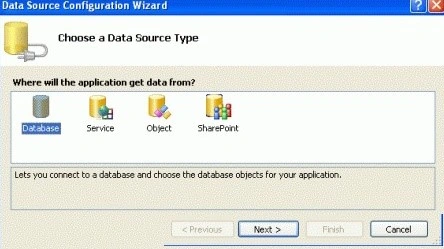
Step 3. Click the Next button.
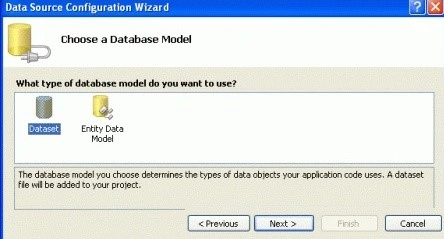
Step 4. Click the Next button.
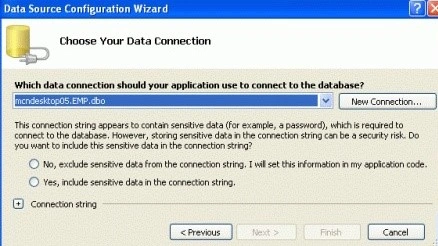
Step 5. Click the "New connection" button to make a new database connection.
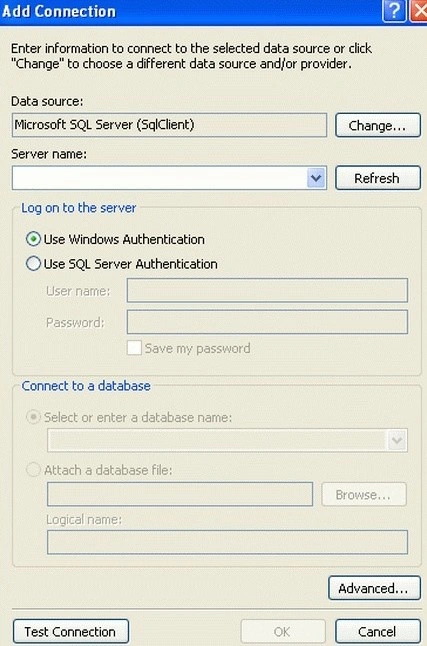
Step 6. Write the server name, user name, and password, and select your Database name. Click the ok button.
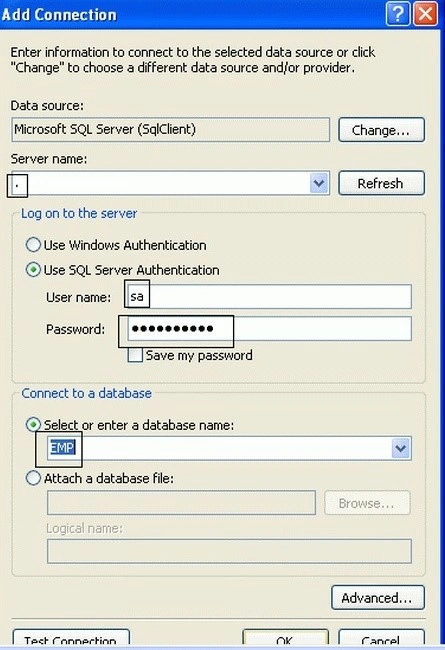
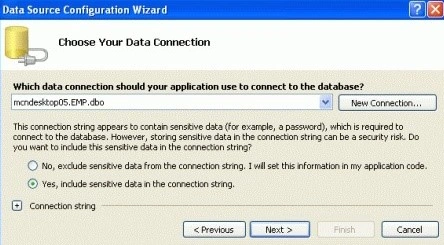
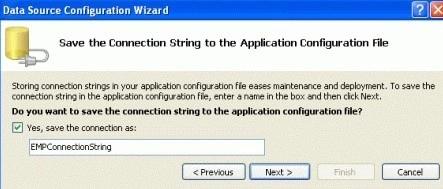
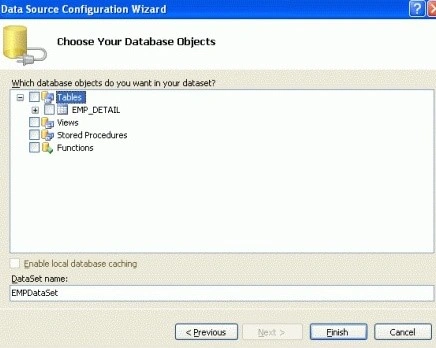
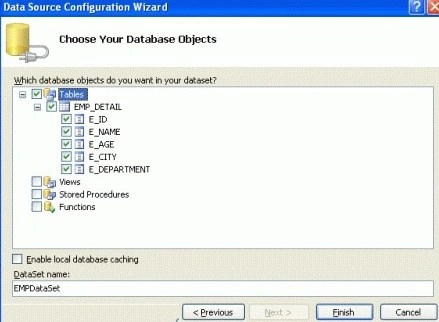
Step 7. Click the ok button. You will be back to "Data Source Configuration Wizard". Check the radio button for "Yes, include sensitive data in the connection string " and click the next button.
Vineet Kumar SainiPosted Jan 28, 2012, 11:54 PM
Good article....