

Introduction
In this article, we are going to explain how to hide or disable an application from searching in Windows 8. The Windows 8 search feature has a new style and is more powerful. The Windows 8 search option can be used to search for anything. Such as applications, Store Applications, files, folders, PC Settings, etc.
But sometimes you want to hide an application from search results for some reason. To do that Windows 8 provides the facility to disable the application from search results. After disabling an application it will not be shown in the search results.
Steps to hide the application from a search result
Step 1
Move the cursor to the bottom-right and select "Setting".

Step 2
In the settings window click on "Change PC Settings".

Step 3
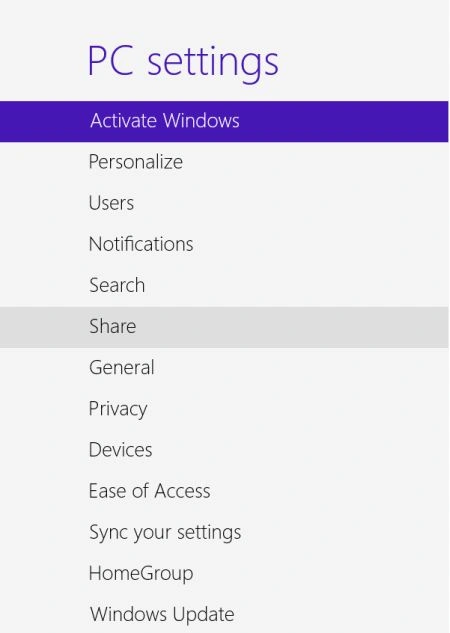
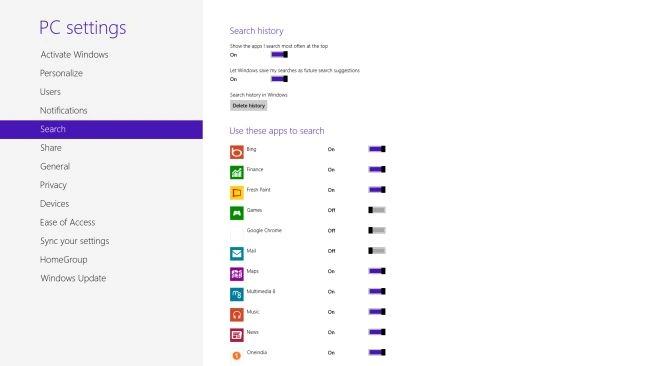
In this PC settings window click on "Search".
Step 4
In this step "Turn off" the application that you want to hide from searches.
Step 5
Now do a search and type in the application name; it will not be shown in results.

Summary
In this article, we learned about How to Hide Apps From Search in Windows 8.
Join the conversation! Your thoughts help the community grow.