

In this article we are going to learn how to display an image using a file stream in Windows Store Apps.
In this example I will display the image in the page using FileOpenPicker from the file stream. I will set the height and width of the image at run time depending on the user input.
Here I will convert the chosen file from the local PictureLibrary folder and open it using the IRandomAccessStream.
Here is the procedure to be followed.
Step 1
Create the UI design for MainPage.XAML.
<common:LayoutAwarePage
x:Class="Images.Scenario2"
xmlns="http://schemas.microsoft.com/winfx/2006/xaml/presentation"
xmlns:x="http://schemas.microsoft.com/winfx/2006/xaml"
xmlns:local="using:Images"
xmlns:common="using:SDKTemplate.Common"
xmlns:d="http://schemas.microsoft.com/expression/blend/2008"
xmlns:mc="http://schemas.openxmlformats.org/markup-compatibility/2006"
mc:Ignorable="d">
<Grid x:Name="LayoutRoot" Background="White">
<Grid.RowDefinitions>
<RowDefinition Height="Auto"/>
<RowDefinition Height="*"/>
</Grid.RowDefinitions>
<Grid x:Name="Input" Grid.Row="0">
<Grid.RowDefinitions>
<RowDefinition Height="Auto"/>
<RowDefinition Height="Auto"/>
</Grid.RowDefinitions> <StackPanel>
<Grid Margin="0,50,0,0">
<Grid.RowDefinitions>
<RowDefinition />
<RowDefinition />
<RowDefinition />
</Grid.RowDefinitions>
<Grid.ColumnDefinitions>
<ColumnDefinition Width="160" />
<ColumnDefinition />
</Grid.ColumnDefinitions>
<TextBlock Style="{StaticResource BasicTextStyle}" Grid.Row="0" Grid.Column="0" Text="DecodePixelHeight:" />
<TextBox x:Name="decodePixelHeight" Grid.Row="0" Grid.Column="1" Width="100" Text="100" HorizontalAlignment="Left" />
<TextBlock Style="{StaticResource BasicTextStyle}" Grid.Row="1" Grid.Column="0" Text="DecodePixelWidth:" />
<TextBox x:Name="decodePixelWidth" Grid.Row="1" Grid.Column="1" Width="100" Text="100" HorizontalAlignment="Left" />
<Button x:Name="Button1" Content="Select image..." Margin="0,0,10,0" Grid.Row="2" Grid.Column="0" />
</Grid>
</StackPanel>
</Grid>
<Grid x:Name="Output" HorizontalAlignment="Left" VerticalAlignment="Top" Grid.Row="1">
<Image x:Name="Image1" Stretch="None" />
</Grid>
<VisualStateManager.VisualStateGroups>
<VisualStateGroup>
<VisualState x:Name="FullScreenLandscape"/>
<VisualState x:Name="Filled"/>
<VisualState x:Name="FullScreenPortrait"/>
<VisualState x:Name="Snapped">
</VisualState>
</VisualStateGroup>
</VisualStateManager.VisualStateGroups>
</Grid>
</common:LayoutAwarePage>
In the above code I use two textboxes for user input to set the height and width image.
Step 2
Here is the code of the MainPage.XAML.cs file.
The code for picking a file from the PictureLibrary.
FileOpenPicker open = new FileOpenPicker();
open.SuggestedStartLocation = PickerLocationId.PicturesLibrary;
open.ViewMode = PickerViewMode.Thumbnail;
open.FileTypeFilter.Clear();
open.FileTypeFilter.Add(".bmp");
open.FileTypeFilter.Add(".png");
open.FileTypeFilter.Add(".jpeg");
open.FileTypeFilter.Add(".jpg");
StorageFile file = await open.PickSingleFileAsync();
Open the file in IRandomAccessStream and create a Bitmap Image for that image.
IRandomAccessStream fileStream = await file.OpenAsync(Windows.Storage.FileAccessMode.Read))
BitmapImage bitmapImage = new BitmapImage();
Set the Pixelheight and PixelWidht of the Image.
bitmapImage.DecodePixelHeight = decodePixelHeight.Text;
bitmapImage.DecodePixelWidth = decodePixelWidth.Text;
Set the source of the Bitmap Image as the stream.
await bitmapImage.SetSourceAsync(fileStream);
Image1.Source = bitmapImage;
Here is the full code.
async void Button1_Click(object sender, RoutedEventArgs e)
{
FileOpenPicker open = new FileOpenPicker();
open.SuggestedStartLocation = PickerLocationId.PicturesLibrary;
open.ViewMode = PickerViewMode.Thumbnail;
// Filter to include a sample subset of file types
open.FileTypeFilter.Clear();
open.FileTypeFilter.Add(".bmp");
open.FileTypeFilter.Add(".png");
open.FileTypeFilter.Add(".jpeg");
open.FileTypeFilter.Add(".jpg");
StorageFile file = await open.PickSingleFileAsync();
if (file != null)
{
using (IRandomAccessStream fileStream = await file.OpenAsync(Windows.Storage.FileAccessMode.Read))
{
BitmapImage bitmapImage = new BitmapImage();
bitmapImage.DecodePixelHeight = decodePixelHeight.Text;
bitmapImage.DecodePixelWidth = decodePixelWidth.Text;
await bitmapImage.SetSourceAsync(fileStream);
Image1.Source = bitmapImage;
}
}
}
Step 3
Now, run the application.
Set the height and width of the image and pick the file from the local system PictureLibrary.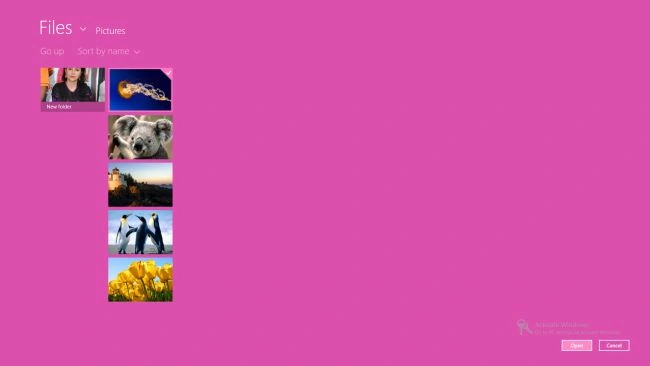
You will see that the image will be loaded with the specified height and width.
Output
Join the conversation! Your thoughts help the community grow.