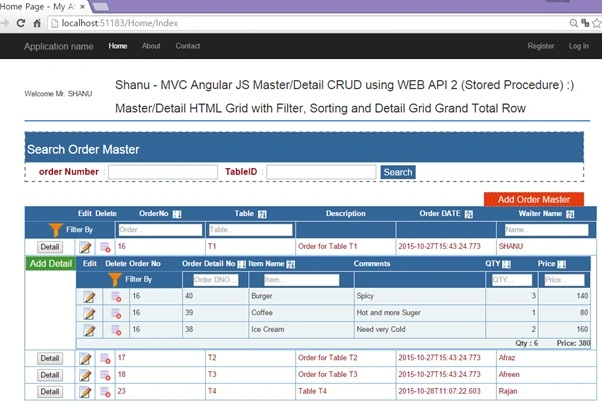
In one of my article I explained about
how to create a Master/Detail HTML GRID using MVC and AngularJS. Few members requested me to write an article for Master/Detail html grid with CRUD (Insert, Update, Select and Delete) for both Master and Detail grid. As a result here I have created a simple demo program with the following features.
This article will explain:
- How to Create Order Master and Order Detail table with sample records inserted.
- Create Stored Procedure to perform Insert/Update/Select and Delete both Order Master and Order Detail table.
- Create Entity Framework and add all the Stored Procedures.
- Create a separate WEB API for both Order Master and Order Detail to execute all our Stored Procedures from AngularJS Controller.
- Create AngularJS Controller to perform all business logic part to display our Master/Detail HTML grid.
- Add Sorting /Filtering features for both Master and Detail HTML grid.
- Display Total Row for each Child Detail Grid.
- Add/Edit/ and Delete each Order Master and Order Detail from grid.
- Search Order Master Details.
Prerequisites
Visual Studio 2015 - You can download it from here.
You can also view my previous articles related to AngularJS using MVC and the WCF Rest Service.
Previous articles related to Angular JS, MVC and WEB API:
Code part
1. Create Database and Table
We will create an Order Master and Order Detail table to be used for the Master and Detail Grid data binding. The following is the script to create a database, table and sample insert query. Run this script in your SQL Server. I have used SQL Server 2014.
- use master
-
-
- IF EXISTS (SELECT [name] FROM sys.databases WHERE [name] = 'OrderManagement' )
- DROP DATABASE OrderManagement
- GO
-
- CREATE DATABASE OrderManagement
- GO
-
- USE OrderManagement
- GO
-
-
-
-
-
- CREATE TABLE [dbo].[OrderMasters](
- [Order_No] INT IDENTITY PRIMARY KEY,
- [Table_ID] [varchar](20) NOT NULL,
- [Description] [varchar](200) NOT NULL,
- [Order_DATE] [datetime] NOT NULL,
- [Waiter_Name] [varchar](20) NOT NULL
- )
-
-
-
-
- INSERT INTO [OrderMasters]
- ([Table_ID] ,[Description],[Order_DATE],[Waiter_Name])
- VALUES
- ('T1','Order for Table T1',GETDATE(),'SHANU' )
-
- INSERT INTO [OrderMasters]
- ([Table_ID] ,[Description],[Order_DATE],[Waiter_Name])
- VALUES
- ('T2','Order for Table T2',GETDATE(),'Afraz' )
-
- INSERT INTO [OrderMasters]
- ([Table_ID] ,[Description],[Order_DATE],[Waiter_Name])
- VALUES
- ('T3','Order for Table T3',GETDATE(),'Afreen')
-
-
-
- CREATE TABLE [dbo].[OrderDetails](
- [Order_Detail_No] INT IDENTITY PRIMARY KEY,
- [Order_No] INT,
- [Item_Name] [varchar](20) NOT NULL,
- [Notes] [varchar](200) NOT NULL,
- [QTY] INT NOT NULL,
- [Price] INT NOT NULL
- )
-
-
-
- INSERT INTO [OrderDetails]
- ( [Order_No],[Item_Name],[Notes],[QTY] ,[Price])
- VALUES
- (1,'Ice Cream','Need very Cold',2 ,160)
-
- INSERT INTO [OrderDetails]
- ([Order_No],[Item_Name],[Notes],[QTY] ,[Price])
- VALUES
- (1,'Coffee','Hot and more Suger',1 ,80)
-
-
- INSERT INTO [OrderDetails]
- ([Order_No],[Item_Name],[Notes],[QTY] ,[Price])
- VALUES
- (1,'Burger','Spicy',3 ,140)
-
- INSERT INTO [OrderDetails]
- ([Order_No],[Item_Name],[Notes],[QTY] ,[Price])
- VALUES
- (2,'Pizza','More Chees and Large',1 ,350)
-
-
- INSERT INTO [OrderDetails]
- ([Order_No],[Item_Name],[Notes],[QTY] ,[Price])
- VALUES
- (2,'Cola','Need very Cold',3 ,50)
-
- INSERT INTO [OrderDetails]
- ([Order_No],[Item_Name],[Notes],[QTY] ,[Price])
- VALUES
- (3,'IDLY','Hot',3 ,40)
-
- INSERT INTO [OrderDetails]
- ([Order_No],[Item_Name],[Notes],[QTY] ,[Price])
- VALUES
- (3,'Thosa','Hot',3 ,50)
-
-
-
- Select * FROM OrderMasters
-
- Select * From OrderDetails
After creating our Table we will create a Stored Procedure for our CRUD Operations. Firstly, we will create a stored procedure for Order Master Table to perform CRUD.
-
-
-
-
-
-
-
-
-
-
-
- Create PROCEDURE [dbo].[USP_OrderMaster_Select]
- (
- @OrderNo VARCHAR(100) = '',
- @Table_ID VARCHAR(100) = ''
- )
- AS
- BEGIN
- Select [Order_No],
- [Table_ID],
- [Description],
- [Order_DATE],
- [Waiter_Name]
- FROM
- OrderMasters
- WHERE
- Order_No like @OrderNo +'%'
- AND Table_ID like @Table_ID +'%'
- ORDER BY
- Table_ID
- END
-
-
-
-
-
-
-
-
-
-
-
-
- Create PROCEDURE [dbo].[USP_OrderMaster_Insert]
- (
- @Table_ID VARCHAR(100) = '',
- @Description VARCHAR(100) = '',
- @Waiter_Name VARCHAR(20) = ''
- )
- AS
- BEGIN
- IF NOT EXISTS (SELECT Table_ID FROM OrderMasters WHERE Table_ID=@Table_ID)
- BEGIN
-
- INSERT INTO [OrderMasters]
- ([Table_ID] ,[Description],[Order_DATE],[Waiter_Name])
- VALUES
- (@Table_ID,@Description,GETDATE(),@Waiter_Name )
-
- Select 'Inserted' as results
-
- END
- ELSE
- BEGIN
- Select 'Exists' as results
- END
-
- END
-
-
-
-
-
-
-
-
-
-
-
-
- CREATE PROCEDURE [dbo].[USP_OrderMaster_Update]
- ( @OrderNo Int=0,
- @Table_ID VARCHAR(100) = '',
- @Description VARCHAR(100) = '',
- @Waiter_Name VARCHAR(20) = ''
- )
- AS
- BEGIN
- IF NOT EXISTS (SELECT Table_ID FROM OrderMasters WHERE Order_No!=@OrderNo AND Table_ID=@Table_ID)
- BEGIN
- UPDATE OrderMasters
- SET [Table_ID]=@Table_ID ,
- [Description]=@Description,
- [Order_DATE]=GETDATE(),
- [Waiter_Name]=@Waiter_Name
- WHERE
- Order_No=@OrderNo
-
- Select 'updated' as results
- END
- ELSE
- BEGIN
- Select 'Exists' as results
- END
- END
-
-
-
-
-
-
-
-
-
-
-
-
- CREATE PROCEDURE [dbo].[USP_OrderMaster_Delete]
- ( @OrderNo Int=0 )
- AS
- BEGIN
- DELETE FROM OrderMasters WHERE Order_No=@OrderNo
-
- DELETE from OrderDetails WHERE Order_No=@OrderNo
-
- Select 'Deleted' as results
-
- END
Next we create stored procedure for Order Detail Table to perform CRUD.
- USE OrderManagement
- GO
-
-
-
-
-
-
-
-
-
-
-
-
- Create PROCEDURE [dbo].[USP_OrderDetail_Select]
- (
- @OrderNo VARCHAR(100) = ''
- )
- AS
- BEGIN
- Select Order_Detail_No,
- [Order_No],
- [Item_Name],
- [Notes],
- [QTY],
- [Price]
- FROM
- OrderDetails
- WHERE
- Order_No like @OrderNo +'%'
- ORDER BY
- Item_Name
- END
-
-
-
-
-
-
-
-
-
-
-
-
- Create PROCEDURE [dbo].[USP_OrderDetail_Insert]
- (
- @Order_No VARCHAR(10),
- @Item_Name VARCHAR(100) = '',
- @Notes VARCHAR(100) = '',
- @QTY VARCHAR(20) = '',
- @Price VARCHAR(20) = ''
- )
- AS
- BEGIN
- IF NOT EXISTS (SELECT Item_Name FROM OrderDetails WHERE Order_No=@Order_No AND Item_Name=@Item_Name)
- BEGIN
-
- INSERT INTO [OrderDetails]
- ( [Order_No],[Item_Name],[Notes],[QTY] ,[Price])
- VALUES
- ( @Order_No,@Item_Name,@Notes,@QTY ,@Price )
-
- Select 'Inserted' as results
-
- END
- ELSE
- BEGIN
- Select 'Exists' as results
- END
-
- END
-
-
-
-
-
-
-
-
-
-
-
-
- ALTER PROCEDURE [dbo].[USP_OrderDetail_Update]
- ( @Order_Detail_No Int=0,
- @Order_No VARCHAR(10),
- @Item_Name VARCHAR(100) = '',
- @Notes VARCHAR(100) = '',
- @QTY VARCHAR(20) = '',
- @Price VARCHAR(20) = ''
- )
- AS
- BEGIN
- IF NOT EXISTS (SELECT Item_Name FROM OrderDetails WHERE Order_Detail_No!=@Order_Detail_No AND Item_Name=@Item_Name)
- BEGIN
- UPDATE OrderDetails
- SET [Item_Name]=@Item_Name,
- [Notes]=@Notes,
- [QTY] =@QTY,
- [Price]=@Price
- WHERE
- Order_Detail_No=@Order_Detail_No
- AND Order_No=@Order_No
-
- Select 'updated' as results
- END
- ELSE
- BEGIN
- Select 'Exists' as results
- END
- END
-
-
-
-
-
-
-
-
-
-
-
-
- CREATE PROCEDURE [dbo].[USP_OrderDetail_Delete]
- ( @Order_Detail_No Int=0 )
- AS
- BEGIN
-
- DELETE from OrderDetails WHERE Order_Detail_No=@Order_Detail_No
-
- Select 'Deleted' as results
-
- END
2. Create your MVC Web Application in Visual Studio 2015
After installing our Visual Studio 2015 click Start, then Programs and select Visual Studio 2015 - Click Visual Studio 2015.
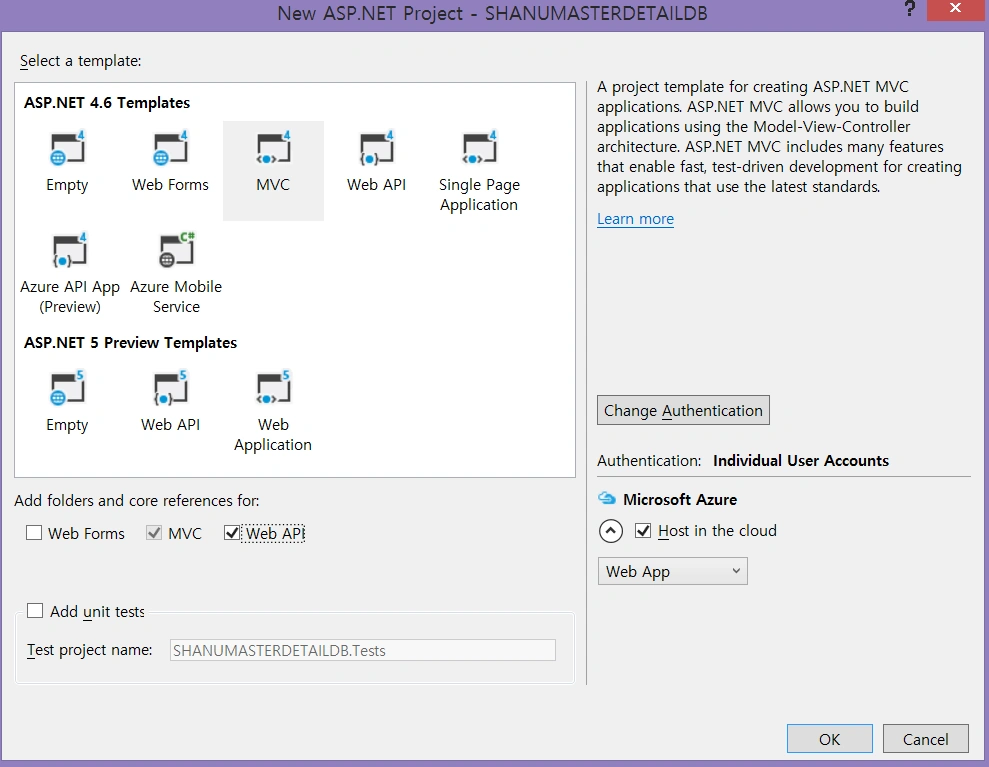
Click New, then Project, select Web and click ASP.NET Web Application. Select your project location and enter your web application name.
Select
MVC and in
Add Folders and Core reference for select the
Web API and click
OK.
Add Database using ADO.NET Entity Data Model
Right click our project and click Add, then New Item.

Select
Data, then
ADO.NET Entity Data Model and give the name for our EF and click
Add.

Select EF Designer from the database and click
Next >.

Here click New Connection and provide your SQL Server - Server Name and connect to your database.

Here you can see I have given my SQL server name, Id and PWD and after it connected I selected the database as OrderManagement since we have created the Database using my SQL Script.

Click
Next and select the tables and all the Stored Procedures need to be used and click
Finish.

Here we can see now we have created our
OrderDetailModel.
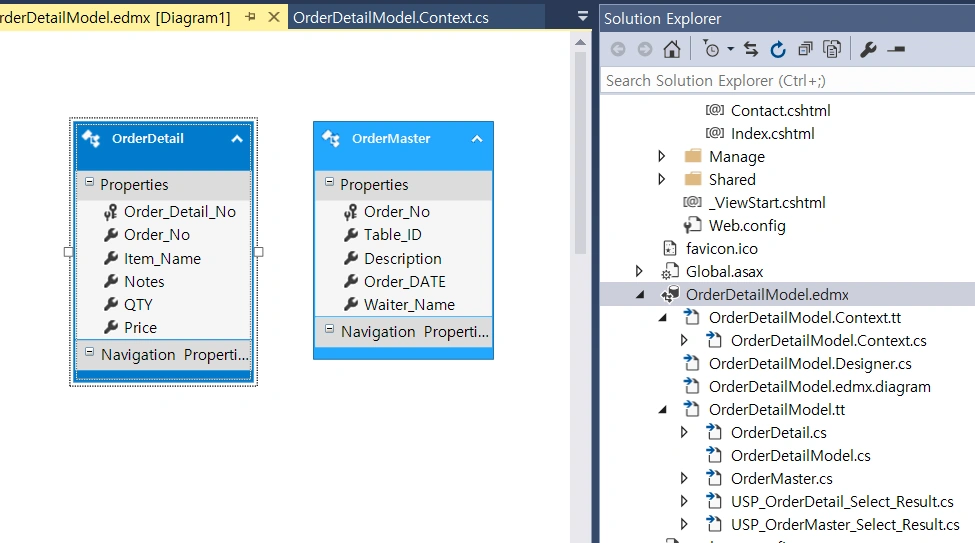
Once the Entity has been created the next step is to add a Web API to our controller and write the function to Select/Insert/Update and Delete.
Procedure to add our Web API Controller
Right-click the Controllers folder, click Add and then click Controller.

Select Controller and add an Empty Web API 2 Controller. Provide your name to the Web API controller and click OK. Here for my Web API Controller I have given the name “OrderAPIController". In this demo project I have created 2 different controller for Order master and order Detail.
As we have created Web API controller, we can see our controller has been inherited with ApiController.
As we all know Web API is a simple and easy way to build HTTP Services for Browsers and Mobiles.
Web API has the following four methods as Get/Post/Put and Delete where:
- Get is to request for the data. (Select)
- Post is to create a data. (Insert)
- Put is to update the data.
- Delete is to delete data.
Get Method
In our example I have used only a Get method since I am using only a Stored Procedure. We need to create an object for our Entity and write our Get Method to do Select/Insert/Update and Delete operations.
Select Operation
We use a get method to get all the details of the OrderMasters table using an entity object and we return the result as IEnumerable. We use this method in our AngularJS and display the result in an MVC page from the AngularJS controller. Using Ng-Repeat we can bind the details.
Here we can see in the get method I have passed the search parameter to the USP_OrderMaster_Select Stored Procedure. In the Stored Procedure I used like "%" to return all the records if the search parameter is empty.
- OrderManagementEntities objapi = new OrderManagementEntities();
-
-
- [HttpGet]
- public IEnumerable<USP_OrderMaster_Select_Result> Get(string OrderNO, string TableID)
- {
- if (OrderNO == null)
- OrderNO = "";
- if (TableID == null)
- TableID = "";
-
- return objapi.USP_OrderMaster_Select(OrderNO, TableID).AsEnumerable();
-
- }
Here in my example I have used the get method for Select/Insert/Update and Delete operations, since in my Stored Procedure after insert/update and delete I have returned the message from the database.
Insert Operation
The same as select I passed all the parameters to the insert procedure. This insert method will return the result from the database as a record is inserted or maybe not. I will get the result and display it from the AngularJS Controller to MVC application.
-
- [HttpGet]
- public IEnumerable<string> insertOrderMaster(string Table_ID,string Description,string Waiter_Name)
- {
- return objapi.USP_OrderMaster_Insert( Table_ID, Description, Waiter_Name).AsEnumerable();
- }
Update Operation
The same as Insert I have passed all the parameters to the insert procedure. This Update method will return the result from the database as a record is updated or maybe not. I will pass the >OrderNo to the update procedure to update the record for the >OrderNo. I will get the result and display it from the AngularJS Controller to the MVC application.
-
- [HttpGet]
- public IEnumerable<string> updateOrderMaster(int OrderNo, string Table_ID, string Description, string Waiter_Name)
- {
- return objapi.USP_OrderMaster_Update(OrderNo, Table_ID, Description, Waiter_Name).AsEnumerable();
- }
Delete Operation
The same as update I have passed the >OrderNo to the procedure to delete the record.
-
- [HttpGet]
- public IEnumerable<string> deleteOrderMaster(int OrderNo)
- {
- return objapi.USP_OrderMaster_Delete(OrderNo).AsEnumerable();
- }
Same like OrderMasterController I have created another controller as “DetailAPI” for Detail table CRUD Operations. Here is the complete code for DetailController.
- public class DetailAPIController: ApiController
- {
- OrderManagementEntities objapi = new OrderManagementEntities();
-
- [HttpGet]
- public IEnumerable < USP_OrderDetail_Select_Result > Get(string OrderNO)
- {
- if(OrderNO == null) OrderNO = "0";
- return objapi.USP_OrderDetail_Select(OrderNO)
- .AsEnumerable();
- }
-
- [HttpGet]
- public IEnumerable < string > insertOrderDetail(string Order_No, string Item_Name, string Notes, string QTY, string Price)
- {
- return objapi.USP_OrderDetail_Insert(Order_No, Item_Name, Notes, QTY, Price)
- .AsEnumerable();
- }
-
- [HttpGet]
- public IEnumerable < string > updateOrderDetail(int Order_Detail_No, string Order_No, string Item_Name, string Notes, string QTY, string Price)
- {
- return objapi.USP_OrderDetail_Update(Order_Detail_No, Order_No, Item_Name, Notes, QTY, Price)
- .AsEnumerable();
- }
-
- [HttpGet]
- public IEnumerable < string > deleteOrderDetail(int Order_Detail_No)
- {
- return objapi.USP_OrderDetail_Delete(Order_Detail_No)
- .AsEnumerable();
- }
- }
Creating AngularJs Controller
Firstly, create a folder inside the Script Folder and I have given the folder name as “MyAngular”.

Now add your Angular Controller inside the folder.
Right click the MyAngular folder and click Add and New Item. Select Web and then AngularJS Controller and provide a name for the Controller. I have named my AngularJs Controller “Controller.js”.

Once the AngularJS Controller is created, we can see by default the controller will have the code with the default module definition and all.

I have changed the preceding code like adding a Module and controller as in the following.
If the AngularJS package is missing, then add the package to your project.
Right click your MVC project and click Manage NuGet Packages. Search for AngularJS and click Install.
 Procedure to Create AngularJS Script Files
Modules.js: Here we will add the reference to the AngularJS JavaScript and create an Angular Module named “RESTClientModule”.
-
-
-
-
- var app;
-
- (function () {
- app = angular.module("RESTClientModule", ['ngAnimate']);
- })();
Controllers: In AngularJs Controller I have done all the business logic and returned the data from Web API to our MVC HTML page.
1. Variable declarations
Firstly, I declared all the local variables need to be used.
- app.controller("AngularJs_studentsController", function ($scope, $timeout, $rootScope, $window, $http) {
- $scope.date = new Date();
- $scope.MyName = "shanu";
-
-
- $scope.OrderNos = "";
- $scope.Table_IDs = "";
-
-
- $scope.OrderNo = 0;
- $scope.Table_ID = "";
- $scope.Description = "";
- $scope.Waiter_Name = "";
-
-
- $scope.showOrderMasterAdd = true;
- $scope.addEditOrderMaster = false;
- $scope.OrderMasterList = true;
- $scope.showItem = true;
-
-
- $scope.Order_Detail_No = 0;
- $scope.Item_Name ="";
- $scope.Notes = "";
- $scope.QTY = "1";
- $scope.Price = "0";
-
-
- $scope.addEditOrderDetail = false;
- $scope.expandImg = "expand.png";
2. Methods
Select Method
In the select method I have used $http.get to get the details from Web API. In the get method I will provide our API Controller name and method to get the details. Here we can see I have passed the search parameter of OrderNO and TableID using:
{ params: { OrderNO: OrderNos, TableID: Table_IDs }
The final result will be displayed to the MVC HTML page using data-ng-repeat.
- $http.get('/api/OrderAPI/',
- {
- params:
- {
- OrderNO: OrderNos,
- TableID: Table_IDs
- }
- })
- .success(function (data)
- {
- $scope.OrderMasters = data;
- $scope.showOrderMasterAdd = true;
- $scope.addEditOrderMaster = false;
- $scope.OrderMasterList = true;
- $scope.showItem = true;
- $scope.addEditOrderDetail = false;
- if($scope.OrderMasters.length > 0)
- {}
- })
- .error(function ()
- {
- $scope.error = "An Error has occured while loading posts!";
- });
Search Button Click
In the search button click I will call the SearchMethod to bind the result. Here we can see in the search text box I have used ng-model="OrderNos". Using ng-model in the AngularJS Controller we can get the TextBox input value or we can set the value to the TextBox.
- <input type="text" name="txtOrderNos" ng-model="OrderNos" value="" />
- <input type="text" name="txtTable_IDs" ng-model="Table_IDs" /><input type="submit" value="Search" style="background-color:#336699;color:#FFFFFF" ng-click="searchOrderMasters()" />
-
- $scope.searchOrderMasters = function ()
- {
- selectOrderMasters($scope.OrderNos, $scope.Table_IDs);
- }
 Insert new Order Master
In the ADD New Student Detail button click I will make visible the StudentAdd table details where the user can enter the new student information. For a new student I will make the Student ID as 0. In the New Student save button click I will call the save method.
-
- $scope.showOrderMasters = function ()
- {
- cleardetails();
- $scope.addEditOrderDetail = false;
- $scope.showOrderMasterAdd = true;
- $scope.addEditOrderMaster = true;
- $scope.OrderMasterList = true;
- $scope.showItem = true;
- }
In the Save method I will check for the OrderNo. If the OrderNo is “0” then it will insert the new Order Master details. Here I will call the Insert Web API method and if the OrderNo is > 0 then it means to update the Order record I will call the Update Web API method.

To Insert Web API Method I will pass all the Input parameters. In my Stored Procedure I will check whether the Table Name for the Order already exists. If the Table name does not exist in the database then I will insert the records and return the success message as “inserted” and if the Table name already exists then I will return the message as “Exists”.
-
- $scope.saveDetails = function ()
- {
- $scope.IsFormSubmitted1 = true;
- if($scope.IsFormValid1)
- {
- if($scope.OrderNo == 0)
- {
- $http.get('/api/OrderAPI/insertOrderMaster/',
- {
- params:
- {
- Table_ID: $scope.Table_ID,
- Description: $scope.Description,
- Waiter_Name: $scope.Waiter_Name
- }
- })
- .success(function (data)
- {
- $scope.orderMasterInserted = data;
- alert($scope.orderMasterInserted);
- cleardetails();
- selectOrderMasters('', '');
- })
- .error(function ()
- {
- $scope.error = "An Error has occured while loading posts!";
- });
- }
- else
- {
- $http.get('/api/OrderAPI/updateOrderMaster/',
- {
- params:
- {
- OrderNo: $scope.OrderNo,
- Table_ID: $scope.Table_ID,
- Description: $scope.Description,
- Waiter_Name: $scope.Waiter_Name
- }
- })
- .success(function (data)
- {
- $scope.orderMasterUpdated = data;
- alert($scope.orderMasterUpdated);
- cleardetails();
- selectOrderMasters('', '');
- })
- .error(function ()
- {
- $scope.error = "An Error has occured while loading posts!";
- });
- }
- }
- else
- {
- $scope.Message1 = "All the fields are required.";
- }
- }
Update Order Master

The same as Insert I will display the update details for the user to edit the details and save it. In the Edit method I will get all the details for the row where the user clicks on the Edit Icon and sets all the results to the appropriate TextBox. In the Save button click I will call the save method to save all the changes to the database like Insert.
-
- $scope.OrderMasterEdit = function OrderMasterEdit(OrderNoss, Table_IDss, Descriptionss, Waiter_Namess)
- {
- cleardetails();
- $scope.OrderNo = OrderNoss;
- $scope.Table_ID = Table_IDss
- $scope.Description = Descriptionss;
- $scope.Waiter_Name = Waiter_Namess;
- $scope.addEditOrderDetail = false;
- $scope.showOrderMasterAdd = true;
- $scope.addEditOrderMaster = true;
- $scope.OrderMasterList = true;
- $scope.showItem = true;
- }
Delete Order Master Details

In the Delete button click, I will display the confirmation message to the user whether to delete the Order or not. If the user clicks the OK button I will pass the OrderNo to the delete method of the Web API to delete the record from the database.
-
- $scope.OrderMasterDelete = function OrderMasterDelete(OrderNoss)
- {
- cleardetails();
- $scope.OrderNo = OrderNoss;
- var delConfirm = confirm("Are you sure you want to delete the Order Master " + OrderNoss + " ?");
- if(delConfirm == true)
- {
-
- $http.get('/api/OrderAPI/deleteOrderMaster/',
- {
- params:
- {
- OrderNo: $scope.OrderNo
- }
- })
- .success(function (data)
- {
-
- $scope.orderMasterDeleted = data;
- alert($scope.orderMasterDeleted);
- cleardetails();
- selectOrderMasters('', '');
- })
- .error(function ()
- {
- $scope.error = "An Error has occured while loading posts!";
- });
- }
- }
Filter and Sorting Order
Master

Kindly refer my article that explains how to perform Filtering and Sorting for HTML generated grid.
The filters can be added with the ng-repeat using the pipe symbol.
Here we can see with ng-repeat we have added the filter and for the filter we have given the TextBox Model id. When the user presses the key on the TextBox the filter will be applied for the loop and display the appropriate value as in the following:
- </tr>
- <tr style="height: 30px; background-color:#336699 ; color:#FFFFFF ;border: solid 1px #659EC7;">
- <td width="100" align="center" colspan="3"> <img src="~/Images/filter.png" /> Filter By </td>
- <td width="180" align="center" style="border: solid 1px #FFFFFF; padding: 5px;table-layout:fixed;">
- <input ng-model="search.Order_No" placeholder="Order..." width="90"> </td>
- <td width="180" align="center" style="border: solid 1px #FFFFFF; padding: 5px;table-layout:fixed;">
- <input ng-model="search.Table_ID" placeholder="Table..."> </td>
- <td width="200" align="center" style="border: solid 1px #FFFFFF; padding: 5px;table-layout:fixed;"> </td>
- <td width="200" align="center" style="border: solid 1px #FFFFFF; padding: 5px;table-layout:fixed;"> </td>
- <td width="200" align="center" style="border: solid 1px #FFFFFF; padding: 5px;table-layout:fixed;">
- <input ng-model="search.Waiter_Name" placeholder="Name..."> </td>
- </tr>
Sorting Order Master
The same as for a filter we add the orderBy with field and reverse value in ng-repat using the pipe symbol.
The OrderBy can be added with the ng-repeat using the pipe symbol. For example, let's consider the preceding example.
And in ng-repeat we will be giving the search by filter that will filter all the textbox values which we enter and produce the filtered result.
- <tbody data-ng-repeat="stds in OrderMasters | filter:search | orderBy:predicate:reverse">
Displaying Order Detail

Here we can see how I have displayed the Order Detail grid inside the Order Master by clicking the Detail button click.
In each Order Master Row click I will check for the active row. And then in the detail button click I called the showNewOrderDetails() method to display the details.
- <tr ng-show="activeRow==stds.Order_No" >
In detail button click,
- <input type="button" value="Add Detail" style="background-color:#439633;color:#FFFFFF;font-size:large;width:100px;
- border-color:#a2aabe;border-style:dashed;border-width:2px;" ng-click="showNewOrderDetails()" />
-
- // New Detail Add
- $scope.showNewOrderDetails = function () {
- clearOrderdetails();
- $scope.showOrderMasterAdd = false;
- $scope.addEditOrderMaster = false;
- $scope.OrderMasterList = true;
- $scope.showItem = true;
- $scope.addEditOrderDetail = true;
- }
For order Detail CRUD, Sorting and Filtering the same logic as we have seen for Order master has been used. Here we will see the following output:
Order Detail Add
 Order Detail Edit
Order Detail Delete
Order Detail Sorting and Filtering




lucs ccnPosted Sep 11, 2018, 2:45 PM
Is it valid for 2018?
farooq smdPosted Jun 21, 2016, 12:30 PM
nice
RubolPosted Jan 19, 2016, 11:12 PM
Nice
David MayPosted Nov 24, 2015, 12:17 PM
I like this article so much I want to take it behind a middle school and get it pregnant.
Mukesh KumarPosted Nov 22, 2015, 11:43 PM
Great article ... step by step...thanks for sharing
Harshad PansuriyaPosted Nov 13, 2015, 11:01 PM
Nice one
Banketeshvar NarayanPosted Nov 13, 2015, 4:47 PM
Nice Article
Jitendra KumarPosted Nov 12, 2015, 6:17 AM
Nice one..
Sibeesh VenuPosted Nov 12, 2015, 4:04 AM
Great Share Syed Shanu
Debasis SahaPosted Nov 11, 2015, 11:15 PM
Nice article..
Ankur MistryPosted Nov 9, 2015, 12:19 PM
Nice Article Sir
Former memberPosted Nov 7, 2015, 9:39 AM
Nice
Shridhar SharmaPosted Nov 6, 2015, 12:35 PM
very nice article sir.found helpful.
Raja TPosted Nov 5, 2015, 7:30 AM
Nice One Sir,Thanks for sharing...
Dhanik SahniPosted Nov 5, 2015, 7:27 AM
Very good article, Syed.
Mukesh KumarPosted Nov 4, 2015, 2:54 AM
Good Article... Thanks for sharing
Kiranteja JallepalliPosted Nov 3, 2015, 9:14 AM
Really very nice Article Syed.. good work
Debasis SahaPosted Nov 3, 2015, 9:09 AM
Nice one..
Upendra Pratap ShahiPosted Nov 3, 2015, 3:57 AM
Very easy and nice explain sir..thanks for sharing..
Nilesh JadavPosted Nov 3, 2015, 2:23 AM
Great ! You are really best at this !! Good one sir
Humayun Kabir MamunPosted Nov 3, 2015, 12:37 AM
Nice...
Sibeesh VenuPosted Nov 3, 2015, 12:20 AM
Nice Share
Harshad PansuriyaPosted Nov 2, 2015, 11:27 PM
Nice one
Rupali ShindePosted Nov 2, 2015, 11:13 PM
useful article sir, thank you very much
Ajay GandhiPosted Nov 2, 2015, 10:19 PM
Superb
Sourabh SomaniPosted Nov 2, 2015, 9:45 PM
Awesome Sir :)
Shridhar SharmaPosted Nov 2, 2015, 12:59 PM
nice share
Vinodh NarayananPosted Nov 2, 2015, 12:09 PM
Good one
Gowtham KPosted Nov 2, 2015, 11:39 AM
Good One, Thanks for sharing
Phoolchand PatelPosted Nov 2, 2015, 11:34 AM
Good one
Ankit BansalPosted Nov 2, 2015, 11:22 AM
Really awesome.. You are one of the best developer..
Josue MolinaPosted Nov 2, 2015, 11:04 AM
This is great!, very complete
manokaran manivasakanPosted Nov 2, 2015, 10:59 AM
good job
Vinodh NarayananPosted Nov 2, 2015, 10:12 AM
Good one
Manish KukrejaPosted Nov 2, 2015, 9:20 AM
nice one