

My previous article was about screen layouts and their usage. In this article we shall discuss how to add an image to the LightSwitch screen.
Image Data type in LightSwitch:
Like other programming languages, LightSwitch also has the data type Image. If you need to add an image into your application screen you need to have a field of type Image. The LightSwitch will automatically generate the image controls for the image at run time.
Let us discuss more about Image by creating a demo LightSwitch application. In our demo application we shall try to upload the image to the screen and will save the image into the database.
Preparing the Solution:
Start the VS 2010; create a LightSwitch Desktop application with the name "AddingIamgeIntoScreenInLSBeta2" as shown in the following figure.
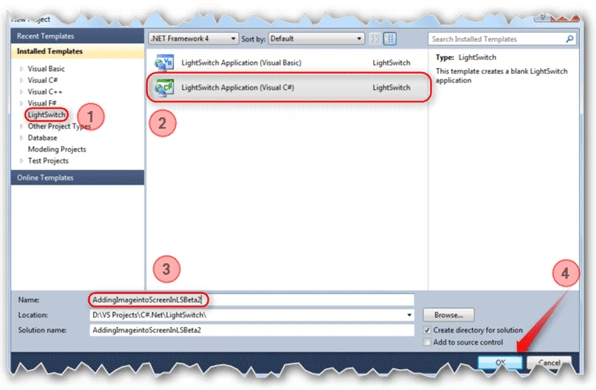
Follow the [No: #] to prepare the Solution.
Creating Entity for Application:
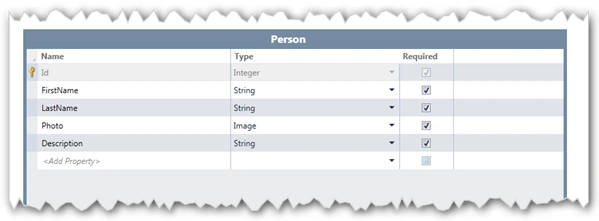
Create a table as shown in the screen by selecting the "create a table" option in the start up screen.
Designing the Screen:
To demonstrate the topic we have taken, we need to add a New Data Screen to our demo application. We should know how to add a New Data Screen to the LightSwitch application, prior to proceeding with designing the Screen.
To know more about how to add a New Data Screen to a LightSwitch Application please read this Article.
Now we know how to do the screen stuff. See the following figure which is the default screen layouts for the screen we have created.
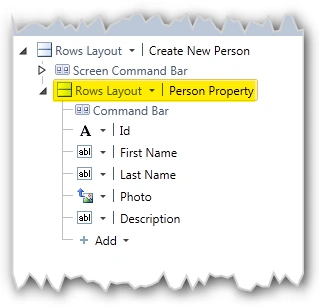
So we have to change the layout of this screen so that the uploading and using the image in the screen can be easily explained.
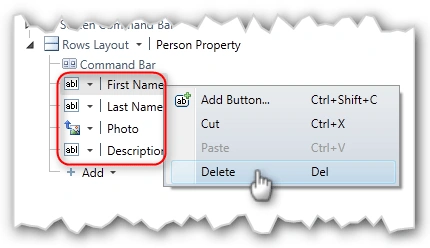
Before adding the Model Window we have to prepare the layout. So delete the Highlighted fields as shown in the above figure.
After preparing the layout to add the image, just add a new Group to the Person Property Rows Layout.
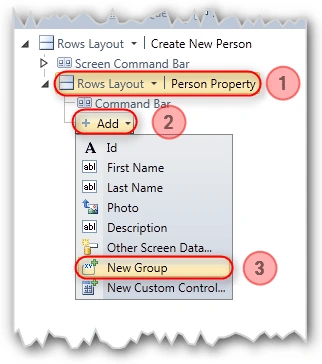
To add a new group,
- [No: 1] – Select the Rows layout, it will shows you the Add button.
- [No: 2] – Click the Add button to select the new group.
- [No: 3] – Select the New Group.
After adding the new group change the Layout type to Columns Layout.
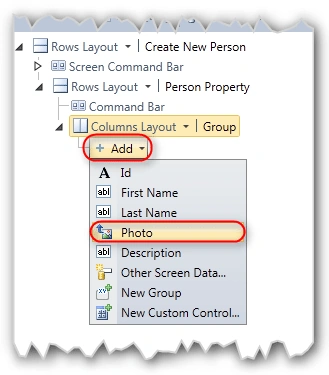
Here,
- Change the rows layout to columns layouts and give the display name as Uploading Image Example.
- Click on the add button to add the Photo field under the column layout.
Add a new group under the Column layout group.
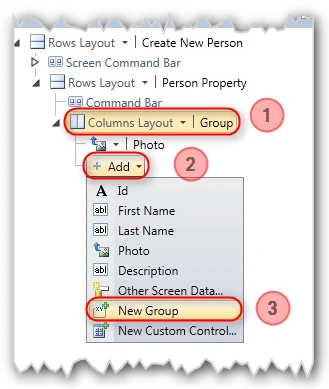
Follow the [No: #] to create a new group under the columns layout group.
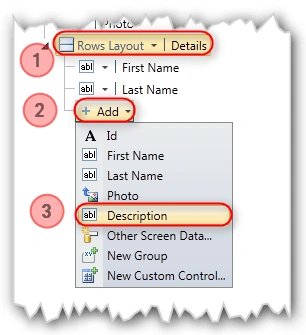
After adding a new group of rows layout add the fields to the newly created group.
- [No: 1] – Select the Rows Layout group and change the display name as Details.
- [No: 2] – Click on Add button to select the appropriate fields to add to the group.
- [No: 3] – Add the fields to the group.
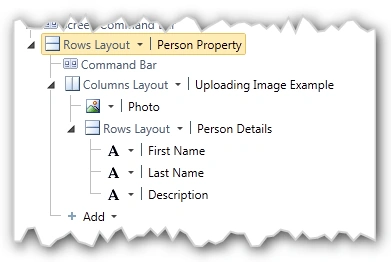
The above snippet shows the complete layout tree for our screen.
Now the screen for uploading the image is ready. Just press the Play button.
Application in Action:

In this above figure, the button with the arrow image is used to upload the image into the screen which is highlighted with the arrow mark.
Summary:
In this article, we have seen how to use the image in a LightSwitch Screen.
Thanks for spending your precious time here. Please provide your valuable feedbacks and comments, which enable me to give a better article the next time.
Thanks.
Jaganathan BantheswaranPosted Jan 22, 2015, 12:54 AM
No.. you cant.
L WPosted Jan 20, 2015, 3:32 PM
is there a way to customize the "initial folder" for the file pciker that shows up when you click the green arrow? thanks
Jaganathan BantheswaranPosted Oct 19, 2012, 2:42 PM
Have you followed the steps to create the screen with image ?. If the issue still there, then may be problem with VS i guess...
Liviu IonutPosted Oct 17, 2012, 2:26 AM
Thank you for reply. I have a table in my sql database which contains a photo field (this column is image type). Now, I add this table as data source in my project, then I add it as data item in my screen. When I drag the table as data grid on my screen, the photo field is not recognized as image and the photo doesnt show up on the screen.Do you have any idea why?
Jaganathan BantheswaranPosted Oct 12, 2012, 12:08 PM
Can you post the sample code
Liviu IonutPosted Oct 11, 2012, 2:36 PM
It might be a problem with vs2012 because the photo field is not recognized as an image field, even if in database is declared as an image type. Do you have any idea why? I will be very grateful if you can help me.
salim salamPosted Oct 4, 2011, 7:23 AM
very nice. thanks.