

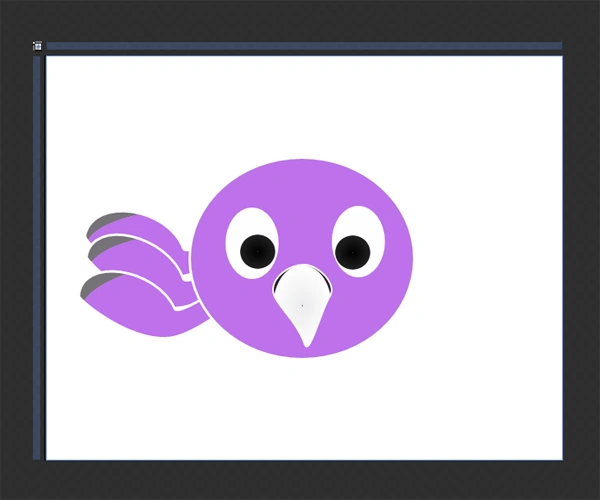
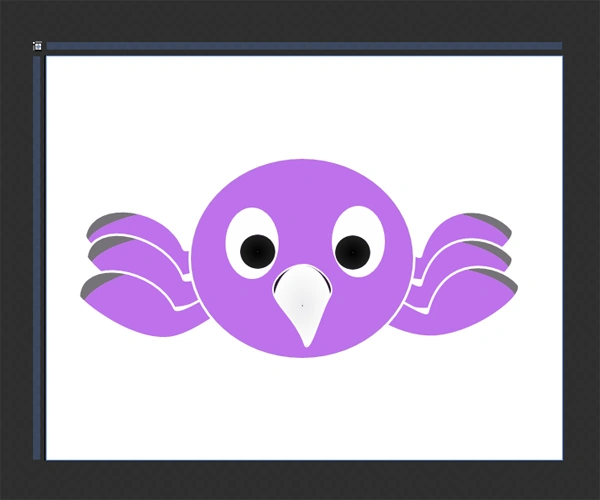
Steps for creating a Twitter Bird are as follows:
Step 1: Open Expression Blend; select File -> New Project.
Select Silverlight 3 Application + Website and name the project "Twitter Bird".
After hitting OK, the new project will be created and the main page will be opened on the Art Board.
Step 2: Draw a circle using the Ellipse Tool from the Toolbox located on the left side of the Blend Workspace.
Manage Width & Height accordingly.
Choose the color from the Color Palette by selecting the Fill Option located on the right side of the Blend Workspace.
Fill using the Pink Color. Apply a Stroke Thickness of 2% from the Stroke Options located at the top of the right-side Property Panel.
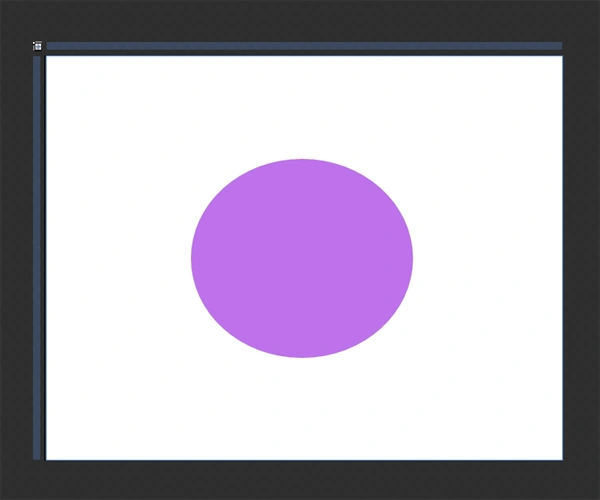
Step 3: Draw Eyes
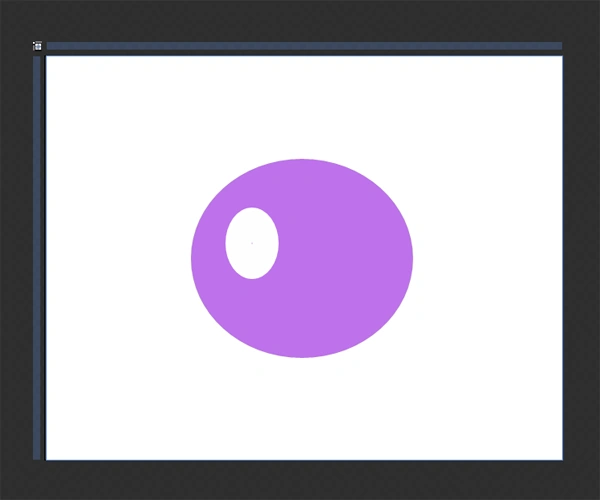
Draw another circle the using Ellipse Tool and fill using the White Color and manage the Width & Height accordingly and name it as Left Eye.
Copy the Left Eye and Paste it onto the right and name it Right Eye.

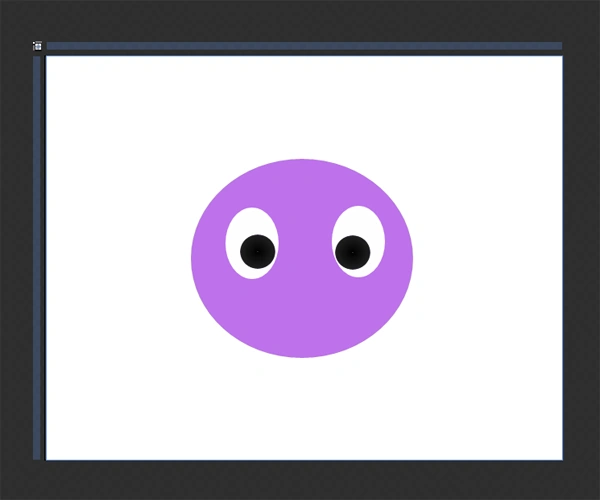
Step 4: Draw Retina



Sonia Bhadouria VishvkarmaPosted Jul 19, 2012, 4:39 AM
It's a Modern type of Twitter.
GerdiPosted Jul 2, 2012, 2:34 AM
looks kinda like a spider .. not so much a twitter bird