

This article shows how to export grid data to excel in advance Kendo UI using MVC WEB API and Entity Framework.
Requirements
- VS2010 and above
- Fiddler/Postman for testing
- SQL Server 2008 and above
Before going through this article ensure that you have a basic understanding of the MVC Architecture, ASP.NET Web API and jQuery.
Description
Let us start with creating a REST service using WEB API.Just create a WEB API project in Visual Studio as shown in the following Figures 1 and 2:
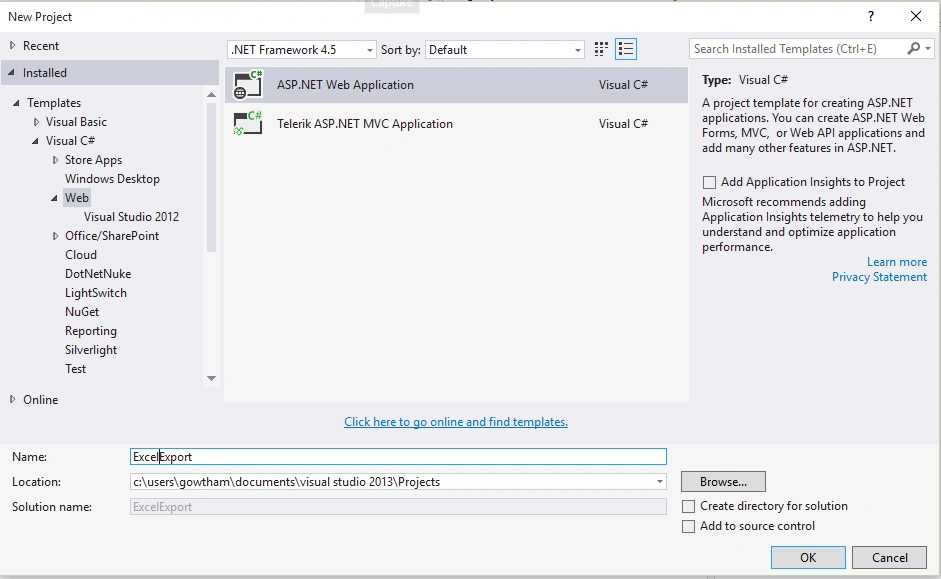
Figure 1
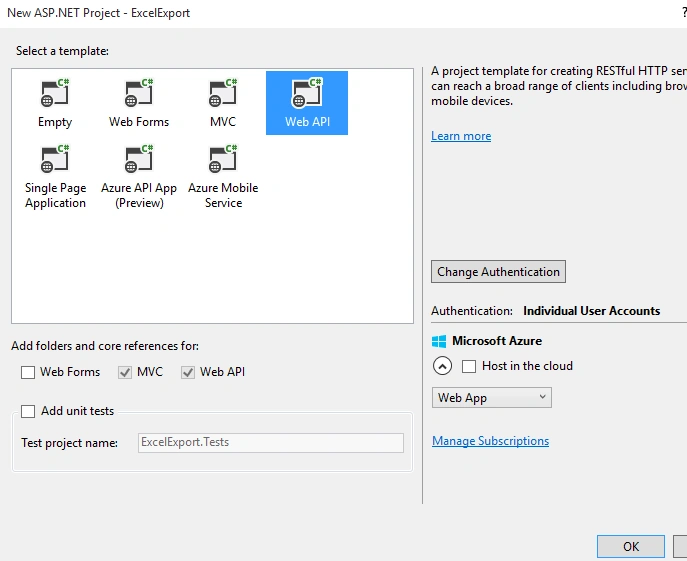
Figure 2
Creating a Model Class
Right-click on the model folder and create a class. In my case I named it Product.
Write the following code in the Product.cs model class.
Creating a Model Class
Right-click on the model folder and create a class. In my case I named it Product.
Write the following code in the Product.cs model class.
- public class Product
- {
- [Key]
- [DatabaseGenerated(DatabaseGeneratedOption.Identity)]
- public int ProductID { get; set; }
- [Required]
- public string ProductName { get; set; }
- [Required]
- public string UnitPrice { get; set; }
- }
Here I am using Entity Framework Code first technique so we need to create the context class.
Right-click on the model folder and create one more class. In my case I named it ProductContext.
Write the following code in ProductContext class.
- public class ProductContext:DbContext
- {
- public ProductContext() : base("name=TestConnection") { }
- public DbSet<Product> Products { get; set; }
- }
Note: Before doing Scaffolding build your application once.
Right-click on Controller folder then select Add, then Controller and create a WEB API class as shown in 3 and 4.
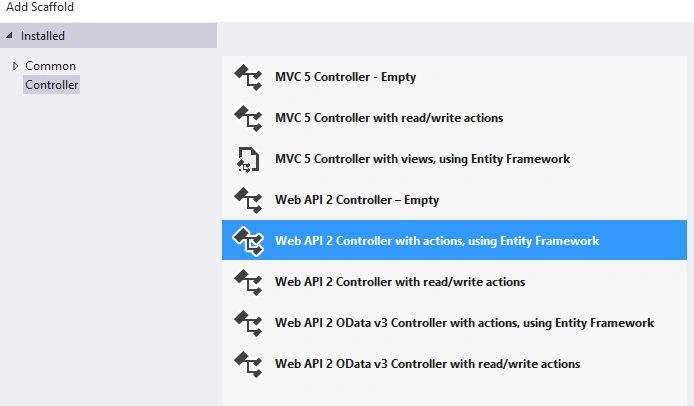
Figure 3
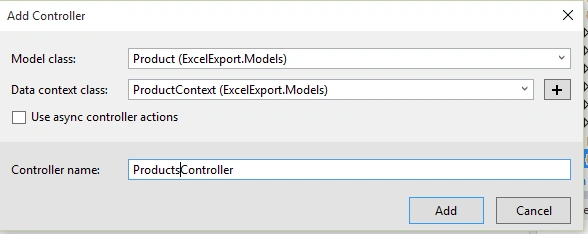
Figure 4
The preceding procedure will scaffold the RESTfull service in the ProductsController.cs.
You will get some pre-defined HTTP GET, POST, PUT and DELETE requests/responses in the products Controller. Modify the code based on your application requirements. For this example I didn't modified the code.
Now the REST services are created, it's time to create a Kendo UI Grid View to consume the services.
Before implementing the service in the Kendo UI once check that in Postman / Fiddler.
Using a Kendo Grid with remote binding
Create an HMTL page in your project, in my case I named it GridtoExcel.html.
Design in GridtoExcel.html
- <!DOCTYPE html>
- <html xmlns="http://www.w3.org/1999/xhtml">
- <head>
- <link rel="stylesheet" href="http://cdn.kendostatic.com/2014.3.1316/styles/kendo.common.min.css" />
- <link rel="stylesheet" href="http://cdn.kendostatic.com/2014.3.1316/styles/kendo.default.min.css" />
- <link rel="stylesheet" href="http://cdn.kendostatic.com/2014.3.1316/styles/kendo.dataviz.min.css" />
- <link rel="stylesheet" href="http://cdn.kendostatic.com/2014.3.1316/styles/kendo.dataviz.default.min.css" />
- <script src="http://cdn.kendostatic.com/2014.3.1316/js/jquery.min.js"></script>
- <script src="http://cdn.kendostatic.com/2014.3.1316/js/kendo.all.min.js"></script>
- <script src="http://cdn.kendostatic.com/2014.3.1029/js/jszip.min.js"></script>
- <title></title>
- </head>
- <body>
- <div class="container" id="example">
- <div class="row">
- <div id="test-grid" data-role="grid"
- data-scrollable="true"
- data-editable="false"
- data-selectable="true"
- data-toolbar="['excel']"
- data-excel='{fileName: "ProductDetail.xlsx"}'
- data-columns="[
- { 'field': 'ProductName','width':'100px' },
- { 'field': ' UnitPrice','width':'100px'},
- ]"
- data-pageable='true'
- data-bind="source:products"
- style="height: 300px"></div>
- </div>
- </div></body>
- </html>
The Rest service End Point is: api/products
JavaScipt with MVVM Model
- <script>
- var viewModel = kendo.observable({
- isVisible: true,
- products: new kendo.data.DataSource({
- schema: {
- model: {
- id: "ProductID",
- fields: {
- ProductName: { type: "string" },
- UnitPrice: { type: "string" }
- }
- }
- },
- batch: true,
- transport: {
- read: {
- url: "api/Products",
- dataType: "json"
- },
- parameterMap: function (options, operation) {
- if (operation !== "read" && options.models) {
- return { models: kendo.stringify(options.models) };
- }
- }
- }
- })
- });
- kendo.bind($("#example"), viewModel);
- </script>
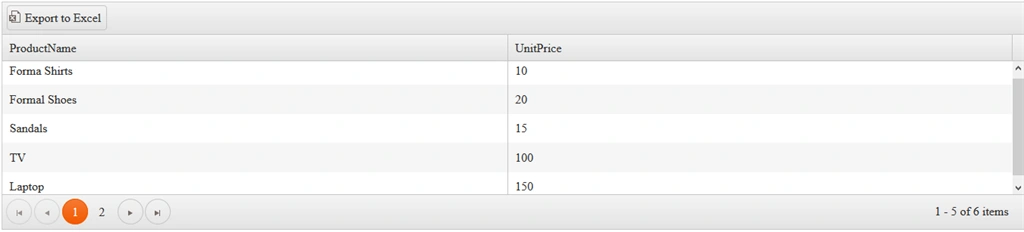
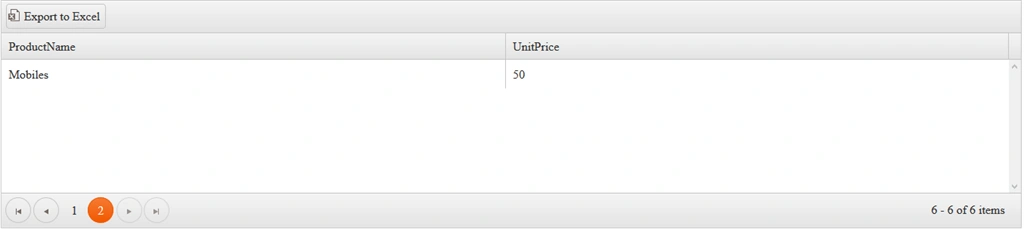
Result in a browser
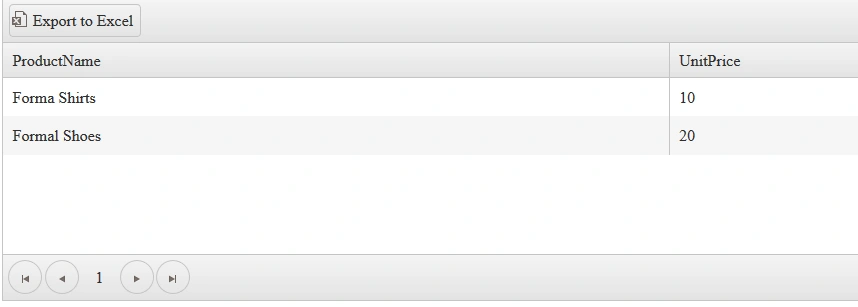
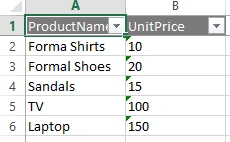
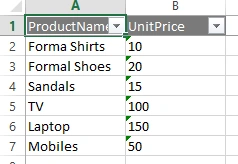
Click on Export to Excel button to export the grid data into excel sheet.
Excel Sheet
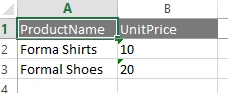
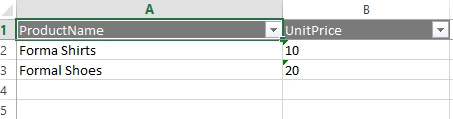
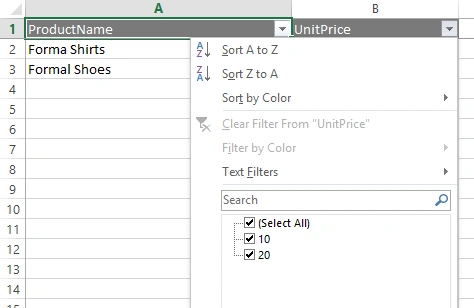
Export Grid Data to Excel with filtering
Aniket NarvankarPosted Apr 2, 2022, 2:22 PM
Need help,how to export only checkbox checked rows in kendo grid mvc. for this want to use mvc,want to sent checkbox checked rows to controller and then export it. how could this be done
Aniket NarvankarPosted Apr 2, 2022, 2:21 PM
Nice Article very helpful
Arul RPosted Oct 28, 2015, 5:55 AM
Nice share!!!
Santhakumar MunuswamyPosted Oct 18, 2015, 3:53 AM
Good one
Muhammad Aqib ShehzadPosted Oct 12, 2015, 5:45 AM
Good elaboration
Sibeesh VenuPosted Oct 12, 2015, 3:19 AM
Nice Share
Nilesh JadavPosted Oct 12, 2015, 12:08 AM
Good Explain sir
Harshad PansuriyaPosted Oct 12, 2015, 12:03 AM
Nice one
Rajeesh MenothPosted Oct 11, 2015, 12:32 PM
Nice Share!