

Introduction
This article explains Action Listener in Java. The Netbeans IDE is used for sample examples. In this article we describe the ActionListener interface, how to define it and then we use an example, using the Netbeans IDE, to understand how ActionListener works.
What is Action Listener
It is an interface used to handle the event tasks. It is easy to develop, maintain and implement. When we implement this interface in this class then we are working on some events such as the button clicked event, etcetera. For example, like the user presses Enter in a text field, clicks a button, chooses some components from a file menu, etcetera. Then the results are sent to the action listener that is generated for the relevant components.
How to declare
For declaring this interface we need to use the following procedure:
- First, declare an event handler class and implements it as follows
public class ClassName implements ActionListener {
- Now register its component to the class by using "add".
someComponent.addActionListener (instanceofClass);
- Now write some code (in other words the task we need to perform) between braces. The syntax is as in the following:
public void actionPerformed(ActionEvent ex)
{
//task to perform through this interface
}
To determine where the user clicked on the screen, Java provides an interface called "ActionListener" through which we determine where the user clicked and generates an event to perform several tasks, like calculation, print a value, print a specific character, etcetera using a button.
Example
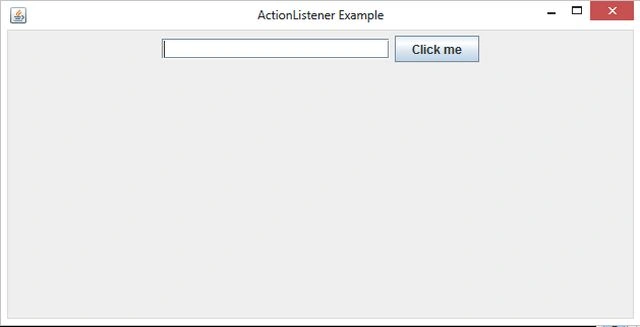
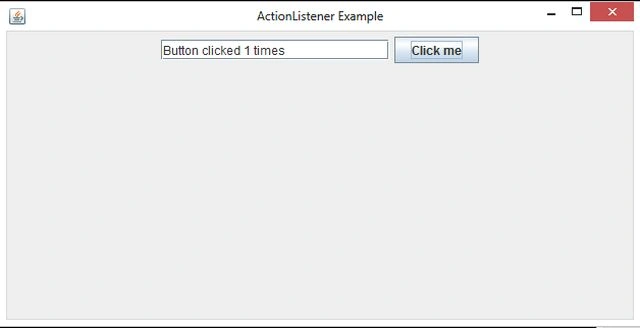
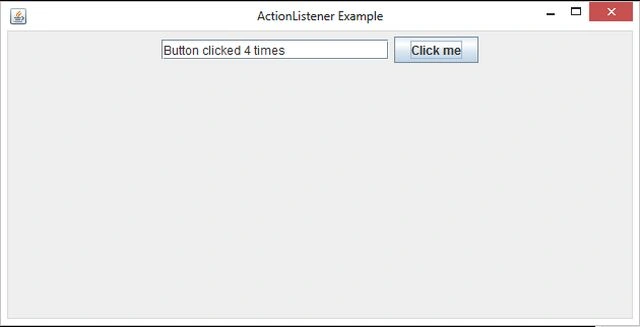
Let's use the Netbeans IDE to create a program in which we display how many times a user has clicked a button.
For this we need to do several steps.
Step 1
Opens the Netbeans IDE.
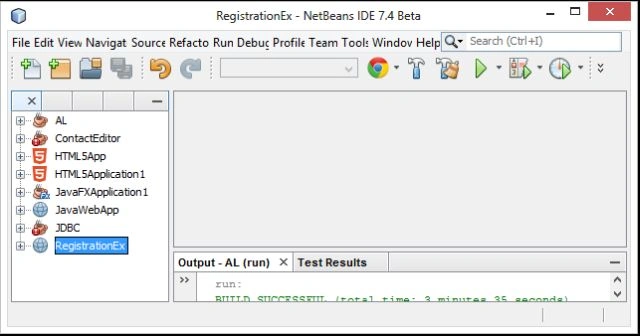
Step 2
Click on the "File" Menu then select "New Project" as in the following:
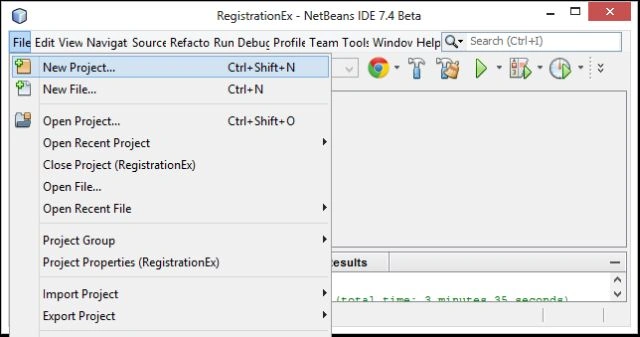
Step 3
Choose "Java" -> "Java Application" as in the following:
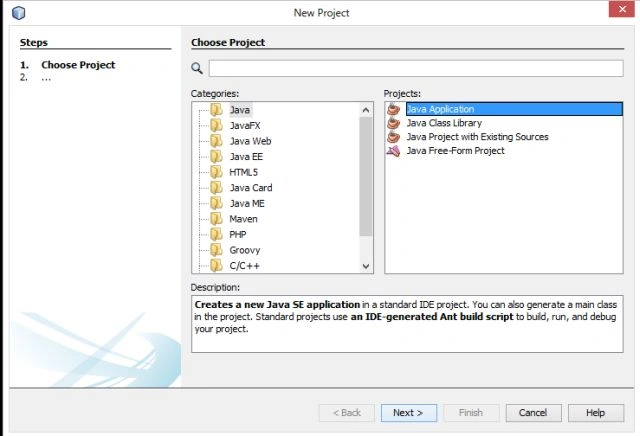
Step 4
Now click on "Next". A new window is generated. Now provide a project name (I used "ActnLstnr1") as in the following:
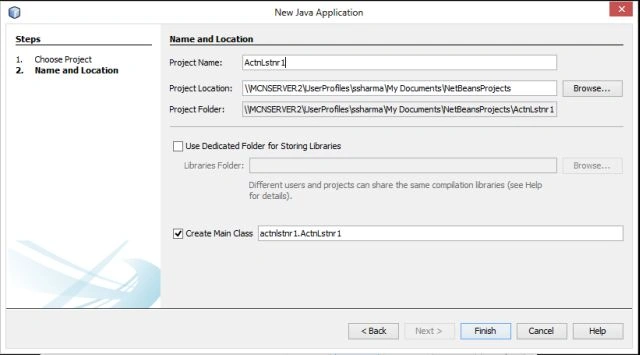
Step 5
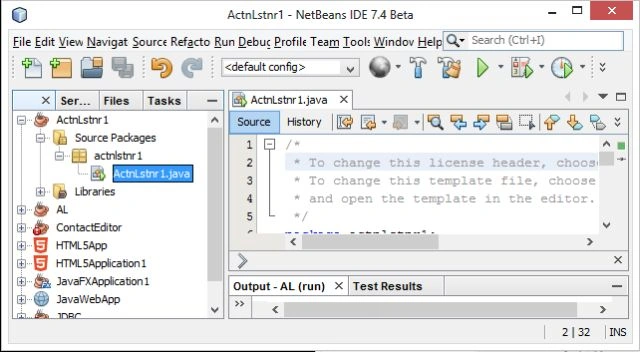
Now click on "Finish". Your project is now set up with the default file "ActnLstnr1.java" in "actnlstnr1 package" as in the following:
Step 6
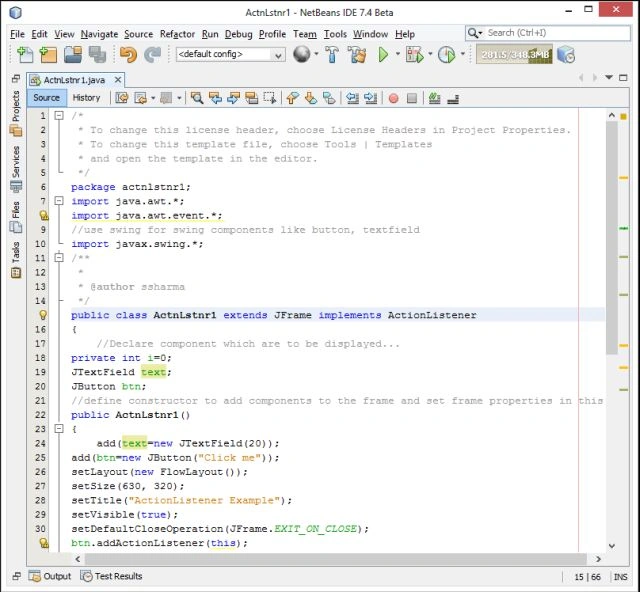
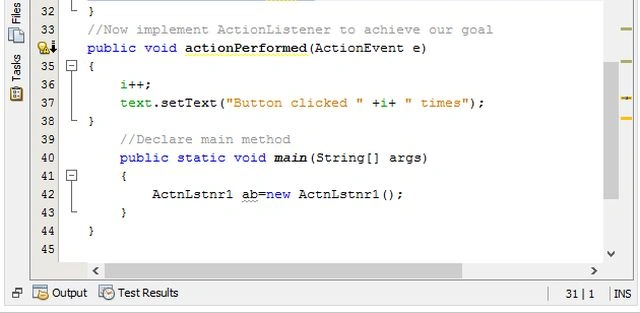
Now provide the following code in the "ActnLstnr1.java" file.
/*
* To change this license header, choose License Headers in Project Properties.
* To change this template file, choose Tools | Templates
* and open the template in the editor.
*/
package actnlstnr1;
import java.awt.*;
import java.awt.event.*;
//use swing for swing components like button, textfield
import javax.swing.*;
Join the conversation! Your thoughts help the community grow.