

Introduction
This article explains how to implement an auto-complete text box in ASP.NET using jQuery.
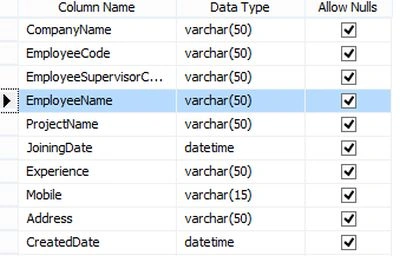
The following is my Data Table from which I am showing Employee Name:
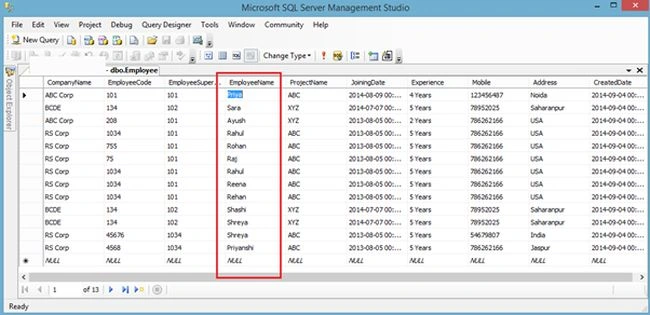
 The records in my Data Table are shown below.
Here I will show Employee Name in the autocomplete text box.
The records in my Data Table are shown below.
Here I will show Employee Name in the autocomplete text box.
 Now my aspx code is:
Image 1
Image 2
- <%@ Page Language="C#" AutoEventWireup="true" CodeFile="Default.aspx.cs" Inherits="_Default" %>
- <!DOCTYPE html PUBLIC "-//W3C//DTD XHTML 1.0 Transitional//EN" "http://www.w3.org/TR/xhtml1/DTD/xhtml1-transitional.dtd">
- <html xmlns="http://www.w3.org/1999/xhtml">
- <head runat="server">
- <title>AutoComplete Text Box using jQuery in ASP.NET</title>
- <link href="jquery-ui.css" rel="stylesheet" type="text/css" />
- <script src="jquery.min.js" type="text/javascript"></script>
- <script src="jquery-ui.min.js" type="text/javascript"></script>
- <script type="text/javascript">
- $(document).ready(function() {
- SearchText();
- });
- function SearchText() {
- $("#txtEmpName").autocomplete({
- source: function(request, response) {
- $.ajax({
- type: "POST",
- contentType: "application/json; charset=utf-8",
- url: "Default.aspx/GetEmployeeName",
- data: "{'empName':'" + document.getElementById('txtEmpName').value + "'}",
- dataType: "json",
- success: function(data) {
- response(data.d);
- },
- error: function(result) {
- alert("No Match");
- }
- });
- }
- });
- }
- </script>
- </head>
- <body>
- <form id="form1" runat="server">
- <table cellpadding="10" cellspacing="10" style="border: solid 15px Green; background-color: SkyBlue;"
- width="50%" align="center">
- <tr>
- <td>
- <span style="color: Red; font-weight: bold; font-size: 18pt;">Enter Employee Name:</span>
- <asp:TextBox ID="txtEmpName" runat="server" Width="160px" />
- </td>
- </tr>
- </table>
- </form>
- </body>
- </html>
- using System;
- using System.Configuration;
- using System.Data;
- using System.Linq;
- using System.Web;
- using System.Web.Security;
- using System.Web.UI;
- using System.Web.UI.HtmlControls;
- using System.Web.UI.WebControls;
- using System.Web.UI.WebControls.WebParts;
- using System.Xml.Linq;
- using System.Web.Services;
- using System.Data.SqlClient;
- using System.Collections.Generic;
- public partial class _Default : System.Web.UI.Page
- {
- protected void Page_Load(object sender, EventArgs e)
- {
- }
- [WebMethod]
- public static List<string> GetEmployeeName(string empName)
- {
- List<string> empResult = new List<string>();
- using (SqlConnection con = new SqlConnection(@"Data Source=SARSHA\SqlServer2k8;Integrated Security=true;Initial Catalog=Test"))
- {
- using (SqlCommand cmd = new SqlCommand())
- {
- cmd.CommandText = "select Top 10 EmployeeName from Employee where EmployeeName LIKE ''+@SearchEmpName+'%'";
- cmd.Connection = con;
- con.Open();
- cmd.Parameters.AddWithValue("@SearchEmpName", empName);
- SqlDataReader dr = cmd.ExecuteReader();
- while (dr.Read())
- {
- empResult.Add(dr["EmployeeName"].ToString());
- }
- con.Close();
- return empResult;
- }
- }
- }
- }
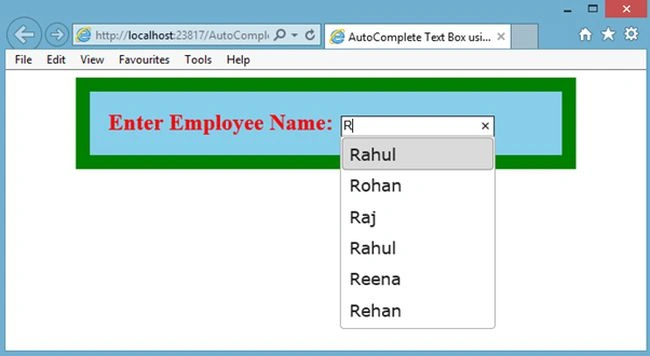
Image 3
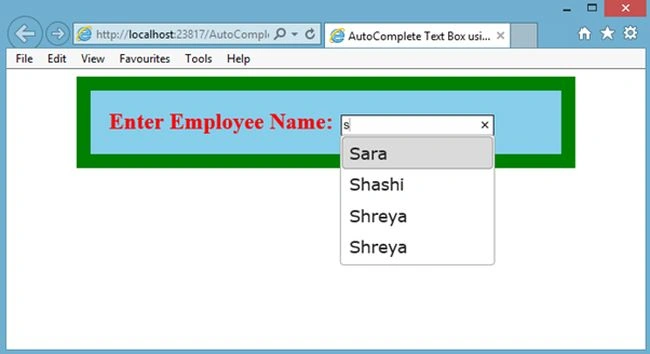
Image 4
Manoj SharmaPosted Feb 5, 2024, 10:23 AM
How to get Id value of the item selected in textbox?
MODE XLPosted Oct 5, 2022, 6:43 AM
THANK YOUUUUU
Rob GerwingPosted Feb 27, 2021, 10:26 PM
Just an FYI, this is using a JQUERY library from 2010 1.4.2.. this has been reported vulnerable to attacks. I found this example seeing updated recently, but the example is really old and not working with new Jquery.
ahmed aledrisiPosted Feb 12, 2021, 10:45 PM
Thank you very match this code very nice
David EaglePosted Jun 1, 2020, 1:50 AM
No longer works
praful bhojanePosted Feb 25, 2020, 1:29 AM
Nothing is happening
Kamal FuadPosted Oct 23, 2019, 4:38 AM
Hi Sir, this script running well in the original copied file, but when i copy to my aspx file (using masterpage), it doesn't work. Do you have any idea?
Sameer PawarPosted May 30, 2019, 12:33 AM
Yes sir it working but can we do it without static method because i need to populate that list in grid view.
Akshay GuptaPosted May 22, 2018, 3:22 AM
Not working its very bad
Rajneesh ChaubeyPosted Apr 5, 2018, 1:29 AM
Hi Rahul, Nice Article. I have one question that we can attach both employee name as well as Mobile. But on frontend when we write name, only name should be displayed and mobile number should not be displayed? How can do that?
Umm e UmmaraPosted Mar 19, 2018, 1:40 AM
Code is not working
Ali Nalobi HarahapPosted Sep 17, 2017, 11:21 PM
How to show full item table Employee. I mean, if I select employee name then value of address must be automatic show in Text box of address. Please Help me. Thank You
Pratik JadhavPosted Sep 8, 2017, 1:18 PM
Not working.... for my database
patrick CFPosted Aug 21, 2017, 4:27 AM
Thank you very much for posting such a useful code...but my question is can we show "no records found" as a list if no match found and it should be non selectable?
ArunPosted Apr 9, 2017, 3:18 AM
Working fine. But It is not working when the controls are in master page
ArunPosted Apr 9, 2017, 3:17 AM
Working fine. But It is not working when the controls are in master
محمد نادرPosted Nov 21, 2016, 2:29 PM
Good job bro but how can use two filter with stored procedure .
kalu singh raoPosted Jul 8, 2016, 1:25 AM
Nice...
Mehul PatelPosted Jun 30, 2016, 5:28 AM
How Can Master Page User ?
Moha NooraniPosted Dec 28, 2015, 1:35 AM
Perfect
Sudhindra KalePosted Nov 25, 2015, 7:49 AM
Thanks...........
Rahul Kumar SaxenaPosted Nov 19, 2015, 1:10 AM
Thanks sanoop nair
sanoop nairPosted Nov 18, 2015, 8:20 AM
good job :)
Meharoof KorankandanPosted Oct 2, 2015, 2:16 AM
Hi Rahul, Error is throwing like this " Uncaught TypeError: $(...).autocomplete is not a function" when i enter text in textbox. can u please replay ASP if possible . Thx in advance.
Rahul Kumar SaxenaPosted Jun 28, 2015, 5:14 AM
Check your text box ID here
Sami KhanPosted Jun 28, 2015, 4:13 AM
It is working properly when asp:Textbox is in masterPage but it doesnt populate list when it is in contentPage and gives no error. Why ?
Sami KhanPosted Jun 27, 2015, 1:51 PM
Thanks a lot ... your information was very clear and precise
Kalpesh BogharaPosted Jun 3, 2015, 10:26 PM
i got error ...my LIst store data, but not display any list on textbox pls help me fast... Thank you,, My code...... [WebMethod] [ScriptMethod(ResponseFormat = ResponseFormat.Json)] public List<string> MyList(string pre) { List<string> organization = new List<string>(); organization = (from a in <db.Table> where a.Name.StartsWith(pre) select a.Name).ToList(); return organization; }
sanjeev singhPosted Apr 21, 2015, 11:55 PM
nice work , but i have select any one to the mouse pointer , then not going any other page <a href='home.aspx'>home </a> not working ...
Rana SunnyPosted Apr 15, 2015, 5:33 AM
Nice Work
enamul haquePosted Jan 26, 2015, 1:49 AM
not working..in firefox.
Abdul KaishPosted Jan 21, 2015, 12:45 AM
its not working..in firefox. it gives: Use of getPreventDefault() is deprecated. Use defaultPrevented instead. how to fix it?
Kent WilhelmPosted Jan 8, 2015, 7:11 PM
Works great! How would you suggest returning a label + value?
g sPosted Dec 4, 2014, 5:18 AM
how to Master page Autocomplete textbox in c#
Sharad GuptaPosted Nov 12, 2014, 1:36 AM
@ Rahul Kumar Saxena Good one, the things with j query is really easy to work for web based applications.
Gurunatha DogiPosted Nov 4, 2014, 2:03 AM
@Rahul..Thank you for sharing..I was really looking for this
Vipin TyagiPosted Nov 3, 2014, 11:38 PM
Awesome Article ..Very Useful
Saineshwar BageriPosted Nov 3, 2014, 10:54 PM
nice one