

Dynamic Menu means reading menu and their sub-menus from the database table. I have the following SQL Server data table where you can see the Menu Information:
MENU table in Design Mode: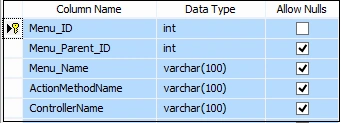
Figure 1
Script of this Table:
- CREATE TABLE [dbo].[Menu](
- [Menu_ID] [int] IDENTITY(1,1) NOT NULL,
- [Menu_Parent_ID] [int] NULL,
- [Menu_Name] [varchar](100) NULL,
- [ActionMethodName] [varchar](100) NULL,
- [ControllerName] [varchar](100) NULL,
- CONSTRAINT [PK_Menu] PRIMARY KEY CLUSTERED
- (
- [Menu_ID] ASC
- )WITH (PAD_INDEX = OFF, STATISTICS_NORECOMPUTE = OFF, IGNORE_DUP_KEY = OFF, ALLOW_ROW_LOCKS = ON, ALLOW_PAGE_LOCKS = ON) ON [PRIMARY]
- ) ON [PRIMARY]
- GO
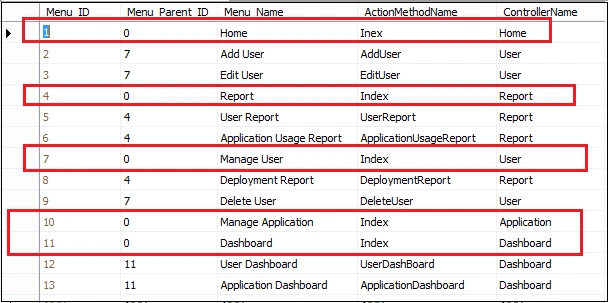
Figure 2
Here in this table I have record with Menu_ID & Menu_Parent_ID relation. From here we can identify which menu has submenu.
Queries
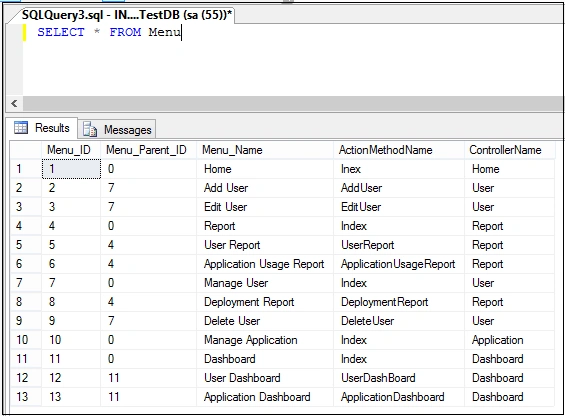
Figure 3
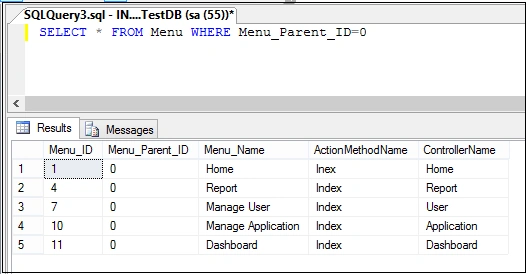
Figure 4
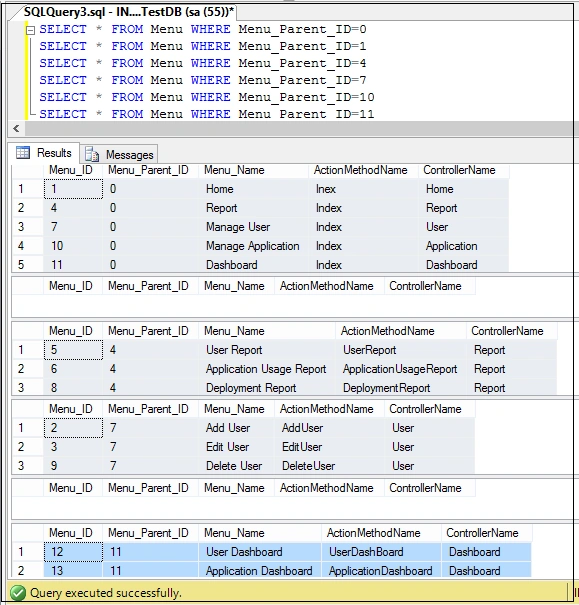
Figure 5
Above queries will help you to understand Menu Structure in the database table.
Now time to create a Visual Studio Application. Here I will use WCF REST and AngularJS.
Open Visual Studio, then New and go to Project. Add a WCF Service Application project like the following:
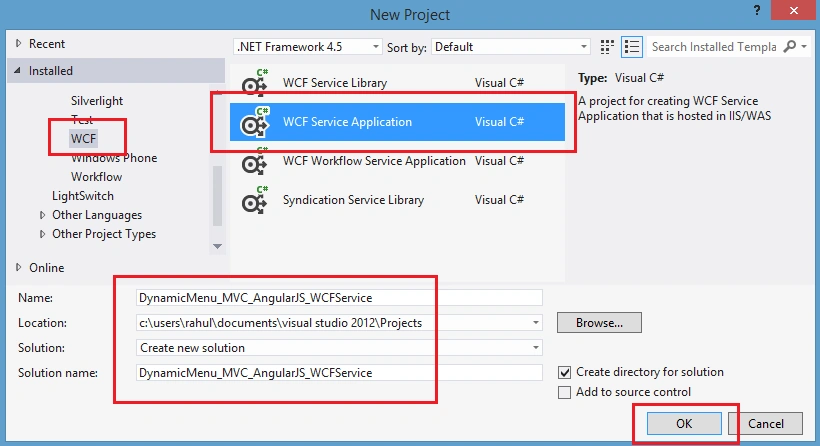
Figure 6
Remove Service.svc and IService.cs. Right click on Project Solution Explorer, then add WCF Service:
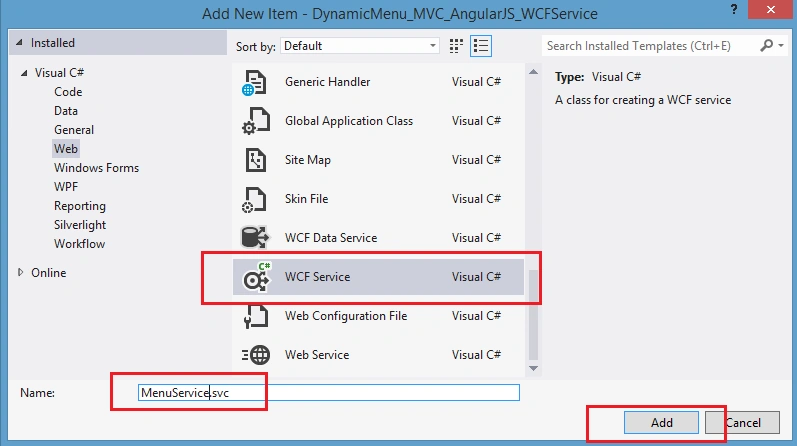
Figure 7
Now again right click on Project Solution Explore.
(DynamicMenu_MVC_AngularJS_WCFService) - Add New Item
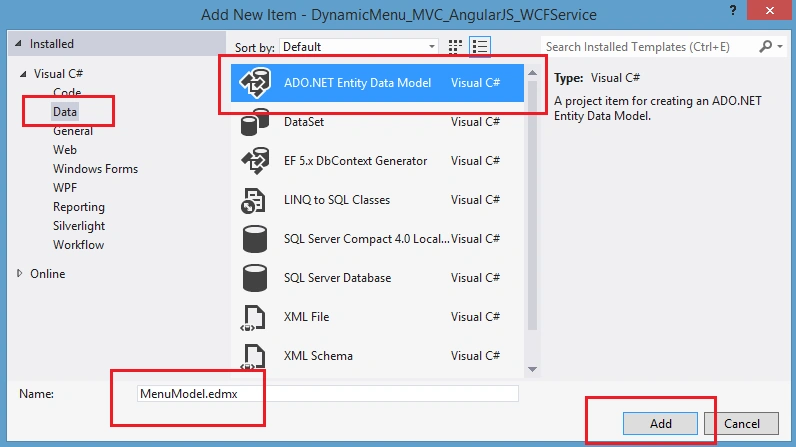
Figure 8
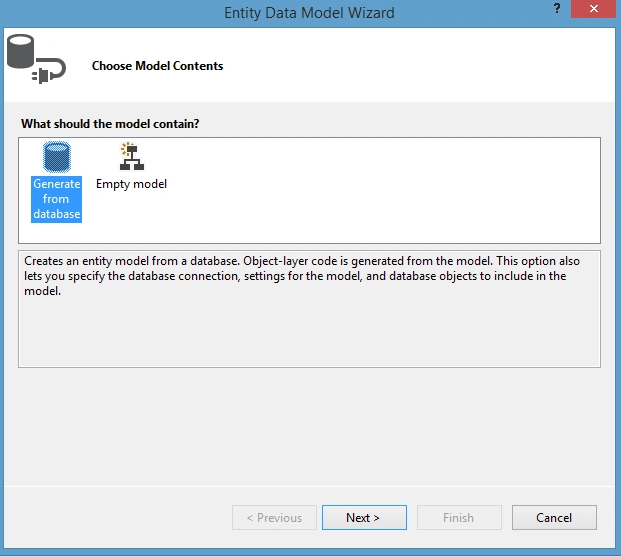
Figure 9
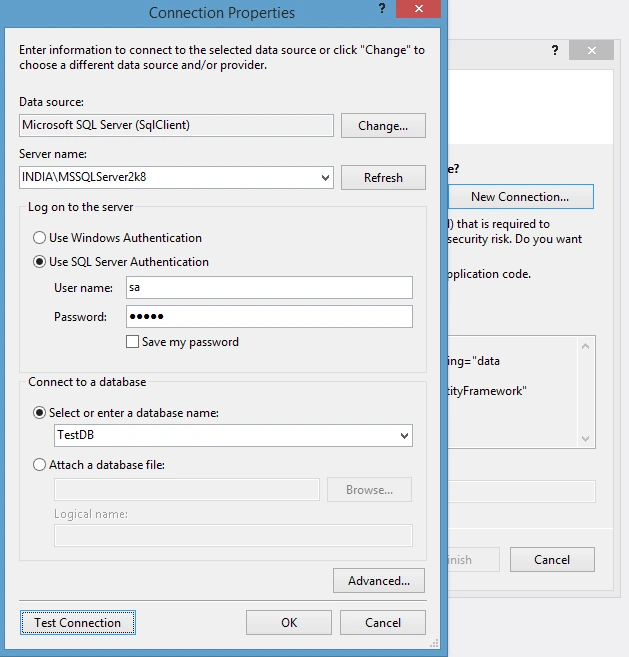
Figure 10
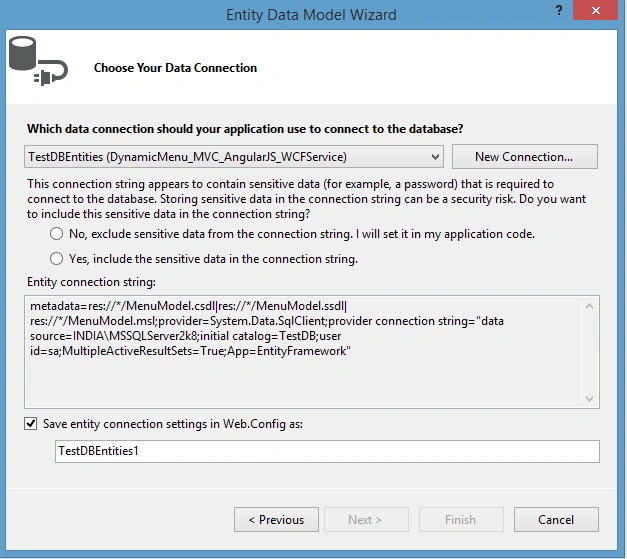
Figure 11
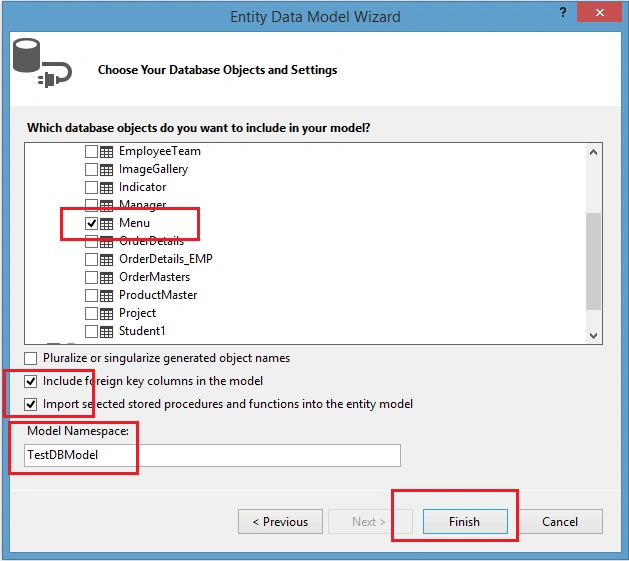
Figure 12
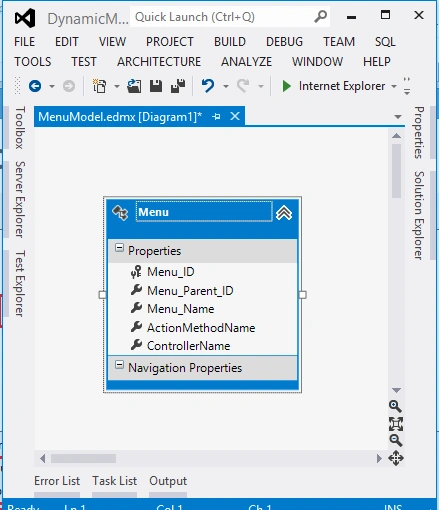
Figure 13
Now add a new class MenuItem.cs to define DataContract.
- using System;
- using System.Collections.Generic;
- using System.Linq;
- using System.Web;
- using System.Runtime.Serialization;
- using System.ServiceModel;
- namespace DynamicMenu_MVC_AngularJS_WCFService
- {
- public class MenuItem
- {
- [DataContract]
- public class MenuDetailDataContract
- {
- [DataMember]
- public string Menu_ID { get; set; }
- [DataMember]
- public string Menu_Parent_ID { get; set; }
- [DataMember]
- public string Menu_Name { get; set; }
- [DataMember]
- public string ActionMethodName { get; set; }
- [DataMember]
- public string ControllerName { get; set; }
- }
- }
- }
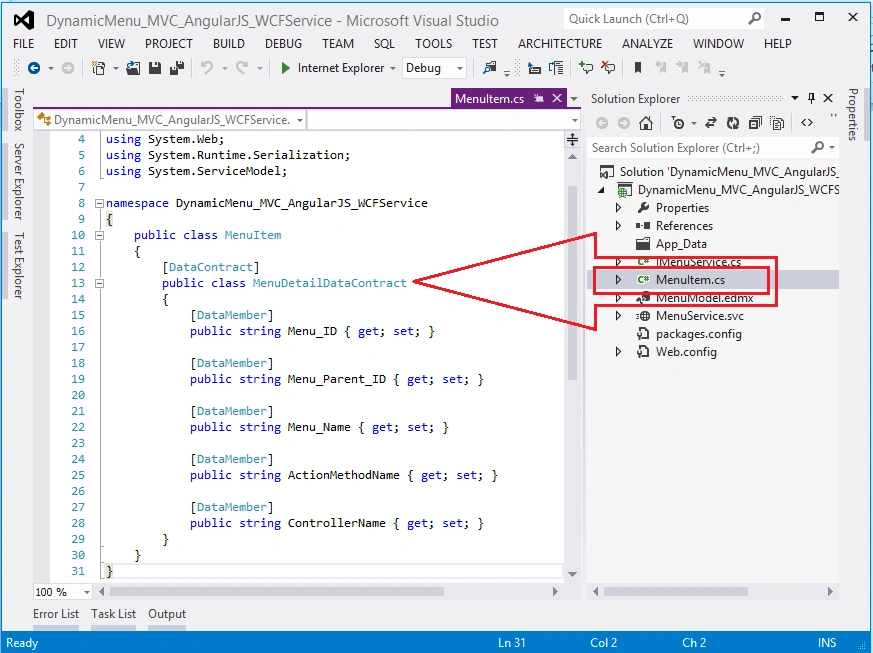
Figure 14
Now open IMenuService.cs:
- using System;
- using System.Collections.Generic;
- using System.Linq;
- using System.Runtime.Serialization;
- using System.ServiceModel;
- using System.ServiceModel.Web;
- using System.Text;
- namespace DynamicMenu_MVC_AngularJS_WCFService
- {
- // NOTE: You can use the "Rename" command on the "Refactor" menu to change the interface name "IMenuService" in both code and config file together.
- [ServiceContract]
- public interface IMenuService
- {
- [OperationContract]
- [WebInvoke(Method = "GET",
- RequestFormat = WebMessageFormat.Json,
- ResponseFormat = WebMessageFormat.Json,
- UriTemplate = "/GetMenuDetails/")]
- List<MenuItem.MenuDetailDataContract> GetMenuDetails();
- }
- }
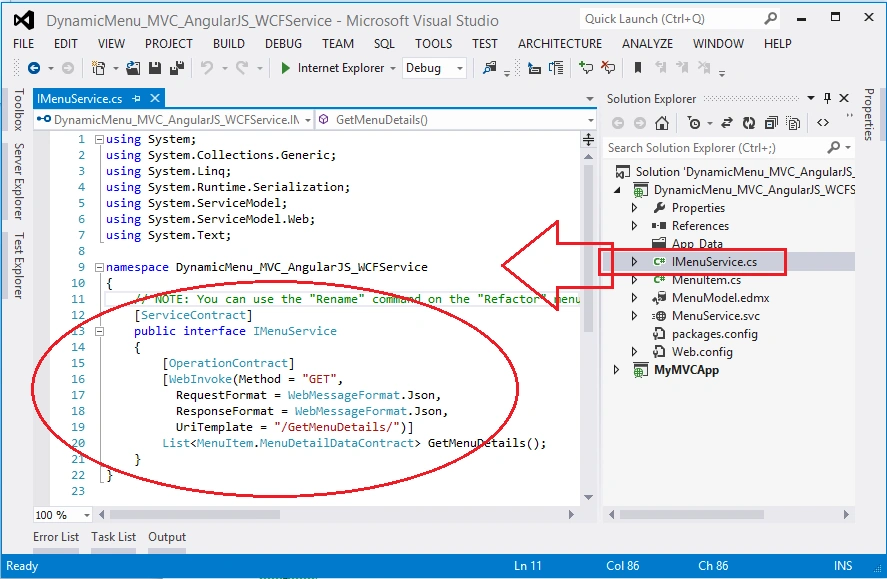
Figure 15
Now open MenuService.svc:
- using System.Collections.Generic;
- using System.Linq;
- using System.Runtime.Serialization;
- using System.ServiceModel;
- using System.ServiceModel.Web;
- using System.Text;
- namespace DynamicMenu_MVC_AngularJS_WCFService
- {
- // NOTE: You can use the "Rename" command on the "Refactor" menu to change the class name "MenuService" in code, svc and config file together.
- // NOTE: In order to launch WCF Test Client for testing this service, please select MenuService.svc or MenuService.svc.cs at the Solution Explorer and start debugging.
- public class MenuService : IMenuService
- {
- DynamicMenu_MVC_AngularJS_WCFService.TestDBEntities1 OME;
- public MenuService()
- {
- OME = new DynamicMenu_MVC_AngularJS_WCFService.TestDBEntities1();
- }
- public List<MenuItem.MenuDetailDataContract> GetMenuDetails()
- {
- var query = (from A in OME.Menu
- select new
- {
- A.Menu_ID,
- A.Menu_Parent_ID,
- A.Menu_Name,
- A.ActionMethodName,
- A.ControllerName
- }).ToList();
- List<MenuItem.MenuDetailDataContract> MenuList = new List<MenuItem.MenuDetailDataContract>();
- query.ToList().ForEach(rec =>
- {
- MenuList.Add(new MenuItem.MenuDetailDataContract
- {
- Menu_ID = Convert.ToString(rec.Menu_ID),
- Menu_Parent_ID = rec.Menu_Parent_ID.ToString(),
- Menu_Name = rec.Menu_Name.ToString(),
- ActionMethodName = rec.ActionMethodName,
- ControllerName = rec.ControllerName
- });
- });
- return MenuList;
- }
- }
- }
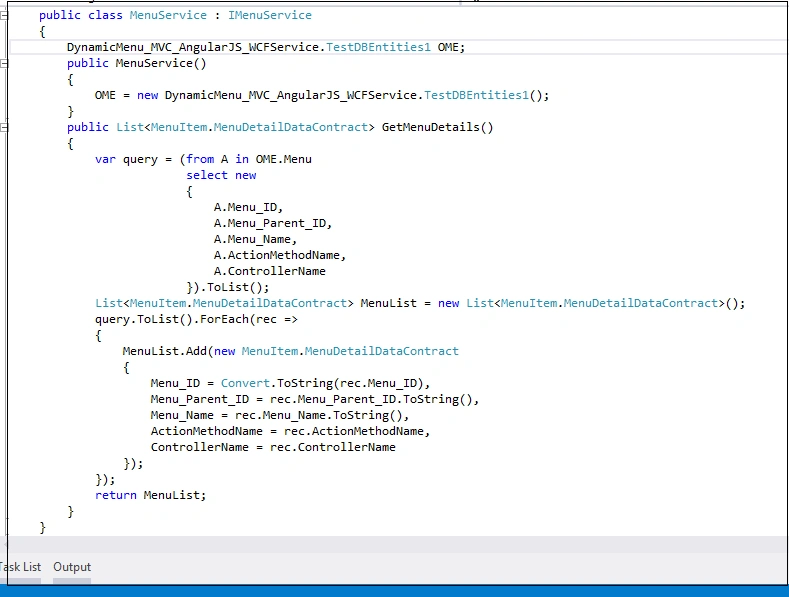
Figure 16
Make sure your WCF Service web.config file should have <ServiceModel> like the following:
- <system.serviceModel>
- <behaviors>
- <serviceBehaviors>
- <behavior>
- <!-- To avoid disclosing metadata information, set the values below to false before deployment -->
- <serviceMetadata httpGetEnabled="true" httpsGetEnabled="true" />
- <!-- To receive exception details in faults for debugging purposes,
- set the value below to true. Set to false before deployment
- to avoid disclosing exception information -->
- <serviceDebug includeExceptionDetailInFaults="false" />
- </behavior>
- </serviceBehaviors>
- <endpointBehaviors>
- <behavior>
- <webHttp helpEnabled="True" />
- </behavior>
- </endpointBehaviors>
- </behaviors>
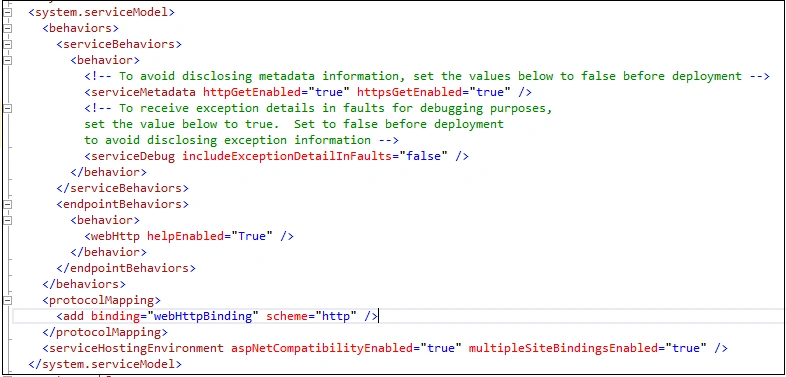
Figure 17
Now build your WCF Service.
Now time to add a new MVC project. Right click on your project solution explorer, click Add, then New Project.
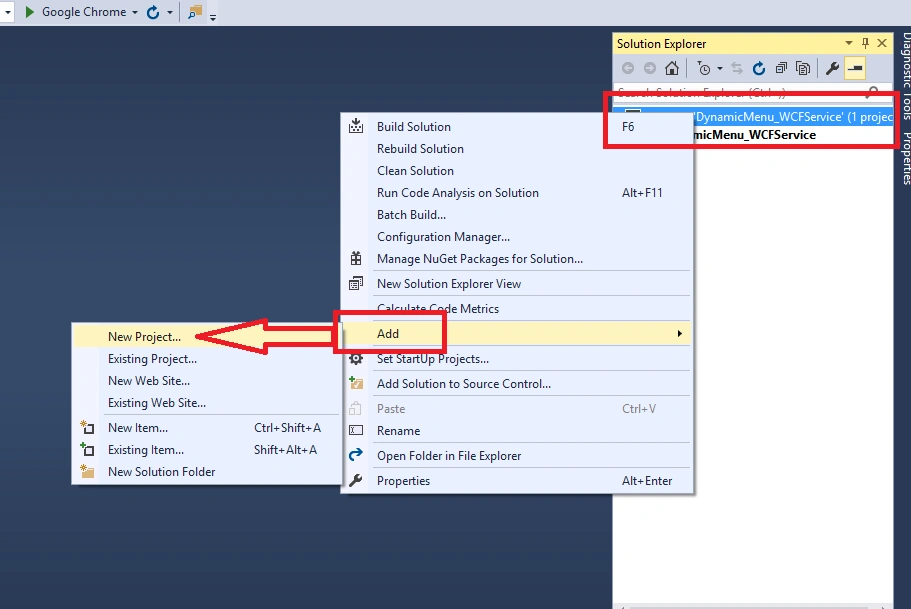
Figure 18
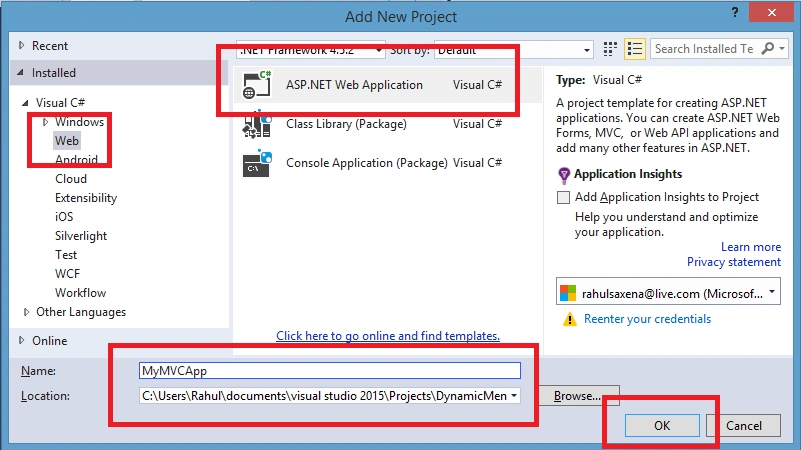
Figure 19
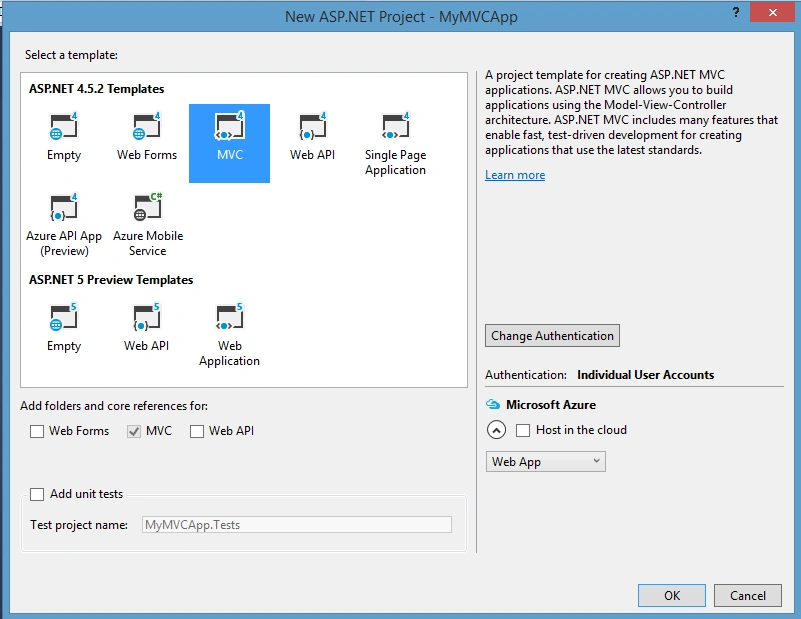
Figure 20
Now Add your WCF Service reference in your MVC project: Steps To Add WCF Service Reference.
Run your WCF Service.Copy WCF Service URL, Right click on MVC project, then Add Service Reference
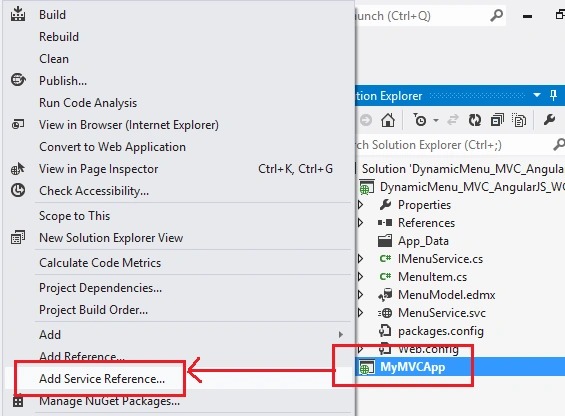
Figure 21
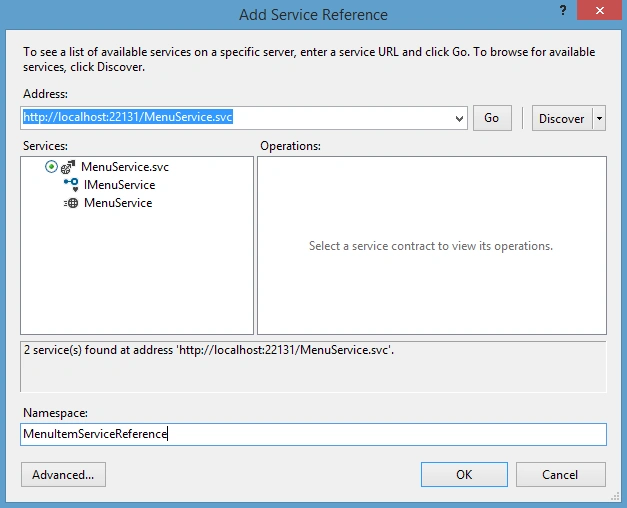
Figure 22
As I told you that I am going to show dynamic menu using AngularJS, so we need to add AngularJS reference.
Right click on your MVC Project’s Solution Explorer, then ManageNuGet and click Search Angular:
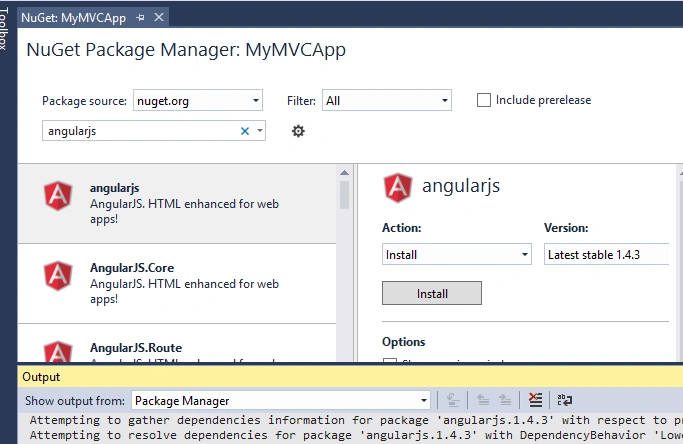
Figure 23
Now time to add AngularJS Module.js, Controller.js and Service.js.
Create a new folder under: MVC Project, Scripts, then MyScripts.
Add the following three js files:
- Module.js
- /// <reference path="../angular.js" />
- /// <reference path="../angular.min.js" />
- var app;
- (function () {
- app = angular.module("RESTClientModule", []);
- })();
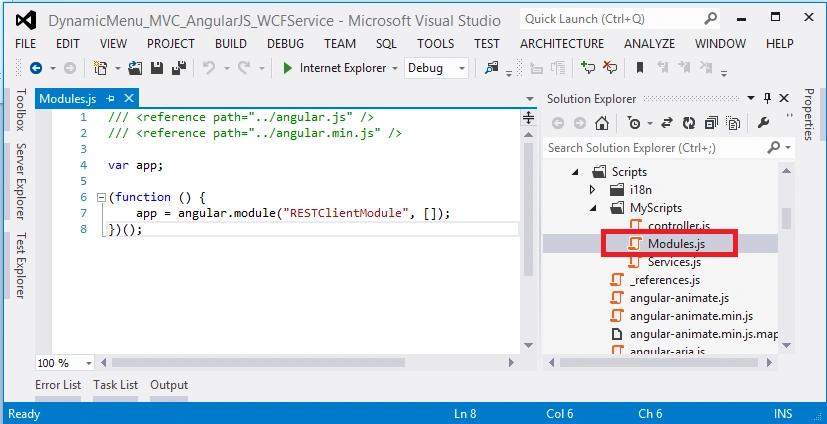
Figure 24
- Service.js
- /// <reference path="../angular.js" />
- /// <reference path="../angular.min.js" />
- /// <reference path="Modules.js" />
- app.service("AngularJs_WCFService", function ($http) {
- //Get Order Master Records
- this.geMenuDetails = function () {
- return $http.get("http://localhost:22131/MenuService.svc/GetMenuDetails");
- };
- });
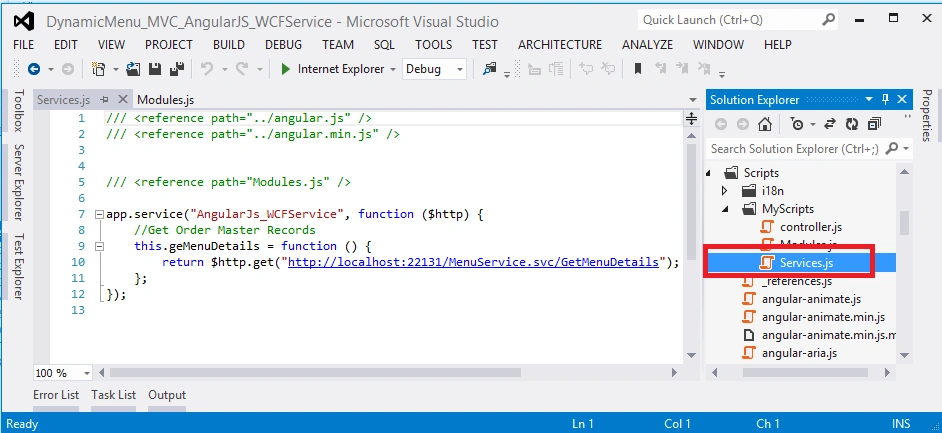
Figure 25
- Controller.js
- /// <reference path="../angular.js" />
- /// <reference path="../angular.min.js" />
- /// <reference path="Modules.js" />
- /// <reference path="Services.js" />
- app.controller("MVCDynamicMenuWCF_Controller", function ($scope, $window, AngularJs_WCFService) {
- $scope.date = new Date();
- $scope.showDetails = false;
- getAllMenuDetails();
- function getAllMenuDetails() {
- var promiseGet = AngularJs_WCFService.geMenuDetails();
- promiseGet.then(function (pl) {
- $scope.MenuDetailsDisp = pl.data
- },
- function (errorPl) {
- });
- }
- $scope.showMenu = function (showMenus) {
- if (showMenus == 1) {
- $scope.showDetails = true;
- }
- else {
- $scope.showDetails = false;
- }
- }
- $scope.showsubMenu = function (showMenus, ids) {
- if (showMenus == 1) {
- $scope.subChildIDS = ids;
- $scope.showSubDetails = true;
- }
- else if (showMenus == 0) {
- $scope.showSubDetails = false;
- }
- else {
- $scope.showSubDetails = true;
- }
- }
- });
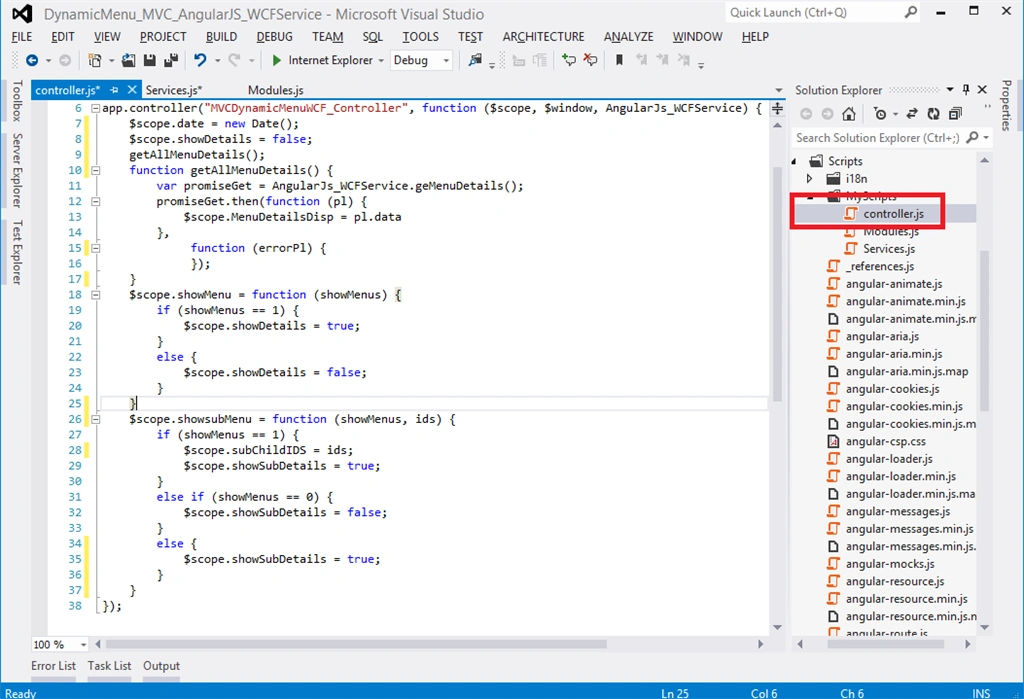
Figure 26
Now Add a new controller & View in which you want to show your Dynamic menus. In my case I am showing these in Home, then Index.cshtml
My Index.cshtml is the following:
- <style>
- ul, li {
- list-style-type: none;
- margin: 0;
- padding: 0;
- }
- .menu {
- background: blue;
- height: 5px;
- color: #FFFFFF;
- }
- .menu > li {
- display: inline-block;
- padding: 2px 6px 22px 2px;
- display: inline-block;
- text-align: center;
- height: 10px;
- width: 176px;
- color: #0094ff;
- background: #0094ff;
- }
- .menu > li a {
- display: inline-block;
- padding: 2px 6px 22px 2px;
- display: inline-block;
- text-align: center;
- height: 10px;
- width: 176px;
- color: #FFFFFF;
- background: green;
- }
- .menu > li a:hover {
- display: inline-block;
- padding: 2px 6px 22px 2px;
- display: inline-block;
- text-align: center;
- height: 10px;
- width: 176px;
- color: #000000;
- background: yellow;
- }
- .sub-menu {
- position: absolute;
- display: none;
- background-color: transparent;
- padding: 5px;
- }
- .sub-menu > li {
- display: block;
- cursor: pointer;
- }
- .sub-menu > li a:hover {
- display: block;
- cursor: pointer;
- background: yellow;
- }
- li:hover .sub-menu {
- display: block;
- }
- </style>
- <html data-ng-app="RESTClientModule">
- @{
- ViewBag.Title = "MVC- Dynamic Menu using WCF REST & AngularJS";
- }
- <body data-ng-controller="MVCDynamicMenuWCF_Controller">
- <div class="navbar navbar-inverse navbar-fixed-top">
- <div class="container">
- <div class="navbar-collapse collapse">
- <div style="overflow: visible;">
- <ul class="menu">
- <li data-ng-repeat="menus in MenuDetailsDisp | filter:{Menu_Parent_ID:'0'}">
- @{
- var url = Url.Action("{{menus.ActionMethodName}}", "{{menus.ControllerName}}", new { id = "{{id=menus.ActionMethodName}}" });
- url = HttpUtility.UrlDecode(url);
- }
- <a data-ng-href="@url">{{menus.Menu_Name}}</a>
- <ul class="sub-menu">
- <li data-ng-repeat="submenus in MenuDetailsDisp | filter:{Menu_Parent_ID:menus.Menu_ID}:true" ng-mouseover="showsubMenu(1,submenus.Menu_ID);" ng-mouseout="showsubMenu(0,submenus.Menu_ID);">
- @{
- var url1 = Url.Action("{{submenus.ActionMethodName}}", "{{submenus.ControllerName}}", new { id = "{{id=submenus.ActionMethodName}}" });
- url1 = HttpUtility.UrlDecode(url1);
- }
- <a data-ng-href="@url1">{{submenus.Menu_Name}}</a>
- </li>
- </ul>
- </li>
- </ul>
- </div>
- </div>
- </div>
- </div>
- <div style="height: 200px;"></div>
- </body>
- </html>
- <script src="~/Scripts/angular.js"></script>
- <script src="~/Scripts/MyScripts/Modules.js"></script>
- <script src="~/Scripts/MyScripts/Services.js"></script>
- <script src="~/Scripts/MyScripts/controller.js"></script>
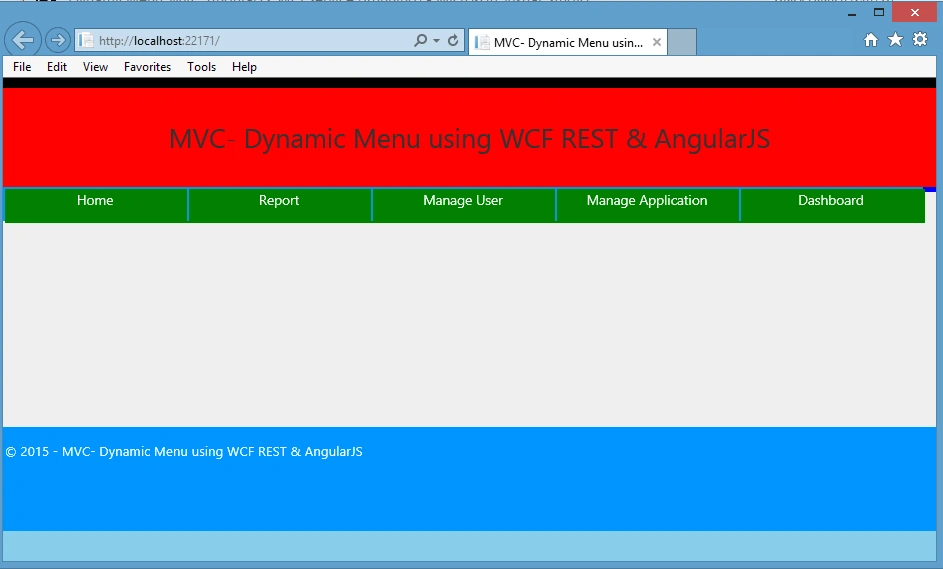
Figure 27
Figure 28
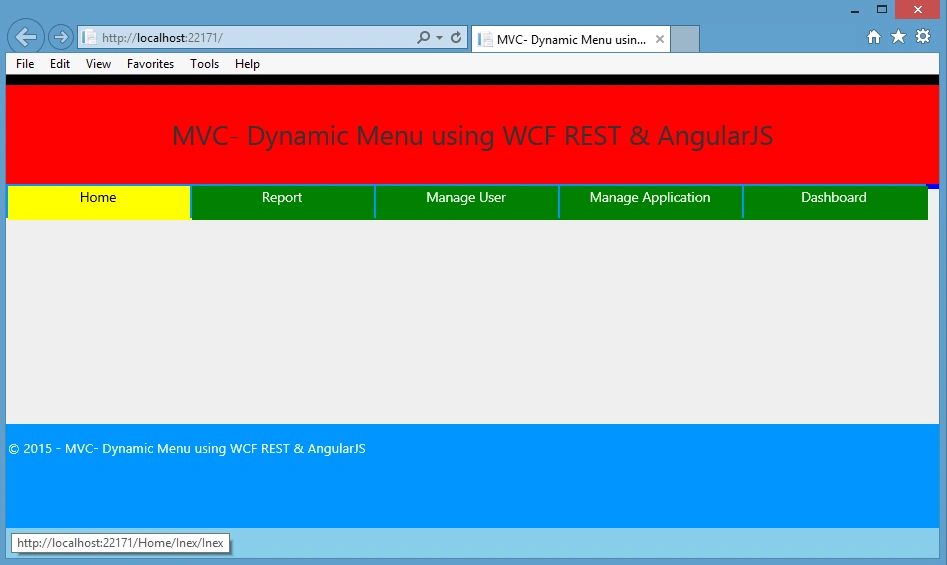
Figure 29
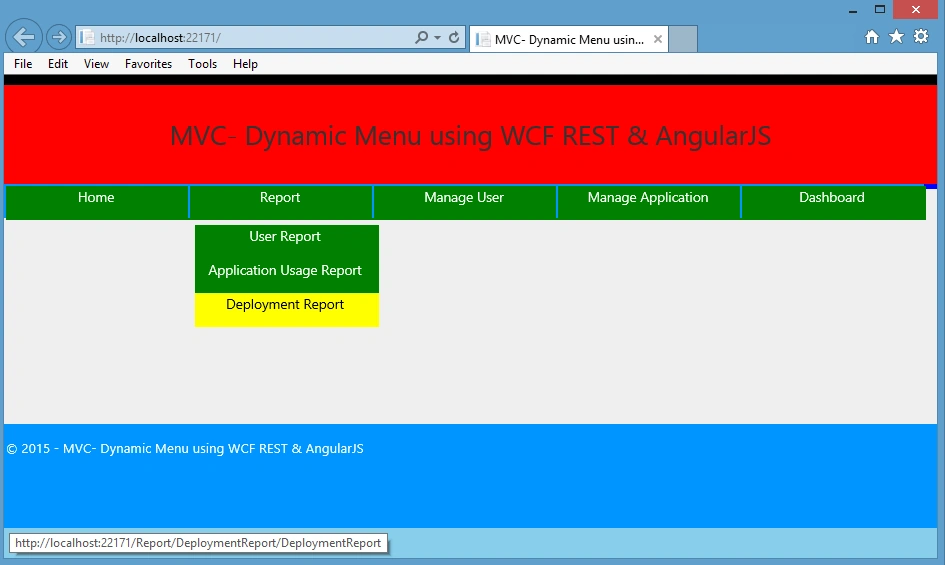
Figure 30
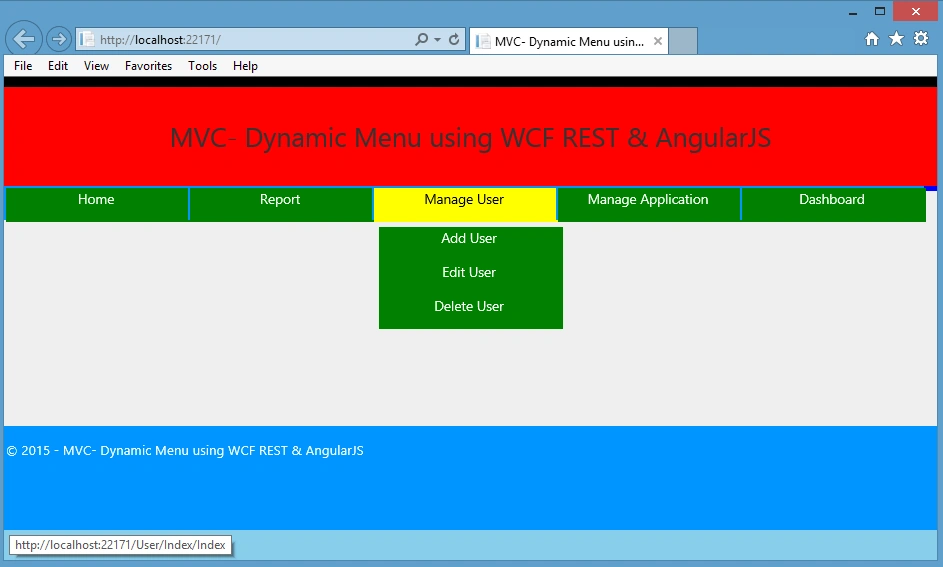
Figure 31
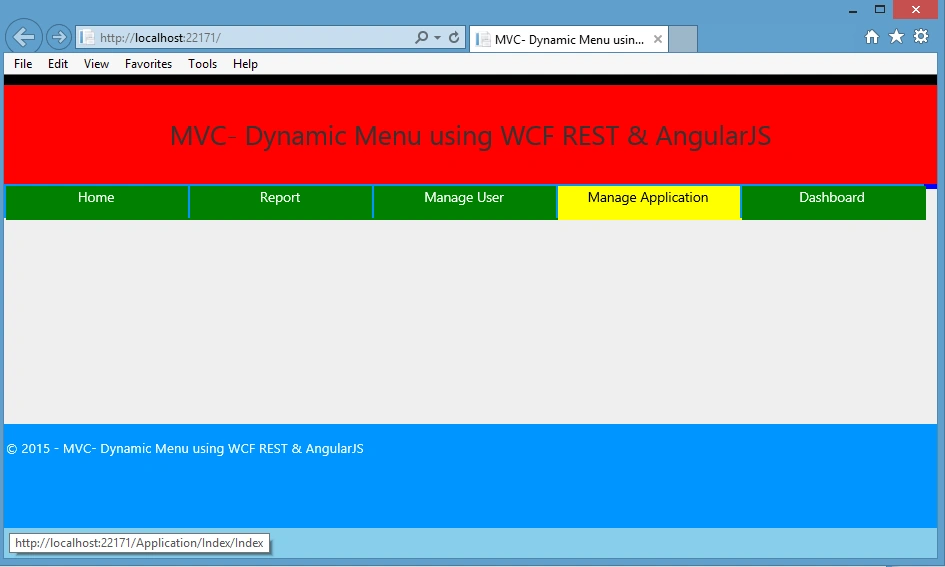
Figure 32

Figure 33
Delpin Susai RajPosted Aug 28, 2016, 6:50 AM
Nice article
Rahul Kumar SaxenaPosted Apr 1, 2016, 9:31 PM
Thanks to all
Rahul Kumar SaxenaPosted Apr 1, 2016, 9:31 PM
Thanks Luis Cortes.... I will ask Source Code
Rahul Kumar SaxenaPosted Apr 1, 2016, 9:30 PM
Yes Muhammad Irfan I will check for Source Code
Luis CortesPosted Apr 1, 2016, 5:36 PM
Too bad that is not the source code :P
Luis CortesPosted Apr 1, 2016, 5:34 PM
Rahul, great article!!!
Leonardo RodrigoPosted Oct 1, 2015, 6:58 PM
El extremo de 'http://localhost:61024/MenuService.svc' no tiene ning?n enlace con None MessageVersion. 'System.ServiceModel.Description.WebHttpBehavior' solo es compatible con WebHttpBinding o enlaces similares.
Leonardo RodrigoPosted Oct 1, 2015, 6:58 PM
why to show
Muhammad IrfanPosted Sep 30, 2015, 1:32 AM
yes its not showing. :) Its will be me more helpful for beginners if the complete source is available too. :)
Rahul Kumar SaxenaPosted Sep 29, 2015, 2:50 AM
I have uploaded the Source Code also for this project... but you are right it's not showing here...Team Please assist...
Muhammad IrfanPosted Sep 29, 2015, 1:28 AM
Can i get complete project of this tutorial???
Rahul Kumar SaxenaPosted Sep 18, 2015, 2:56 AM
Thanks Ankit Bansal...
Ankit BansalPosted Sep 18, 2015, 12:49 AM
great one...
Rahul Kumar SaxenaPosted Sep 10, 2015, 1:00 AM
Ilker E In HomeController/ Index no need to write any code because you can see my Index.cshtml I am using AngularJS here which will call Data directly...
Ilker EPosted Sep 7, 2015, 6:51 AM
I think, Code in HomeController/Index is missing in article
Rahul Kumar SaxenaPosted Sep 5, 2015, 5:11 AM
Amol I uploaded the source code but you are right it's not showing here.. Let me confirm...Soon I will update you...
Rahul Kumar SaxenaPosted Sep 5, 2015, 5:11 AM
Thanks Amol
Rahul Kumar SaxenaPosted Sep 5, 2015, 5:11 AM
Thanks Shashi Kiran Singh
AmitPosted Sep 5, 2015, 1:59 AM
can you mail me this application on [email protected]
AmitPosted Sep 5, 2015, 1:57 AM
Hi Rahul
Rahul Kumar SaxenaPosted Sep 3, 2015, 8:23 AM
Thanks Ravi Patel
Rahul Kumar SaxenaPosted Sep 3, 2015, 8:23 AM
Thanks Musab AlRiani
Ravi PatelPosted Sep 3, 2015, 6:56 AM
good work
Musab AlRianiPosted Sep 3, 2015, 6:54 AM
Very Intersting work,keep going.
Rahul Kumar SaxenaPosted Sep 3, 2015, 3:11 AM
Thanks Vaikesh K P
Vaikesh K PPosted Sep 3, 2015, 2:08 AM
Nice work :)
Rahul Kumar SaxenaPosted Sep 3, 2015, 1:42 AM
Thanks Pankaj Kumar Choudhary
Rahul Kumar SaxenaPosted Sep 3, 2015, 1:41 AM
Thanks Shridhar Sharma
Rahul Kumar SaxenaPosted Sep 3, 2015, 1:41 AM
Thanks Santhakumar Munuswamy
Pankaj Kumar ChoudharyPosted Sep 2, 2015, 8:57 PM
As usual Nice content and Explanation Sir.........
Shridhar SharmaPosted Sep 2, 2015, 7:20 PM
very nice article Rahul sir.
Santhakumar MunuswamyPosted Sep 2, 2015, 2:40 PM
Good article. Thanks for sharing
Rahul Kumar SaxenaPosted Sep 2, 2015, 1:17 PM
Thanks Rajeesh Menoth
Rahul Kumar SaxenaPosted Sep 2, 2015, 1:17 PM
Thanks Rakesh Chavda
Rahul Kumar SaxenaPosted Sep 2, 2015, 1:17 PM
Thanks Sibeesh Venu
Rahul Kumar SaxenaPosted Sep 2, 2015, 1:17 PM
Thanks Karthikeyan K
Rahul Kumar SaxenaPosted Sep 2, 2015, 1:17 PM
Thank u Syed Shanu bro...
Rajeesh MenothPosted Sep 2, 2015, 7:23 AM
Good One..
RakeshPosted Sep 2, 2015, 7:01 AM
Very nice sir
Sibeesh VenuPosted Sep 2, 2015, 6:44 AM
Nice Share
Karthikeyan KPosted Sep 2, 2015, 6:23 AM
Good one sir...Thanks for sharing
Syed ShanuPosted Sep 2, 2015, 5:44 AM
Good One