

This article explains how to use the TextBox AutoComplete feature in MVC 4 using the Web API and jQuery.
Getting Started
Use the following procedure to get started:
- Create a new project in Visual Studio 2012
- Select the "Web" tab and "ASP.NET MVC 4 Web Application"
- Supply the project name and the Save location and click "Ok" button
- Now select Web API project template and Razor view engine
- Check "Unit test project" if you want to create a unit test project
- Click the "OK" button
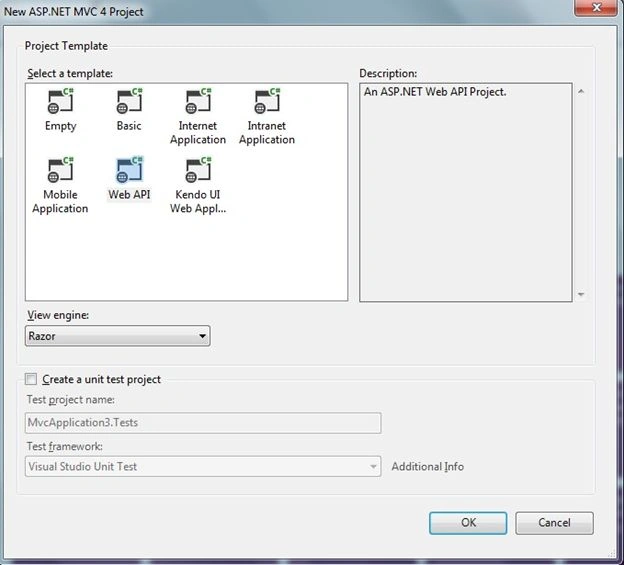
Image 1.
This is my Portal database script.
- USE [Portal]
- GO
- /****** Object: Table [dbo].[Portal_Contacts] Script Date: 11/14/2013 09:13:44 ******/
- SET ANSI_NULLS ON
- GO
- SET QUOTED_IDENTIFIER ON
- GO
- CREATE TABLE [dbo].[Portal_Contacts](
- [ItemID] [int] IDENTITY(0,1) NOT NULL,
- [ModuleID] [int] NOT NULL,
- [CreatedByUser] [nvarchar](100) NULL,
- [CreatedDate] [datetime] NULL,
- [Name] [nvarchar](50) NULL,
- [Role] [nvarchar](100) NULL,
- [Email] [nvarchar](100) NULL,
- [Contact1] [nvarchar](250) NULL,
- [Contact2] [nvarchar](250) NULL,
- CONSTRAINT [PK_Contacts] PRIMARY KEY NONCLUSTERED
- (
- [ItemID] ASC
- )WITH (PAD_INDEX = OFF, STATISTICS_NORECOMPUTE = OFF, IGNORE_DUP_KEY = OFF, ALLOW_ROW_LOCKS = ON, ALLOW_PAGE_LOCKS = ON) ON [PRIMARY]
- ) ON [PRIMARY]
- GO
Now add a connection string in the web.config fle as in the following:
- <connectionStrings>
- <add name="PortalConnectionString" connectionString="Data Source=.;Initial Catalog=Portal;Integrated Security=True" providerName="System.Data.SqlClient" />
- </connectionStrings>
Now add model classes as in the following:
- public class PortalContacts
- {
- public int ItemId { get; set; }
- // public string Name { get; set; }
- public string Role { get; set; }
- //public string Email { get; set; }
- //public string Contact1 { get; set; }
- //public string Contact2 { get; set; }
- }
The following is my repository class:
- public class PortalContactsRepository
- {
- public IEnumerable<PortalContacts> GetContacts()
- {
- using (var connection = new SqlConnection(ConfigurationManager.ConnectionStrings["PortalConnectionString"].ConnectionString))
- {
- connection.Open();
- using (SqlCommand command = new SqlCommand(@"SELECT [ItemID]
- ,[Name]
- ,[Role]
- ,[Email]
- ,[Contact1]
- ,[Contact2]
- FROM [Portal].[dbo].[Portal_Contacts]", connection))
- {
- // Make sure the command object does not already have
- // a notification object associated with it.
- command.Notification = null;
- if (connection.State == ConnectionState.Closed)
- connection.Open();
- using (var reader = command.ExecuteReader())
- return reader.Cast<IDataRecord>()
- .Select(x => new PortalContacts()
- {
- ItemId = x.GetInt32(0),
- // Name = x.GetString(1),
- Role = x.GetString(2),
- //Email = x.GetString(3),
- //Contact1 = x.GetString(4),
- //Contact2 = x.GetString(5)
- }).ToList();
- }
- }
- }
- }
Call the repository in the controller as in the following:
- using MvcApplication2.Models;
- public class ValuesController : ApiController
- {
- PortalContactsRepository objContacts = new PortalContactsRepository();
- // GET api/values
- public IEnumerable<PortalContacts> Get()
- {
- List<PortalContacts> plist = new List<PortalContacts>();
- plist = objContacts.GetContacts().ToList();
- return plist;
- }
- // GET api/values/5
- public string Get(int id)
- {
- return "value";
- }
- // POST api/values
- public void Post([FromBody]string value)
- {
- }
- // PUT api/values/5
- public void Put(int id, [FromBody]string value)
- {
- }
- // DELETE api/values/5
- public void Delete(int id)
- {
- }
- }
We are done with the models and controller part; now for the view as in the following:
- <header>
- <div class="content-wrapper">
- <div class="float-left">
- <p class="site-title">
- <a href="~/">Text Box Auto Complete Sample</a></p>
- </div>
- </div>
- </header>
- <script src="~/Scripts/jquery-1.7.1.min.js"></script>
- <script src="~/Scripts/jquery-ui-1.8.20.min.js"></script>
- <div id="body">
- <input type="text" id="search" placeholder="Search for a Contact" required />
- <input type="submit" value="Go" id="submit" />
- </div>
- <script type="text/javascript">
- $('#search').autocomplete({
- source: function (request, response) {
- var autocompleteUrl = '/api/values';
- $.ajax({
- url: autocompleteUrl,
- type: 'GET',
- cache: false,
- dataType: 'json',
- success: function (json) {
- // call autocomplete callback method with results
- response($.map(json, function (data, id) {
- return {
- label: data.Role,
- value: data.ItemId
- };
- }));
- },
- error: function (xmlHttpRequest, textStatus, errorThrown) {
- console.log('some error occured', textStatus, errorThrown);
- }
- });
- },
- minLength: 2,
- select: function (event, ui) {
- alert('you have selected ' + ui.item.label + ' ID: ' + ui.item.value);
- $('#search').val(ui.item.label);
- return false;
- }
- });
- </script>
Hit F5 to see the result.
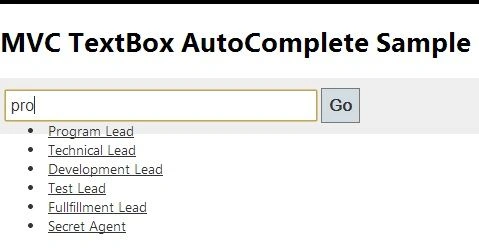
Image 2.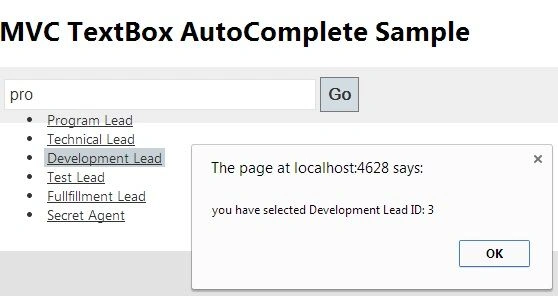
Image 3.
Join the conversation! Your thoughts help the community grow.