

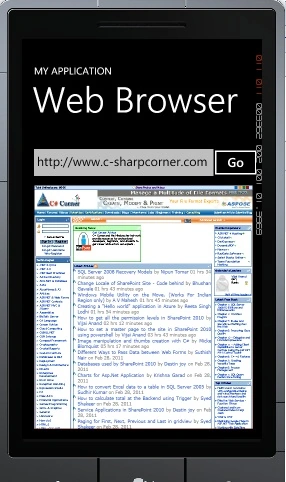
This article describes the use of the Windows Phone WebBrowser control. WebBrowser is like a mini browser which displays web content, static web content, dynamically generated web content from the network.
Getting Started
Creating a Windows Phone Application:
- Open Visual Studio 2010.
- Go to File => New => Project
- Select Silverlight for Windows Phone from the Installed templates and choose Windows Phone Application
- Enter the Name and choose the location.
Click OK.
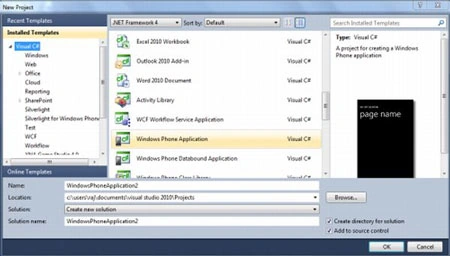
Image 1.
Now drag and drop a TextBox, Button and WebBrowser control on page. You can set the properties manually.
<!--ContentPanel - place additional content here-->
<Grid x:Name="ContentPanel" Grid.Row="1" Margin="12,0,12,0">
<TextBox Height="78" Text="http://www.c-sharpcorner.com" HorizontalAlignment="Left" Margin="0,15,0,0" Name="textBlock1" VerticalAlignment="Top" Width="383" />
<Button Content="Go" Height="72" HorizontalAlignment="Left" Margin="362,18,0,0" Name="button1" VerticalAlignment="Top" Width="107" Click="button1_Click" />
<phone:WebBrowser HorizontalAlignment="Left" Margin="12,99,0,0" Name="webBrowser1" VerticalAlignment="Top" Width="438" Height="488" BorderThickness="1" Background="{StaticResource PhoneBackgroundBrush}" >
<phone:WebBrowser.Foreground>
<LinearGradientBrush EndPoint="0.5,1" StartPoint="0.5,0">


Join the conversation! Your thoughts help the community grow.