
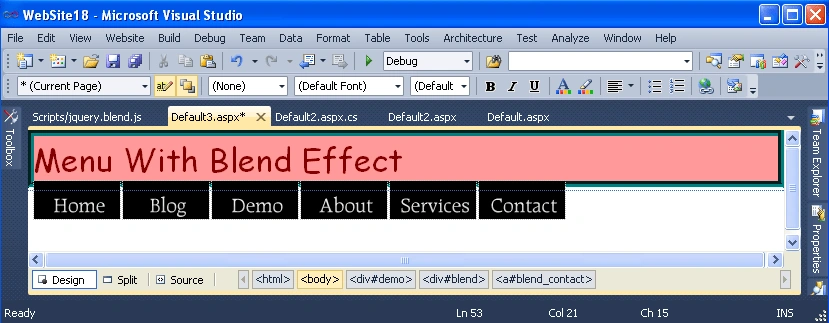
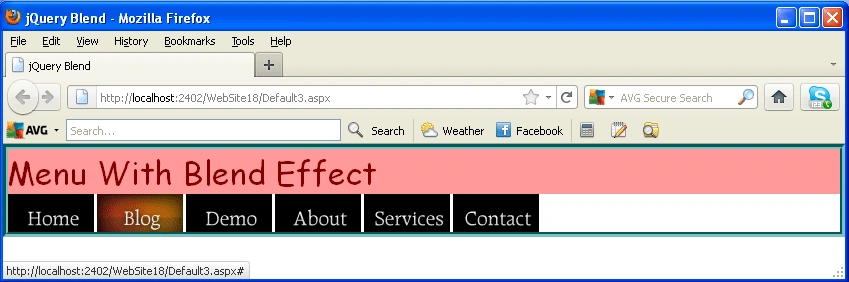
Introduction: In this article we will explore how we make a menu with a blend effect by using jQuery. Further we are going to see that we have menu and we want to add some blend effect using jQuery it will look like a very effective whenever we hover on the menu item it will show you a different color on hover of every menu item. In this article we will use css which is a style sheet to set the property of the menu image, background related property and padding property. By using jQuery, we can make it easily so let see that how we will make it:
Step 1: Firstly we have to create a Web Application
- Go to Visual Studio 2010
- Create the web Application
- Click OK.

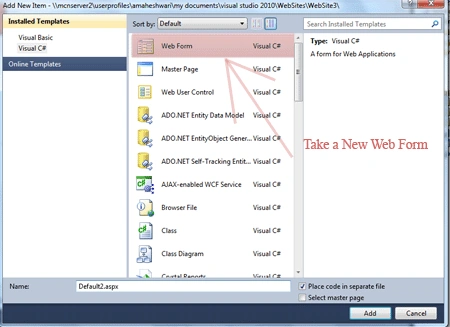
Step 2: Secondly you have to add a new page to the website
- Go to the Solution Explorer.
- Right Click o Project name.
- Select add new item.
- Add new web page and give it a name.
- Click OK.

Step 3: In this step we are going to see that see from where the js reference will be added to the source page of the default2.aspx page.
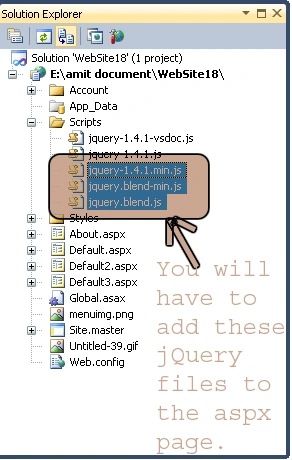
Step 4: Now we are going to write the script code which will be inside either on the head section or in the body section it will depend upon you which way you like most to placed it.

Step 5: You should have to add the image let see from where you have to add it:

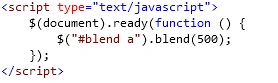
Step 6: In this step we are going to write the jQuery code for applying the blend effect.
Step 7: In this step we are going to write the style code for the special color properties.
Style Code:
<style
type="text/css">
*{padding:0;
border:0;
margin:0;}
#demo a{
display:block;
width:99px;
height:41px;
margin-right:3px;
float:left;
background-image:url('menuimg.png');
background-repeat:no-repeat;
cursor:pointer;
text-indent:-9999px;
}
#blend{clear:left;
overflow:auto;
margin-bottom:20px;}
#blend_home{background-position:0
0;}
#blend_home:hover,#example_home.hover{background-position:0
-48px;}
#blend_blog{background-position:-90px
0;}
#blend_blog:hover,#example_blog.hover{background-position:-90px
-48px;}
#blend_demo{background-position:-180px
0;}
#blend_demo:hover,#example_demo.hover{background-position:-180px
-48px;}
#blend_about{background-position:-270px
0;}
#blend_abou:hover,#example_about.hover{background-position:-180px
-48px;}
#blend_services{background-position:-360px
0;}
#blend_services:hover,#example_services.hover{background-position:-360px
-48px;}
#blend_contact{background-position:-450px
0;}
#blend_contact:hover,#example_contact.hover{background-position:-450px
-48px;}
</style>
Step 8: In this step we are going to write the complete code wich is given below:



Prasanna KumarPosted Dec 9, 2011, 2:32 AM
Please send me the image menuimg.png to [email protected]
Naveen VemanaPosted Dec 8, 2011, 12:15 AM
Plz keep a sample dowload app