

Introduction
Ensuring text stands out against its background is essential for readability and accessibility. During internal development work on rendering pipelines for List & Label Cross Platform, we encountered this challenge firsthand and implemented a practical solution. In a previous article, I introduced a C++ solution for adjusting color contrast , providing functions to calculate luminance, contrast, and tweak colors to meet accessibility guidelines. This follow-up tackles the same problem using C#, focusing on an intelligent background tracking method and a highly performant grid-based approach to decide when to flip text color. The goal is to automatically improve contrast for extreme cases (pure black or pure white text on similar backgrounds) while minimizing changes to the intended design. Before diving into code, we’ll briefly recap how contrast is measured.
Luminance and Contrast Basics
Computer colors are composed of red, green, and blue components, but these components don't contribute equally to perceived brightness (luminance). For example, green appears brighter than blue at the same numeric value. To compute a color’s relative luminance (often called luma ), a standard formula applies a gamma correction to each RGB channel and weights them approximately 21% red, 72% green, and 7% blue. This perceptual model gives a luminance value between 0.0 (black) and 1.0 (white). Once we have luminance values for two colors, we can compute a contrast ratio :
public double Luma
{
    get
    {
        double rl = R <= 10 ? R / 3294.0 : Math.Pow(R / 269.0 + 0.0513, 2.4);
        double gl = G <= 10 ? G / 3294.0 : Math.Pow(G / 269.0 + 0.0513, 2.4);
        double bl = B <= 10 ? B / 3294.0 : Math.Pow(B / 269.0 + 0.0513, 2.4);
        return 0.21 * rl + 0.72 * gl + 0.07 * bl;
    }
}

public static double LumaRatio(Color fg, Color bg)
{
    double l1 = fg.Luma + 0.05;
    double l2 = bg.Luma + 0.05;
    return l1 > l2 ? l1 / l2 : l2 / l1;
}
A ratio of 1:1 indicates no contrast (e.g. white text on a white background), while the maximum is 21:1 (black on white).
For good readability, accessibility standards (WCAG) recommend a minimum contrast of 4.5:1 for normal text, and a relaxed 3:1 for large or bold text. Our C++ approach targeted a 4.5:1 ratio by incrementally lightening or darkening text. In this C# approach, we use a threshold of 3:1 for deciding adjustments – this aligns with the large-text guideline and covers most glaring contrast issues. Now, let’s see how we efficiently determine the background color behind text.
Intelligent Background Tracking with a Spatial Grid
In a complex layout, text can appear over various shapes (rectangles, ellipses, etc.). How do we quickly find the background color at a given text position? Scanning every shape for each piece of text would be too slow. Instead, our solution uses a grid-based spatial index to track background shapes intelligently . We divide the coordinate space into cells (here, 2000×2000 units each) and index the shapes by those cells.
public void AddBackgroundShape(BackgroundShape shape)
{
    if (shape.Color.A != 255) return;

    int startX = (int)(shape.Bounds.Left / _cellSize);
    int endX = (int)((shape.Bounds.Right - 1) / _cellSize);
    int startY = (int)(shape.Bounds.Top / _cellSize);
    int endY = (int)((shape.Bounds.Bottom - 1) / _cellSize);

    for (int gx = startX; gx <= endX; gx++)
    {
        for (int gy = startY; gy <= endY; gy++)
        {
            var key = (gx, gy);
            if (!_grid.TryGetValue(key, out var cellShapes))
            {
                cellShapes = new List<BackgroundShape>();
                _grid[key] = cellShapes;
            }
            cellShapes.Add(shape);
        }
    }
}
When a background shape is drawn, we register it in the grid if it is fully opaque (alpha = 255). Opaque shapes completely cover anything behind them, so they determine the background color for text above. If a shape has transparency, we skip it for simplicity – partially transparent backgrounds are ignored to avoid complex color blending. For each shape, we compute the range of grid cells it spans based on its bounding coordinates, and add the shape to all those cell lists. This way, the grid dictionary maps a cell coordinate (gx, gy) to a list of shapes present in that area.
Performance: This grid approach drastically reduces lookup time. Instead of checking all shapes for each text, we only examine shapes in one or a few nearby cells. The cell size (2000 units) is a tuning parameter – too large and each cell’s list might be long, too small and shapes will be duplicated in many cells. In our scenario, 2000 was a good balance.
Finding the background color: Given a text position (x, y), we determine its cell key as (⌊x/2000⌋, ⌊y/2000⌋) and look up that cell in the grid. If no entry is found, we assume a default white background. If there is a list of shapes, we iterate in reverse drawing order (the shapes are stored roughly in the order they were added, which corresponds to their drawing sequence). The first shape that contains the point (x, y) is considered the topmost background at that position. We use shape-specific hit-testing: for rectangles we check if the point is within bounds, for ellipses we use the standard ellipse equation, and for rounded rectangles we simplify by treating them as normal rectangles (ignoring the corner curvature). If a shape contains the point, we return its color. If none do, the background is effectively "transparent," and we fall back to white (since presumably the page background is white).
public Color GetBackgroundColorAt(int x, int y)
{
    int gx = (int)(x / _cellSize);
    int gy = (int)(y / _cellSize);
    var key = (gx, gy);

    if (_grid.TryGetValue(key, out var shapes))
    {
        for (int i = shapes.Count - 1; i >= 0; i--)
        {
            var shape = shapes[i];
            bool contains = shape.Type switch
            {
                ShapeType.Rectangle => shape.Bounds.Contains(x, y),
                ShapeType.Ellipse => PointInEllipse(x, y, shape.Bounds),
                ShapeType.RoundRectangle => shape.Bounds.Contains(x, y), // simplified
                _ => false
            };
            if (contains) return shape.Color;
        }
    }
    return Color.FromRgb(255, 255, 255);
}
This intelligent tracking means we always know what color lies directly behind any text without expensive computations. With the groundwork laid for retrieving background colors on the fly, we can now optimize the text color itself.
Contrast Optimization for Text Color
With background lookup in place, the final step is to adjust the text color only if needed. We deliberately constrain this to cases of pure black or pure white text . The rationale is that these extreme colors are most prone to contrast issues (black on dark backgrounds, white on light backgrounds), and tweaking them to a more suitable color yields a big improvement in readability. Other text colors (gray, red, blue, etc.) are left as-is in this implementation, under the assumption that the designer chose them deliberately – though the approach could be extended to handle those as well.
Our helper class provides a method MightNeedContrastOptimization(Color textColor) that simply checks if a given color equals pure black (#FF000000 in ARGB) or pure white (#FFFFFFFF) and returns true if so.
public static bool MightNeedContrastOptimization(Color textColor)
{
    return (textColor.R == 0 && textColor.G == 0 && textColor.B == 0 && textColor.A == 255) ||
           (textColor.R == 255 && textColor.G == 255 && textColor.B == 255 && textColor.A == 255);
}
This acts as a quick short-circuit. The main logic resides in GetOptimizedTextColor(Color textColor, float x, float y).
public Color GetOptimizedTextColor(Color textColor, int x, int y)
{
    if (!MightNeedContrastOptimization(textColor))
        return textColor;

    Color bg = GetBackgroundColorAt(x + 1, y + 1);
    double contrast = textColor.LumaRatio(bg);
    double luma = bg.Luma;

    if (contrast < 3.0) {
        if (isWhite && luma > 0.5)
            return Color.FromArgb(0, 0, 0);
        else if (isBlack && luma <= 0.5)
            return Color.FromArgb(245, 245, 245); // light gray
    }

    return textColor;
}
Here's how it works:
· Identify extreme text color: We first determine if the text color is black or white. If not, no change is made (return original color).
· Retrieve background color: If it is black or white, we fetch the background color at the text's position using the grid method described earlier. (We add a small offset of +1 to x and y for the sample point to avoid edge-case issues on shape boundaries.)
· Calculate contrast ratio: Using the luminance of the text and background colors, we compute the contrast ratio with the formula discussed above. We also note the background’s luminance for the next step.
· Decide if adjustment is needed: If the contrast ratio is below 3.0 (our chosen threshold), we will flip the text color. The flip decision is based on background brightness:
· If the text was white and the background is also very light (luminance > 0.5), we change the text to black. White text on a light background has poor contrast, so dark text will read much better.
· Else if the text was black and the background is quite dark (luminance ≤ 0.5), we change the text to a near-white shade (#f5f5f5, a very light gray). Black text on a dark background is hard to read, so a lighter color is needed. We use an off-white gray instead of pure white to avoid a 100% stark contrast – this is a subtle design choice that could be adjusted as needed.
· Otherwise, no change: If the contrast is above the threshold, we leave the text color unchanged, as it’s sufficiently readable.
This logic ensures automatic contrast improvement in the most problematic cases without altering other colors. Notably, the threshold of 3:1 is a balance between accessibility and preserving the original style. It corresponds to the WCAG minimum for large text, meaning in many typical use-cases (headings or labels) the text will meet at least that standard after our adjustment. Developers can certainly tune this threshold – for instance, using 4.5 for smaller text or stricter requirements, or even make it configurable.
Another extension point is handling colors beyond pure black/white. Our current implementation is intentionally minimal: it essentially implements a common design guideline, "Use dark text on light backgrounds and light text on dark backgrounds." If needed, one could extend it to adjust any text color that doesn’t meet a desired contrast ratio (for example, by shifting the color toward higher contrast via lightening/darkening, similar to the C++ approach). For most scenarios, however, simply ensuring black and white text aren’t lost against inappropriate backgrounds provides a huge improvement.
Before and After Example
To illustrate the effect, consider an example of black text over a dark shape:
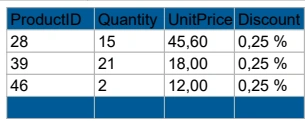
Before: The black text is hard to read on a dark blue background. (Screenshot of the original rendering.)
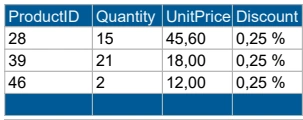
After: The black text has turned to light gray on the dark blue background, dramatically improving readability. (Screenshot of the optimized rendering.)
Conclusion
By leveraging C# and an efficient spatial indexing strategy, we achieve real-time contrast optimization with minimal overhead. The grid-based background tracking allows us to quickly determine what’s behind any given text, and the luminance/contrast calculation drives a simple decision to flip the text color when it would otherwise blend in. This approach only intervenes in obvious low-contrast cases (pure black or white text), preserving the designer’s intent for all other colors. The result is a straightforward yet powerful technique to enhance document and UI readability, particularly in automated reporting or design systems where text may be placed dynamically over various backgrounds. It demonstrates how a bit of perceptual science (luminance and contrast ratios) combined with clever data structures can solve an everyday usability problem in a performant way.
With this C# implementation, our toolkit for color contrast optimization expands beyond the earlier C++ functions, offering a more context-aware solution. Developers can integrate and adapt it – for example, adjusting thresholds or extending it to other color ranges – to ensure their applications produce output that is not only aesthetically pleasing but also accessible to all.
Join the conversation! Your thoughts help the community grow.