

In today’s economic climate blogging is an essential part of almost any business. No matter the industry there will be somebody somewhere that will be blogging about it. You yourself may have read some of these blogs and even learned from some of them. There are so many content management systems out there and many of them include a blogging platform of some kind. Take WordPress for example, the entire content management system is built for and around this very feature. “But I already have a website,” I hear you say. That’s where this article comes in. Throughout the course of this article we will create a simple yet effective platform from which you can publish your words of wisdom. What we will build will be simple but at the end I will suggest some further functionality that you can go off and do yourself, although I am always happy to answer any of your questions anytime. Our blogging system will allow you to add blog posts and display them. We will also create a means of allowing the readers of your blog to leave comments.
In order to create a blog we first need to consider the database structure. Specifically the tables and how we will interact with these tables. So grab your pen and paper and start scribbling down what Schema, tables and columns you think we may need.
Here’s what I came up with:
A Schema to which our blog table and comments table will belong. I have called mine Blog. Imaginative I know.
A table for the Blog Posts themselves, which I have called Posts. This table will consist of the following columns;
- An identity column (PostIdintidentity(1,1) not null).
- A column to contain the post title (PostTitlevarchar(200) not null).
- A column to contain the date of the post (DatePosted date not null).
- Another date column but this time it will be to display the date the post was last edited (DateEdited date null).
- A column for the post itself (PostContentnvarchar(max) not null).
- And finally a column to store the authors name (PostAuthorvarchar(150) not null).
- An identity column (CommentIdintidentity(1,1) not null).
- Column for the commenters name (Name varchar(150) not null).
- Date of comment (DateCommented Date not null).
- And the comment itself (Comment nvarchar(max)).
- lso a column to link the comment to a particular post (PostIdint not null).
First we need to create a new website. So open up visual studio and go to File, New, then Website (or press Shift + Alt + N). You will be greeted by the following window:
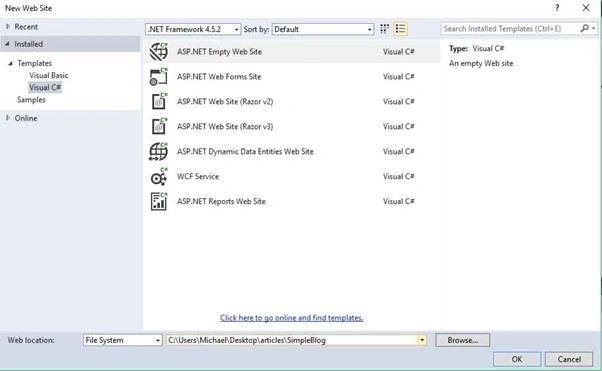
In this window select ASP.NET Empty Web Site and give it a name. (Note: I have called mine SimpleBlog but you can call yours anything you like.)
Now go to Website > Add ASP.NET Folder >App_Data
Now select the App_Data folder and go to Website > Add New Item… (or Ctrl + Shift + A) and you will get the following window:
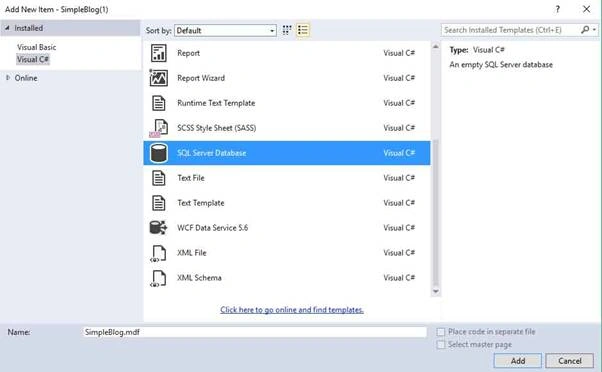
Select Sql Server Database and give it a name then click on add (Note: I called mine SimpleBlog.mdf but again call it whatever you wish)
Next open up you web.config file and in the configuration section add the following:
- <connectionStrings>
- <add name="SimpleBlog" connectionString="Data Source=(LocalDb)\v11.0;AttachDbFilename=|DataDirectory|\SimpleBlog.mdf;Initial Catalog=SimpleBlog;Integrated Security=True" providerName="System.Data.SqlClient" />
- </connectionStrings>
CREATE SCHEMA [Blog]
Run the query and you will have created a new schema.
Now we need to create our tables. There are 2 ways you could do this within Visual Studio. You could use the visual designer or you could write the T-Sql code yourself. Either option is fine, I personally am going to write the T-Sql code.
To create the post table I used the following T-Sql script:
- CREATE TABLE [Blog].[Posts]
- (
- [PostId] INT NOT NULL PRIMARY KEY IDENTITY,
- [PostTitle] VARCHAR(200) NOT NULL,
- [DatePosted] DATE NOT NULL,
- [DateEdited] DATE NULL,
- [PostContent] NVARCHAR(MAX) NOT NULL,
- [PostAuthor] VARCHAR(150) NOT NULL
- )
- CREATE TABLE [Blog].[Comments]
- (
- [CommentId] INT NOT NULL PRIMARY KEY IDENTITY,
- [PostId] INT NOT NULL,
- [Name] VARCHAR(150) NOT NULL,
- [CommentDate] DATE NOT NULL,
- [Comment] NVARCHAR(MAX) NOT NULL,
- CONSTRAINT [FK_Comments_Blog] FOREIGN KEY ([PostId]) REFERENCES [Blog].[Posts]([PostId])
- )
Add the following stored procedures to your database:
- CREATE PROCEDURE [Blog].[addPost]
- @pTitle varchar(200),
- @pContent nvarchar(max),
- @pAuthor varchar(150)
- AS
- BEGIN
- INSERT INTO Blog.Posts(PostTitle, DatePosted, PostContent, PostAuthor)
- VALUES (@pTitle, GETDATE(), @pContent, @pAuthor)
- END
- CREATE PROCEDURE [Blog].[displayPosts]
- AS
- BEGIN
- SELECT PostTitle, PostId
- FROM Blog.Posts
- END
- CREATE PROCEDURE [Blog].[displayPost]
- @postId int
- AS
- BEGIN
- SELECT PostTitle, PostAuthor, DatePosted, PostContent
- FROM Blog.Posts
- WHERE PostId = @postId
- END
- CREATE PROCEDURE [Blog].[addComment]
- @postId int,
- @cName varchar(150),
- @comment nvarchar(max)
- AS
- BEGIN
- INSERT INTO Blog.Comments(PostId, Name, CommentDate, Comment)
- VALUES(@postId, @cName, GETDATE(), @comment)
- END
- CREATE PROCEDURE [Blog].[displayComments]
- @PostId int
- AS
- BEGIN
- SELECT Name, CommentDate, Comment
- FROM Blog.Comments
- WHERE PostId = @PostId
- END
We will start with the blog posts class file.
First go to Website > Add New Item (or Ctrl + Shift + A). When the Add New Item window appears select Class from the list, give it a name (I have called mine BlogPosts.cs) and click add. You will get an alert box appear which will say that files of this type are normally stored in the App_Code folder and it will ask if you wish to create an App_Code folder and add your file to it. Click yes.
Now you will be presented with an empty class file. Remove all code from the page and add the following:
- using System;
- using System.Collections.Generic;
- using System.Linq;
- using System.Web;
- using System.Data;
- using System.Data.Sql;
- using System.Data.SqlClient;
- using System.Data.SqlTypes;
- using System.Web.Configuration;
- /// <summary>
- /// This class will be responsible for calling the Stored Procedures
- /// </summary>
- public class BlogPosts
- {
- private static string connectionString =
- WebConfigurationManager.ConnectionStrings["SimpleBlog"].ConnectionString;
- public static DataSet getPosts()
- {
- DataSet ds = new DataSet();
- SqlConnection con = new SqlConnection(connectionString);
- SqlCommand cmd = new SqlCommand("Blog.displayPosts", con);
- SqlDataAdapter adp = new SqlDataAdapter(cmd);
- cmd.CommandType = CommandType.StoredProcedure;
- try {
- con.Open();
- adp.Fill(ds, "Posts");
- } catch (Exception er) {
- Console.WriteLine(er.Message);
- } finally {
- con.Close();
- }
- return ds;
- }
- public static DataSet getPost(int postident) {
- DataSet ds = new DataSet();
- SqlConnection con = new SqlConnection(connectionString);
- SqlCommand cmd = new SqlCommand("Blog.displayPost", con);
- SqlDataAdapter adp = new SqlDataAdapter(cmd);
- cmd.CommandType = CommandType.StoredProcedure;
- cmd.Parameters.Add(new SqlParameter("@postId", SqlDbType.Int));
- cmd.Parameters["@postId"].Value = postident;
- try {
- con.Open();
- adp.Fill(ds, "Post");
- } catch (Exception er) {
- Console.WriteLine(er.Message);
- } finally {
- con.Close();
- }
- return ds;
- }
- public static void addPost(string title, string cont, string auth) {
- SqlConnection con = new SqlConnection(connectionString);
- SqlCommand cmd = new SqlCommand("Blog.addPost", con);
- cmd.CommandType = CommandType.StoredProcedure;
- cmd.Parameters.Add(new SqlParameter("@pTitle", SqlDbType.VarChar, 200));
- cmd.Parameters["@pTitle"].Value = title;
- cmd.Parameters.Add(new SqlParameter("@pContent", SqlDbType.NVarChar, -1));
- cmd.Parameters["@pContent"].Value = cont;
- cmd.Parameters.Add(new SqlParameter("@pAuthor", SqlDbType.VarChar, 150));
- cmd.Parameters["@pAuthor"].Value = auth;
- int added = 0;
- try {
- con.Open();
- added = cmd.ExecuteNonQuery();
- } catch (Exception ex) {
- Console.WriteLine(ex.Message);
- } finally {
- con.Close();
- }
- }
- }
So go toWebsite > Add New Item (or Ctrl + Shift + A). From the list select webform. Give it a name then click add. Do this twice, once for adding posts(which I have named addPost.aspx) and once more for displaying the posts(this one I called displayPosts.aspx).
Go to your addPost.aspx file and open it up. On your page add the following mark-up:
- <form id="form1" runat="server">
- <div>
- <h1>Add Post</h1>
- <label>Title</label>
- <asp:TextBox ID="txtTitle" runat="server" TextMode="SingleLine"></asp:TextBox><br />
- <label>Author</label>
- <asp:TextBox ID="txtAuth" runat="server" TextMode="SingleLine"></asp:TextBox><br />
- <label>Post Content</label>
- <asp:TextBox ID="txtCont" runat="server" TextMode="MultiLine"></asp:TextBox><br />
- <asp:Button ID="btnAdd" runat="server" Text="Add Post!" OnClick="btnAdd_Click" />
- </div>
- </form>
BlogPosts.addPost(txtTitle.Text, txtCont.Text, txtAuth.Text);
Once you have done that run the page(press f5) and fill in the form with some data. After clicking add go back into visual studio and check the database table to see if the data you just entered on the page is present in the table (Go to Sql Server Explorer, locate the Posts table and right cluck on it. You will be presented with a menu full of possible options you will need to select View Data which will bring up all the data in that table.) If your data is present then what we have created so far has worked. Yay!
Now we need to go to the displayPosts.aspx file and open it up. (Note: For the sake of simplicity I am going to use an asp:FormView control to display the data but that is by no means the only or even the best way to display the data. Your decision on which data control to use depends entirely on your circumstances and requirements.) On your displayPosts page add the following markup:
- <div>
- <h1>Display the posts.</h1>
- <asp:DropDownList ID="drpPosts" runat="server"></asp:DropDownList><br />
- <asp:Button ID="btnDisplay" runat="server" Text="Display Post" OnClick="btnDisplay_Click" />
- <asp:FormView ID="frmPosts" runat="server">
- <ItemTemplate>
- <asp:Label ID="lblTitle" runat="server" Text='<%# Eval("PostTitle") %>'></asp:Label><br />
- <asp:Label ID="DatePosted" runat="server" Text='<%# Eval("DatePosted") %>'></asp:Label><br />
- <asp:Label ID="lblAuth" runat="server" Text='<%# Eval("PostAuthor") %>'></asp:Label><br />
- <asp:Label ID="lblCont" runat="server" Text='<%# Eval("PostContent") %>'></asp:Label><br />
- </ItemTemplate>
- </asp:FormView>
- </div>
- protected void Page_Load(object sender, EventArgs e)
- {
- DataSet ds = BlogPosts.getPosts();
- drpPosts.DataSource = ds;
- drpPosts.DataTextField = ds.Tables[0].Columns["PostTitle"].ToString();
- drpPosts.DataValueField = ds.Tables[0].Columns["PostId"].ToString();
- drpPosts.DataBind();
- }
- protected void btnDisplay_Click(object sender, EventArgs e)
- {
- DataSet dat = BlogPosts.getPost(Convert.ToInt32(drpPosts.SelectedValue));
- frmPosts.DataSource = dat;
- frmPosts.DataBind();
- }
using System.Data;
Run your page and try it out. If you followed the steps correctly you will be able to select a post from the drop down list which will then display the post underneath it.
Now we have built that part of our blogging platform we can move onto the comments part. There is nothing difficult or complex about what we are about to do, in fact it’s not all that different to what we have just done.
So, our first step is to create a class file which will be responsible for calling the relevant stored procedures that we created earlier. I have named mine Comments.cs As before this file belongs in the App_Code folder.
In your comments.cs file add the following:
- using System;
- using System.Collections.Generic;
- using System.Linq;
- using System.Web;
- using System.Data;
- using System.Data.Sql;
- using System.Data.SqlClient;
- using System.Data.SqlTypes;
- using System.Web.Configuration;
- /// <summary>
- /// This class will be responsible for calling the Stored Procedures
- /// </summary>
- public class Comments
- {
- private static string connectionString =
- WebConfigurationManager.ConnectionStrings["SimpleBlog"].ConnectionString;
- public static DataSet GetComments(int post)
- {
- SqlConnection con = new SqlConnection(connectionString);
- SqlCommand cmd = new SqlCommand("Blog.displayComments", con);
- cmd.CommandType = CommandType.StoredProcedure;
- SqlDataAdapter adp = new SqlDataAdapter(cmd);
- cmd.Parameters.Add(new SqlParameter("@PostId", SqlDbType.Int));
- cmd.Parameters["@PostId"].Value = post;
- DataSet dSet = new DataSet();
- try {
- con.Open();
- adp.Fill(dSet, "Comments");
- } catch (Exception er) {
- Console.WriteLine(er.Message);
- } finally {
- con.Close();
- }
- return dSet;
- }
- public static void addComment(int post, string name, string com)
- {
- SqlConnection con = new SqlConnection(connectionString);
- SqlCommand cmd = new SqlCommand("Blog.addComment", con);
- cmd.CommandType = CommandType.StoredProcedure;
- cmd.Parameters.Add(new SqlParameter("@postId", SqlDbType.Int));
- cmd.Parameters["@postId"].Value = post;
- cmd.Parameters.Add(new SqlParameter("@cName", SqlDbType.VarChar, 150));
- cmd.Parameters["@cName"].Value = name;
- cmd.Parameters.Add(new SqlParameter("@comment", SqlDbType.NVarChar, -1));
- cmd.Parameters["@comment"].Value = com;
- int added = 0;
- try
- {
- con.Open();
- added = cmd.ExecuteNonQuery();
- } catch (Exception er) {
- Console.WriteLine(er.Message);
- } finally {
- con.Close();
- }
- }
- }
- <div>
- <h1>Comments</h1>
- <div style="width:50%; float:left;">
- <h3>Add a comment</h3>
- <label>Name:</label><br />
- <asp:TextBox ID="txtName" runat="server" TextMode="SingleLine"></asp:TextBox><br />
- <label>Comment:</label>
- <asp:TextBox ID="txtComm" runat="server" TextMode="MultiLine" Rows="10"></asp:TextBox> <br />
- <asp:Button ID="btnAddComm" runat="server" Text="Add Comment!" OnClick="btnAddComm_Click" />
- </div>
- <div style="width:50%;float:left;">
- <asp:Repeater ID="rptComments" runat="server">
- <ItemTemplate>
- <asp:Label ID="lblName" runat="server" Text='<%# Eval("Name") %>'></asp:Label>
- <asp:Label ID="lblDateCom" runat="server" Text='<%# Eval("CommentDate") %>'></asp:Label>
- <br />
- <asp:Label ID="lblComm" runat="server" Text='<%# Eval("Comment") %>'></asp:Label>
- <hr />
- </ItemTemplate>
- </asp:Repeater>
- </div>
- </div>
- protected void getcomms()
- {
- DataSet ds = Comments.GetComments(Convert.ToInt32(drpPosts.SelectedValue));
- rptComments.DataSource = ds;
- rptComments.DataBind();
- }
- protected void btnAddComm_Click(object sender, EventArgs e)
- {
- Comments.addComment(Convert.ToInt32(drpPosts.SelectedValue), txtName.Text, txtComm.Text);
- getcomms();
- }
getcomms();
And that’s all there is to it. We have not built a very basic blogging system that you can incorporate into your ASP.NET web application.
As promised way back in the beginning of this article I have a few suggestions to further improve your brand new blogging system; you could incorporate ASP.NET Identity to allow more users to add posts. You could create a table and the accompanying code to put your posts into categories. Also you could create facilities to update and delete posts and comments. That’s just a few ideas to get you going but the sky is the limit. Just make sure you don’t set yourself too big a task at once, chop them up into smaller more manageable goals.
I hope you found this article informative and helpful. If you have suggestions for improvements I would love to hear them.
TechAffinity ConsultingPosted Sep 14, 2021, 10:13 AM
As always, awesome! Thanks for these ASP.NET Core posts!
Sherly slaPosted May 13, 2021, 6:39 AM
Thank you for your information.
maneesh srivastavaPosted Jun 20, 2019, 5:34 AM
Everything about asp.net has been given in it and after reading it anyone can get interested in <a href="http://www.sipltraining.in/courses/asp-net-training-with-c/"> making a career in asp.net </a>
Michael GriffithsPosted Feb 27, 2019, 6:34 AM
It has bee brought to my attention that there is an issue displaying posts. The issue is that the code in the page load event of the display posts page is running on every postback. To fix this you just need to check for a postback and only run the code if it is not a post back. e.g. if(!this.IsPostBack){ //code goes here}
ashwini hadwalePosted Feb 19, 2019, 5:38 AM
Your project didn't run.
Kat BrownPosted Oct 29, 2018, 12:46 AM
Great article on blogging through asp.net loved your writing.
Dev AttriPosted May 7, 2018, 11:24 PM
Sir there is some problem in this code in the display posts in dropdown list. it shows all entry but select only the first entry. plz tell how to resolve this problem. nd second thing plz also tell how to insert image in addposts nd display image according to the blog entry. reply as soon as possible. thnqu for this code its really good..
Vignesh ManiPosted Apr 14, 2016, 8:21 AM
Good one
Mohammed IbrahimPosted Apr 12, 2016, 1:53 PM
nice
Kuppurasu NagarajPosted Apr 12, 2016, 12:31 PM
Nice Sharing..
Rahul Kumar SaxenaPosted Apr 12, 2016, 5:57 AM
Good one
Jaipal ReddyPosted Apr 12, 2016, 4:42 AM
Nice. .
Humayun Kabir MamunPosted Apr 12, 2016, 2:18 AM
Nice...
Ammar ShaukatPosted Apr 12, 2016, 1:33 AM
what is the meaning of v11.0 , it is wirtten in web.config file with Data Source = ( localhost ) \ v11.0
Gowtham RajamanickamPosted Apr 12, 2016, 1:16 AM
good work
Gowtham RajamanickamPosted Apr 12, 2016, 1:16 AM
really great