

Microsoft Expression Blend is a design tool
that allows you to create fantastic user interfaces for such Windows based
applications and Web applications. You can use Expression Blend with .NET
Framework 3.0, 3.5, and 4.0 applications.
This article will focus on the use of Expression Blend for Silverlight.
What Blend can do for you
One of the prime advantages of Expression Blend is its ability to separate code
from design. Using Blend, designers can work independently on one set of
deliverables for a project while developers can work on another. But this
doesn't mean that Blend is just for designers alone. Developers can equally take
advantage of the features that Blend has to offer.
Expression Blend allows you to design your application visually, by creating or
drawing shapes, paths, and controls on an artboard, and then modifying their
appearance and behavior by configuring their properties.
Working with Blend
You can create a new Silverlight project by clicking File->New in Expression
Blend. The New Project dialog box shows various project types. 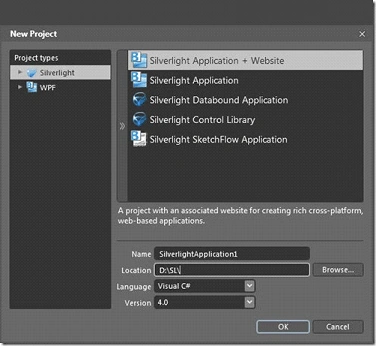
Figure 1 - New Project Dialog Box
The various project types are described as follows:
- Silverlight Application + Website: Creates a project with an associated website that you can publish to a web server.
- Silverlight Application: Creates a project that creates an application that can be run in the Silverlight runtime viewer, inside or outside a browser window. It includes an HTML test page named Default.html that will load your application in a browser window.
- Silverlight Databound Application: Creates a project that uses data and command bindings to support loose coupling between a View and a ViewModel.
- Silverlight Control Library: Creates a project for creating custom controls which you can reuse in other Silverlight projects.
- Silverlight SketchFlow Application: Creates a project for prototyping cross-platform, web-based applications. SketchFlow is available only in Expression Studio Ultimate.
The Blend IDE
By default, the Design view shows the Projects window pane open on the right. In
the center, you see the white artboard or the drawing area. This is where you
will be drawing controls and placing items.
On the left, you will see the Toolbox containing the controls and objects that
you can use for drawing. Let us look at all these elements in detail.
The Projects window
This window shows the default files created for a Silverlight project in Blend.
The Toolbox
The Toolbox contains various objects and controls that can help you create a
fantastic user interface for Silverlight applications.
The Selection tools are used to select objects and paths.
The Magnify or Zoom tool is used to provide different views of the artboard and
objects.
The Pan tool is used to position the artboard in the workspace area.
The Brush tools are used to configure the color and other visual settings of
objects such as controls and paths.
The Object tools include a number of controls and shapes that you can create or
use in Blend applications.
The Asset tool opens the Asset Library, a collection of various controls and
shapes.

Figure 2- Toolbox Pane
Working with Controls
The Toolbox pane provides options to create various kinds of controls. When you
scroll down the Toolbox and click the small triangle next to the TextBlock, you
will see additional controls popping up as shown in Figure 2.
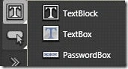
Figure 3 - Controls
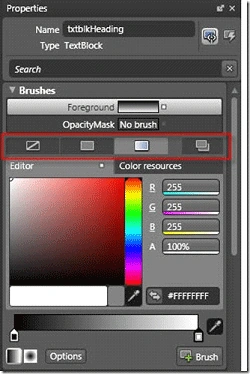
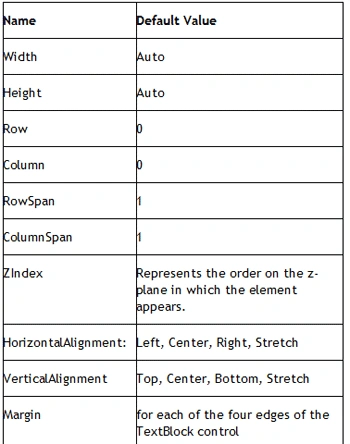
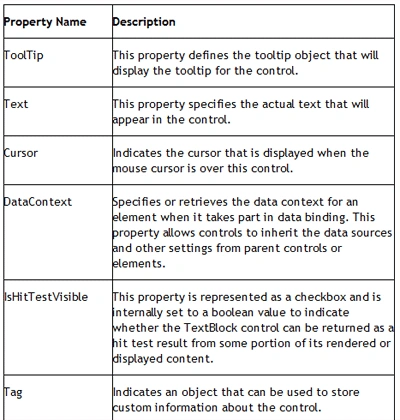
The property headings commonly seen for most controls are:
Join the conversation! Your thoughts help the community grow.