

Problem statement
Let's assume there is a company that wants to host their application on Azure but it cannot migrate to a SQL Server database to authenticate users. They are using SQL Server 2012 to store user information and their web application is an ASP.NET MVC application.
Solution
There are two ways to access on-premise resources:
- Using Service Bus Relay.
- Using Azure Hybrid Connection (can only be used for Web Apps and Mobile Apps).
This article shows how to use Azure Hybrid Connection to do Hybrid connectivity. The following is a step-by-step approach to accomplish on-premise connectivity for our hypothetical problem statement.
Prerequisites
- SQL Server 2012/2008 configured with SQL Server Authentication
- Visual Studio 2013 with Update 4
- Azure SDK 2.6
- Microsoft Azure Subscription
Summary of procedure
- Create a sample database using a SQL Server database.
- Create a web application using ASP.NET MVC application.
- Publish the web application to an Azure Web App.
- Create an Azure Hybrid Connection using Azure Preview Portal. (New Portal).
- Complete the connection by installing a Listener Setup in an on-premise server (where SQL Server is installed).
- Access an on-premise database from the web app.
Create a sample database using SQL Server database.
- Open SQL Server Management Studio and login using SQL Server Authentication.
- Create a new database and give it a name, let's say HybridUserStore, as in the following screenshots:

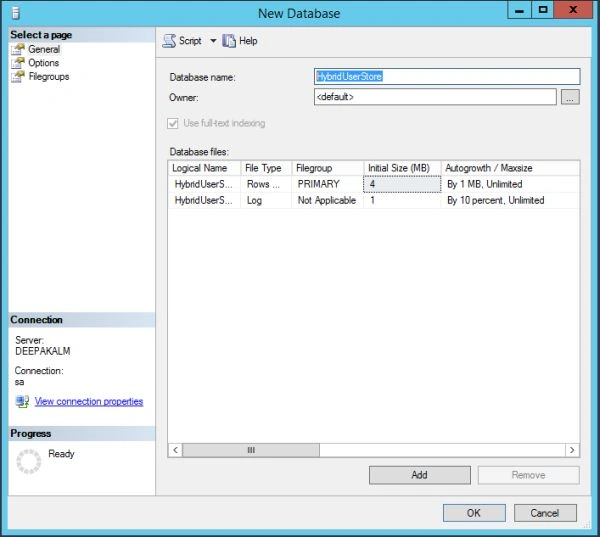
- Note down the connection string. We will use the connection string in our web application.
- Be sure TCP port is enabled on your SQL Server database. To check follow procedure described here.
Create a web application using ASP.NET MVC application.
Now we will create a web application that will use SQL Server as authentication store.
- Open Visual Studio 2013 as an Administrator and create a new ASP.NET Web Application. Give it a name. For for example HybridWebApp. Snapshot below:

- Select template as MVC, select Authentication as Individual User Accounts, and uncheck Host in the cloud option. Screenshot below:

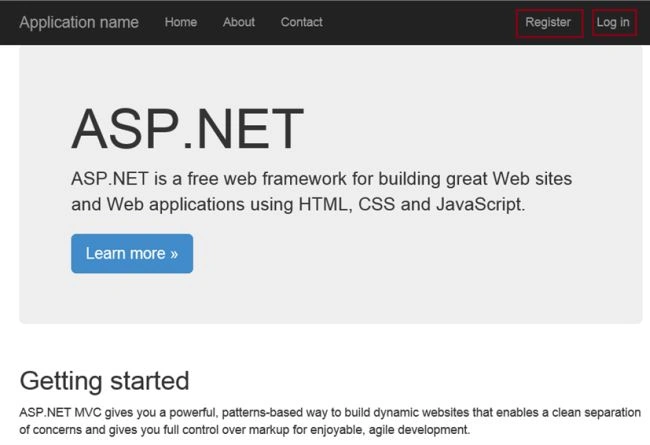
- Once the application is created, build the application and run it. The default template already has a Sign In and Register functionality created. Test register and Sign In functionality:

- Once you have verified that the default template is working, now change the connection string in web.config to the connection string of the database created previously. Screenshot below:

- Build and run the application again and verify that the Register and Sign In is still working (now using our HybridUserStore).
Until now we have created an application that uses SQL Server to authenticate users, but both of the applications are running on the same computer so they are not issues until now. Now we will publish our web application to Azure and see that now the Register and Sign In does not work since it is not able to find the database.
Publish the web application to Azure Web App
- Login to Azure Preview Portal.
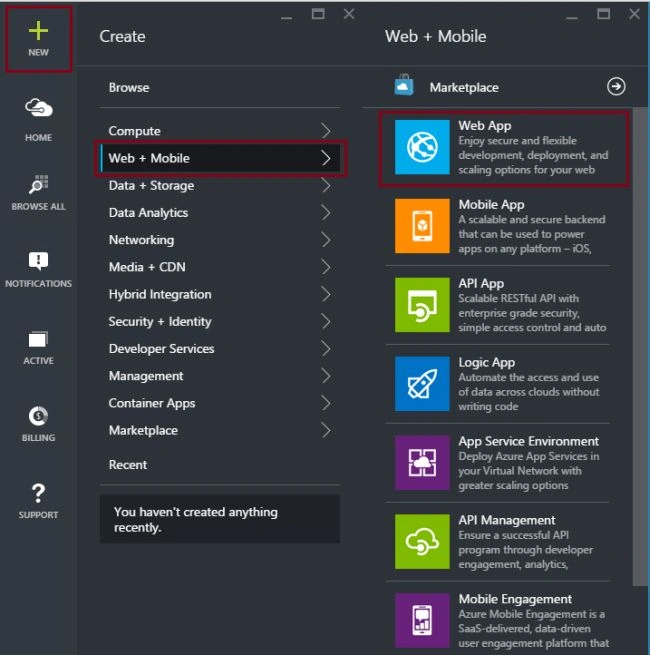
- Create a placeholder for the web application by clicking New -> Web + Mobile -> Web App and give it a name, for example HybridWebAppDemo as in the following screenshot:

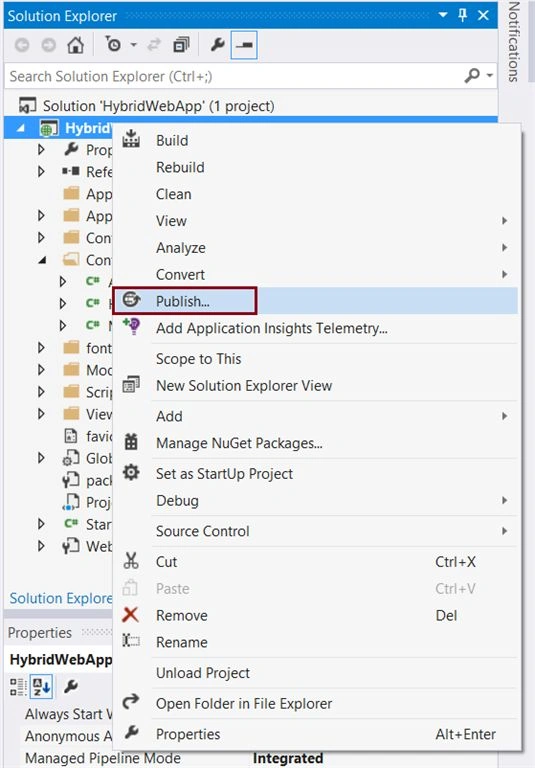
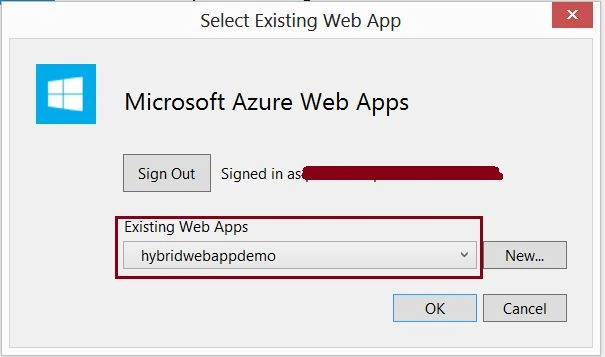
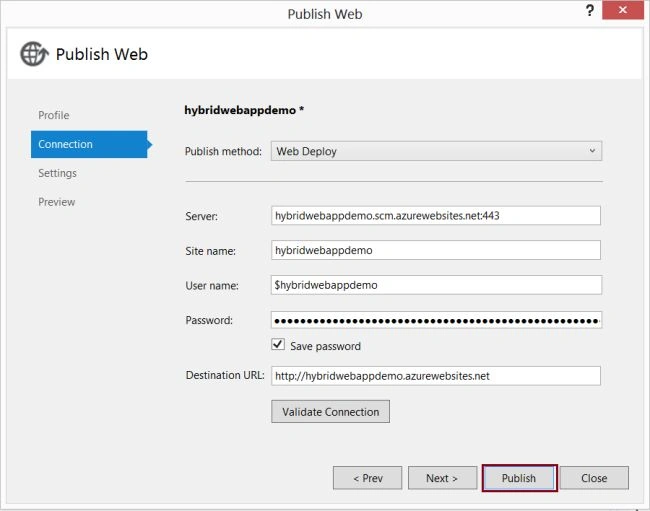
- When the web app is created, open the Visual Studio project, right-click and say publish. Choose Microsoft Azure Web Apps and select the web app that we just created from the Azure Portal as in the following screenshot:

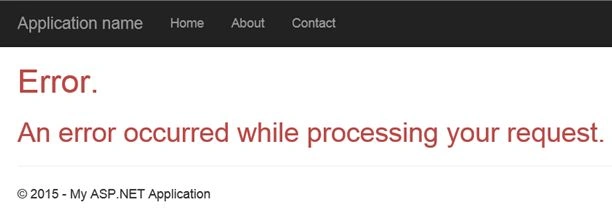
- When the application is published, run it and try to register a user. You will not be able to register a user since the database is not reachable. You will receive an error as in the following:
- Now in the next steps we will create a Hybrid connection to the on-premise database so that we are able to access the on-premise database and register user in user store successfully.
Create Azure Hybrid Connection using Azure Preview Portal
- Open Azure Preview Portal.
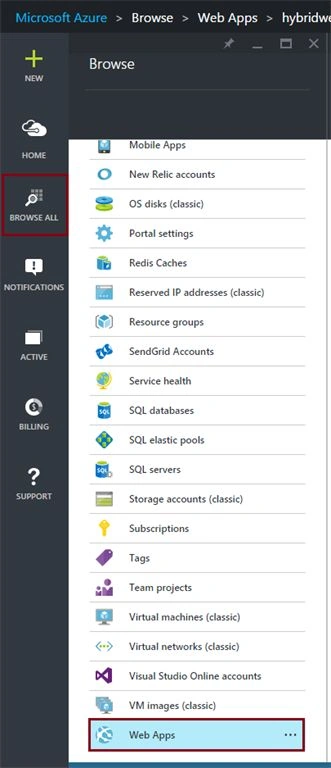
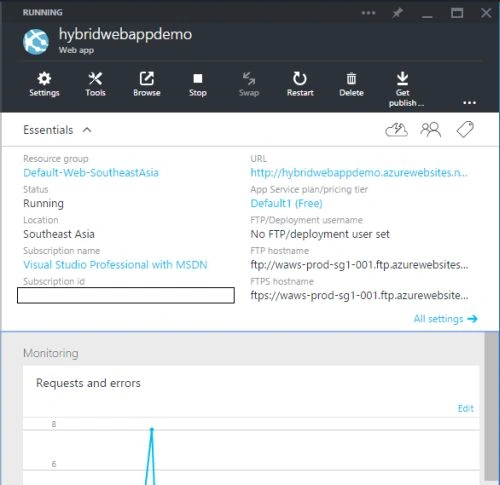
- Click Browse All -> Web Apps -> HybridWebAppDemo (the app that we created) as in the following screenshot:

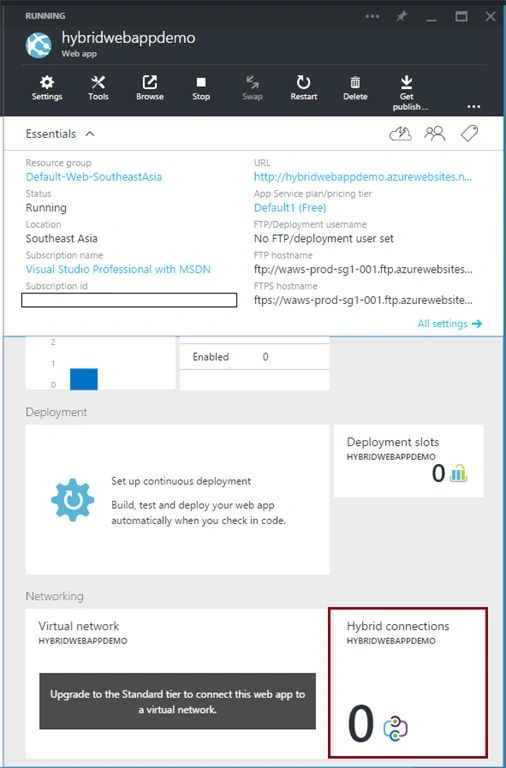
- Scroll down in the blade of the web app and click on Hybrid Connection, in Hybrid Connection Blade click Add as in the following screenshot:

- In the Add a hybrid connection blade, click New Hybrid Connection. In Create hybrid connection blade:
- In Name give the name of your hybrid connection. For example MyHybridConn.
- In Hostname give the hostname of the server on which the database is created. For example DeepakALM.
- In Port give the port on which the database if running. For example 1433 (Note, 1433 is the default port for the SQL Server default instance).
- Click on Biztalk service
Screenshots below:
- In Name give the name of your hybrid connection. For example MyHybridConn.
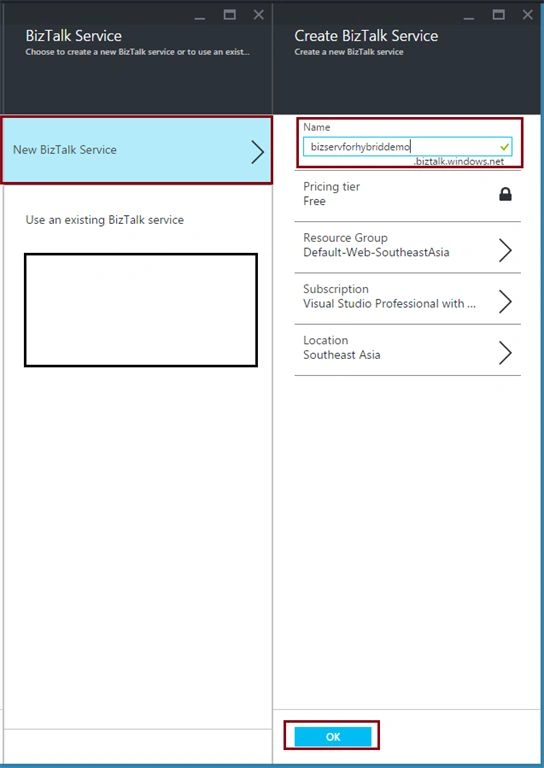
- In the BizTalk service Blade, select New BizTalk service and give it a name. For example bizservforhybriddemo and click OK as in the following screenshot:
- It will take some time to create this BizTalk Service and complete the operation. When it is created, you will see the status as in the following:

Complete the connection by installing Listener Setup
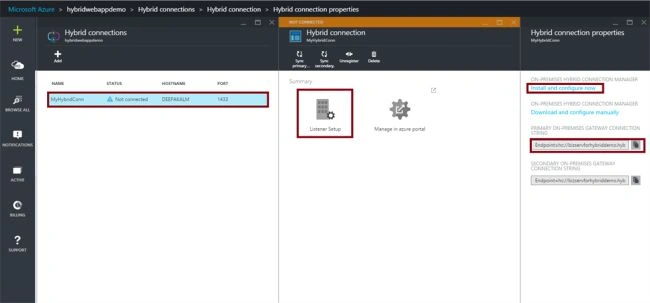
- In the Hybrid connections Blade, click the Hybrid connection that you created. Click Listener Setup that will open up the Hybrid connection properties blade. Note the primary on-premises gateway connection string and click Install and Configure now as in the following screenshot:
- A security prompt will come. Select Continue/ Keep and once the Hybrid Connection Manager is downloaded, launch it and click Run as in the following screenshot:

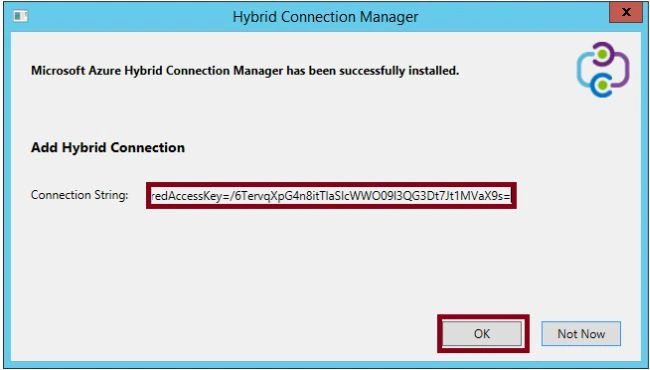
- A security prompt be shown again, select Run. This will take some time to configure the connection manager. Once ready enter the copied connection string from Step 1 in the connection string and click OK as in the following screenshot:
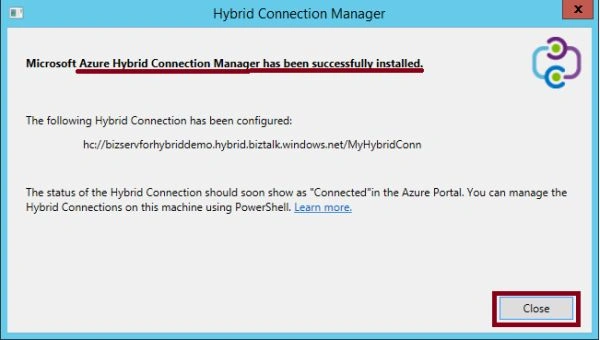
- The connection should be configured successfully and you should see a completion message as in the following:
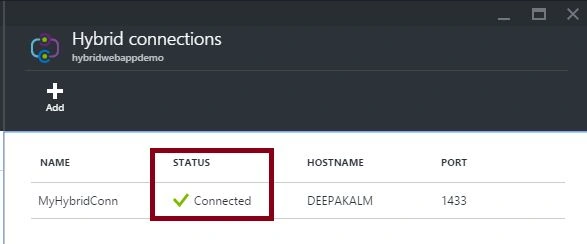
- Also check the connection status in Azure Portal. The Status should be connected as in the following screenshot:
Access on-premise database from web app
Now that the connection to our on-premise database is successfully established, we will test to register a new user in our web app. You should be able to Register a user and sign-in successfully. If you encounter any issues then double-check if you have enabled TCP protocol for your database. Use Step 4 of "Create sample database using SQL Server database".
Summary
In the preceding article I explained how to use an Azure Hybrid Connection to access on-premise resources like a SQL Server 2012 database from Web Apps and/or Mobile Apps hosted on Azure. In my next article I will explain another approach for using a Service Bus Relay to accomplish connectivity between on-premise resources and applications hosted in Azure.
Thanks for reading the article. Please provide your valuable feedback.
Sergio Parra GuerraPosted Jan 18, 2017, 12:58 PM
Hello amit. See this workaround https:/blogs.msdn.microsoft.com/waws/2016/05/17/hybrid-connection-error-with-sql-server-system-overflowexception-arithmetic-operation-resulted-in-an-overflow/
amit thakurPosted Dec 29, 2016, 11:29 PM
Arithmetic operation resulted in an overflow. I am getting this error.
Jayesh KushwahaPosted Aug 4, 2016, 7:18 AM
Yes.
Jayesh KushwahaPosted Aug 4, 2016, 7:03 AM
What is actual problem ? i publish site than data not store in local database. i facing same problem
Hemant MahajanPosted Aug 2, 2016, 1:40 PM
In the connection string of application make sure you mention port also.
Jayesh KushwahaPosted Aug 2, 2016, 7:30 AM
I follow all the step. locally store the data but whenever i publish site that time give error. error---A network-related or instance-specific error occurred while establishing a connection to SQL Server. The server was not found or was not accessible. Verify that the instance name is correct and that SQL Server is configured to allow remote connections. (provider: TCP Provider, error: 0 - Access is denied.) give me solution
Jayant KulkarniPosted May 27, 2016, 12:25 AM
Very helpful. Thanks for sharing..
Gowtham RajamanickamPosted Apr 11, 2016, 1:49 AM
good
Hemant MahajanPosted Jan 26, 2016, 12:58 PM
I also attempted the same 3 months back and its absolute delight from Microsoft. Good to share this article Deepak!
ashish fPosted Dec 2, 2015, 11:42 AM
I'm facing issue after installation of manager on portal status is still NOT CONNECTED :( why so?
Bipin PatilPosted Jul 30, 2015, 6:43 AM
Nice Informative easy to understand
SharadPosted Jul 4, 2015, 3:16 AM
Very Informative...
Sounik ChandraPosted Jul 4, 2015, 12:37 AM
Nice article deepak...