

Introduction
This article explains how to add Class Library in ASP.NET Core using .NET Core Command-Line Interface (CLI) in a simple way. Before reading this article, read the previous part of this article using below article link.
.NET Core CLI
The .NET Core command-line interface (CLI) is a new cross-platform command line for developing .NET applications. Using .NET Core CLI we can open new .NET core application, modify the applications or add class libraries and so on. We can manage our application using the command line.
Background
We manage the ASP.NET Core applications using Graphic User Interface (GUI). Whenever we develop an application we are doing many tasks such as adding files, compiling the application, and running the application using graphical user interface; but we can do those using command line. Using .NET Core CLI we can manage our ASP.NET Core application.
Steps for Adding Class Library Using CLI
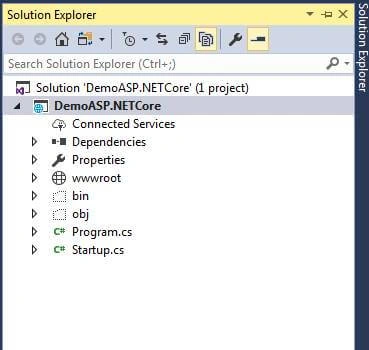
First, open the one new ASP.NET core application and add one sample page then build and run the application. Go to the solution explorer and we can see only one project in it.
Open PowerShell
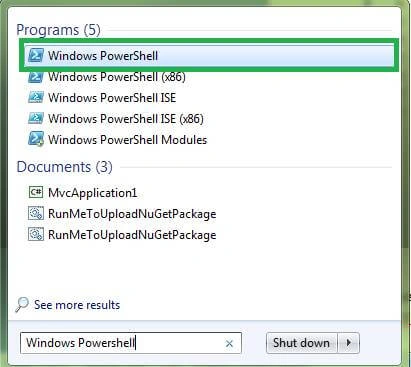
Now we are going to add class library using some of the steps with the help of .NET Core CLI. Open the Windows PowerShell.
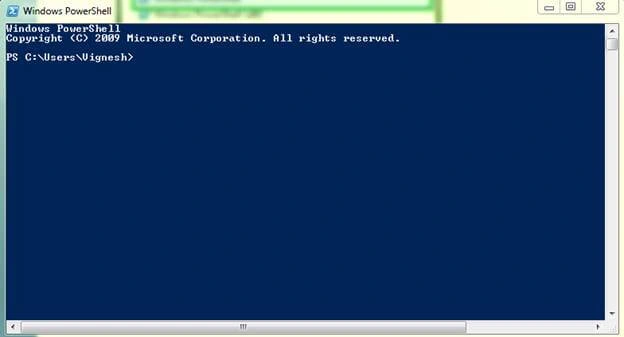
Now Windows PowerShell window will be open. We can see how it looks on screen shot.
Project Location
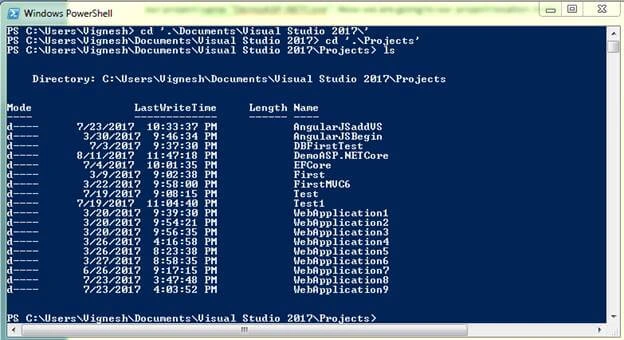
Our project is saved in “C:\Users\Vignesh\Documents\Visual Studio 2017\Projects” in our system and our project name”DemoASP.NETCore”. Now we are going to our project location in CLI
Command
Using below command we can go to our project location and can see the list project.
- PS C:\Users\Vignesh> cd '.\Documents\Visual Studio 2017\'
- PS C:\Users\Vignesh\Documents\Visual Studio 2017> cd '.\Projects'
- PS C:\Users\Vignesh\Documents\Visual Studio 2017\Projects> ls
Using “ls” we can see all list of files or projects in the specified path. We can see the Windows PowerShell screen looks like below screenshot.
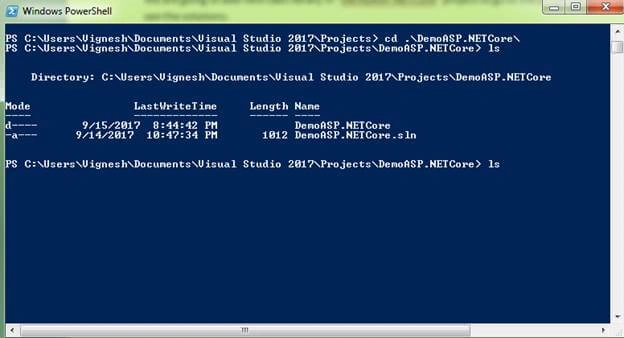
We are going to add a new class library in “DemoASP.NETCore” solution, now go to the project location and can see the “DemoASP.NETCore.sln” solutions.
Command
PS C:\Users\Vignesh\Documents\Visual Studio 2017\Projects> cd .\DemoASP.NETCore\
PS C:\Users\Vignesh\Documents\Visual Studio 2017\Projects\DemoASP.NETCore> ls
HELP Command in CLI
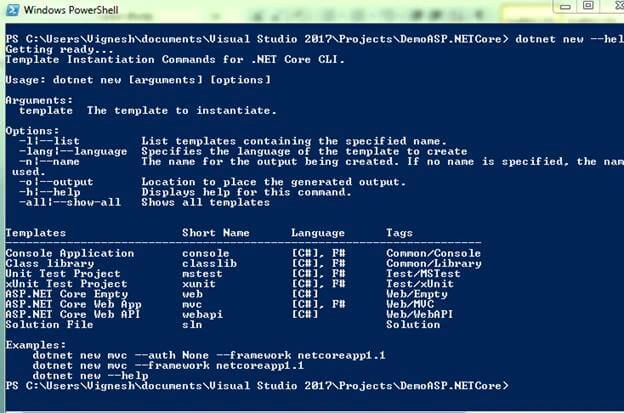
Using help command we can get full information about a specific command in CLI, for example, we are going to add new items in .NET Core so we should know about “new”. Type below mentioned command to know about “new”.
Command
PS C:\Users\Vignesh\documents\Visual Studio 2017\Projects\DemoASP.NETCore> dotnet new –help
Join the conversation! Your thoughts help the community grow.