

Introduction
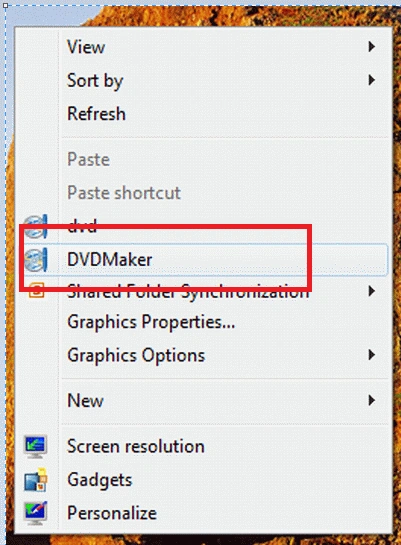
Today we are going to see the Context Menu in Windows 8. In Windows, the right-click Context Menu provides the ability to start any program, open folders and access web sites. The Context Menu enables the user to add programs that are frequently used.
We can add our frequently used programs or applications to the Context Menu using several ways such as the Registry method, and a free tool. So, in this article, we add items (programs or applications) to the Context Menu using a free tool called Right-click Context Menu Adder.
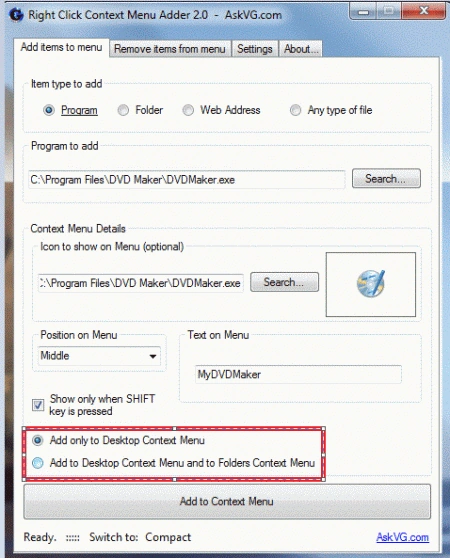
This free tool enables the user to add multiple programs or items to the desktop right-click menu and also the folder Context Menu. You can download the Right-click Context Menu Adder from the following link and you need not install it as it is portable.
http://www.softpedia.com/progDownload/Right-Click-Context-Menu-Adder-Download-193802.html
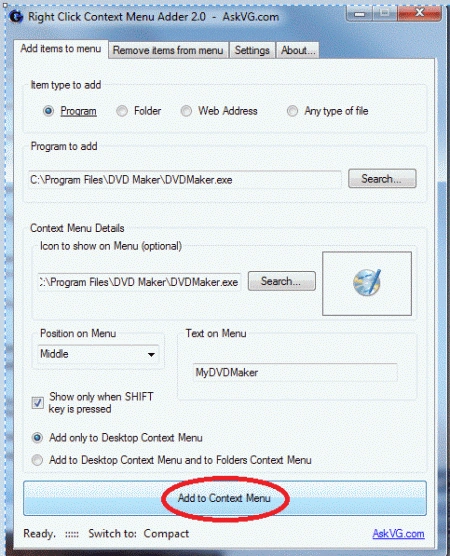
The following are the steps to add programs or applications to the desktop Context Menu.
Step 1
Download the free tool from the above link, extract the zip file and run it by double-clicking the .exe file.
 Step 2
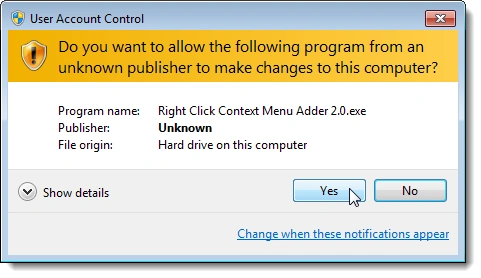
If the "User Account Control" dialog box is opened, click "Yes" to continue the process.
 Step 3
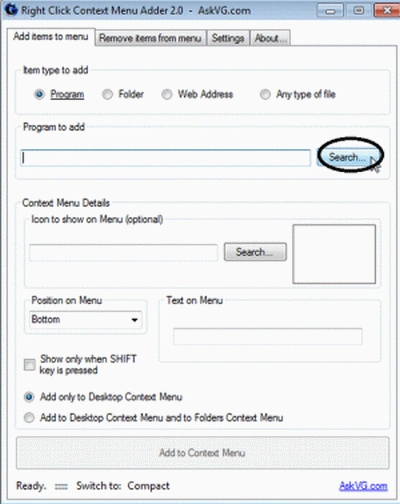
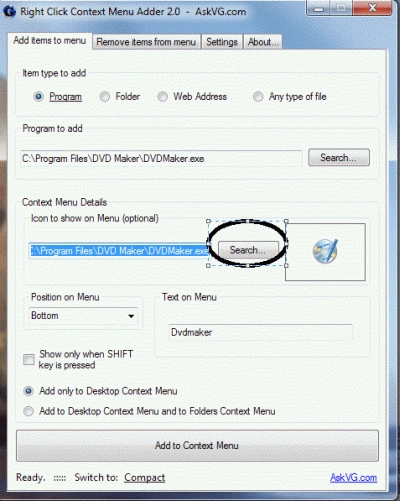
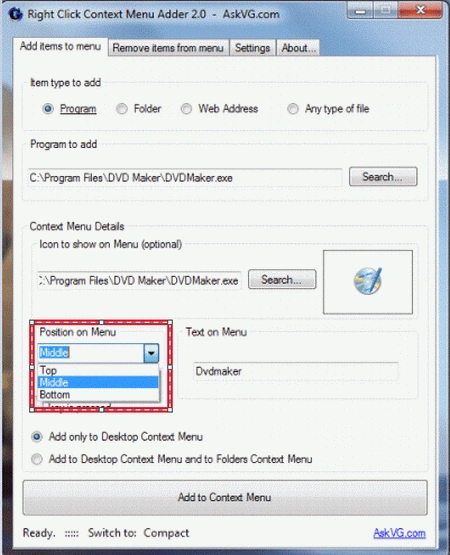
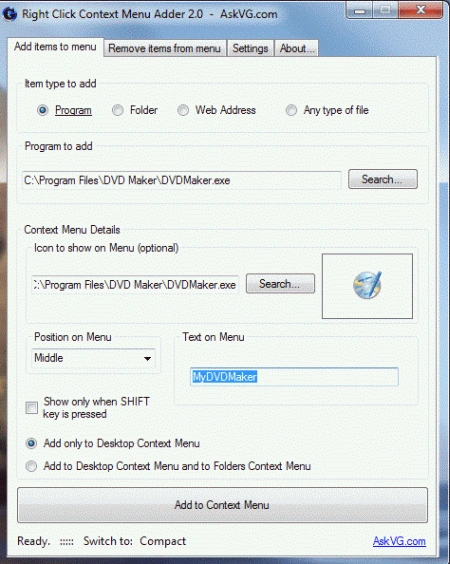
Select Additional items to the menu tab from the top. Then, select the type of items to add to the Context Menu from the item type to add to the box.
Step 4
Abhimanyu K VatsaPosted Jul 11, 2012, 2:00 AM
ton of windows 8 based stuffs learning from you :)