
Introduction
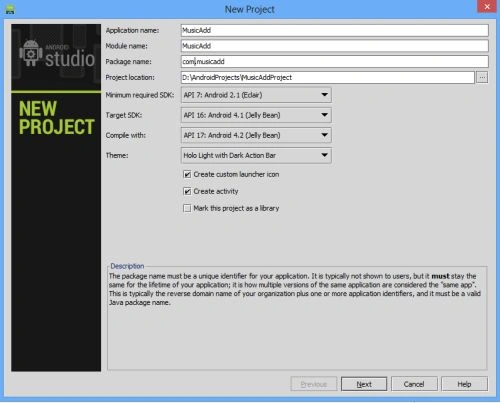
This article explains how to start sound on a button click using the raw folder in Android Studio.
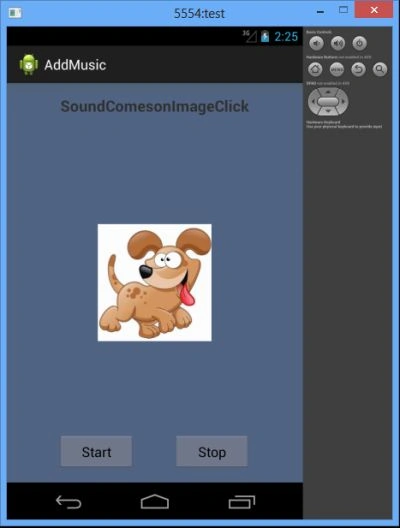
In this first, you will use an Imageview and two buttons. When you click on the Start button the sound will start and when you click on the Stop button the sound will stop. In this I use a Dog as an example, you can use any other animal as an example.
So to apply a sound in your application you need to create a file named raw in the res folder and add the sound file with its extension (Dog.mp3 or any other extension) inside the file. you will create the folder as in the following:
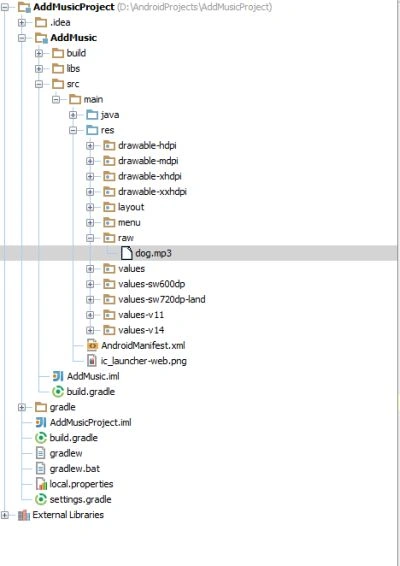 So after adding the sound file to the raw folder, you will create a media player in your class file. You will add a media player and a sound to the media player like this:
MediaPlayer player=MediaPlayer.create(MainActivity.this,R.raw.dog);
You will do the start sound operation on a Start button click event and do the stop operation on the Stop button click event like this:
- button1.setOnClickListener(new View.OnClickListener() {
- @Override
- public void onClick(View v) {
- player=MediaPlayer.create(MainActivity.this,R.raw.dog);
- player.start();
- }
- });
- button2.setOnClickListener(new View.OnClickListener() {
- @Override
- public void onClick(View v) {
- player.pause();
- }
- });
Step 1
Step 2
Create an XML file and write this:
In this, I have used a Textview and two Buttons. An Imageview inside the Relative layout. When you click on the Start button the sound will start and when you click on the Stop button the sound will stop. In this I use the example of a Dog, you can use any animal as an example.
- <RelativeLayout xmlns:android="http://schemas.android.com/apk/res/android"
- xmlns:tools="http://schemas.android.com/tools"
- android:layout_width="match_parent"
- android:layout_height="match_parent"
- android:paddingLeft="@dimen/activity_horizontal_margin"
- android:paddingRight="@dimen/activity_horizontal_margin"
- android:paddingTop="@dimen/activity_vertical_margin"
- android:paddingBottom="@dimen/activity_vertical_margin"
- tools:context=".MainActivity"
- android:background="#566780">
- <TextView
- android:layout_width="wrap_content"
- android:layout_height="wrap_content"
- android:text="SoundComesonImageClick"
- android:layout_centerHorizontal="true"
- android:textStyle="bold"
- android:textSize="20dp"/>
- <ImageView
- android:layout_height="wrap_content"
- android:layout_width="wrap_content"
- android:background="@drawable/images"
- android:layout_centerHorizontal="true"
- android:layout_centerInParent="true"
- android:id="@+id/imageview">
- </ImageView>
- <Button
- android:id="@+id/button1"
- android:layout_height="wrap_content"
- android:layout_width="100dp"
- android:layout_alignParentBottom="true"
- android:text="Start"
- android:layout_marginLeft="50dp"
- />
- <Button
- android:id="@+id/button2"
- android:layout_height="wrap_content"
- android:layout_width="100dp"
- android:layout_alignParentBottom="true"
- android:layout_marginLeft="200dp"
- android:text="Stop"
- >
- </Button>
- </RelativeLayout>
kalu singh raoPosted Jul 12, 2016, 6:24 AM
Nice...
Vilas GitePosted Mar 26, 2016, 9:56 AM
In Eclipse just Add new folder to res and put song it it..
Vilas GitePosted Mar 26, 2016, 9:40 AM
Nice!!! Amir
Anu VPosted Nov 13, 2015, 6:51 AM
thanks
max mlinaricPosted Jun 12, 2015, 1:06 PM
this isnt working for me, can someone please explain this because its not very gramatically correct and I dont understand half the things this guy said
mir hussain mousaviPosted Jun 4, 2015, 11:27 AM
Thanks i am realy need to importan mp3 to android studio