

The listbox control is used for displaying a list of things in Silverlight and
WPF. In this article we will learn how to add items to a listbox in Expression
Blend and how we can modify the data in a Listbox. It is very simple and really fun
to deal with. With a listbox you can enter new items, select items, and click
items as well.
Follow the following Steps :
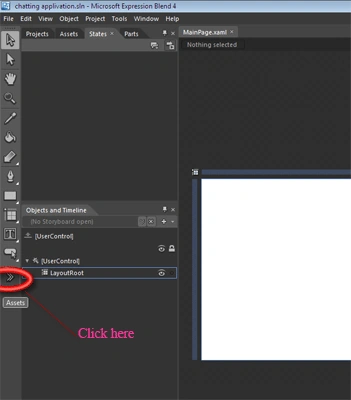
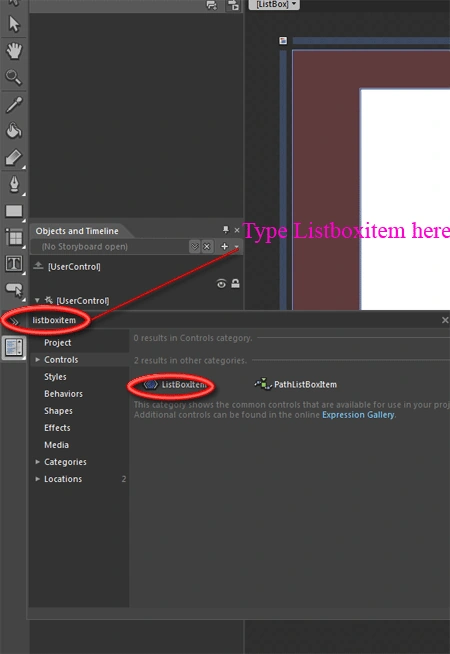
Step 1 : Open the asset library in the following way.
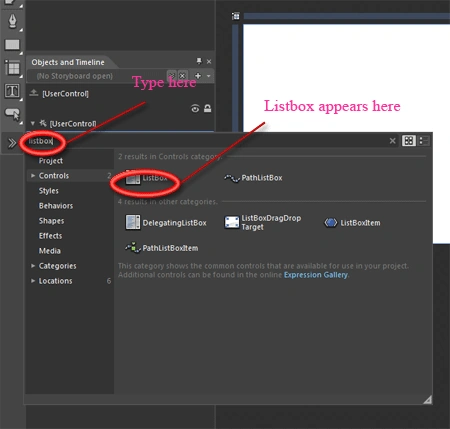
Step 2 : The search field will be displayed; type listbox: in it.
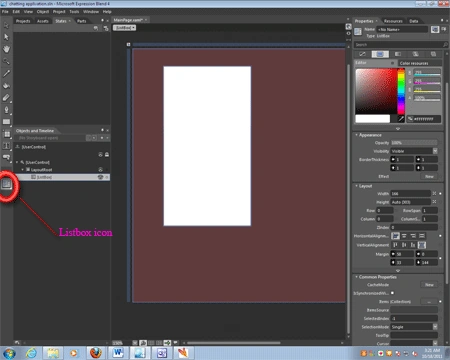
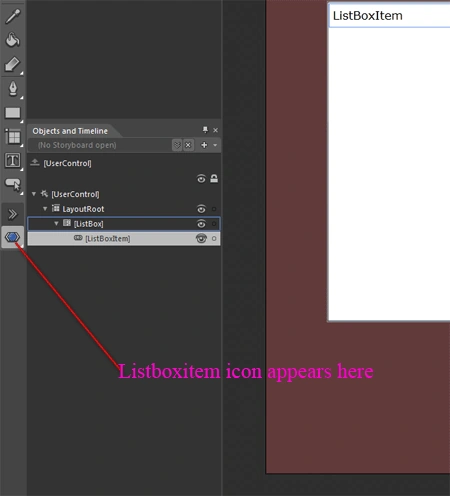
Step 3 : Now after you select the Listbox tool from the asset library, the Listbox icon appears in the tool menu. Double click the icon.
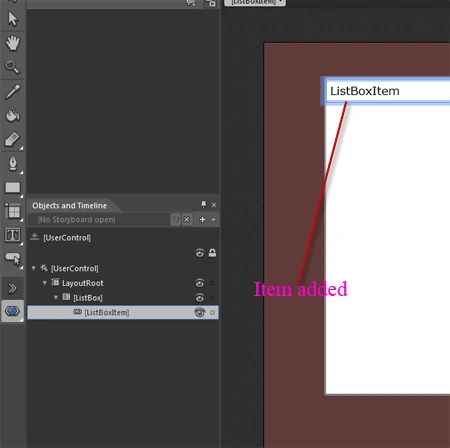
Step 4 : A listbox will be inserted as a Plain control on the artboard this plainness vanishes when you start adding items to the Listbox. You can resize and arrange the Listbox anywhere in the artboard.
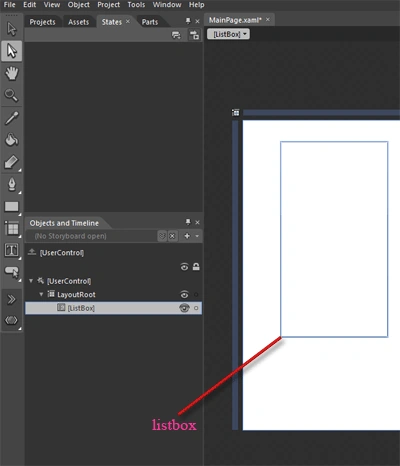
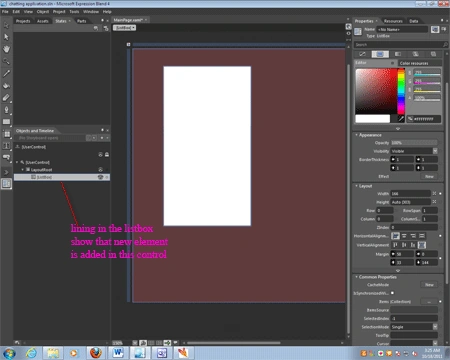
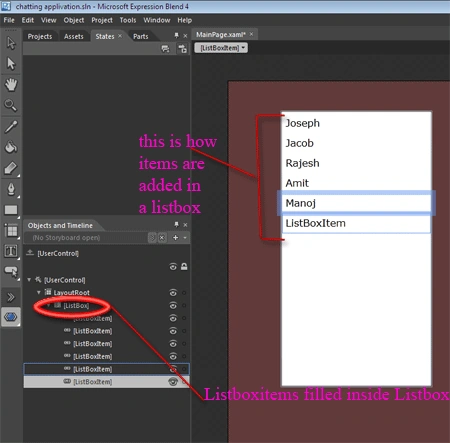
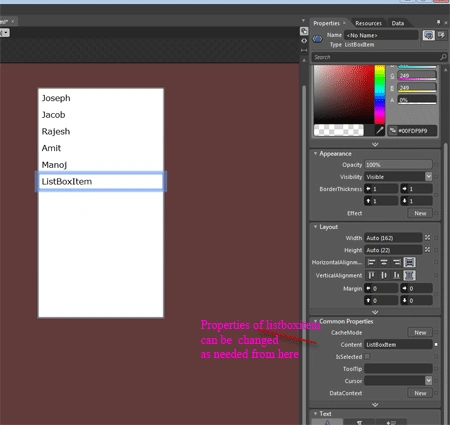
Step 5 : Now in order to add items to the listbox, the first and foremost thing is that you have to confirm that the listbox is the active container, and this is done by double-clicking on the listbox in the object tree. When you double click on the listbox in the object tree, a yellow line will appear around it like this.
Join the conversation! Your thoughts help the community grow.