
This article shows how to add more records at run time in a LightSwitch application using Visual Studio 2012.
The following is the procedure for adding more records at run time
Step 1
Open the Solution Explorer.
Step 2
In the Solution Explorer, right-click on the data source and choose "Add Table".
Step 3
The table appears.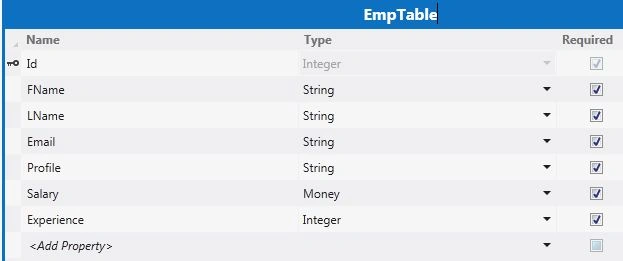
Step 4
In the Solution Explorer, right-click on the Screens and choose "Add Screen".
Step 5
Select "New Data Screen" from the Screen Templates. Under Screen Information we provide the Screen Name and select any Screen Data and then click "OK".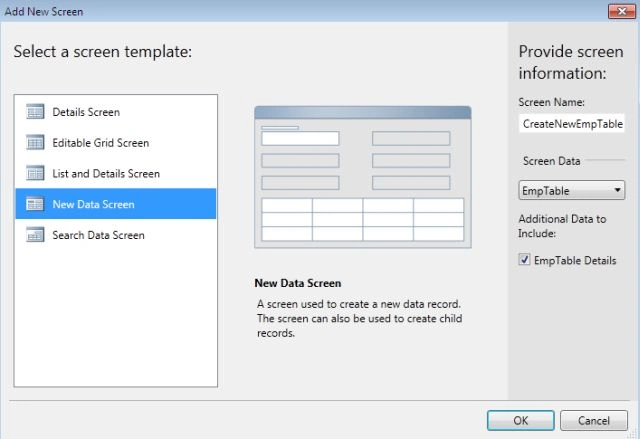
Step 6
The CreateNewEmpTable Screen Designer appears.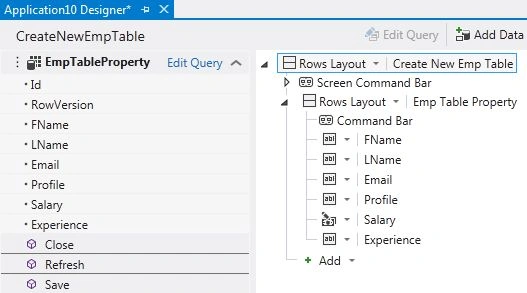
Step 7
Press F5 in to run the application.
Enter the data in the following Textboxes. Click on the Save button to store the data.
Step 8
If we want to add more records then close the current tab and click on "Tasks" and again click on "Create New Emp Table" in the Menu Bar.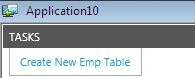
Again provide the data in the following textboxes and click on the "Close" button without saving it.
Step 9
The Unsaved changes dialog box appear on the screen.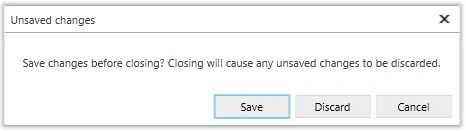
Click on the "Save" button to save the unsaved records to the database. Click on the "Discard" button if you don't want to save the records. Click on the "Cancel" button to stay on the same page.
Step 10
We can also change the Name of the screen by changing the Name in the Display Screen property window and we will see it by running the application.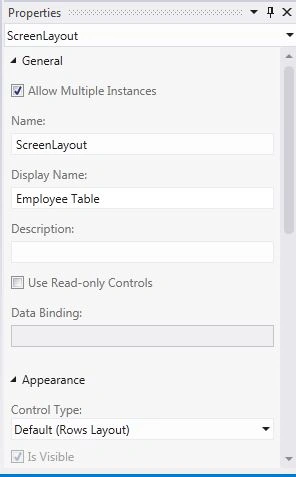
As we run the application we get:

Adding Records at Run Time in Visual Studio LightSwitch 2012
Join the conversation! Your thoughts help the community grow.
Sign in to leave a comment
It is the same account you read, post and publish with — and you will come straight back to this page.
Jaganathan BantheswaranPosted Jul 3, 2013, 5:08 AM
Nice.... "Adding Records at Run Time" what it means? where is the logic for this in the article?