

Introduction
As you know, Windows 8 comes with many great features, but the irritating one thing is that there is no Start Button in Windows 8. In this article, I will show how to let the user work with a Start Button in Windows 8.
To provide the feature of a Start Button in Windows 8 here I will use the Classic Shell that can help us to design the Start Button like in Windows 7 or XP. Now, you can easily go through the computer application or programs with the help of a Start Button.
What is Classic Shell?
So, here I will explain how to add a Start Menu Button in Windows 8.
Steps to follow
Step 1
First of all, you need to download the Classic Shell from here:
http://classicshell.sourceforge.net/
http://classicshell.sourceforge.net/
Step 2
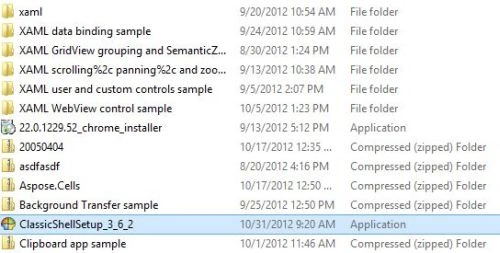
After Downloading it, you have installed the Classic Shell in Windows 8. Double-click on the ClassicShellSetup.exe file.
Select the checkbox "Create a Start menu folder option".
 Step 4
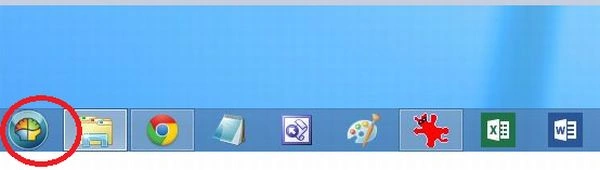
After installing the Classic Shell, you will see a Start button as in Windows 7 or XP.
Step 4
After installing the Classic Shell, you will see a Start button as in Windows 7 or XP.
 Step 5
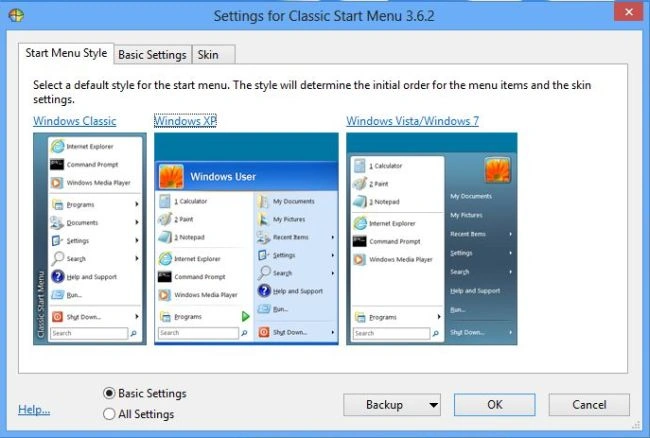
The Classic Shell enables you to customize the look of Start Menu that is displayed. There are also Windows 7 and Windows XP styles you can choose.
 Step 6
Now, you can approach any application or program using the Start Menu Button.
Step 6
Now, you can approach any application or program using the Start Menu Button.

Summary
In this article, we learned about Adding Start Button in Windows 8.
Venkatesh KumarPosted Nov 7, 2012, 6:26 AM
Intresting Tips, thanks for sharing ...