

Implementation Summary
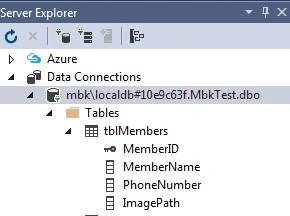
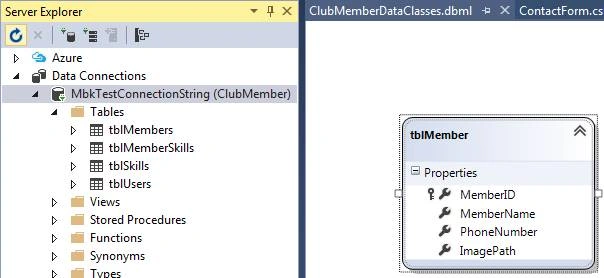
- Create a “tblMembers” table in your Database.
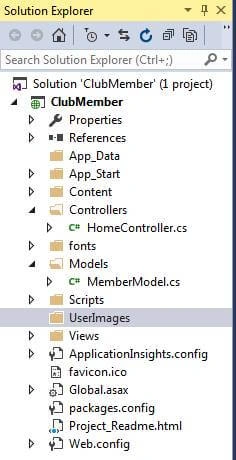
- Create a new ASP.NET MVC web application project called “ClubMember”.
- Create a Model called “MemberModel”.
- Create HTTPGET ActionMethod called “ContactForm”.
- Create a view of “ContactForm”.
- Use HTML File Upload control.
- Create HTTPPOST ActionMethod called “ContactForm” to insert record in table and save file in Server.
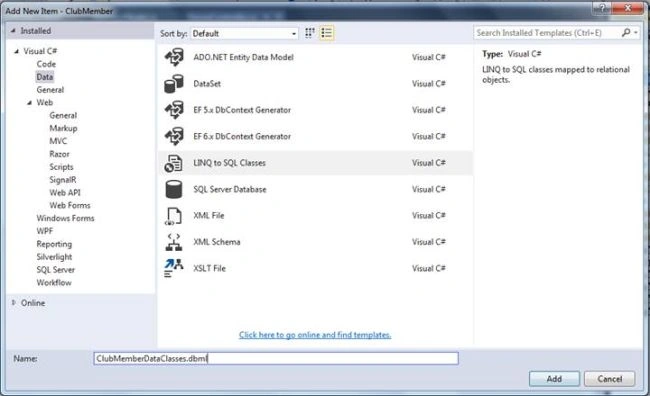
- Add Linq To Sql class “ClubMember”.
- Insert a record into a database table.
Step by step Implementation
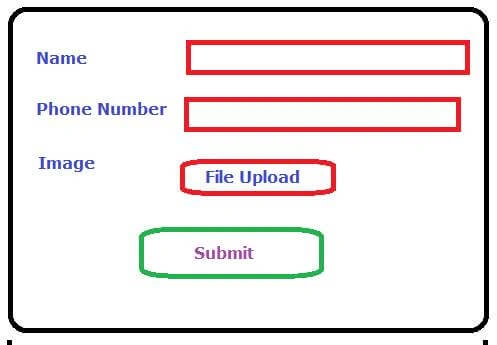
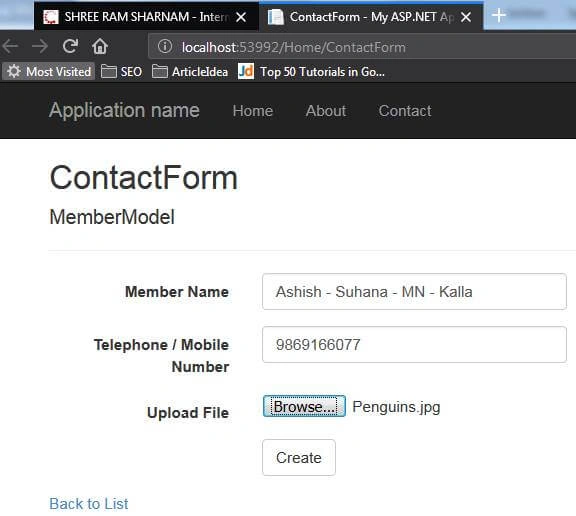
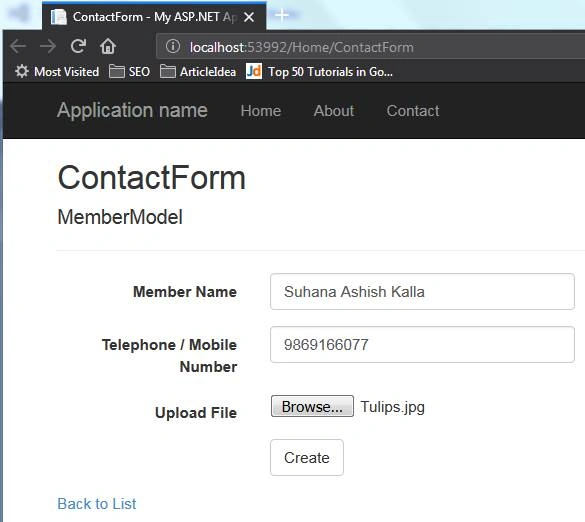
In the above form, you can see there are four objects.
- Name Textbox
- Phone Number Textbox
- Image File Upload
- Submit Button
Create a “tblMembers” table in the database.
- USE [MbkTest]
- GO
- SET ANSI_NULLS ON
- GO
- SET QUOTED_IDENTIFIER ON
- GO
- SET ANSI_PADDING ON
- GO
- CREATE TABLE [dbo].[tblMembers](
- [MemberID] [int] IDENTITY(1,1) NOT NULL,
- [MemberName] [varchar](50) NULL,
- [PhoneNumber] [varchar](50) NULL,
- [ImagePath] [varchar](500) NULL,
- PRIMARY KEY CLUSTERED
- (
- [MemberID] ASC
- )WITH (PAD_INDEX = OFF, STATISTICS_NORECOMPUTE = OFF, IGNORE_DUP_KEY = OFF, ALLOW_ROW_LOCKS = ON, ALLOW_PAGE_LOCKS = ON) ON [PRIMARY]
- ) ON [PRIMARY]
- GO
- SET ANSI_PADDING OFF
- GO
Create a new ASP.NET MVC project called “ClubMember”.
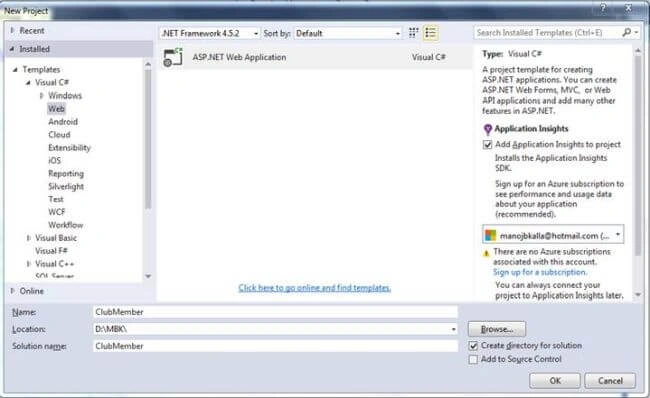
Click on “Change Authentication”.
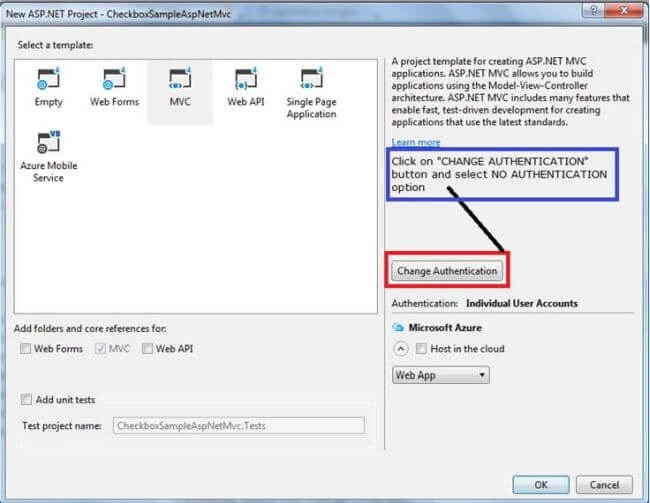
But we are looking for the following output.
Click on “Change Authentication” button and select No Authentication.
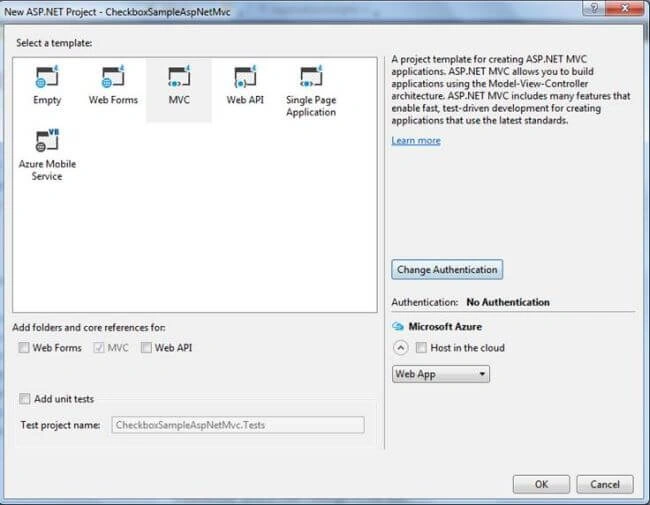
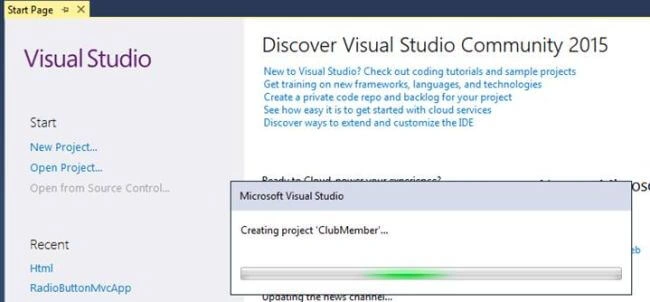
We have created a project called “ClubMember“. Now, we are going to add “MemberModel”.
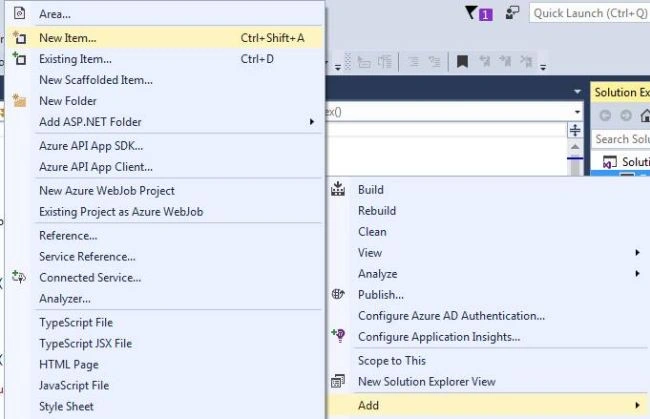
Right-click on “MODELS” folder or press CTRL+SHIFT+A to add new Model (CLASS).
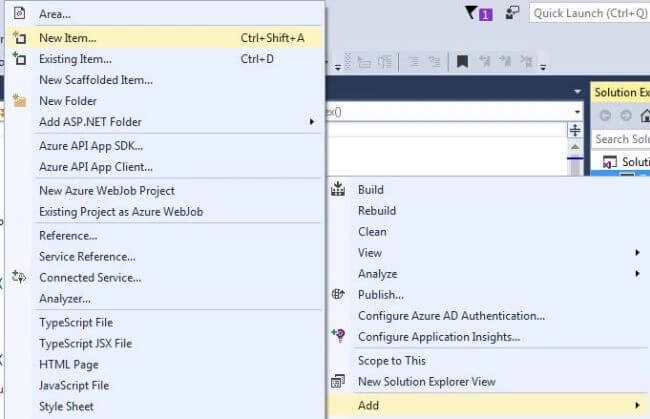
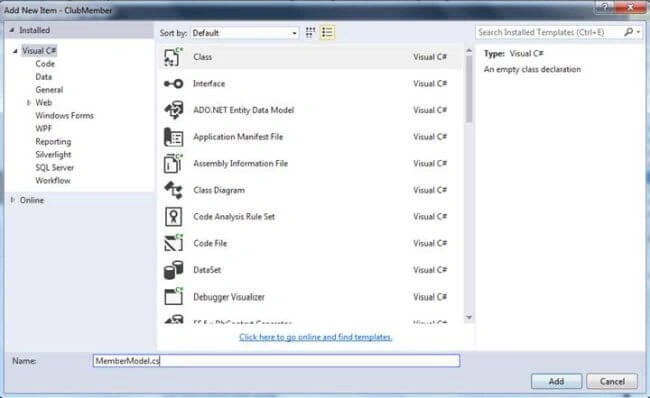
Give Model Name: “MemberModel”.
Code of MemberModel.cs
- using System;
- using System.Collections.Generic;
- using System.Linq;
- using System.Web;
- namespace ClubMember.Models
- {
- public class MemberModel
- {
- public string Name { get; set; }
- public string PhoneNumber { get; set; }
- public string ImagePath { get; set; }
- public HttpPostedFile ImageFile { get; set; }
- }
- }
Now, build your project by right-clicking on the project and selecting BUILD.
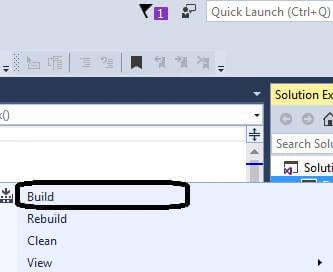
Now, switch to HOME Controller. Click on Controllers folder and double click on HOMECONTROLLER.CS file.
Create an action-method called CONTACTFORM.
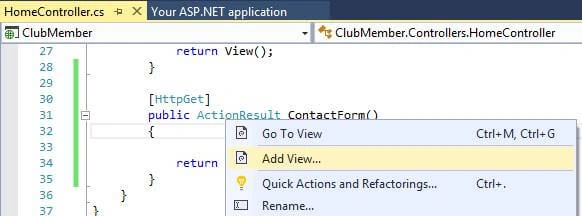
By default, the Add View dialog box will display as below.
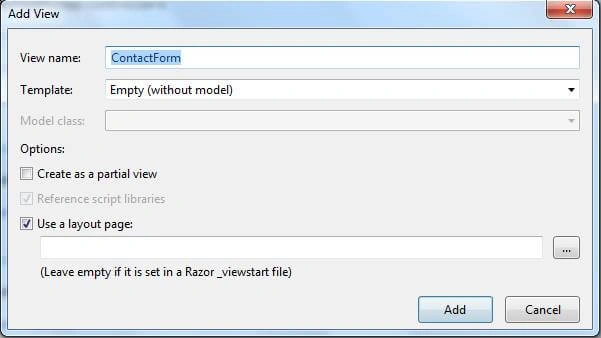
Fill the "ADD VIEW" dialog box with the following values.
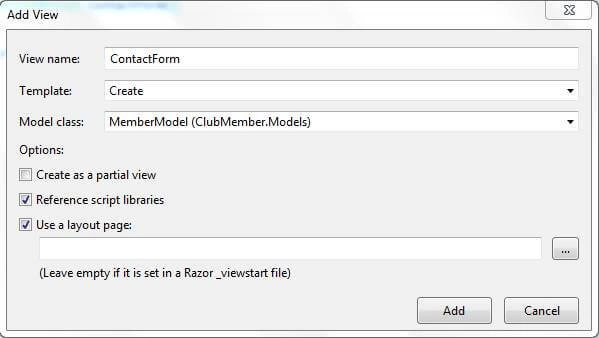
As you click on ADD button in VIEWS-->HOME folder CONTACTFORM.CSHTML file will be created.
Switch to CONTACTFORM.CSHTML file and press F5. The output screen is given below.
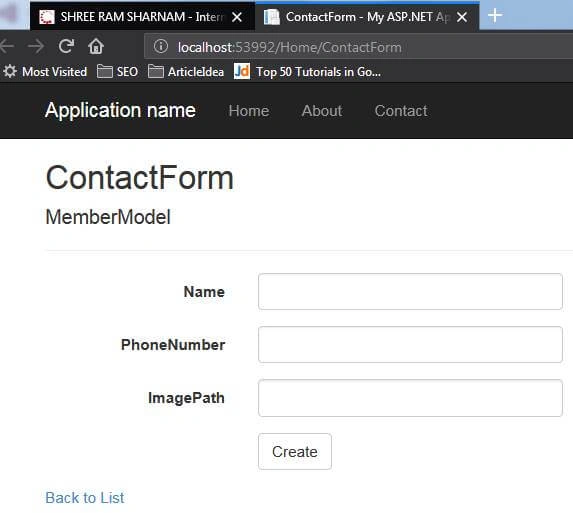
Now, let us modify the CSHTML code.
Switch to CONTACTFORM.CSHTML file, do the following changes and press F5.
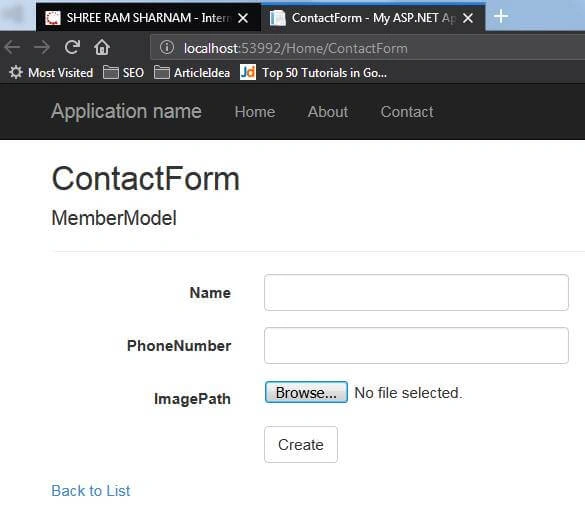
Remove following code of ImagePath
- @Html.EditorFor(model => model.ImagePath, new { htmlAttributes = new { @class = "form-control" } })
- @Html.ValidationMessageFor(model => model.ImagePath, "", new { @class = "text-danger" })
Add the following lines of code.
- <input type="file" name="ImageFile" required />
The above code line is the HTML control for file uploading.
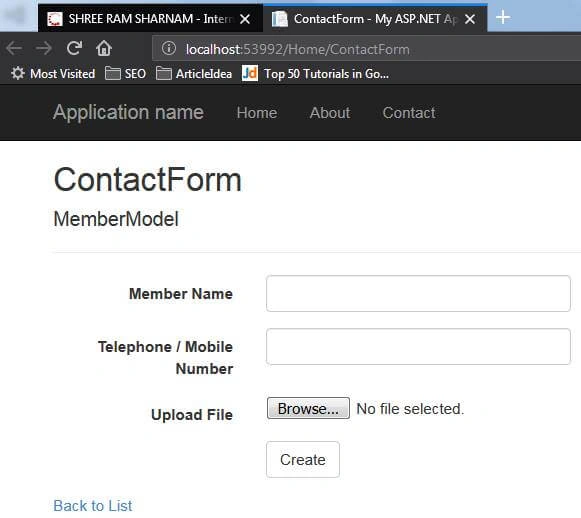
As we have changed and usedthe HTML File-Upload control named ”ImageFile”, so now, let us change the model again to change the titles of fields like this:
- Name = Member Name
- PhoneNumber = Telephone / Mobile Number
- ImagePath = Upload File
Code of MemberModel.cs
- using System;
- using System.Collections.Generic;
- using System.ComponentModel;
- using System.ComponentModel.DataAnnotations;
- using System.Linq;
- using System.Web;
- namespace ClubMember.Models
- {
- public class MemberModel
- {
- //To change label title value
- [DisplayName("Member Name")]
- public string Name { get; set; }
- //To change label title value
- [DisplayName("Telephone / Mobile Number")]
- public string PhoneNumber { get; set; }
- //To change label title value
- [DisplayName("Upload File")]
- public string ImagePath { get; set; }
- public HttpPostedFileBase ImageFile { get; set; }
- }
- }
Note
DisplayName attribute comes after using the following namespaces.
- using System.ComponentModel;
- using System.ComponentModel.DataAnnotations;
Now, again, switch to CONTACTFORM.CSHTML file, do the following changes and press F5.
Now, let us switch again to ContactForm.cshtml to change the following.
Line No. 10
@using (Html.BeginForm())
Change this to:
- @using(Html.BeginForm("ContactForm", "Home", FormMethod.Post, new
- {
- enctype = "multipart/form-data"
- }))
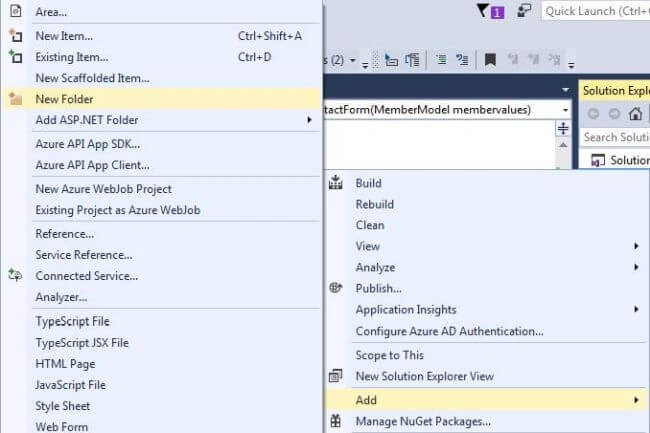
Now, let us switch back to the controller to work on it.
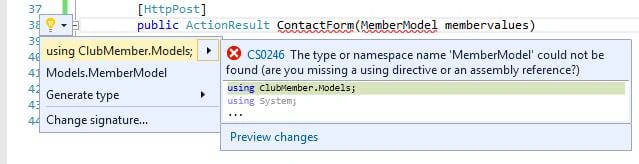

- [HttpPost]
- public ActionResult ContactForm(MemberModel membervalues)
- {
- //Use Namespace called : System.IO
- string FileName = Path.GetFileNameWithoutExtension(membervalues.ImageFile.FileName);
- //To Get File Extension
- string FileExtension = Path.GetExtension(membervalues.ImageFile.FileName);
- //Add Current Date To Attached File Name
- FileName = DateTime.Now.ToString("yyyyMMdd")+"-"+FileName.Trim()+ FileExtension;
- //Get Upload path from Web.Config file AppSettings.
- string UploadPath = ConfigurationManager.AppSettings["UserImagePath"].ToString();
- //Its Create complete path to store in server.
- membervalues.ImagePath = UploadPath + FileName;
- //To copy and save file into server.
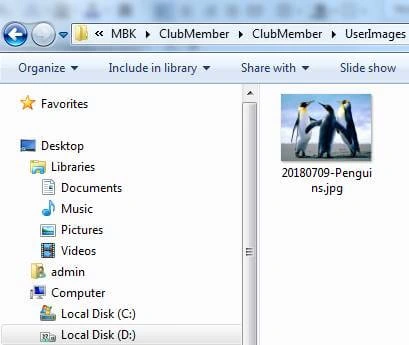
- membervalues.ImageFile.SaveAs(membervalues.ImagePath);
- return View();
- }

Debabrata MannaPosted Jul 10, 2021, 7:57 PM
Not working.
Camilo PiragautaPosted May 12, 2021, 8:17 PM
El archivo no llega al controlador ... logre solucionarlo asi: Request.Files[0].FileName
La ThanhPosted Nov 3, 2020, 11:03 PM
How to change a new name for named is Tulips ?
mohamed tammamPosted Oct 5, 2020, 2:51 AM
Thanks for the clear illustration, I wonder is there is any way to put the file in the upload file control again in case of editing
Neeraj SinghPosted Aug 15, 2020, 2:07 AM
Useless.... not getting file in post
shiva kskPosted May 19, 2020, 3:59 AM
It good but Object reference not set to an instance of an object. give replay
shiva kskPosted May 19, 2020, 3:59 AM
Error is throwing
thanakorn bowchokchaiPosted Oct 15, 2019, 4:03 AM
<input type="file" name="ImageFile" required /> **** model don't have value change code ** @Html.TextBoxFor(m => m.ImageFile, new { type = "", accept = "image/*,.pdf" })
Usama MohsinPosted Sep 18, 2019, 1:25 AM
It would be better to include hours, minutes and seconds also in FileName because same file with same name can be uploaded more than one times in a day.
Jin NecesarioPosted Aug 21, 2019, 4:11 AM
Nice article great example and easy to follow.
Pankajkumar PatelPosted Aug 20, 2019, 12:15 AM
Nice article
G PPosted Jun 21, 2019, 1:12 PM
This is a great example of uploading the files. Do you have an example of downloading?
Kirankumar ShindePosted Jun 21, 2019, 2:06 AM
String FileName = Path.GetFileNameWithoutExtension(membarvalues.ImageFile.FileName);
Kirankumar ShindePosted Jun 21, 2019, 2:05 AM
It good but Object reference not set to an instance of an object.
Kirankumar ShindePosted Jun 21, 2019, 2:04 AM
Hello its good but give Exception on
Terence MatiwurePosted May 12, 2019, 5:49 AM
Very good article. Now how do you download the image in mvc step by step please
Rajesh KumarPosted Aug 1, 2018, 11:50 PM
Nice one sir
Farhan AhmedPosted Jul 24, 2018, 1:02 AM
Like it. nice one
Hadshana KamalanathanPosted Jul 17, 2018, 3:07 AM
Thank you for sharing...